
Use automatic tax rates
Let Stripe work out the exact tax on every order from the shopper's address, and see what Stripe charges you for it.
Automatic tax rates let Stripe work out the exact tax on every order, down to the city, from the shopper's address and what they buy. You don't type in any rates. It runs on your own Stripe account and works for both card and PayPal orders.
Before you start
- Your store needs Stripe connected (see Connect Stripe). Automatic tax rates run on your Stripe account, even for orders paid with PayPal.
- Your Stripe account must be in one of the 41 countries where Stripe can work out tax: the United States, Canada, the United Kingdom, the 27 countries of the European Union, Australia, New Zealand, Japan, Singapore, Hong Kong, Switzerland, Norway, Liechtenstein, the United Arab Emirates, Mexico, and Puerto Rico. Anywhere else, the card says automatic tax rates aren't available, and your own tax rates keep working.
- Register to collect tax in each state or country before you add it. Payly and Stripe don't register for you.
Turn on automatic tax rates
- In your site dashboard, click Settings, then click the Shipping & Tax tab.
- In the Automatic tax rates card, turn on Use automatic tax rates.
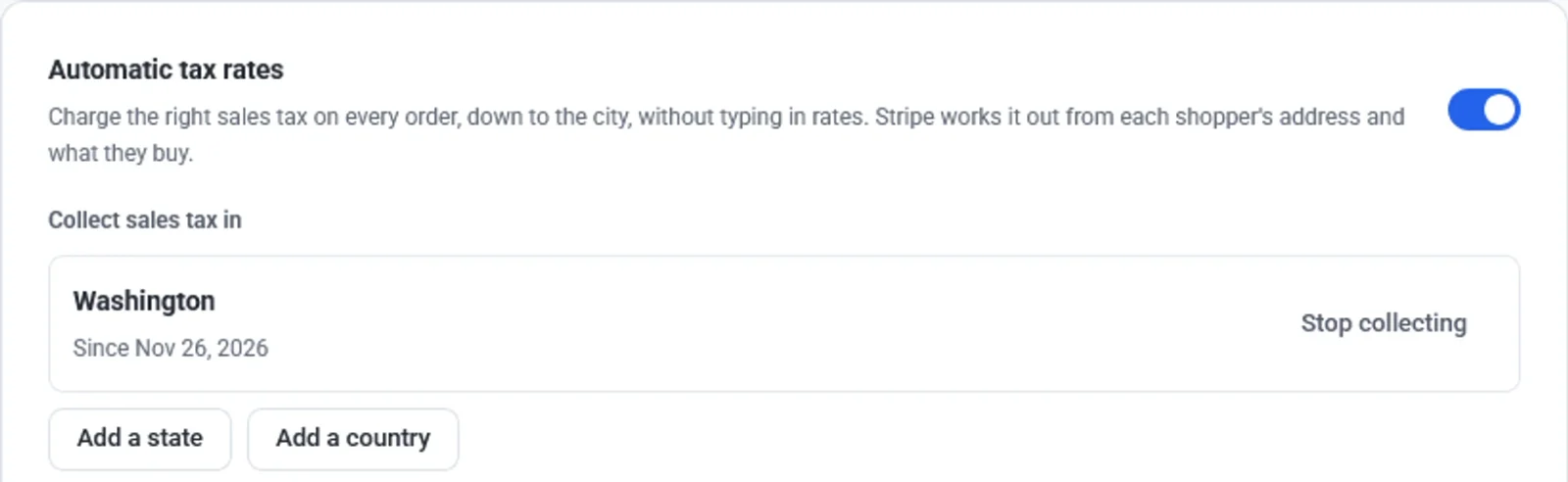
- If the card asks for Your business address, enter it and click Save address. Stripe needs it before it can work out tax.
- Add each state or place where you collect tax, and choose when checkout shows the tax, as shown below.
- Publish your site. Your checkout gets the Calculate tax link, or your other choice, when you publish. Until then, the Tax line says "Added at payment", and shoppers are still charged the right tax when they pay.
Add the states where you collect sales tax
If your Stripe account is in the United States:
- Click Add a state.
- Pick the State, then click Collect sales tax.
Orders shipped to that state get its sales tax right away, so add a state only once you have its sales tax permit. Orders shipped to any other state get no sales tax. To stop, click Stop collecting beside the state.
If you're also registered for tax in another country, click Add a country and add it the same way.
Add the places where you collect tax
If your Stripe account is in another country, click Add a place, pick the Place, then click Collect tax. Add a place only once you're registered for its tax.
- In the European Union, the card asks "Do you sell more than €10,000 a year to shoppers in other EU countries?" If you pick No, your own VAT rate applies to sales across the EU. If you pick Yes, also add the EU One-Stop Shop (VAT).
- For Canada, add GST/HST, plus the tax of British Columbia (PST), Manitoba (RST), Quebec (QST), or Saskatchewan (PST) where you're registered for it. Sellers outside Canada who sell digital products usually have the simplified GST/HST registration.
Choose when checkout shows the tax
Each time your checkout asks Stripe for the tax, it uses a tax lookup, which can cost you (see What it costs below). Under Show the tax at checkout on the card, pick when your checkout asks. Your choice is saved at once.
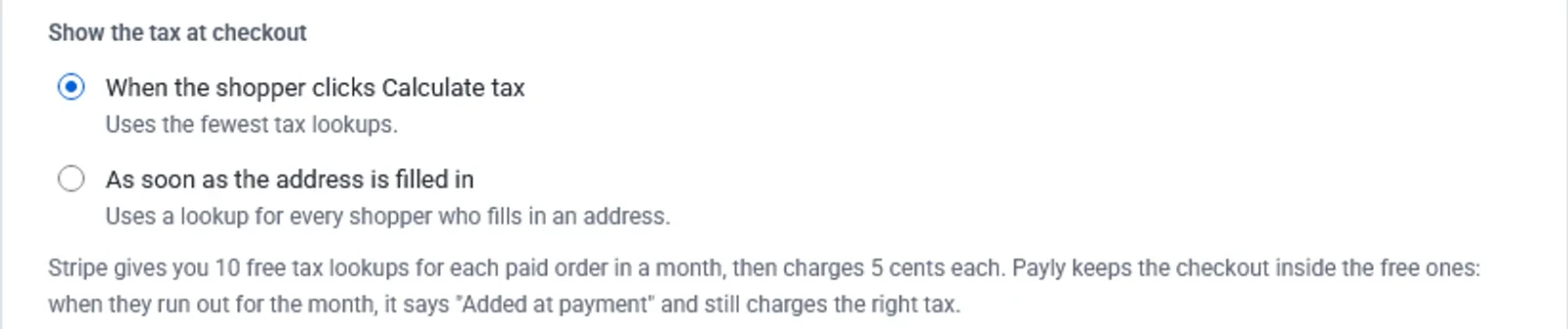
- When the shopper clicks Calculate tax is the default, and it uses the fewest tax lookups. Once the shopper's whole address is in, a Calculate tax link takes the place of the amount on the Tax line. Shoppers who never click don't use a lookup, and their tax is added when they pay.
- As soon as the address is filled in looks up the tax when the shopper leaves an address field, never while they're typing. Shoppers see the exact total without a click, but it uses a lookup for every shopper who fills in an address, even if they don't buy.
Either way, Payly limits how many lookups your checkout makes each month (see What it costs below). Past the limit, the Tax line says "Added at payment", and shoppers are still charged the right tax when they pay.
Pick a tax category for each product
Some states don't tax clothing, food, or digital items. While automatic tax rates are on, each product has a Tax category in the product editor: General goods, Clothing and shoes, Groceries, Prepared food and drinks, Digital download, E-book, Digital art and photos, Service, or Not taxable. Pick the closest one. If you don't pick one, a product counts as General goods, or as a Digital download if it's a digital product.
What shoppers see at checkout
Once the shopper has entered their whole address (street, city, state, and ZIP code), and the order goes to a place where you collect tax, the Tax line shows a Calculate tax link. Before that, it says "Added at payment".
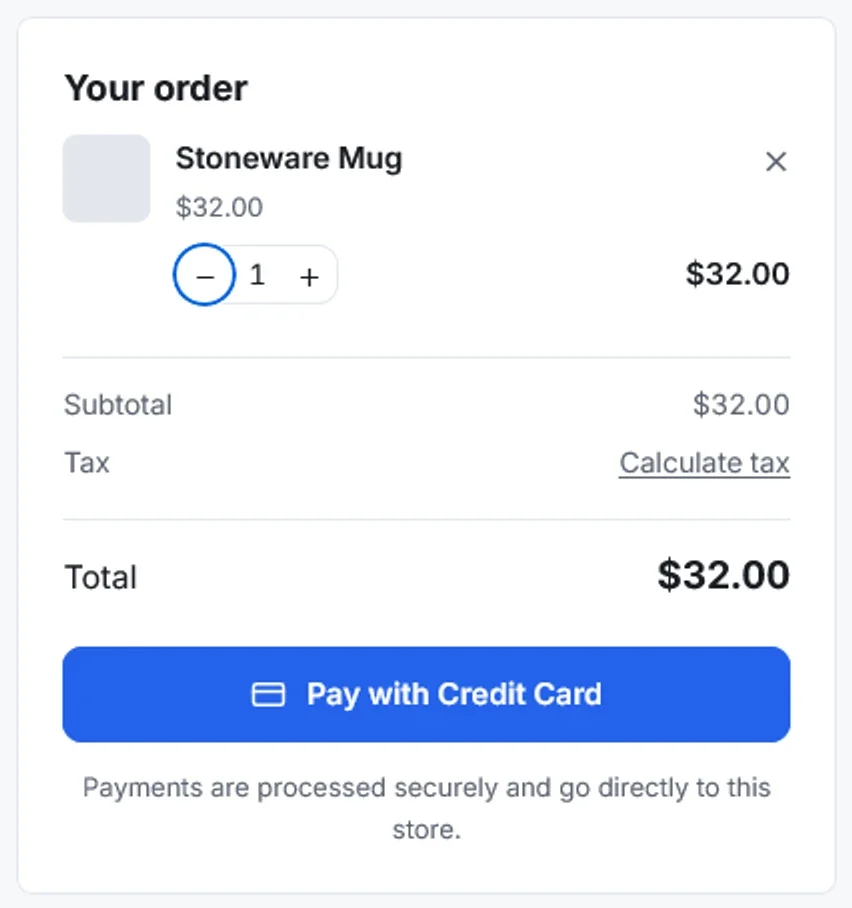
When the shopper clicks the link, the checkout shows the exact tax and total. If they change their address or cart, the link comes back. If they never click, the tax is added when they pay, on Stripe's payment page or in PayPal, so the total on your checkout doesn't include it yet. If you chose As soon as the address is filled in, the exact tax and total show without a click.
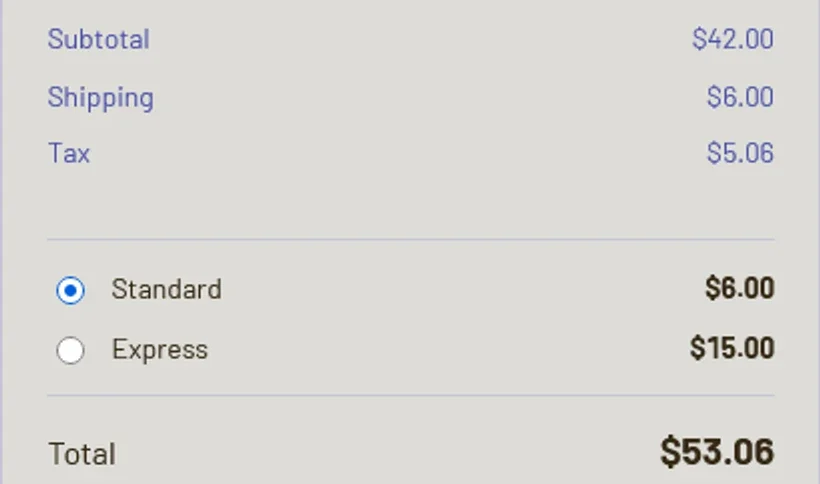
Once the exact total shows, Stripe's payment page and PayPal charge that same total.
If the ZIP code isn't in the state the shopper picked, checkout says so, for example "This ZIP code isn't in Washington." The shopper can't pay until they fix it. In Canada, checkout checks the postal code and province the same way.
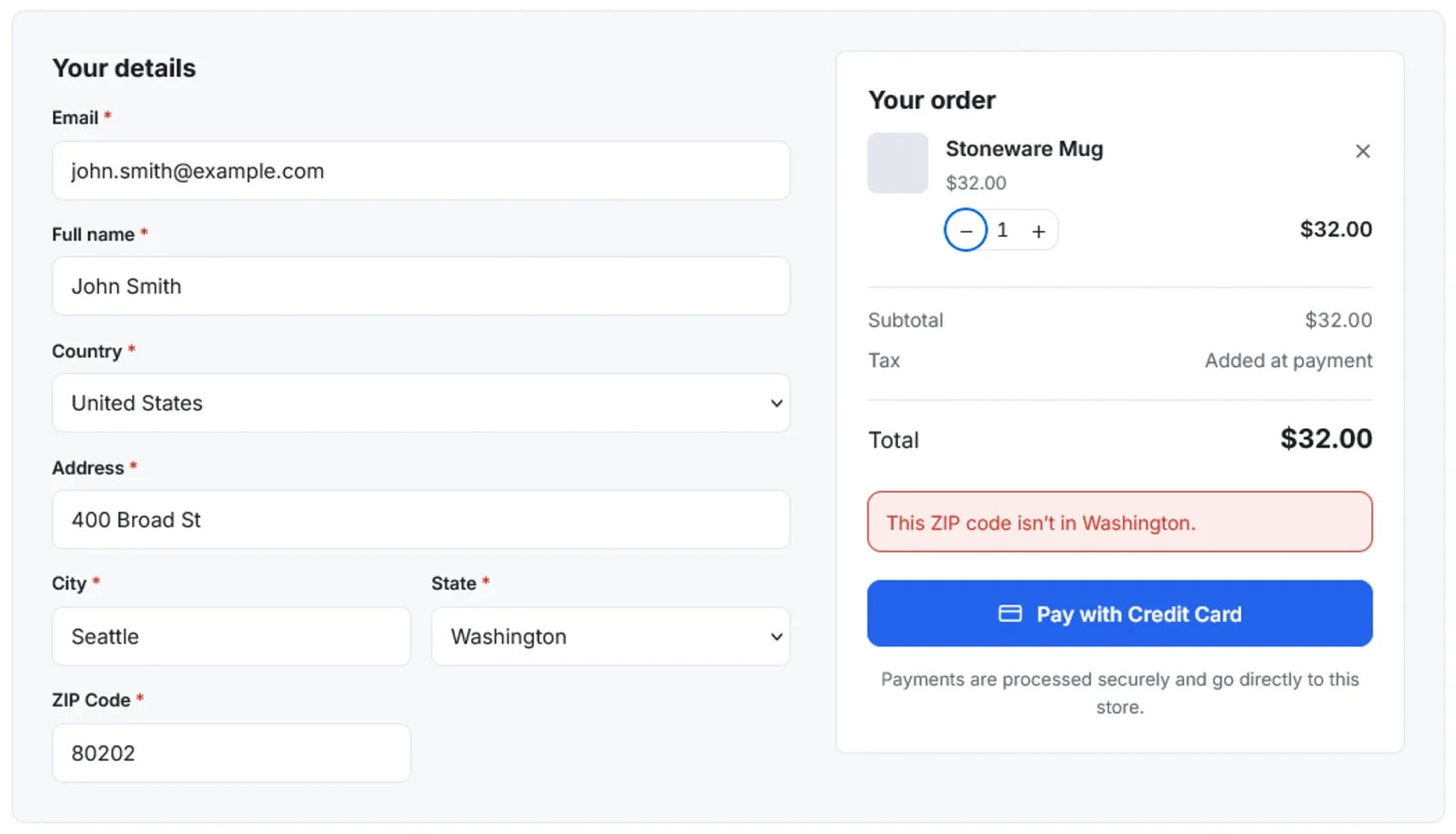
If Stripe can't work out the tax for an address, checkout asks the shopper to check the street, city, state, and ZIP code, then try again.
If your Stripe account is outside the United States, Canada, and Puerto Rico, your prices already include tax. The Tax line shows how much of the price is tax, for example "£7.50 included", and the total doesn't change.
What it costs
Payly charges nothing for automatic tax rates. Stripe charges you, the store owner, for working out the tax. Your shoppers never pay these fees. Stripe takes them from your Stripe balance, even for orders paid with PayPal.
| When | Stripe's fee |
|---|---|
| A shopper pays for an order with something to ship, by card or PayPal, in a state or place where you collect tax | 50 cents, even if the tax comes to $0 |
| A shopper pays by card for an order with nothing to ship, in a state or place where you collect tax | 0.5% of the order total, tax included |
| Your checkout looks up the tax | 5 cents, but each 50-cent order comes with 10 free lookups that month |
| An order to a place where you don't collect tax | Nothing |
How tax lookups work
- Your checkout looks up the tax only for an address in a state or place where you collect tax: when the shopper clicks Calculate tax, or when they leave an address field if you chose As soon as the address is filled in. A change to the address or cart needs a new lookup.
- When the shopper pays, the payment works out the tax too. It reuses the checkout's lookup if the address and cart are the same, and otherwise makes one. So a paid order usually needs one lookup, and a shopper who starts paying and then leaves can use one too.
- Each 50-cent order comes with 10 free lookups, counted over the calendar month. Free lookups don't carry over to the next month.
How Payly limits lookups
- Each calendar month, your checkout can make 20 lookups, plus 10 more for every 50-cent order paid that month. Past that, the Tax line says "Added at payment" instead of showing the Calculate tax link, and shoppers are still charged the right tax when they pay.
- Those first 20 aren't part of Stripe's free lookups, so they can cost up to $1 a month (20 lookups at 5 cents each).
- Payments are never held back by the limit. So a store with many payments started but not finished can, rarely, go past the free lookups.
- The limit applies to live orders only. It doesn't apply in test mode.
Tip: To pay the least for lookups, keep the default, where shoppers click Calculate tax to see the tax. Shoppers who never click don't use a lookup.
When Stripe takes the fees
Stripe takes its fees from your Stripe balance each day, including 5 cents for every lookup. At the end of the month, Stripe gives back 5 cents for each lookup your paid orders covered. Stripe says this is usually done within three business days after the month ends.
Outside the United States
Stripe charges about the same amounts in your own currency, based on where your business is. In Canada, for example, it's CA$0.50 an order and CA$0.05 a lookup.
Good to know
- Your usual Stripe or PayPal payment fee is worked out on the whole total the shopper pays, tax included, just as with your own tax rates.
- When you refund an order, Payly tells Stripe, so your tax numbers stay right. Stripe's pricing page doesn't say whether this costs anything, or whether a fee comes back.
- Stripe's pricing page doesn't say what happens if your Stripe balance is too low to cover the fees.
For the details, see Stripe's tax pricing.
When your own tax rates still apply
While automatic tax rates are on, the rates you typed in under Tax rates still apply to:
- Orders shipped to countries where you don't collect tax
- Subscriptions
- Point of sale
- PayPal orders with nothing to ship
- Restaurant orders
To add or change those rates, see Set up sales tax.
Test mode
While test mode is on, the card uses your Stripe test account, which keeps its own states and places. Add the ones you want to test while test mode is on. Your live account doesn't change.
Turn off automatic tax rates
- Turn off Use automatic tax rates.
- When asked "Turn off automatic tax rates?", click Turn off.
New orders use your own tax rates again. Your states and places stay saved in Stripe.
You still file and pay the tax
The tax your shoppers pay comes to you with each order. You still register with each tax authority, and file and pay the tax yourself. Payly and Stripe don't register or file for you. For the numbers, go to Sales > Reports > Taxes.