
Add and manage pages
Switch between pages, add new ones, rename them, change their web address, show or hide them in your menu, duplicate them and delete them.
Your store is made of pages: a home page, a shop, an About page and so on. You switch between them and manage them from the top of the editor.
Switch to another page
- In the top bar, click the page picker. It shows the name of the page you are editing, such as Home.
- Click the page you want to edit. The page picker lists each page with its web address.
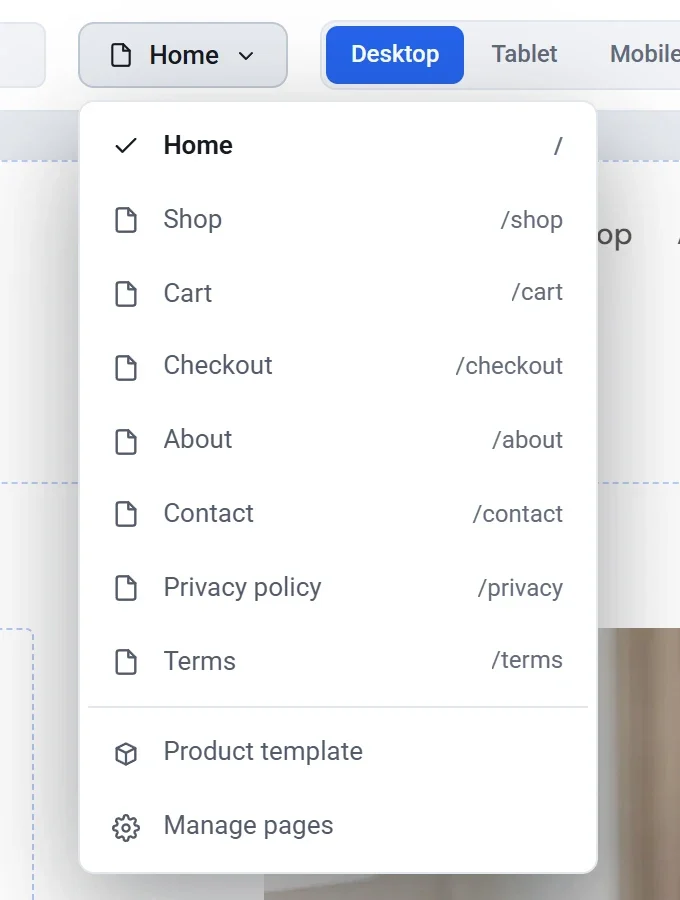
The Product template entry opens the design that every product page shares. See How product pages work.
Set a page's title and description
When no block is selected, the settings panel shows the page itself. Click on the gray area beside the page, or press Esc, if you see a block's settings instead.
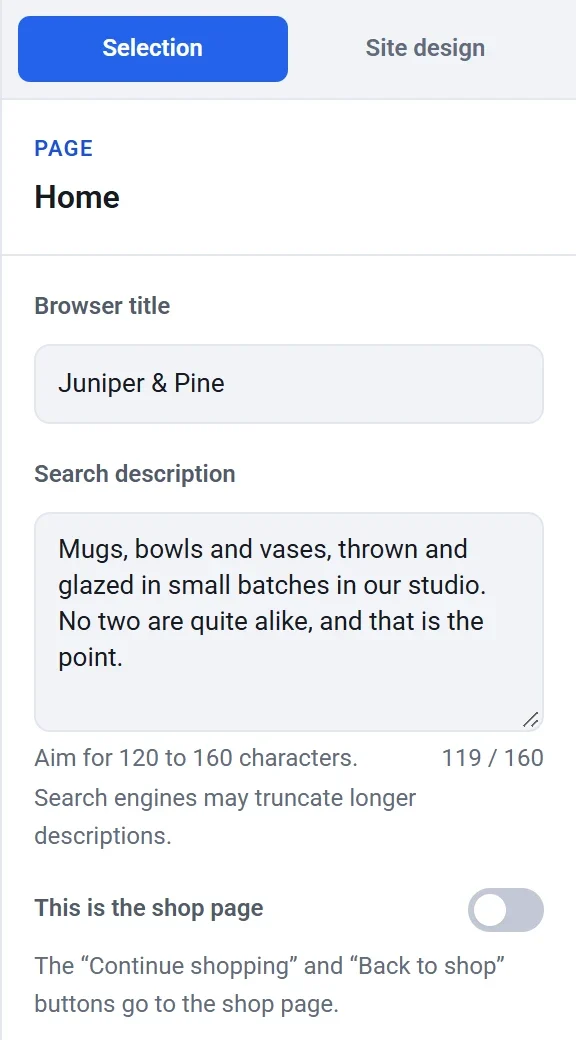
- Browser title is the page's name on a browser tab and in search results.
- Search description is the short line shown under the title in search results. Aim for 120 to 160 characters. A counter under the box shows how many you have used.
- This is the shop page marks the page that the Continue shopping and Back to shop buttons lead to. See Set up your shop page.
For tips on writing these, see Help customers find your store on Google.
Open the Pages window
For everything else, use the Pages window.
- Click the page picker in the top bar.
- Click Manage pages at the bottom of the list.
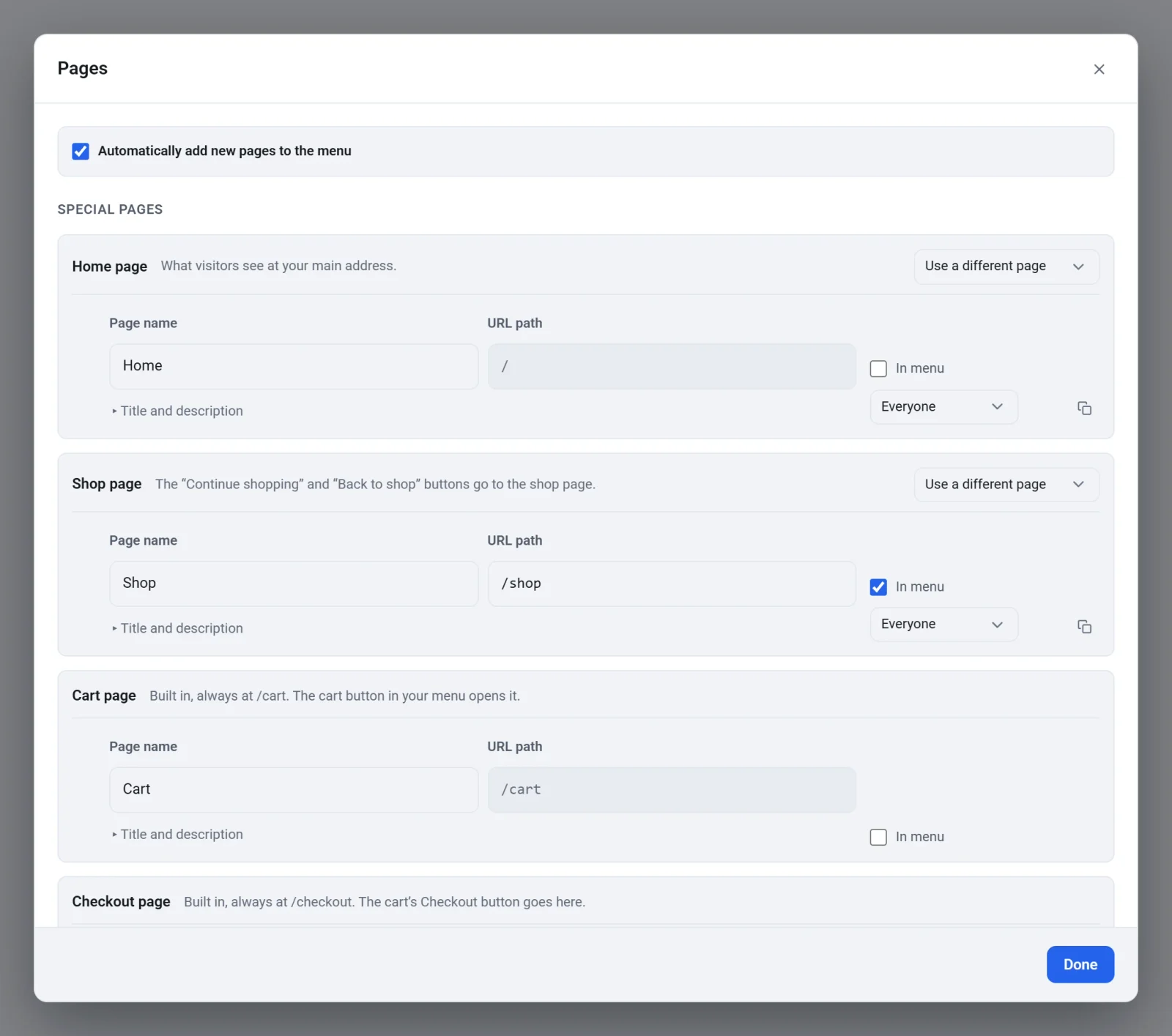
The window lists every page as a row. At the top, Automatically add new pages to the menu decides whether a page you add appears in your site menu straight away. It is on at first.
Special pages
The first group, Special pages, holds the pages your store depends on:
- Home page is what visitors see at your main address.
- Shop page is where the Continue shopping and Back to shop buttons go.
- Cart page and Checkout page are built in and always live at
/cartand/checkout. Their addresses are fixed. You cannot delete them.
The Home and Shop rows have a Use a different page list. Use it to give the job to another page. The page you choose moves up into the special group.
Other pages
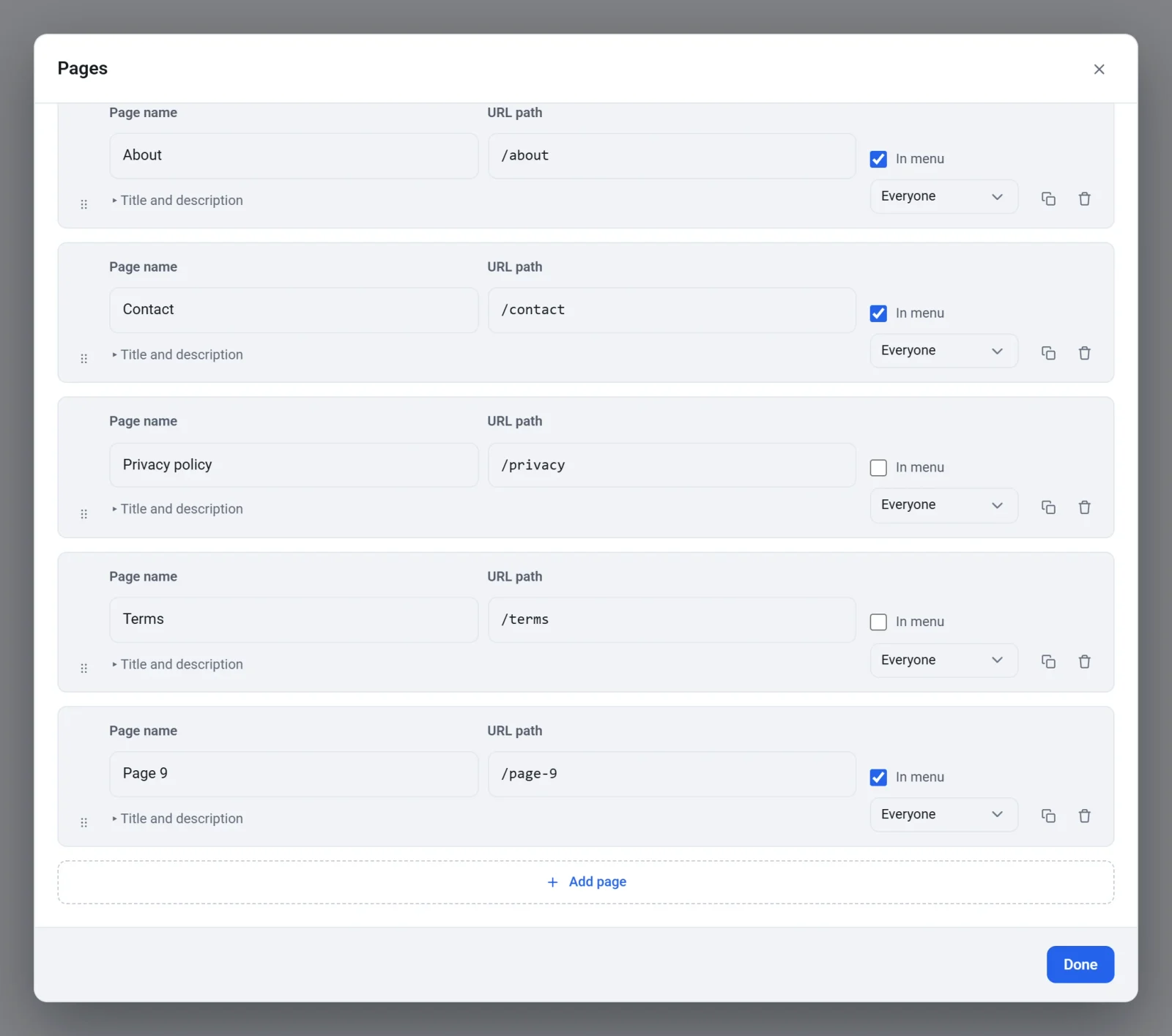
Every other page gets a row of its own under Other pages.
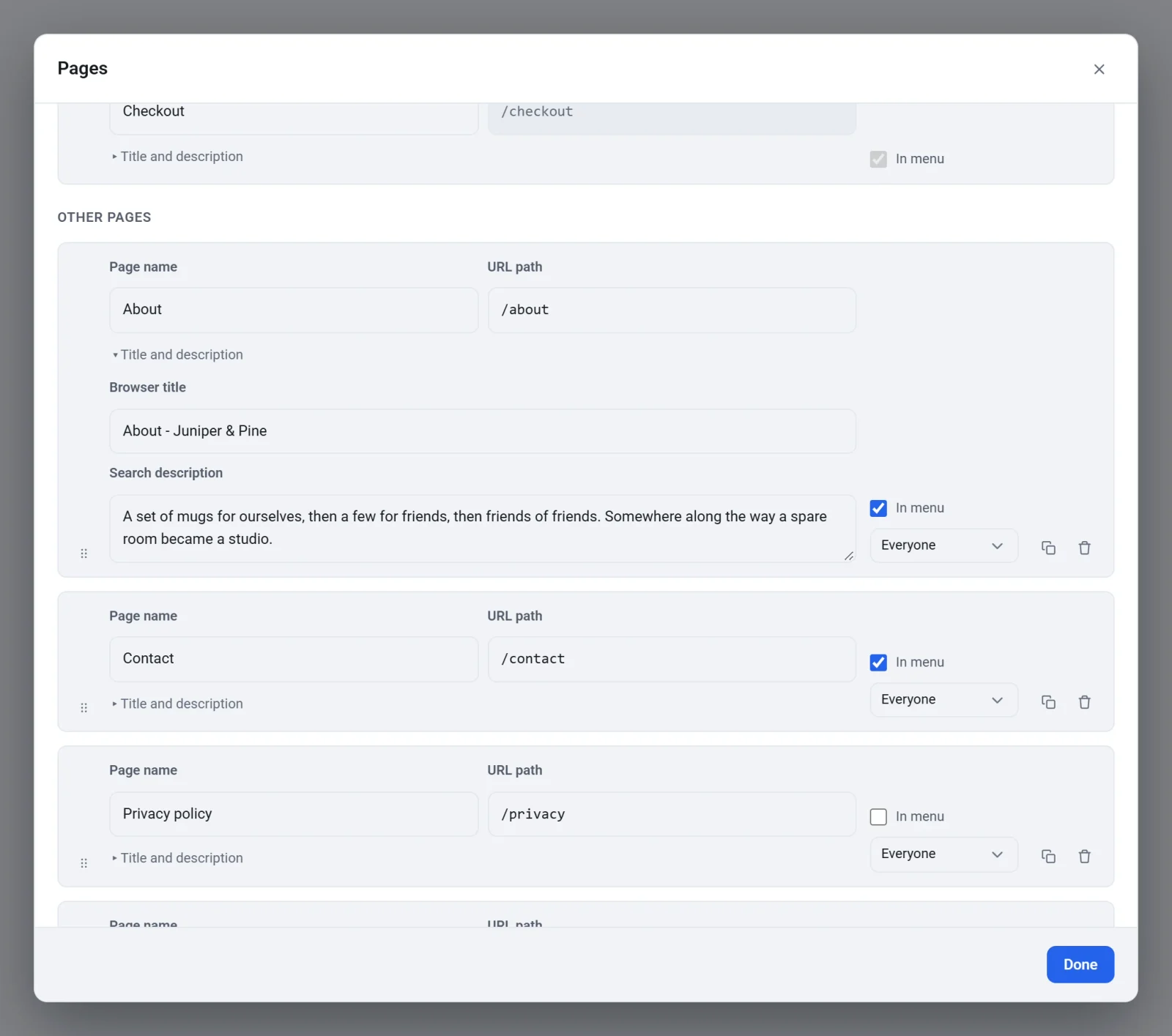
- Page name: the name used in the page picker and, if the page is in the menu, in the menu too. Renaming a page also renames its menu link. The browser title follows the name until you write a title of your own.
- URL path: the end of the page's web address. If you type
our story, the address becomes/our-story. Your menu link and any button set to link to this page (not a custom link) follow the new address. Links from other websites and from emails you have already sent do not, so avoid changing the address of a page you have already shared. - Title and description: click it to show the page's Browser title and Search description.
- In menu: tick it to show a link to the page in your menus, or untick it to hide the page from them. The page still exists and still works if someone has its address. Checkout is always in the menu, because shoppers must always be able to reach it.
- The list that says Everyone chooses who can see the page. It appears once you have created membership levels. See Make pages members-only.
- The two-squares button (Duplicate page) makes a copy of the page, with all its sections, just below it. The copy is named after the original with (copy) added.
- The trash button (Delete page) deletes the page.
Add a page
- In the Pages window, scroll to the bottom and click Add page.
- Type a name in Page name, for example Care instructions. Change the URL path too, if you like.
- Click Done.
- Choose the new page in the page picker and build it. It starts with one empty section. See Work with sections.
A new page is named Page followed by a number, such as Page 9, and gets a matching address such as /page-9. If Automatically add new pages to the menu is on, it is added to your menus. Visitors cannot see it until you publish.
Delete a page
- In the Pages window, click the trash button on the page's row.
- Read the message and click Delete page.
The page and all of its sections are removed, and so is its menu link. Click Undo in the top bar, or press Ctrl + Z, if you delete one by mistake. A site always keeps at least one page, and the special pages have no trash button. To delete a page that is your home or shop page, first give that job to another page with Use a different page.