
Move from WooCommerce
Import your WooCommerce products from your store's address, or from WooCommerce's product export file.
WooCommerce stores can come over two ways: by the site's address, or from the product file WooCommerce exports.
The quickest way: your store's address
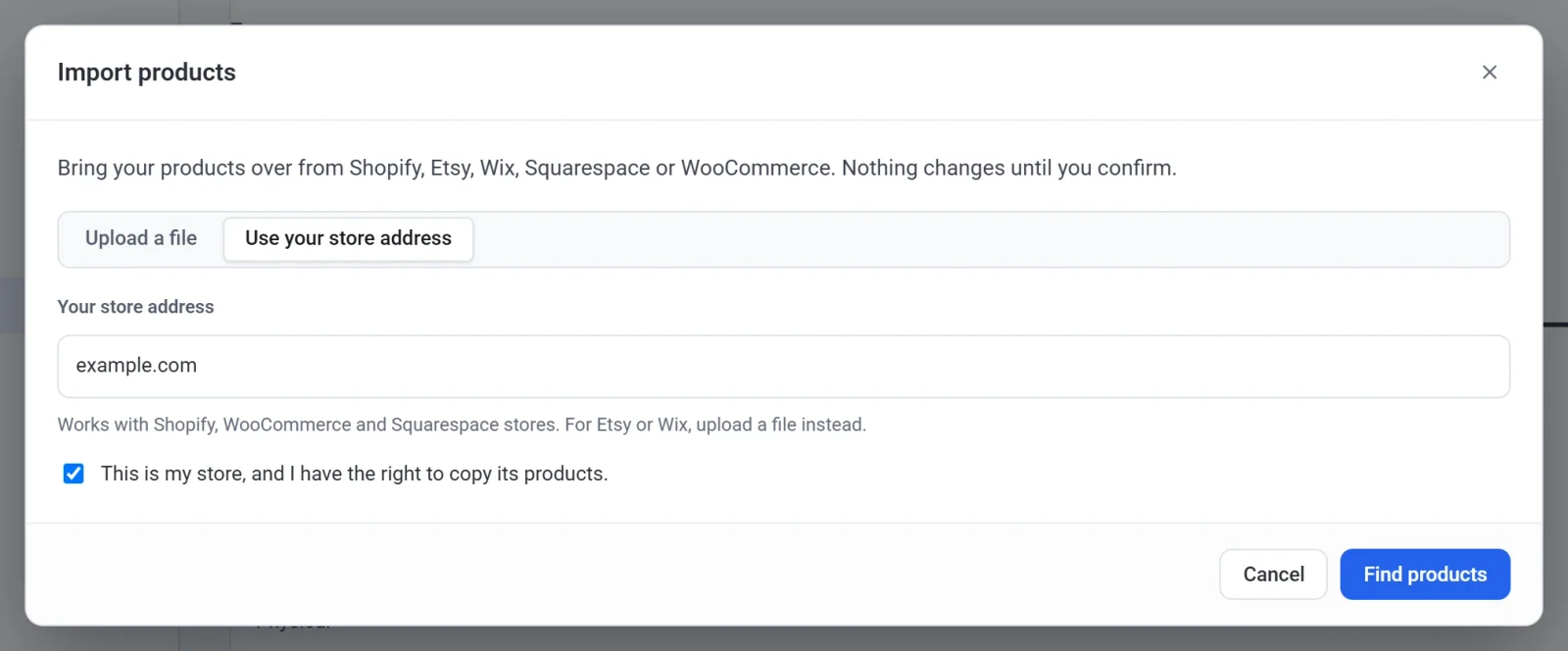
In Payly, click Products, Import, Use your store address, and type your WordPress site's address. See Import products from another store.
Or export a file from WooCommerce
- In WordPress, go to Products, then All Products, and click Export at the top.
- Leave every column and product type selected, and click Generate CSV.
- In Payly, click Products, Import, and drop the file on the box.
Good to know
- A file from a store in another language (German, French and so on) imports too. Leave all columns selected when you export: Payly reads the columns in WooCommerce's own order.
- Grouped and external (affiliate) products are not imported. The products inside a group are.
- Download files are not part of the export. Upload them again in each product.
- From your store's address, WooCommerce only says whether something is in stock, not how many. Set your counts after importing, or import the file instead.