Import products from another store
Bring your products over from Shopify, Etsy, Wix, Squarespace or WooCommerce, from the file your store exports or just its address.
Moving to Payly does not mean typing your catalog in again. The importer reads the products from your current store and adds them to Payly, with their photos, prices, options and stock.
Before you start
- Connect Cloudflare. Your product photos are copied into your store's own storage, which lives in your Cloudflare account. See Connect your Cloudflare account.
- Set your store currency. Prices come in as numbers and are read in your store's currency. See Set your store currency.
- Keep your old store open until you have checked everything. You will want to compare, and your photos load from it until they are copied.
Import from a file
- In your site dashboard, click Products, then Import.

- Leave Upload a file selected and drop your export file on the box, or click Choose file. Not sure where to find the file? Click Where do I find this file?, or see the article for your platform below.
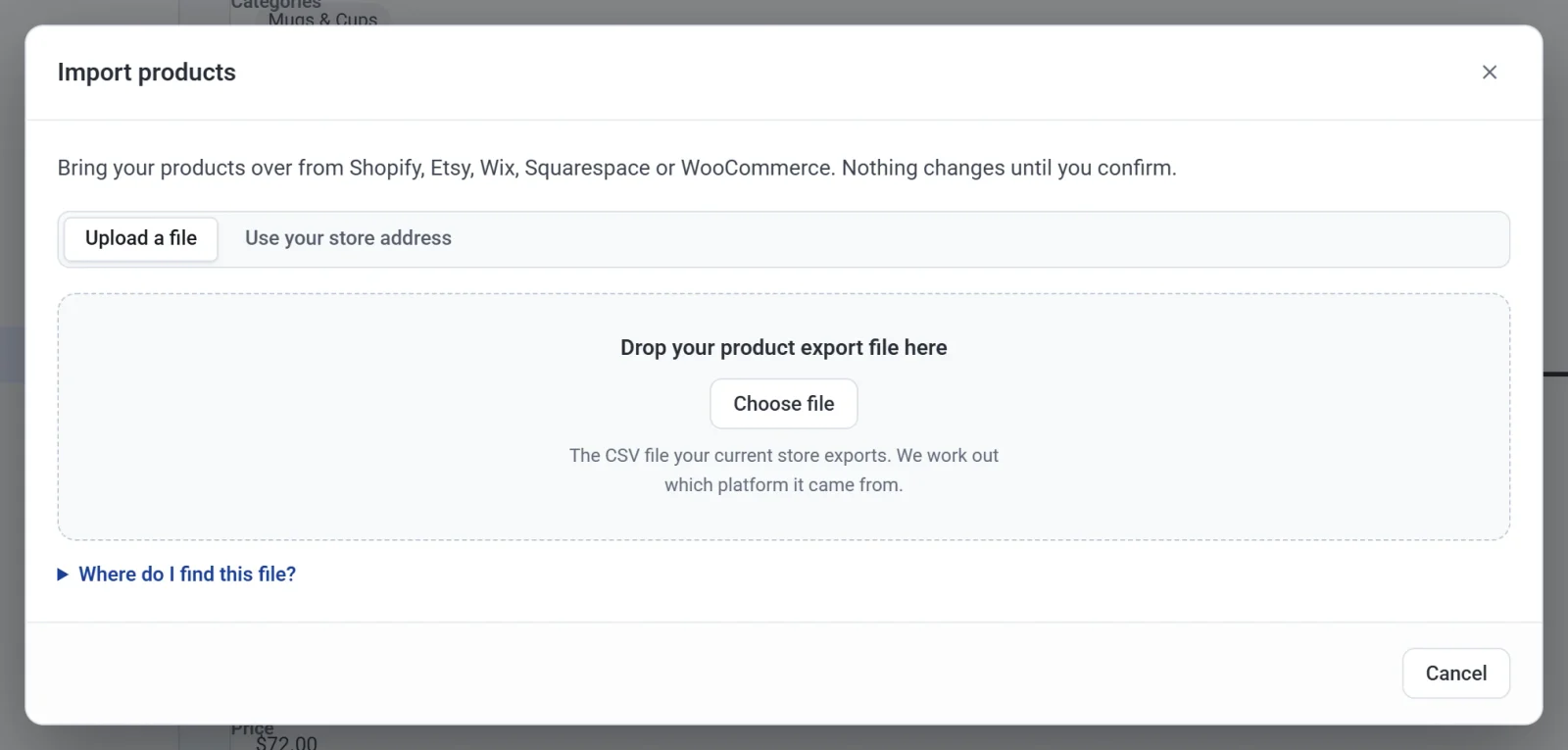
- Payly works out which platform the file came from and shows Check before importing.
Import from your store's address
This works for Shopify, WooCommerce and Squarespace stores, which publish their product lists. Etsy and Wix stores need a file.
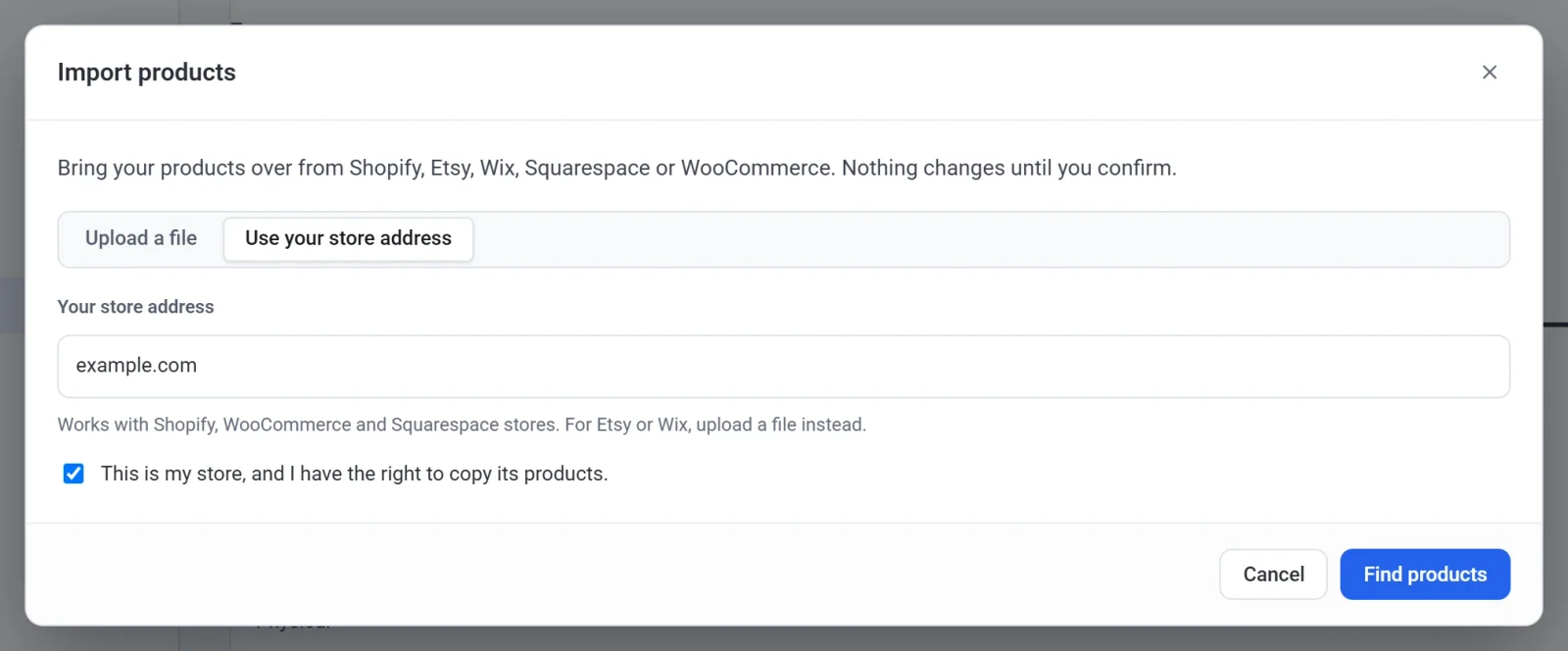
- Click Products, then Import, then Use your store address.
- Type your store's address, like example.com.
- Tick This is my store, and I have the right to copy its products.
- Click Find products.
Check before importing
Nothing has changed yet. This screen shows:
- how many products are new, and how many are already in your store (same SKU or web address). For those, choose Keep the version in my store or Use the version in this import;
- how many variants, photos, categories and tags will be added;
- Add them as drafts, to check the products before they show in your shop;
- Good to know: what your old platform leaves out of its export;
- any rows that will be skipped, and why.
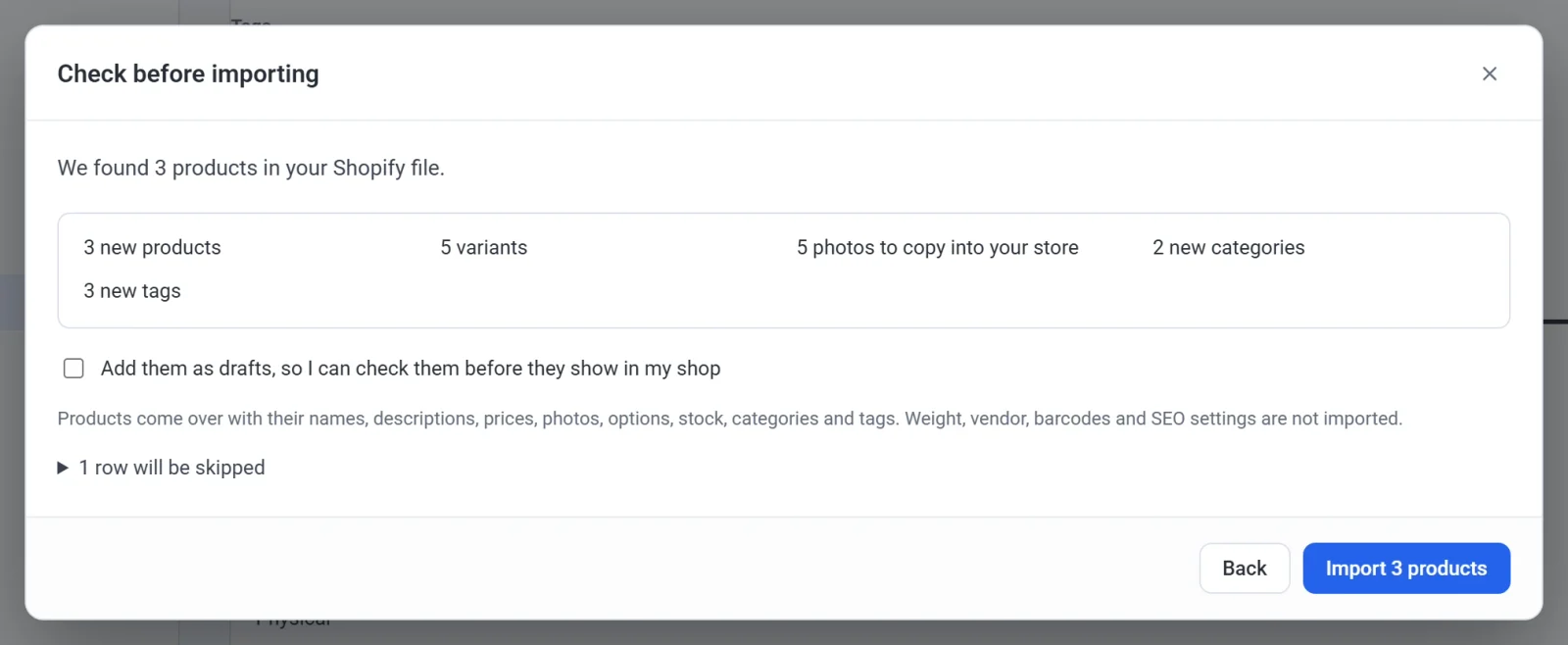
Click the Import button to start. Keep the tab open while your photos are copied: a few hundred photos take a few minutes.
What comes over
Names, descriptions (with their formatting), prices and sale prices, photos, options and variants, stock, categories and tags.
Not imported: weight, vendor, barcodes, SEO settings, gift cards, download files (upload those again in each product), and your customers, orders and reviews.
Undo an import
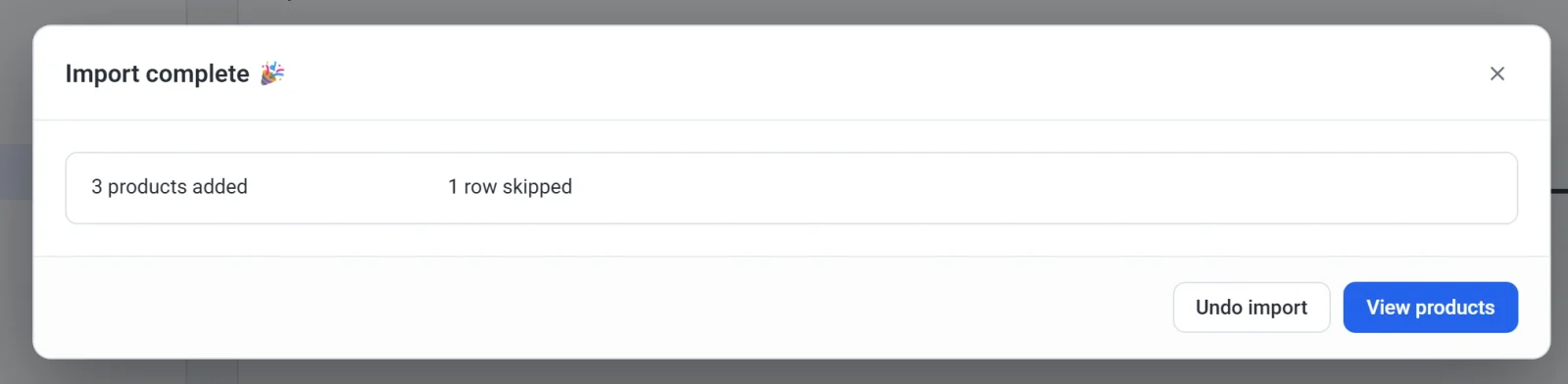
When the import finishes, Import complete shows what was added. Click Undo import to put your products back exactly as they were. Photos the import copied are deleted again, so the undo gives your storage back too.