
Shipping methods and rates
Offer flat rate, free shipping or local pickup in each shipping zone, set what each costs, and see how customers choose between them at checkout.
A shipping method is one way a customer can have an order delivered, with its own price. Every shipping zone has one or more methods, and the shopper sees the methods of the zone that matches their address. Payly has three types: flat rate, free shipping and local pickup.
Add a shipping method
- In your site dashboard, click Settings, then click the Shipping & Tax tab.
- Under Shipping zones, click Edit beside the zone. To make a new zone first, click Add a shipping zone.
- Under Shipping methods, click Add a method.
- Choose a Type: Flat rate, Free shipping or Local pickup. The fields below change to fit the type.
- Enter a Label. This is the name the customer sees at checkout, such as "Standard shipping". If you leave it empty, checkout uses the type's name.
- Fill in the price fields for the type (see below), then click Save.
- Click Save in the zone dialog. A method is not stored until the zone is saved.
The three types
Flat rate
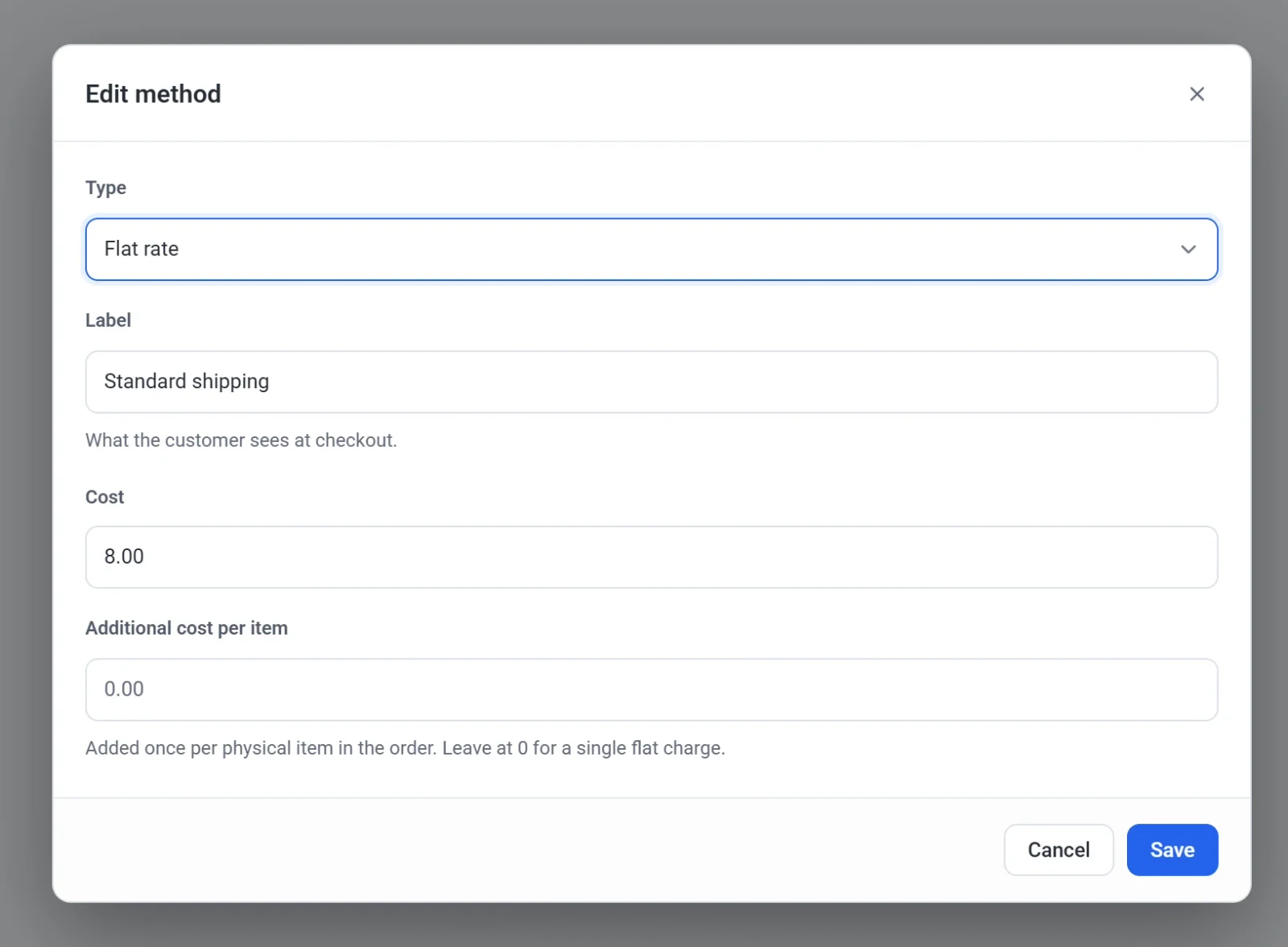
A fixed price for the order. Cost is the base price. Additional cost per item is added for every item in the order that ships, the first one included. Leave it at 0.00 for one single charge. For example, a cost of 6.00 and 2.00 per item makes an order of three items cost 12.00.
Free shipping
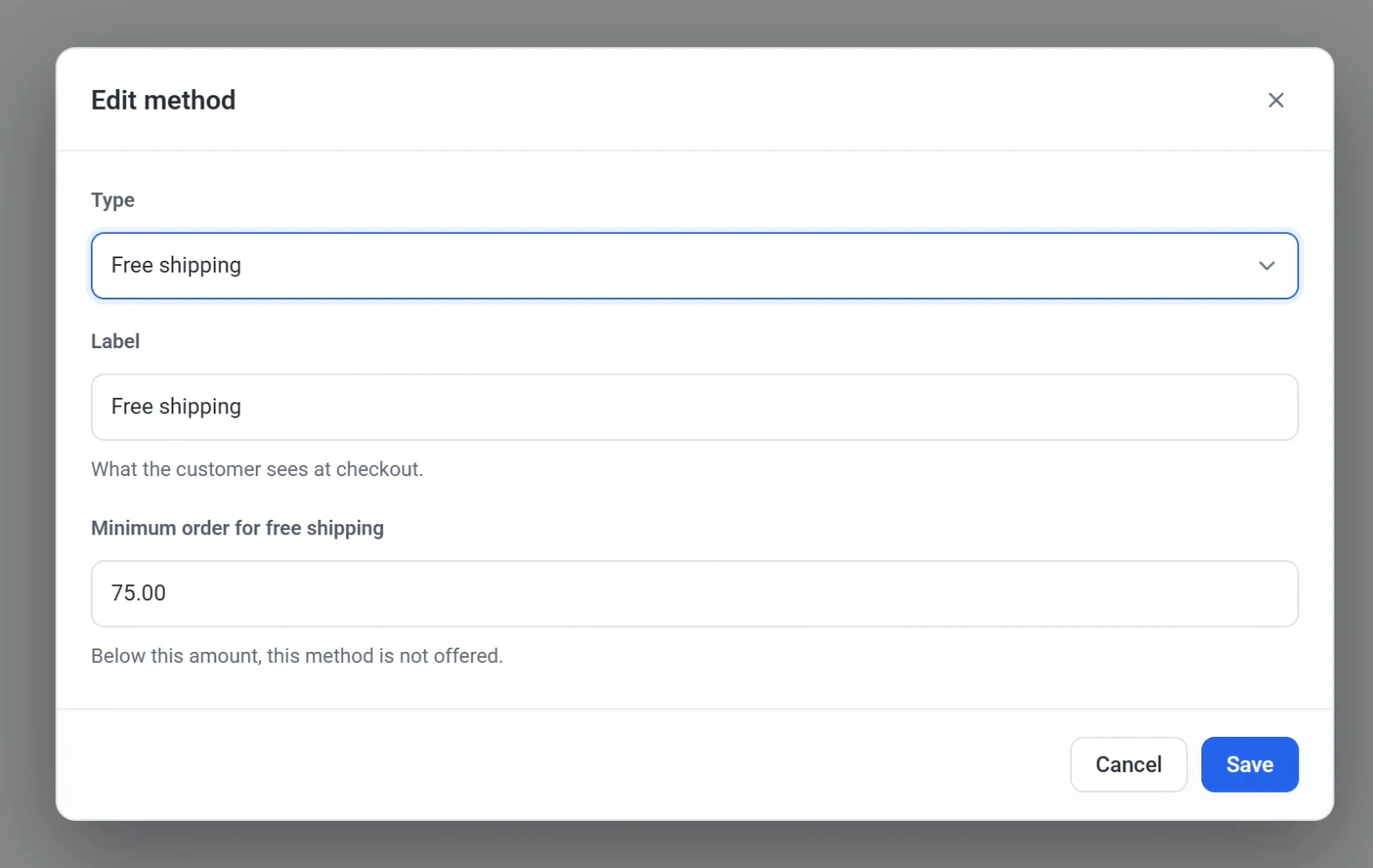
Delivery that costs the customer nothing. Minimum order for free shipping sets how much the customer must spend: at or above that amount the method is offered, and below it the method does not appear. The amount is the order total before shipping and tax, after any discount code. Leave it empty to offer free shipping on every order in the zone.
Local pickup
The customer collects the order from you instead of having it delivered. Cost is a fee for pickup. Leave it at 0.00 to make pickup free. Give it a clear label, such as "Pick up at the studio".
What the customer sees
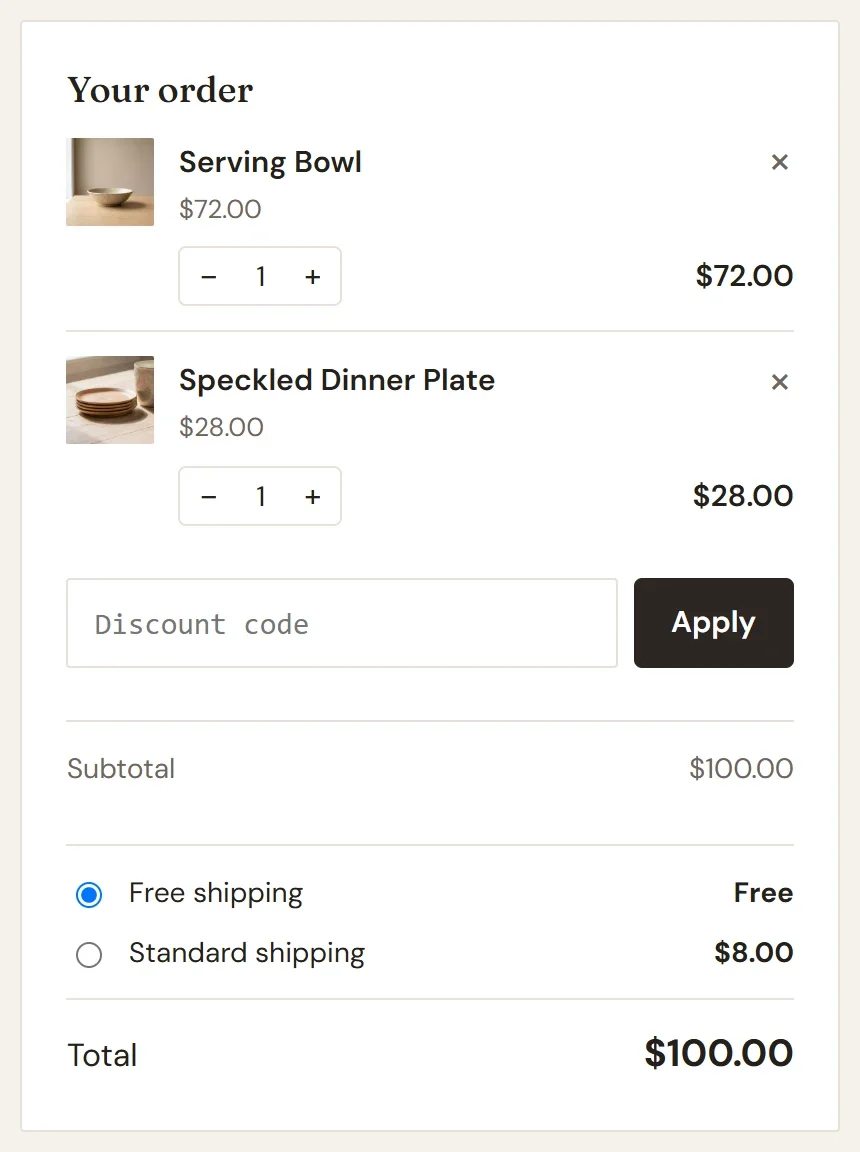
When a zone has more than one method that applies, the customer chooses between them at checkout. The first method in the zone's list is selected for them, so add the method you prefer them to take first. In the example below, an order of $100.00 qualifies for both methods in the United States zone.
When only one method applies, there is nothing to choose. The price appears as a Shipping line in the order summary and is added to the total. A method that costs nothing adds no Shipping line.
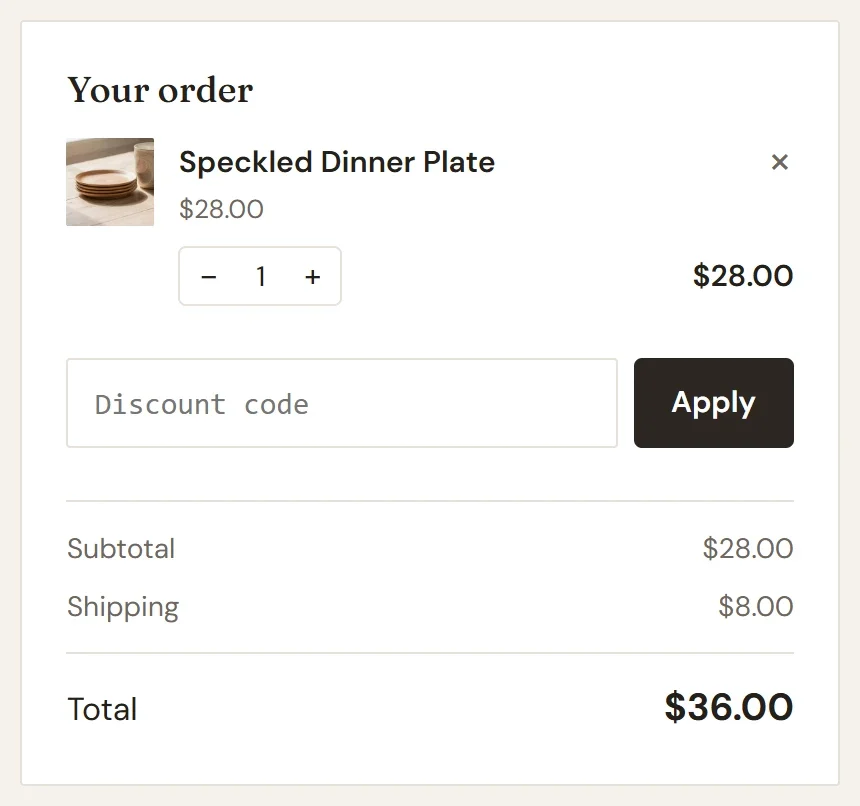
Tip: To offer free shipping on large orders only, give the zone two methods: a flat rate for every order and a free shipping method with a minimum. Small orders see only the flat rate, and large orders see both.
Edit or remove a method
Open the zone, then click Edit or Delete beside the method. Click Save in the zone dialog to keep the change. Methods appear in the order you added them. To change which comes first, delete one and add it again.
If a zone has no methods, customers in that zone cannot check out, so Payly will not save a zone until it has at least one.