
View and manage subscriptions
See every subscription in your store, check its status, payments and next renewal, and pause or cancel it when a customer asks.
The Subscriptions screen lists every subscription your customers have started, with its status and the date of its next payment. You can open any subscription to see its payments, and pause or cancel it for a customer who asks.
Open the Subscriptions screen
In your site dashboard, click Subscriptions under Sales. A subscription appears here as soon as someone buys a subscription product, whether or not it grants a membership.
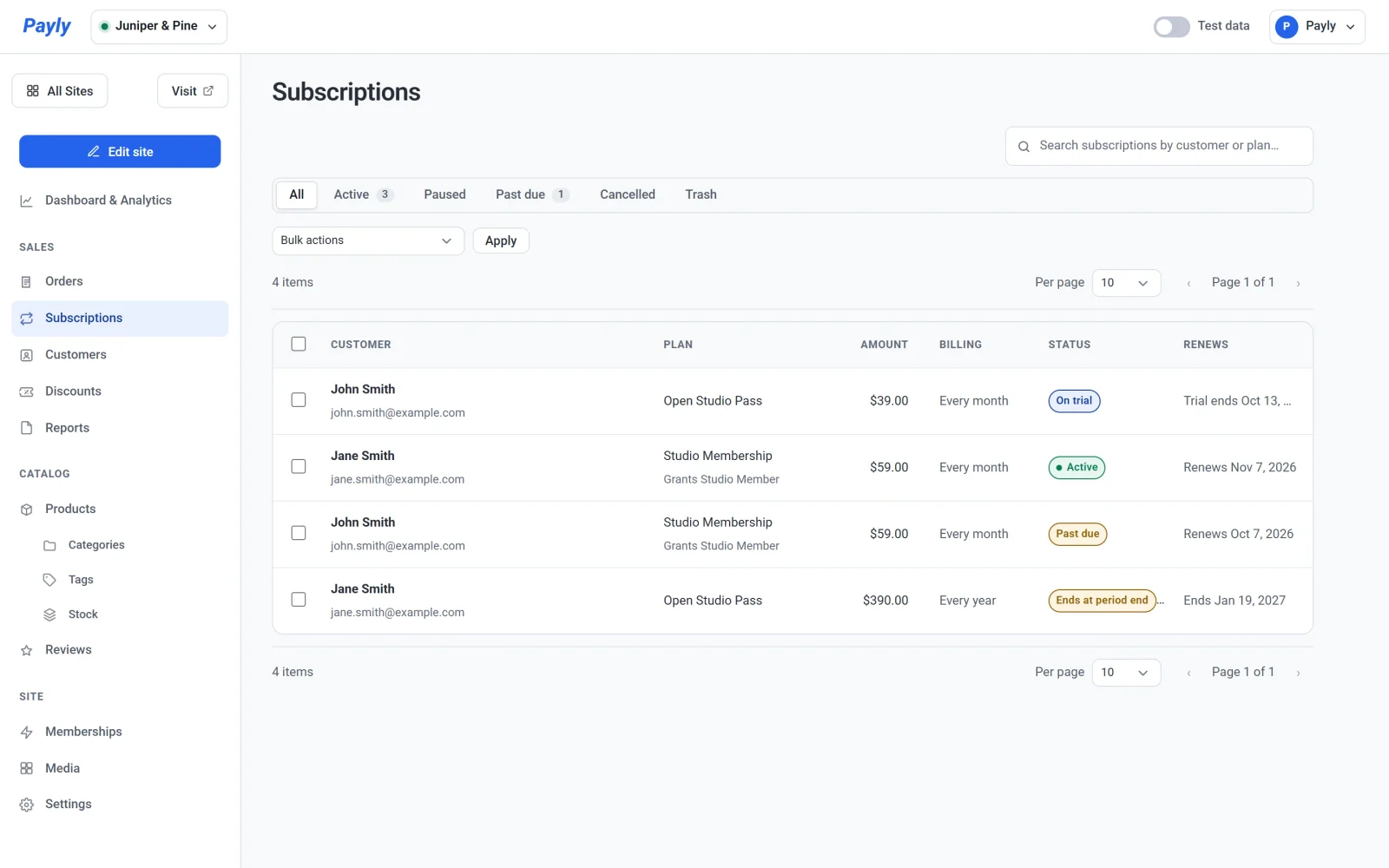
The screen shows test data or live data, depending on the Test data switch at the top of the dashboard. See Test data and live data.
Read the list
Each row is one subscription. The columns are Customer, Plan, Amount, Billing, Status and Renews. Billing says how often the customer pays, such as Every month or Every year. If the plan grants a membership level, its name appears under the plan, for example Grants Studio Member.
Use the tabs above the list to filter by status: All, Active, Paused, Past due, Cancelled and Trash. The search box finds a subscription by customer or plan. A small number on a tab counts the subscriptions in it. Active includes subscriptions on a trial and subscriptions that end at the end of their period, because they are still running.
| Status | What it means |
|---|---|
| Active | The subscription is running, and the Renews column shows the next payment date. |
| On trial | The customer is in a free trial and has not been charged yet. The column shows when the trial ends. |
| Paused | Billing is paused. The customer keeps the plan, and nothing is charged until it is resumed. |
| Past due | The latest renewal payment failed. See Renewals and failed payments. |
| Ends at period end | The subscription has been cancelled but is still running until the end of the period the customer paid for. |
| Cancelled | The subscription has ended, either because it was cancelled or because it reached its set length. |
Open a subscription
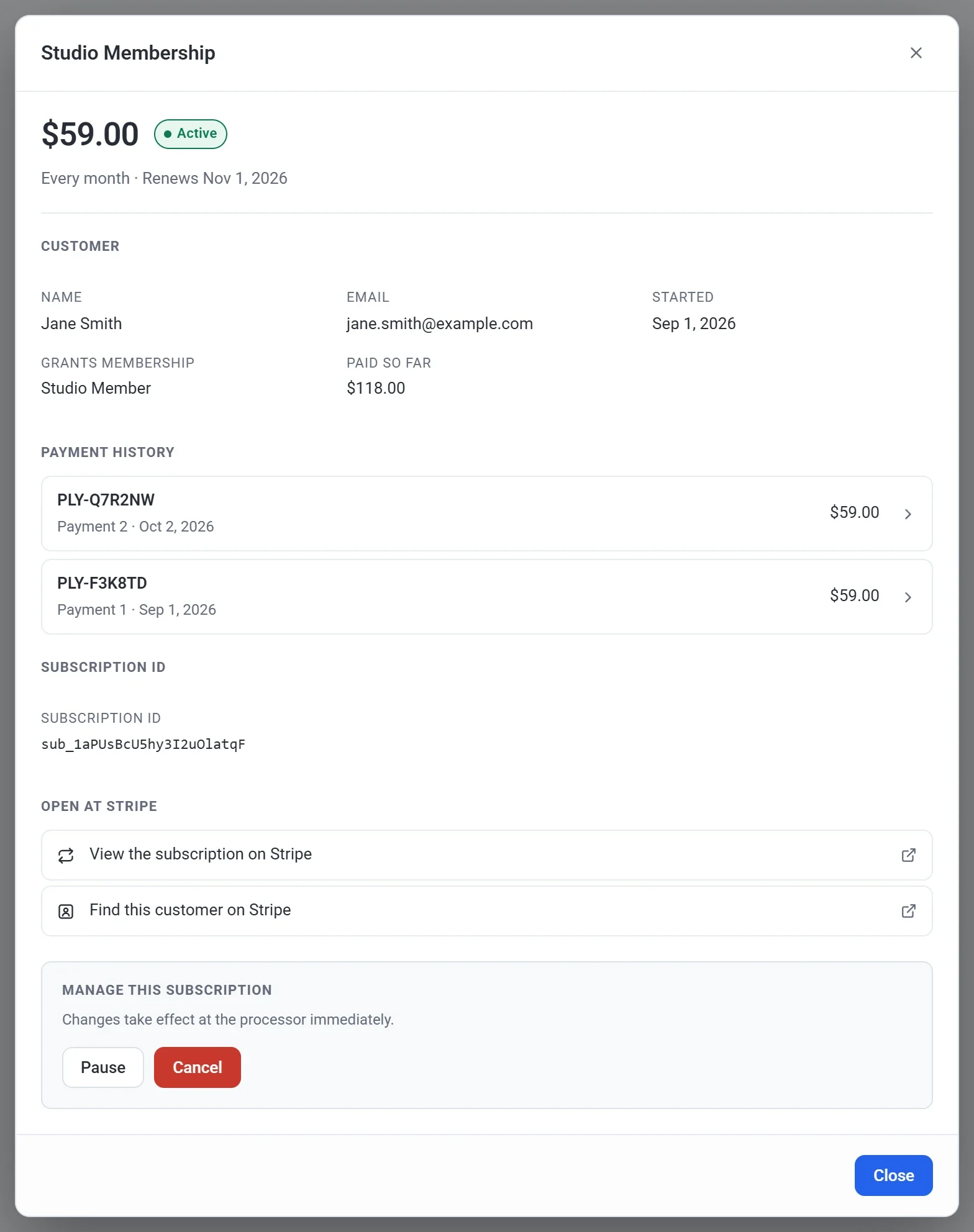
Click a row to open the subscription. The window shows:
- The amount, how often it is charged, its status and its next payment date.
- The customer's name and email, and the date the subscription Started. During a free trial it also shows Trial until. If the plan grants a membership level, it shows Grants membership. Paid so far is the total of the payments, minus any refunds.
- A Payment history list. Each payment shows which one it is, such as Payment 2, and its date. Every payment is also an order, with its own order number, such as #1042. Click a payment to go to the Orders screen.
- The subscription ID, and links to see the subscription and the customer in your Stripe or PayPal account. For a PayPal subscription there is a link to the subscription only.
Pause a subscription
- Open the subscription.
- Under Manage this subscription, click Pause.
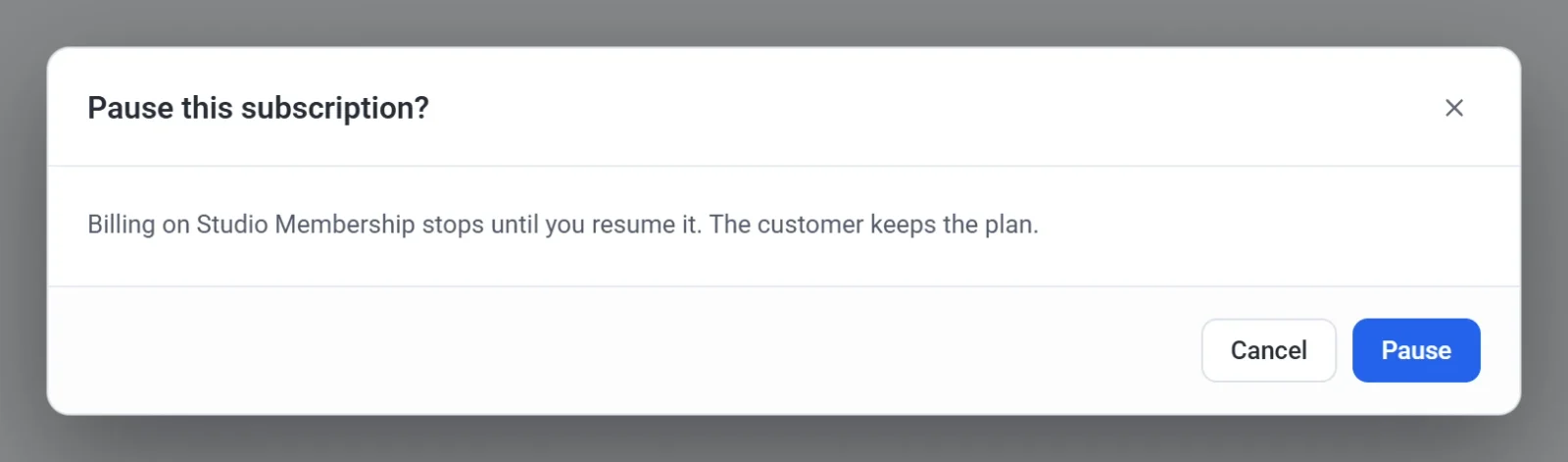
- In the window that asks Pause this subscription?, click Pause. Billing stops until you resume it, and the customer keeps the plan. Payly confirms with Subscription paused. To back out, click Cancel in this window instead. It closes the window and leaves the subscription as it is.
To start billing again, open the subscription and click Resume.
Cancel a subscription
- Open the subscription.
- Under Manage this subscription, click Cancel.
- Read the message in the Cancel this subscription? window. It shows the date the subscription stays active until. Then click Cancel subscription. The Cancel button in the same window closes it without cancelling anything.
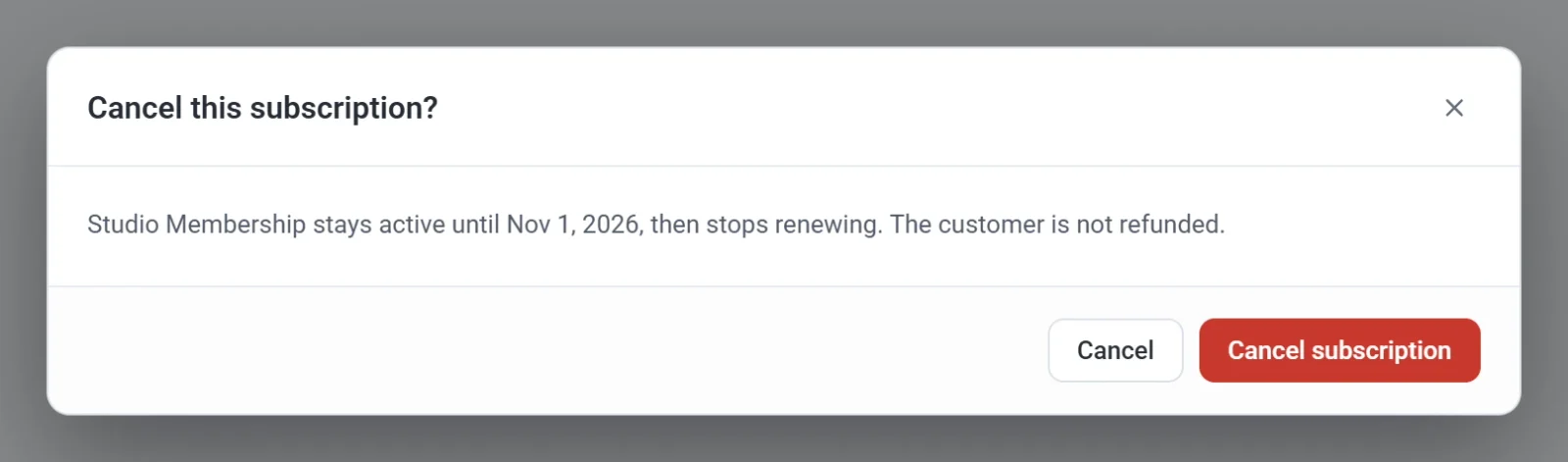
Payly confirms with Subscription will stop renewing. The subscription stays active until the end of the period the customer has already paid for, and then stops renewing. Its status reads Ends at period end until then. The customer is not refunded. To refund a payment, see Refund an order.
Note: Pausing and cancelling take effect with Stripe or PayPal straight away, and only people with the Admin or Owner role can do them. Anyone who can view the site can see the list. See Invite your team and set roles.
Remove a subscription from the list
You can tick subscriptions and use Bulk actions to move them to the Trash, which tidies the list. This only hides them. It does not cancel anything, so the customer is still billed until you cancel the subscription.