
Set up your shop page
Choose which page is your shop page, the page that lists your products, so Back to shop and Continue shopping send shoppers to the right place.
Your shop page is the page where shoppers browse your products, usually the one with your product grid. Telling Payly which page it is lets the store send shoppers back there from places that are not part of the shop itself.
What the shop page is used for
Two buttons point to your shop page:
- The Back to shop link at the top of every product page. See How product pages work.
- The Continue shopping button on the page a customer sees after they pay.
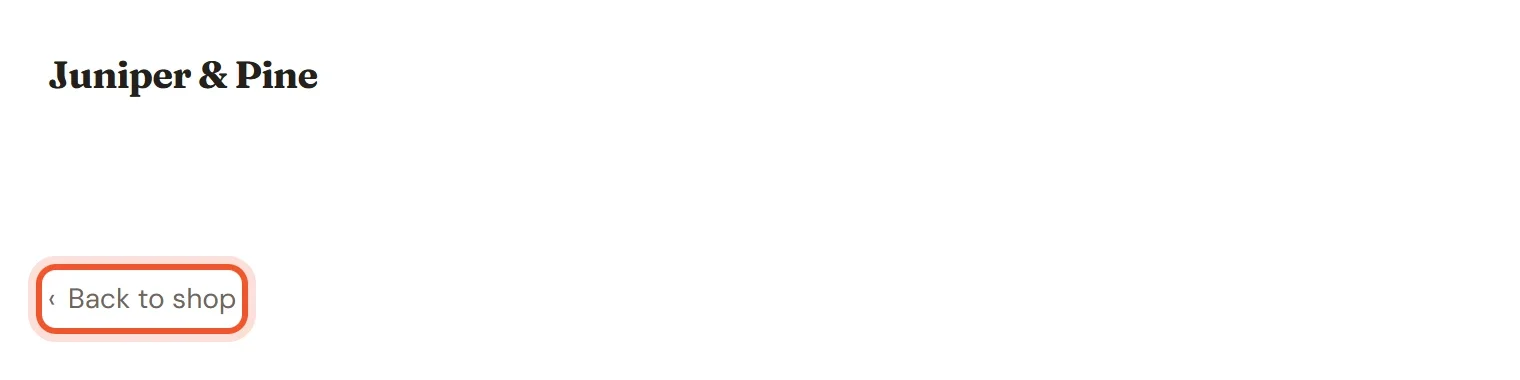
The shop page is not locked to a particular address. It can be any page you built, apart from the cart and checkout pages, and it does not have to be called "Shop".
If you never choose one
Payly picks a page for you. It looks for pages that contain a product grid, and it prefers your page at /shop. If there is none, it takes another page with a grid that is not your home page, and your home page last. A store with no product grid sends shoppers to the home page.
Your store design comes with a Shop page already set up. Choose one yourself when you rename or replace that page, or when you sell from a different page, so the buttons never end up somewhere unexpected.
Choose your shop page
- In your site dashboard, click Edit site.
- Click the page name in the top bar and choose the page you want to use as your shop.
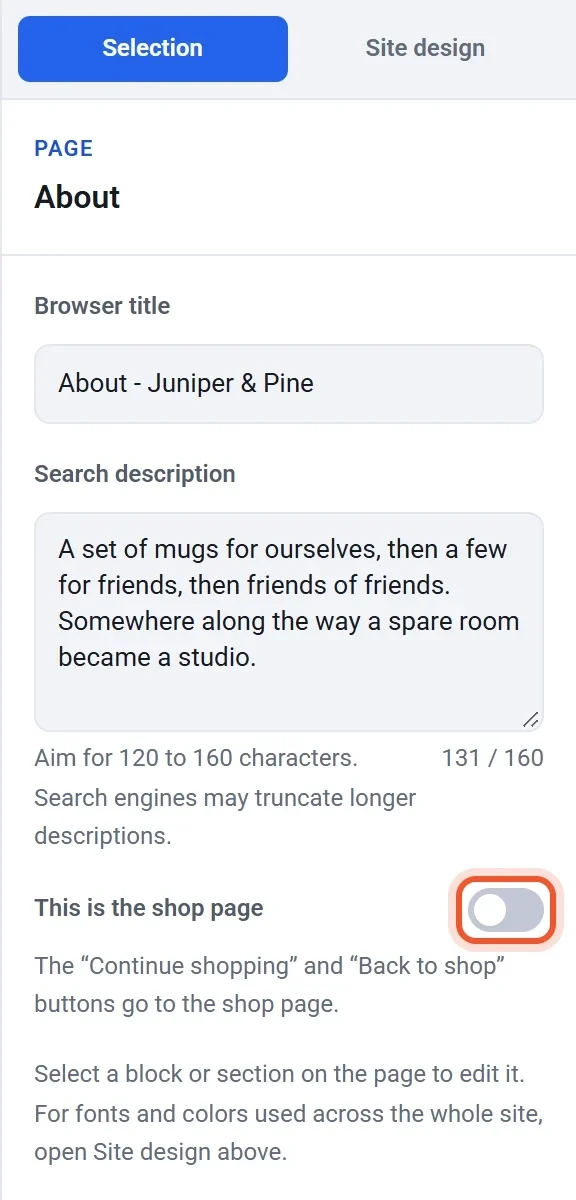
- In the panel on the right, make sure no block is selected. If one is, click Page settings at the top of the panel to go back to the page.
- Turn on This is the shop page.
- Click Publish.
A store has one shop page. When you turn the switch on for a page, it turns off for the page that had it. The switch is locked on for the current shop page, with a note under it. To move the role, turn the switch on for the other page instead.
Choose it from the Pages window instead
- In the editor, click the page name in the top bar, then click Manage pages.
- Find the Shop page row under Special pages.
- Open Use a different page and choose a page.
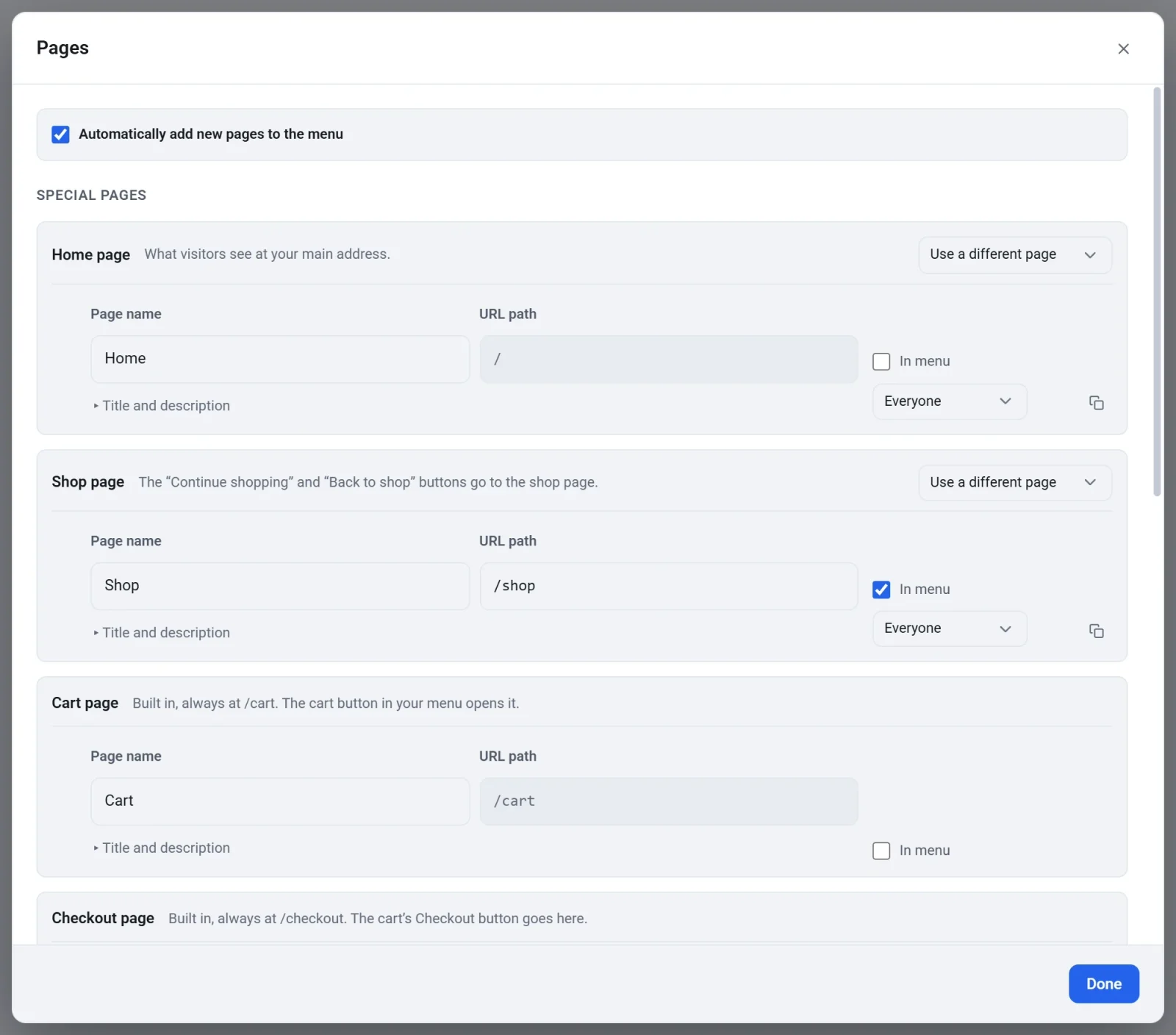
- Click Done, then click Publish.
If your home page is also your shop page, as on a one-page store, the Pages window says so: "Your home page is also your shop page."
Note: Your live store learns about a new shop page when you publish, so publish after you change it.