
Sell digital downloads
Sell files such as PDFs, templates or printables. Upload them to a product, and customers get download links after they pay.
A digital product is something customers receive as a file instead of a parcel, such as a PDF guide, a template or a printable. You attach the files to a product, and Payly gives each customer download links once they have paid.
Before you start
- Connect Cloudflare. Your files are stored in your Cloudflare account, next to your product photos. If it is not connected, Payly asks you to connect it when you upload your first file. See Connect your Cloudflare account.
- Each file can be up to 50 MB, and any file type is accepted. Files and images share your store's storage: 500 MB on Cloudflare's free Workers plan. The paid plan includes 5 GB and holds up to 10 GB.
- Connect Stripe or PayPal so customers can pay. See Connect Stripe and Connect PayPal.
Add a downloadable product
- In your site dashboard, click Products, then click Add Product. To add files to a product you already have, click that product instead.
- Under Product type, choose Digital / downloadable product. This tells Payly there is nothing to ship.
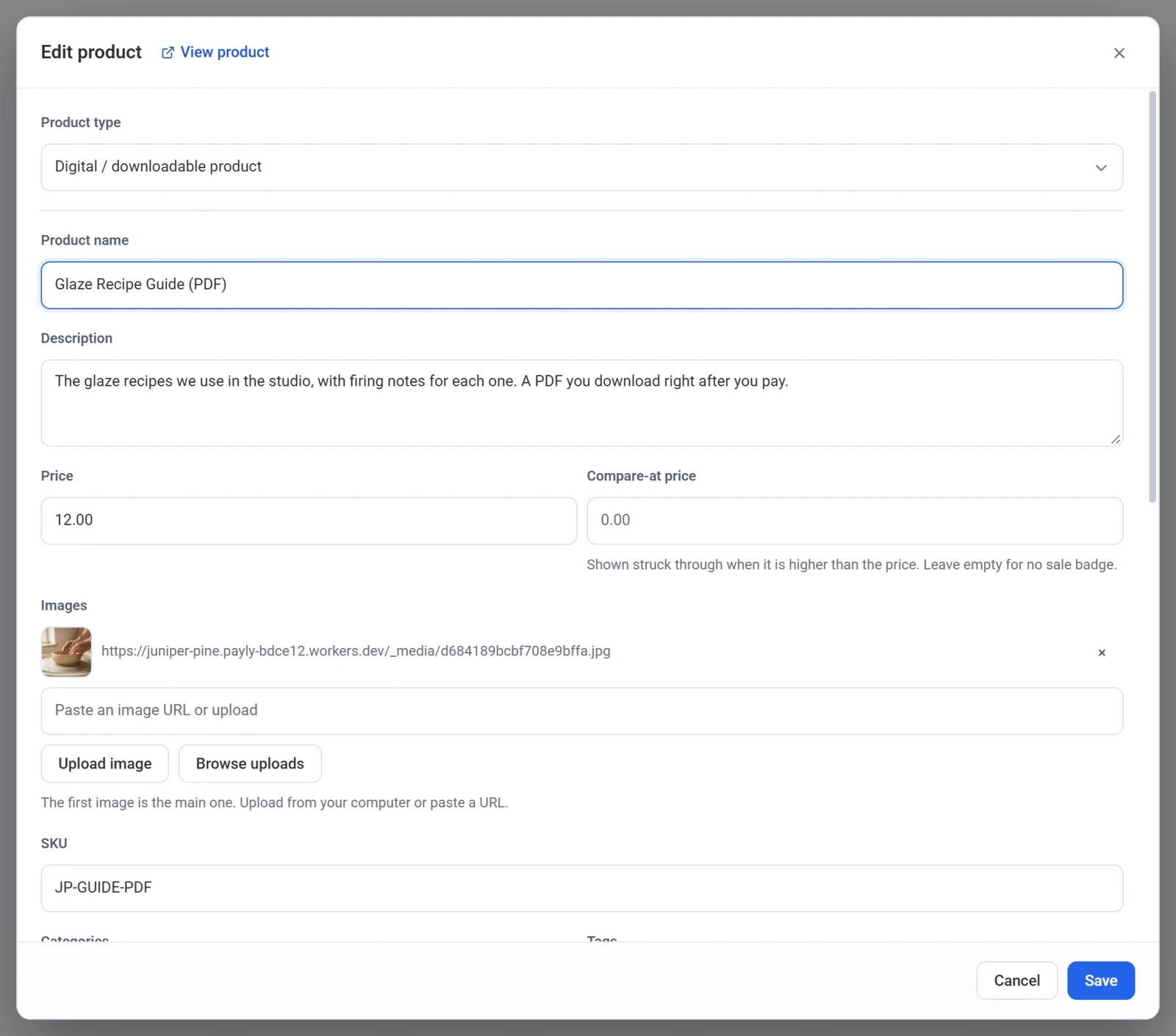
- Fill in the name, description, price and a cover photo, as you would for any product. See Add a product.
- Scroll down to Downloadable files and click Upload a file. You can choose several files at once, and they upload one after another. Each file then appears in a list with its name and size.
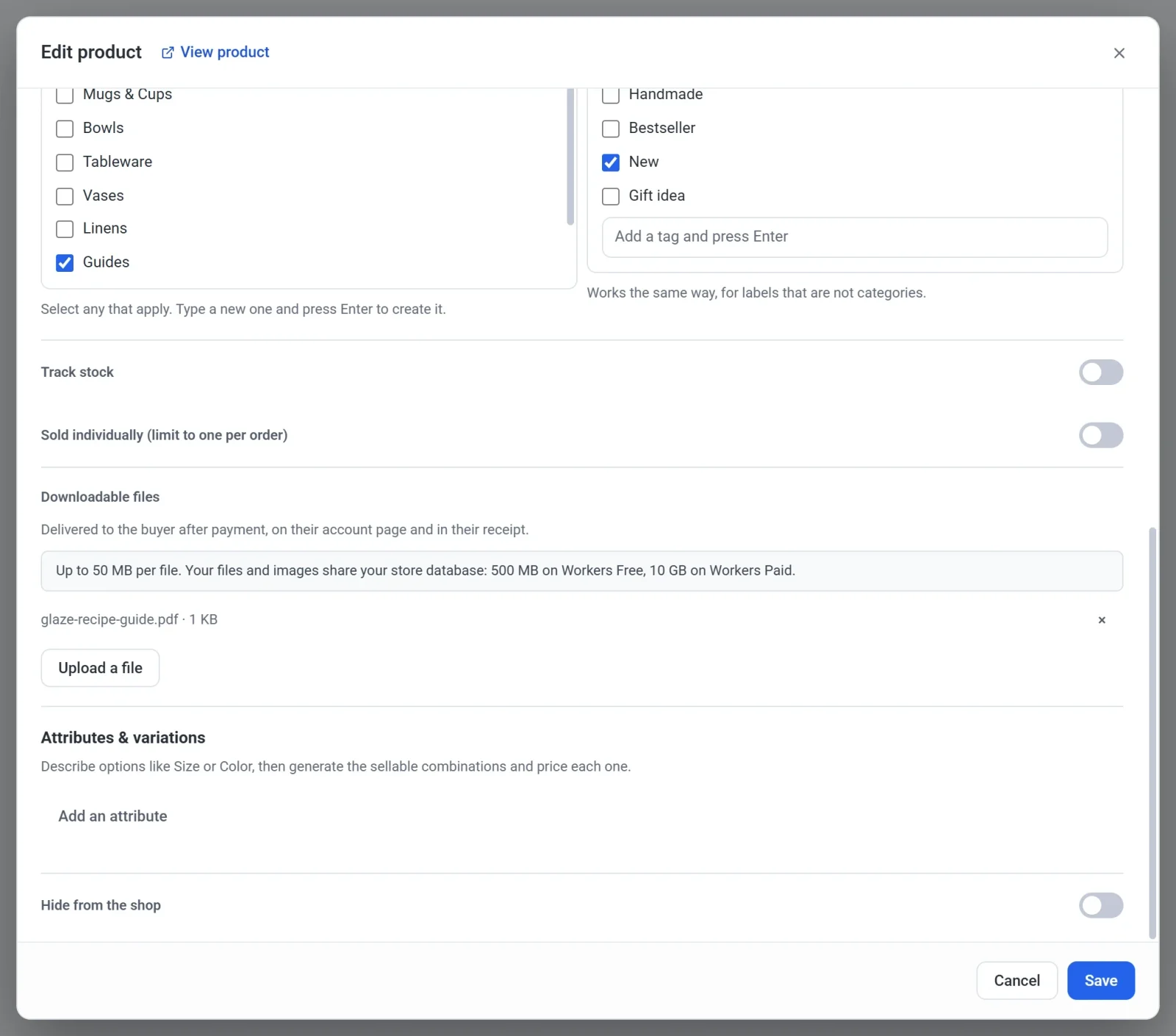
- Click Save.
The Downloadable files section appears for every product type. A physical product can include a file too, such as a printed book with a PDF companion.
What customers get
- No shipping charge. A digital product adds no shipping. If a cart holds both a digital product and a physical one, only the physical one is charged for shipping.
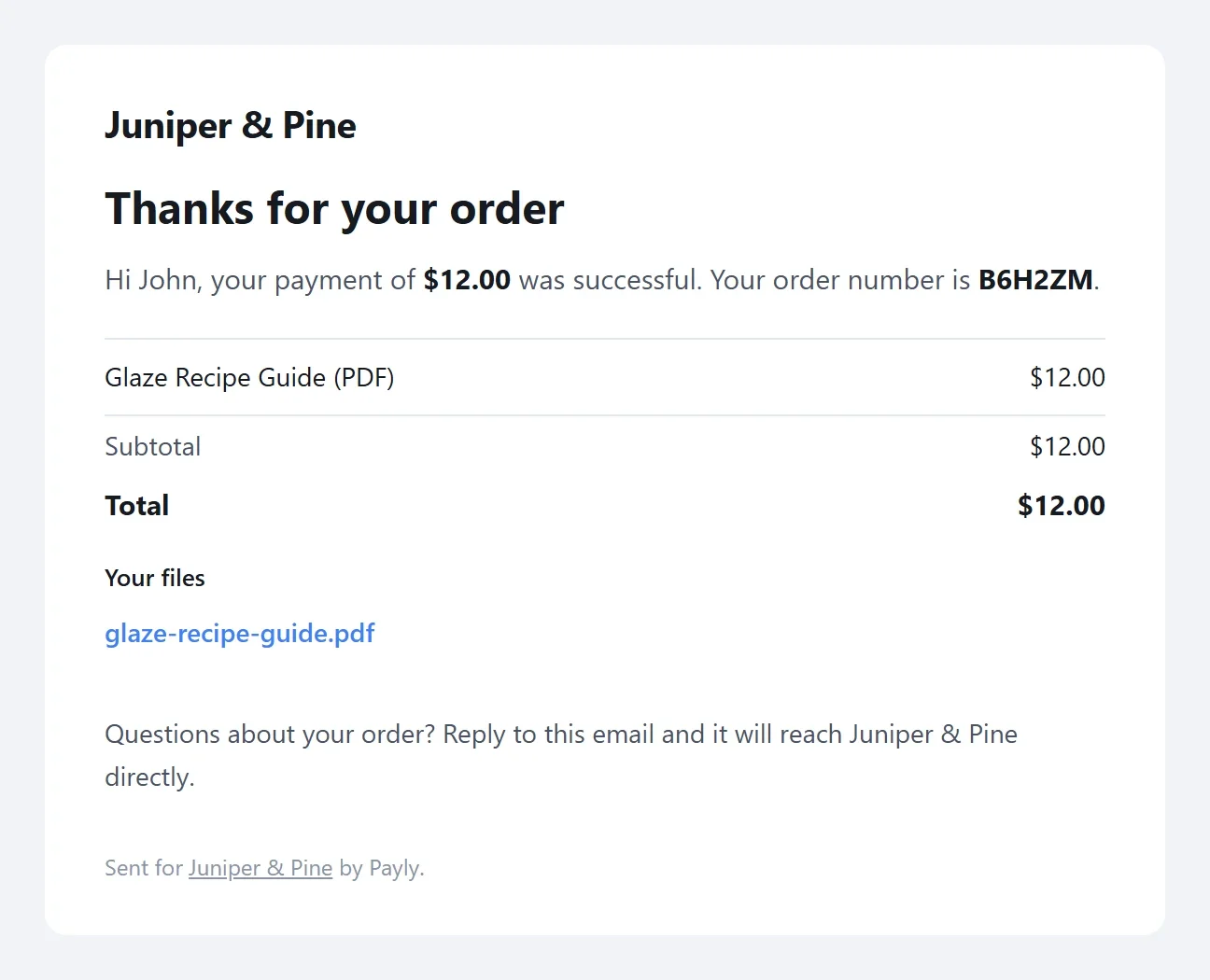
- A link in the receipt email. The order confirmation email lists every file under "Your files", with a link for each.
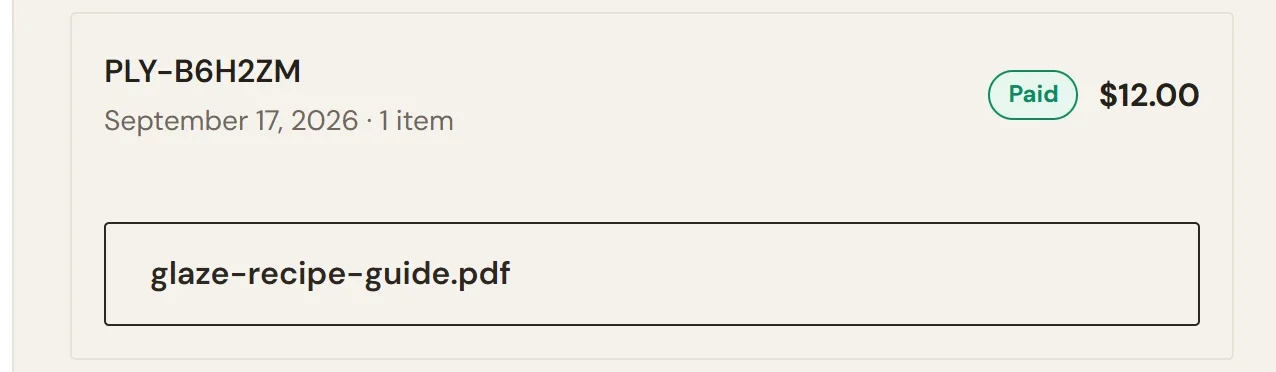
- Links in My account. A customer who signs in to the store sees a button for each file under their paid order, named after the file. They get a new link every time they open the page.
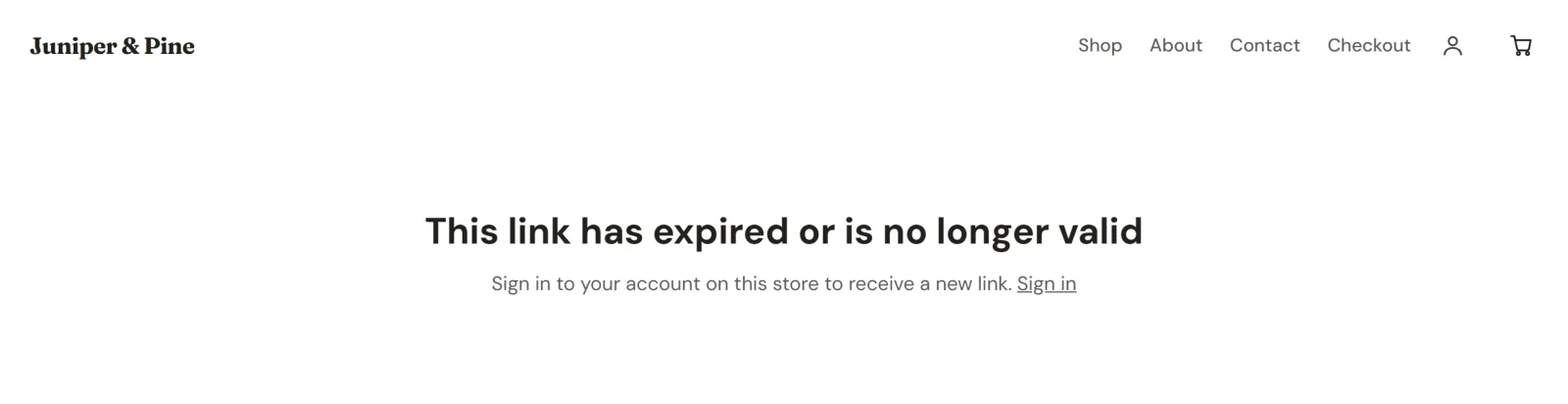
Each link works for 7 days after it is created. After that, the link shows a "link expired" page that tells the customer to sign in to the store to receive a new one. Customers sign in with the email address they used to buy, using a link or code that the store emails them. See How customer accounts and sign-in work.
If you refund an order, the My account page stops offering links for it. A link in an email that was already sent keeps working until it expires.
Replace or remove a file
- Open the product and find the file under Downloadable files.
- Click the × beside the file.
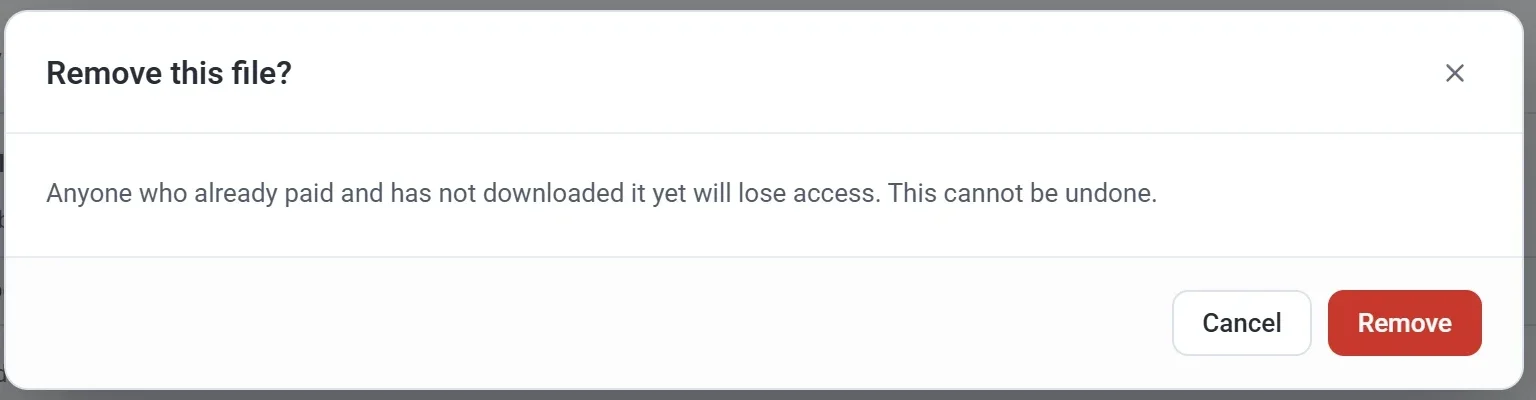
- In the Remove this file? dialog, click Remove. The file leaves the list.
- To replace it, click Upload a file and choose the new one.
- Click Save. Only now is the removed file deleted from your store. To keep it after all, click Cancel instead.
Important: Removing a file takes it away from every customer, including people who bought it earlier. Their My account page stops showing it, and old links in their emails stop working. Upload a replacement if customers should keep access.
Try it before you launch
Place a test order for your product while test mode is on. Test orders send a receipt too, with "[Test]" at the start of the subject, so you can check the email, the link and the file the way a customer would.