
Offer monthly and yearly plans
Sell one subscription with a monthly option and a yearly option, each with its own price and billing schedule.
You can sell one subscription in several plans, such as a monthly plan and a yearly plan. Shoppers pick a plan on the product page, and each plan has its own price and billing schedule. You set this up with the same Attributes & variations section that other products use for sizes and colors.
Before you start
- Have a subscription product ready. See Sell a subscription product.
Add the plans
- In your site dashboard, click Products, then click the subscription product to open it.
- Check the product's own settings. The Price and the Bill every setting should match your most common plan, usually the monthly one. A plan that leaves a field blank uses these.
- Scroll to Attributes & variations and click Add an attribute.
- In Attribute, enter a name for the choice, such as Billing. Shoppers see this name above the drop-down list.
- In Options, enter your plan names separated by commas, such as Monthly, Yearly.
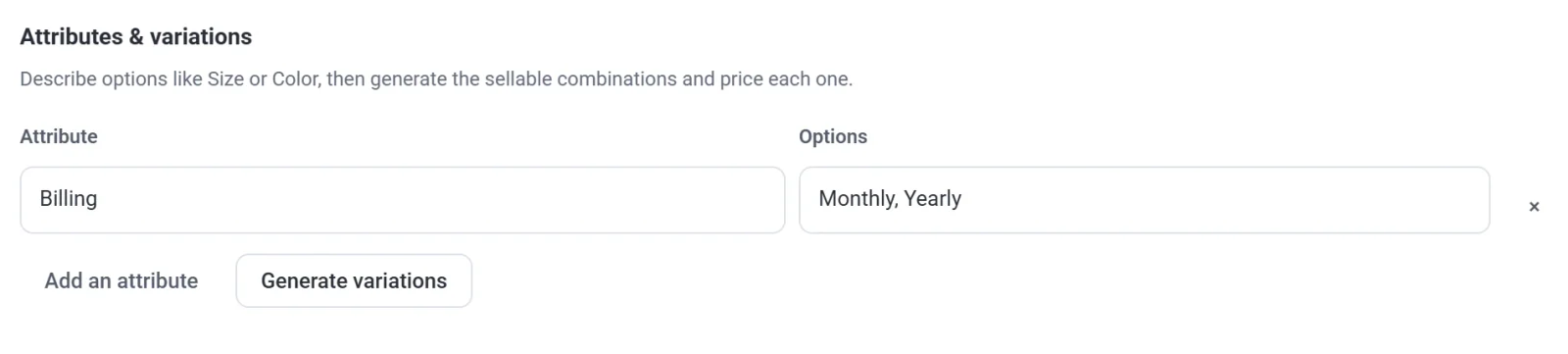
- Click Generate variations. A row appears for each plan.
- Leave the Monthly row as it is. Its price box shows the product's price in gray, and its other fields use the product's settings.
- In the Yearly row, enter the yearly price in the price box. Under Bill every, keep the number at 1 and choose Years.
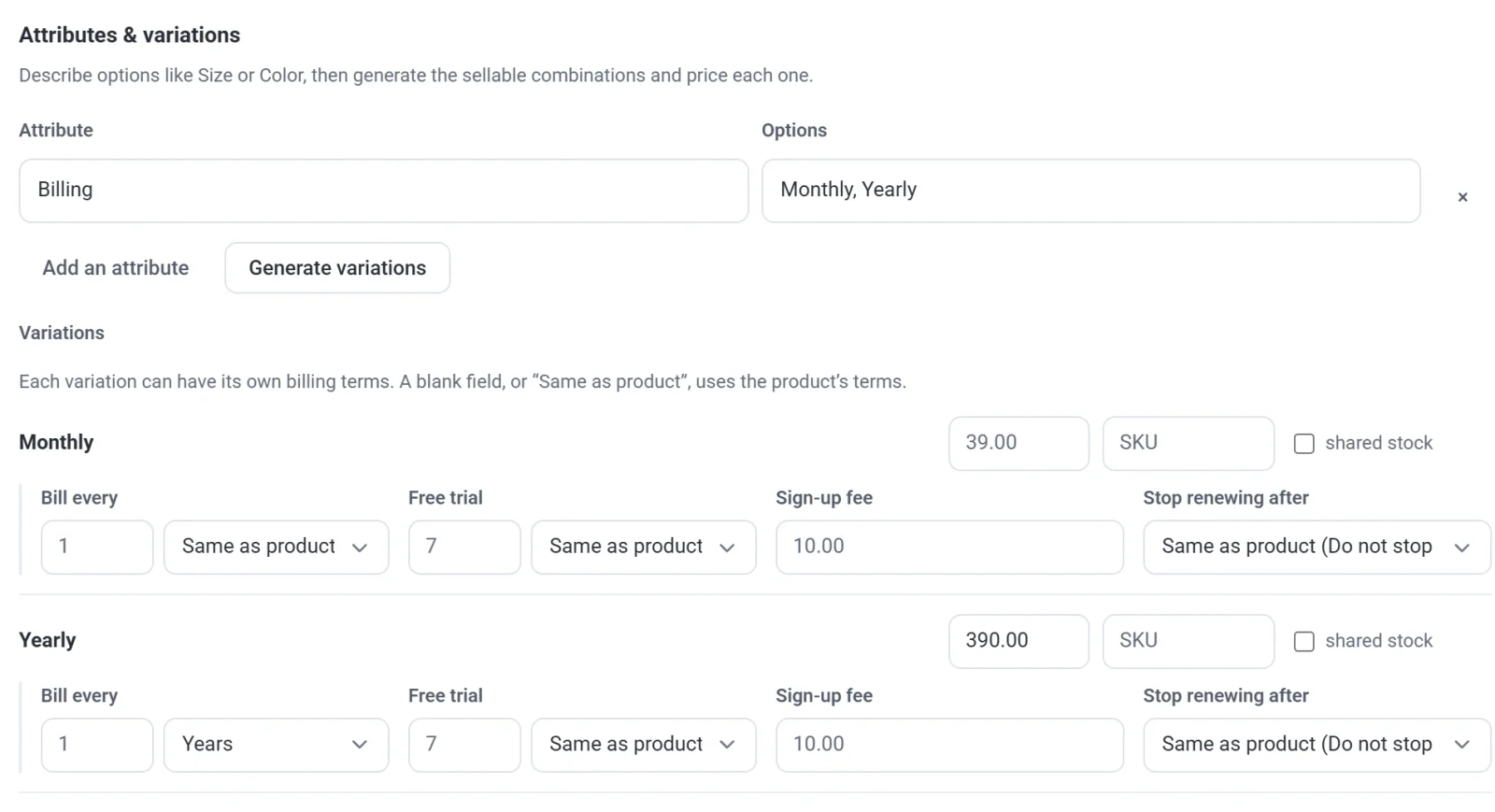
- Click Save.
Important: The plan names are only labels. The schedule comes from Bill every and its period. If you name an option Yearly but leave the period on Same as product (Months), customers are billed every month.
Settings for each plan
Under each plan's name, a row of fields controls how that plan bills. Leave a field blank, or on Same as product, to use the product's own setting.
- Price box (top right of the row): the price for each payment of this plan.
- Bill every: a number and a period (days, weeks, months or years). Use 3 and Months for a quarterly plan.
- Free trial and Sign-up fee: a trial or a one-time fee for this plan only. See Free trials and sign-up fees.
- Stop renewing after: how long this plan runs before it ends by itself.
You can add more plans by adding more options, such as Quarterly. The membership level, if you set one, belongs to the product, so every plan grants the same level.
What shoppers see
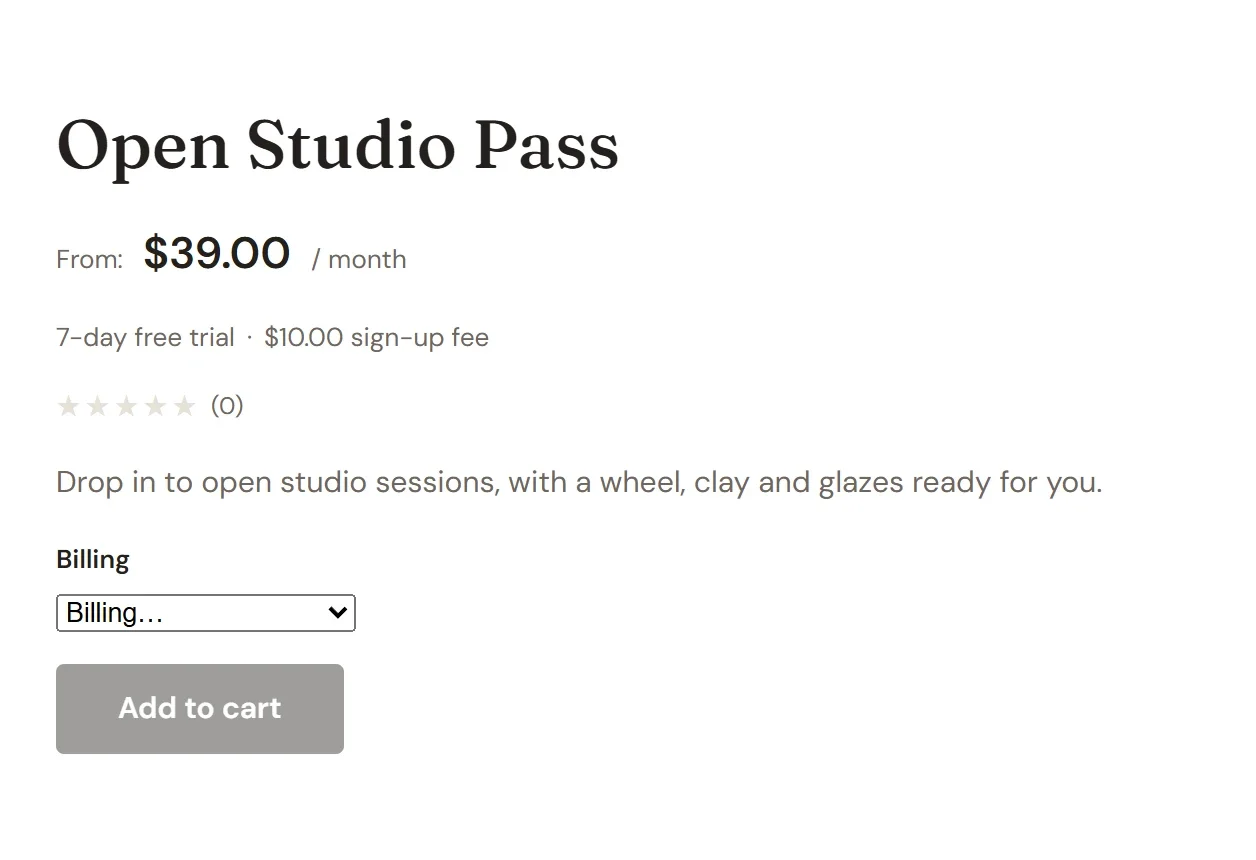
Until a shopper picks a plan, the product page shows the lowest price with the word From, and the Add to cart button stays dimmed.
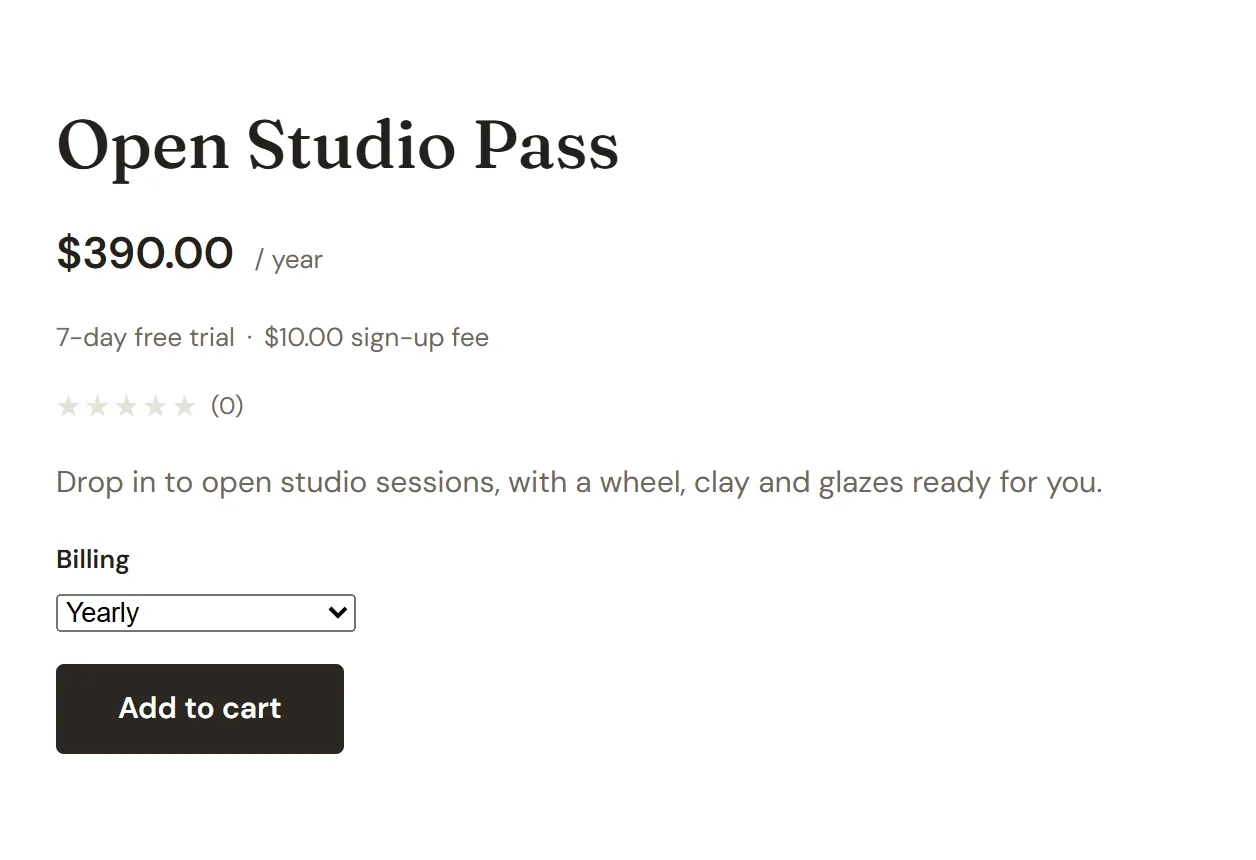
When the shopper chooses a plan, the price, the schedule and any trial or fee change to match, and the button turns on.
If you let customers move between plans later, see Let customers switch plans.