
Undo changes and restore an earlier version
Step back with Undo and Redo while you edit, and go back to the design of an earlier publish by restoring a backup.
You have two ways back when a change goes wrong. Undo steps back through what you just did in the editor. Backups are copies of your whole design that Payly keeps for you, so you can return to how your store looked at an earlier time.
Undo and redo
The top bar of the editor has an undo arrow and a redo arrow, just to the right of the clock icon.
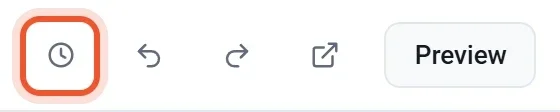
- Click the undo arrow, or press Ctrl + Z (Cmd + Z on a Mac), to take back your last change. Click it again to go back further.
- Click the redo arrow, or press Ctrl + Shift + Z, to bring back a change you undid.
Undo covers what you change on your pages and design, such as adding, moving or deleting a block or section, editing text and settings, and changing colors. It goes back up to 60 changes. Two limits to know about:
- The undo history lasts only while the editor is open. If you reload the page or come back later, it starts empty. Use a backup to go back further.
- If you undo and then make a new change, the changes you undid cannot be redone.
Undo does not change your products, prices, stock or orders. Those are managed in your dashboard.
What a backup holds
A backup is a copy of your store's design: your pages, header, footer, colors and fonts, product page layout and design settings. It does not hold products, prices, stock or discount codes, so restoring never brings back a deleted product or an old price.
Payly saves a backup every time you publish. You can also create one yourself at any time. The newest 30 are kept in your own Cloudflare account, so you need to have connected Cloudflare before backups work.
Create a backup
- In the editor, click the clock icon in the top bar. The Backups window opens.
- Click Create a backup. Payly saves your latest changes, then adds a backup of them at the top of the list.
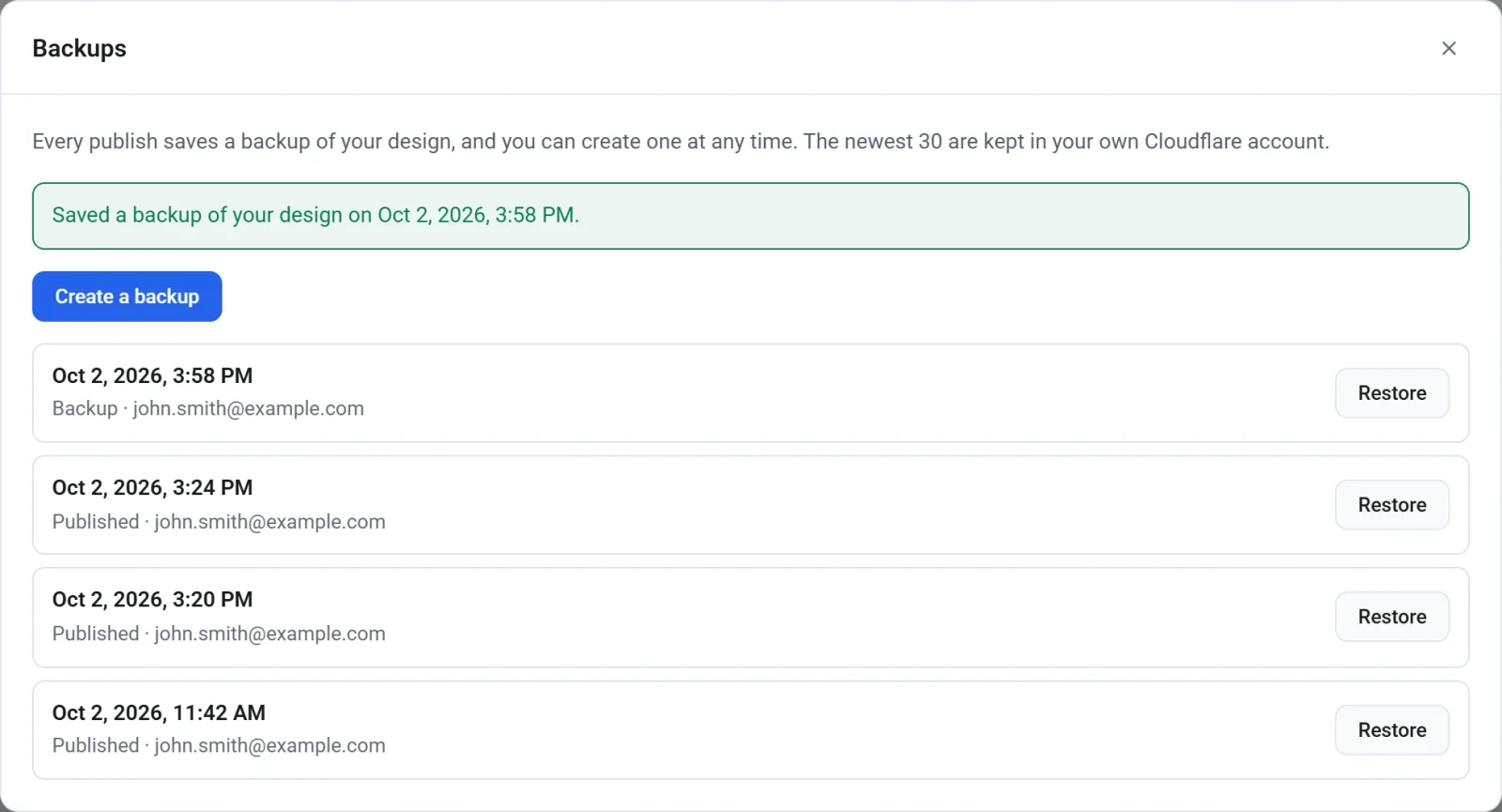
Each row shows the date and time, whether it was made by publishing (Published) or by you (Backup), and who made it. Creating a backup before a big change, such as trying a new look, gives you a safe point to return to.
Restore a backup
- Click the clock icon in the top bar.
- Find the backup you want and click Restore.
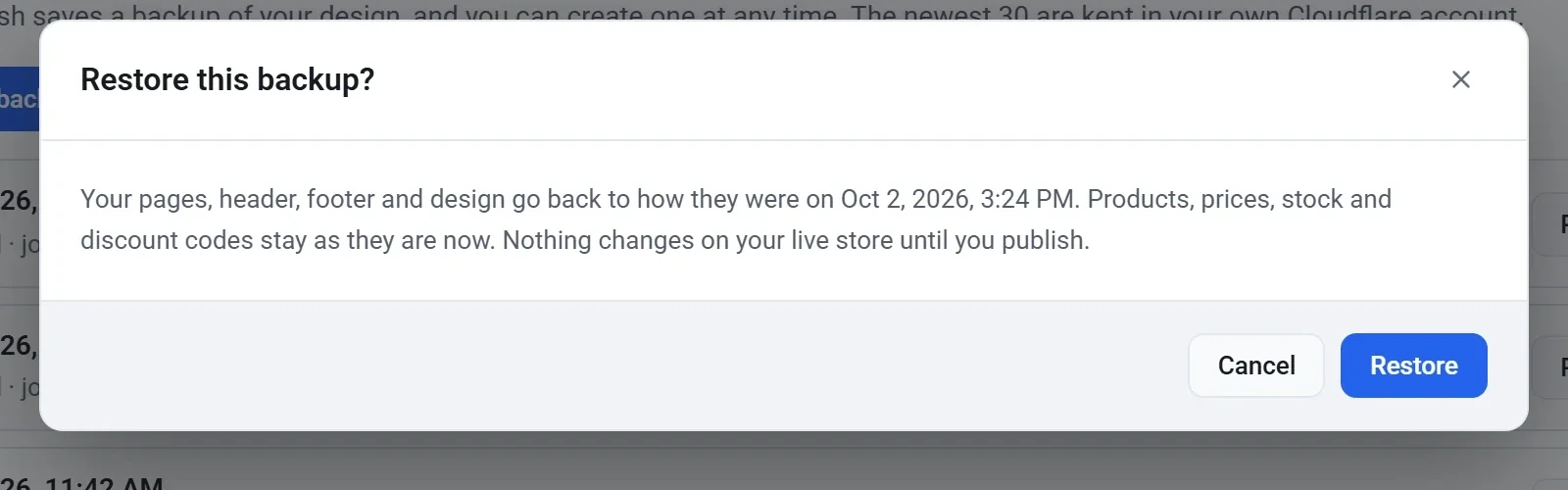
- Read the confirmation, then click Restore again. To change your mind, click Cancel.
- A message in the Backups window confirms the restore. Close the window to see the restored design in the editor.
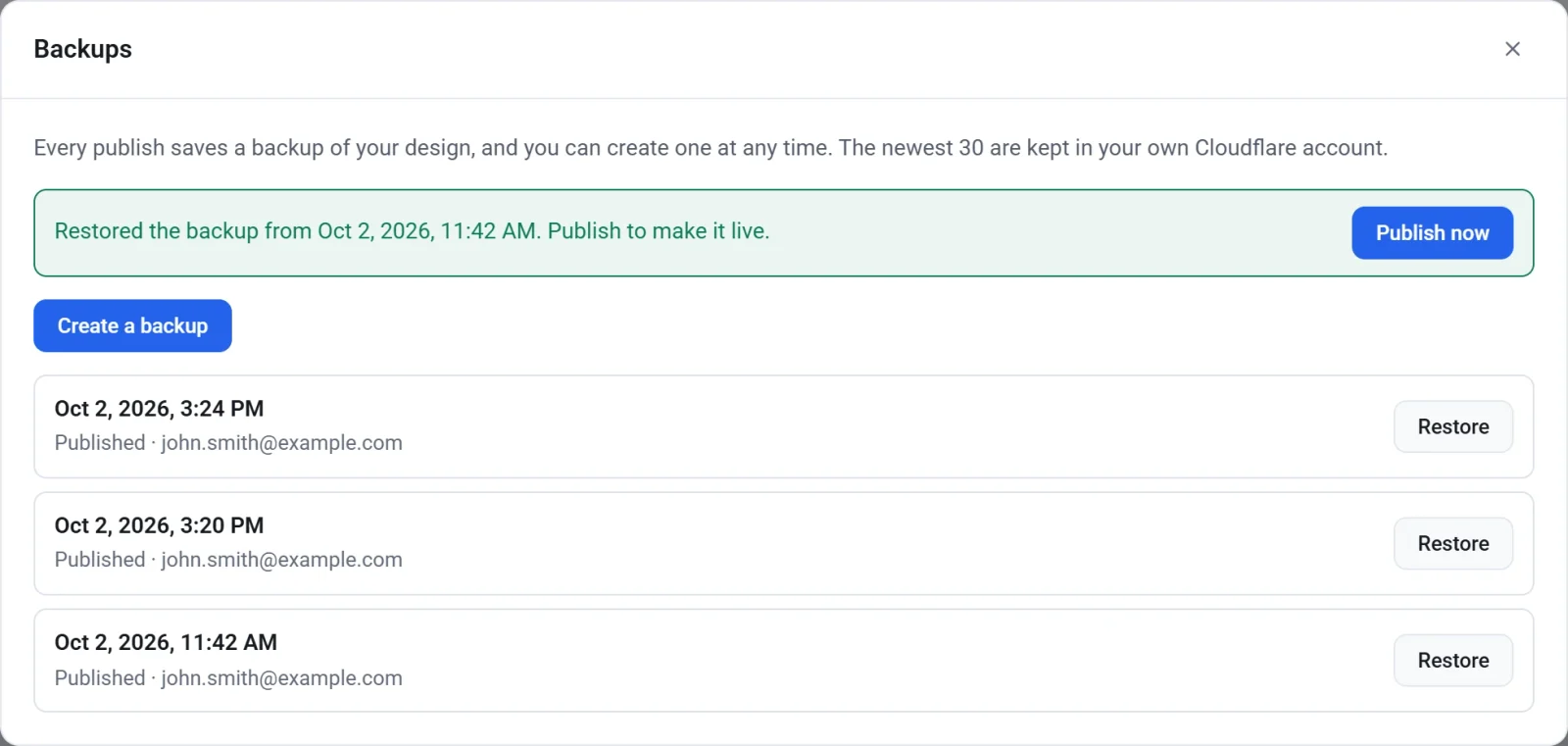
- Click Publish now to put the restored design on your live store, or look it over first and publish later.
Important: Restoring replaces the pages, header, footer and design in your draft with the backup's. Anything you changed since that backup is replaced too. If your current draft is worth keeping, create a backup first.
A restore changes your draft only. Your live store stays as it is until you publish. A restore also counts as a single change, so if you restore the wrong backup you can click the undo arrow to bring back what you had.