
Connect your Cloudflare account
Connect your free Cloudflare account to Payly once so it can publish your store there. See what you approve, what Payly creates and how to check it worked.
Your store is hosted in your own Cloudflare account, so Payly needs your permission to put it there. You give that permission once, on Cloudflare's own screen. It takes about a minute and costs nothing.
Before you start
- You need a Cloudflare account, or you can create one on the way. The free plan is enough, and no credit card is required.
- You need to be the owner of the site, or an admin on its team. Editors can publish but cannot connect or change hosting.
- Allow pop-up windows for payly.org. Cloudflare opens in a small window on top of your dashboard. If your browser blocks it, Payly opens Cloudflare in the same tab instead and brings you back to Settings > Hosting when you finish.
Connect Cloudflare
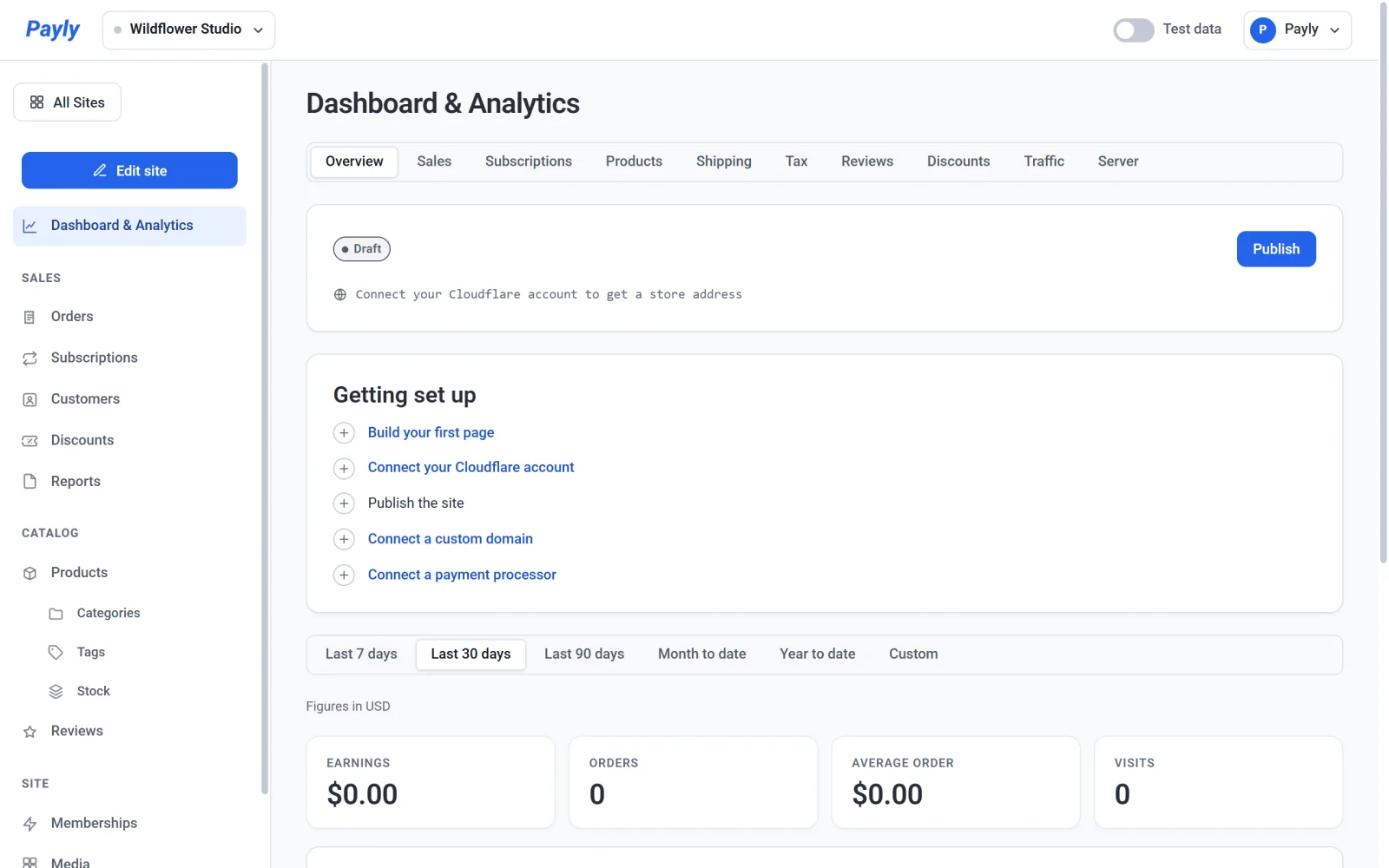
- In your site dashboard, click Connect your Cloudflare account in the Getting set up list, on the Overview tab of Dashboard & Analytics. You can also go straight to Settings > Hosting.
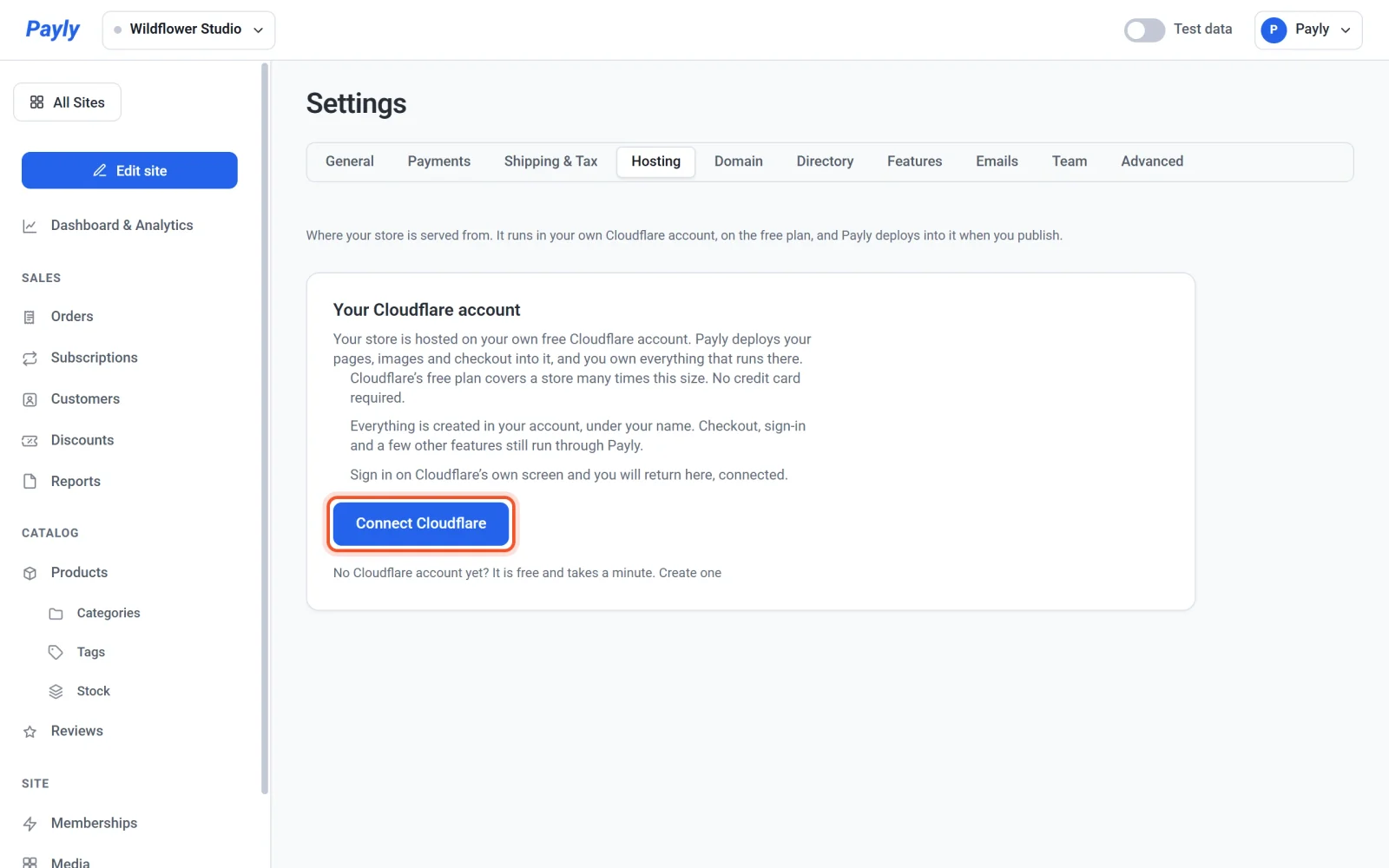
- On the Hosting tab, click Connect Cloudflare.
- Wait for the Cloudflare window to open. Your dashboard says Waiting for Cloudflare. Please finish signing in in the popup window., and stays that way until you finish.
- Sign in to Cloudflare. If you do not have an account yet, create one there. You can also click Create one under the button first.
- Read the permissions on Cloudflare's screen, then approve them. The screen lists what Payly asks for: access to your account settings, to the Workers that run your store, and to a database for its images and members-only pages. Payly never sees your Cloudflare password.
- Wait a few seconds. Payly sets up your store in your account while the window stays open, then the window closes itself and your dashboard shows Cloudflare connected. Your store is deployed.
Check that it worked
Open Settings > Hosting. A green Connected label appears next to Your Cloudflare account, with these details:
- Your store address is the free address of your store.
- Cloudflare account is the account Payly is connected to.
- Deployed as is the name of your store inside Cloudflare. It is usually your store handle.
- Last deployed and Connected are dates.
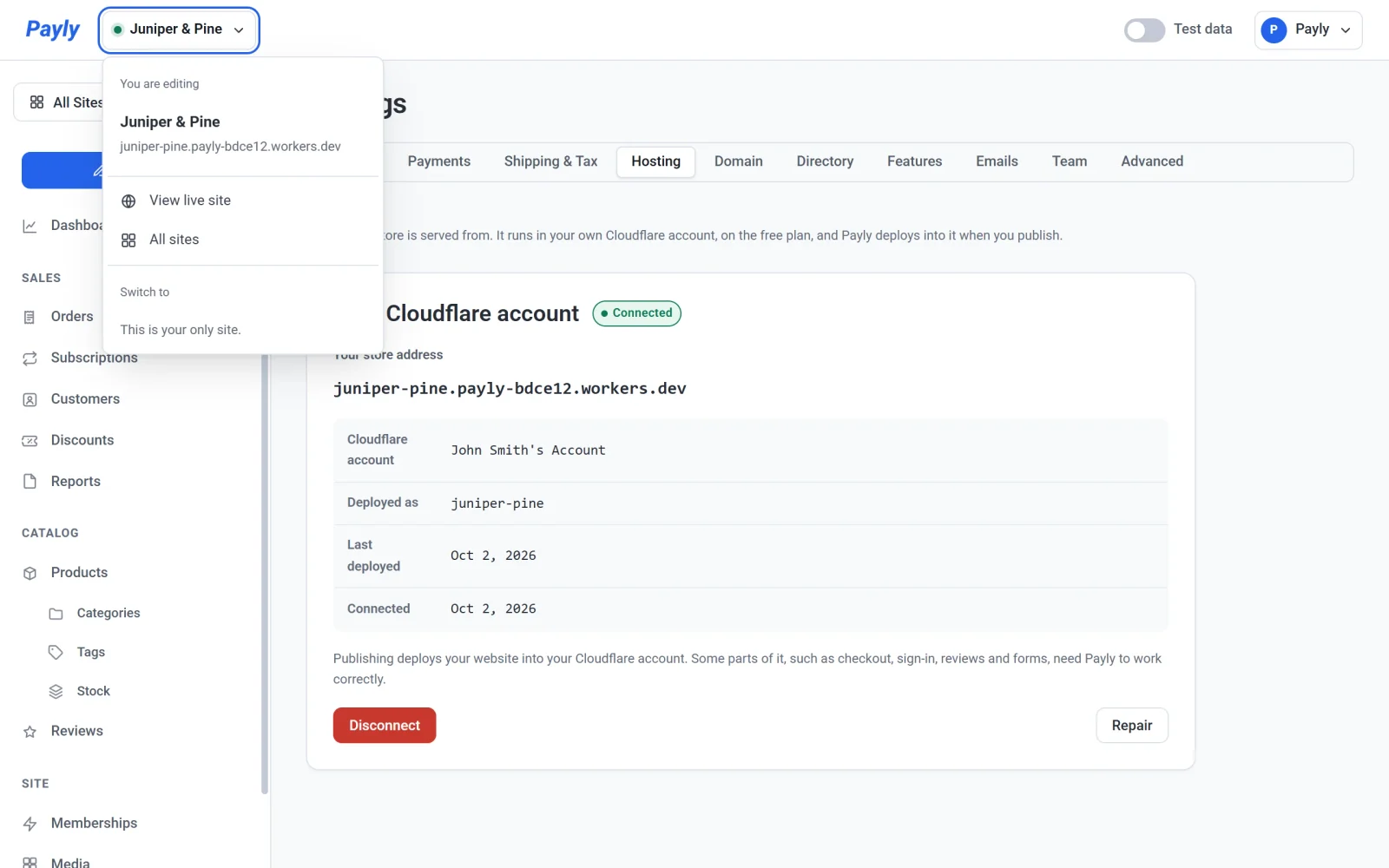
If your login can reach more than one Cloudflare account, Payly uses the first one Cloudflare lists. Check the name next to Cloudflare account to make sure it is the one you meant.
What Payly creates in your account
- A Cloudflare Worker, usually named after your store handle. This is the small program that serves your store.
- A database with a name that starts with
payly-, which holds your uploaded images and members-only pages. - A free
workers.devaddress for the store, in the formhandle.account-name.workers.dev. If your account has never used Workers, Payly picks a short, anonymous account name for you, such aspayly-bdce12. If your account already has one, Payly uses it.
Connecting does not publish your store. Until you publish, the store address shows a page saying the store has not been published yet. See Publish, update and take your site offline.
When Payly asks you to connect
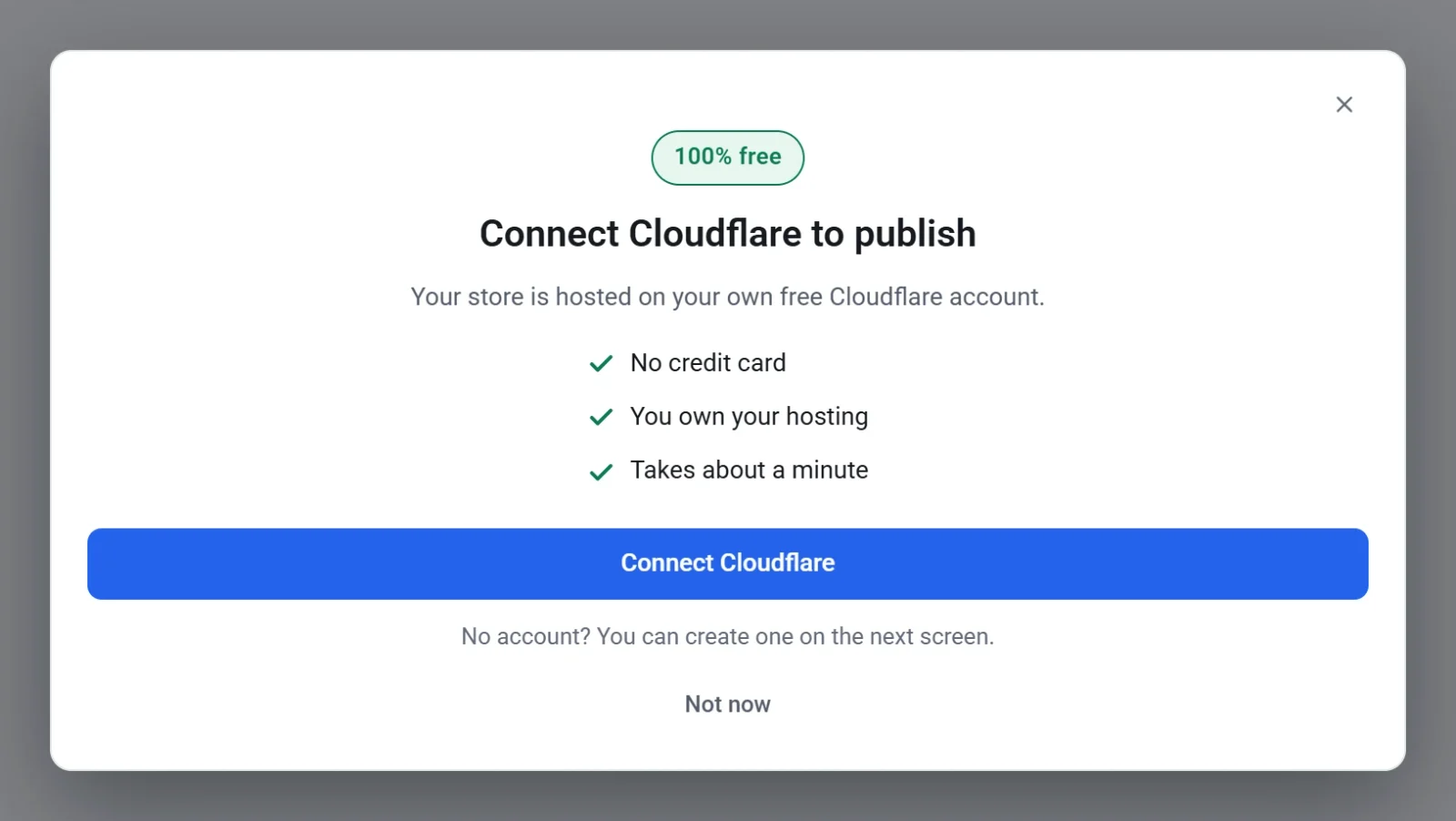
You do not have to connect in advance. Payly shows a Connect Cloudflare window when you click Publish or upload an image before connecting, and when you click Connect Cloudflare on the Domain tab. Click Connect Cloudflare in it to start the steps above, or Not now to keep working.
If something goes wrong
- You closed the Cloudflare window. Nothing changed, although Payly may say that Cloudflare could not be connected. Click Connect Cloudflare again.
- The connection did not finish. Payly says nothing was changed. Try again. If you waited more than ten minutes on Cloudflare's screen, the sign-in link has expired, so start again from your dashboard.
- The label says Needs attention or Access was withdrawn. See Repair or reconnect hosting.
Disconnecting
You can remove Payly's access at any time with Disconnect on the same tab. Payly asks you to confirm first.
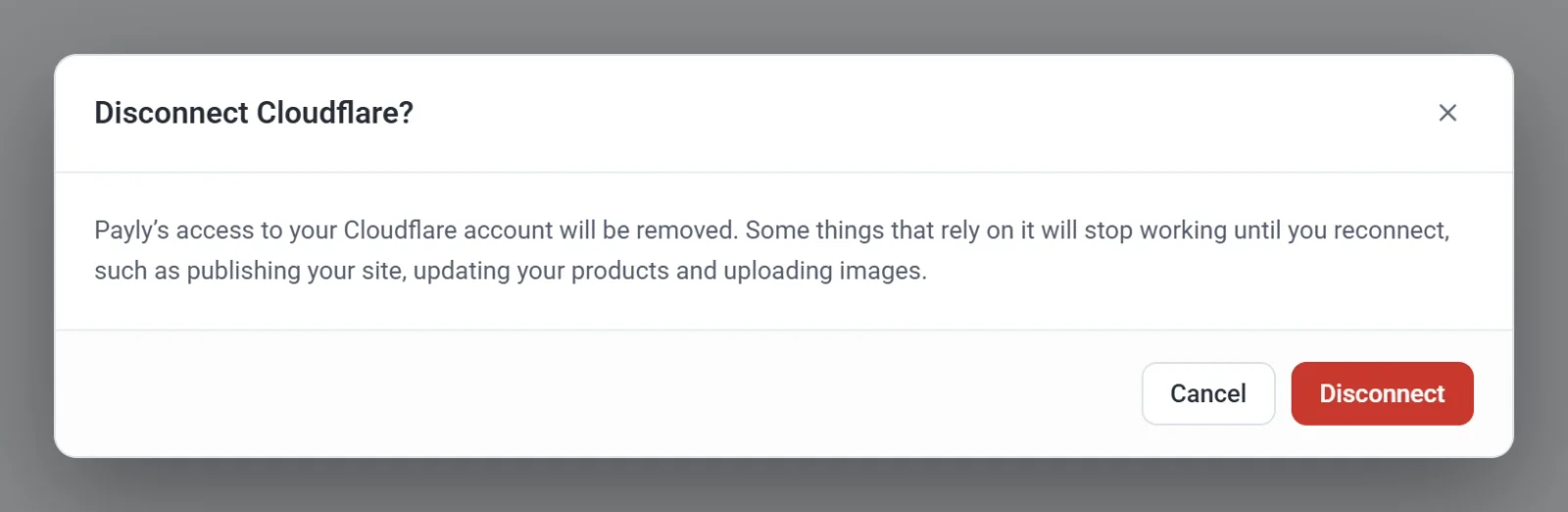
Nothing is deleted from your Cloudflare account and your store stays online. While Cloudflare is disconnected, Payly cannot publish your site, update your products or upload images. When you connect again, everything picks up where it left off.