
Add images and use the media library
Upload photos, place them on your pages with the Image block, and find, reuse or delete them later in your site's media library.
Photos make a store feel real. In Payly you upload an image once, then reuse it on as many pages as you like. Every image you upload is kept in your site's media library.
Before you start
- Uploaded images are stored with your store, in your own Cloudflare account. If you have not connected Cloudflare yet, Payly asks you to do that the first time you upload an image.
- You can upload JPEG, PNG, WebP, GIF and AVIF images, up to 10 MB each. Large photos are made smaller automatically before they upload, so your pages stay quick to load. Animated GIFs are left as they are.
Add an image to a page
- In the Blocks panel, drag Image from the Media group onto your page. See Add, move and resize blocks. A new Image block shows No image selected.
- In the settings panel, open General. The Image setting has three ways to choose a picture:
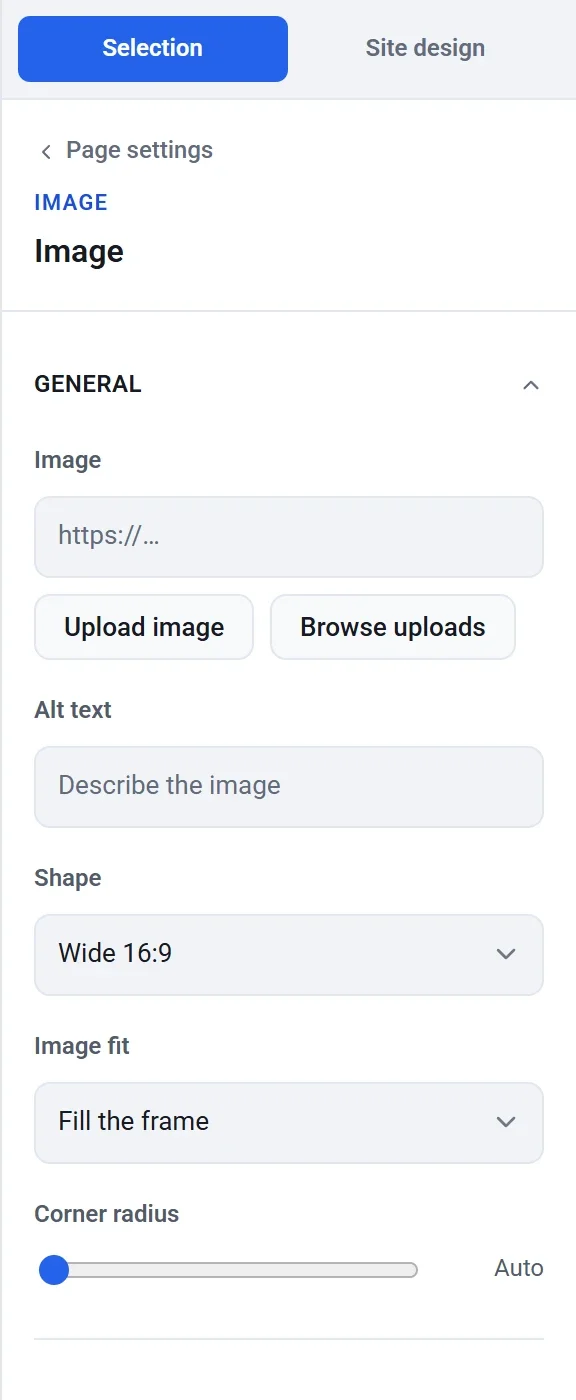
- Click Upload image and choose a file from your computer.
- Click Browse uploads to pick a picture you uploaded before.
- Paste the web address of a picture into the box. Only do this for pictures you have the right to use, and remember that a picture on someone else's site can change or disappear. Uploading is safer.
- Type a short description in Alt text, for example Hands shaping a bowl on a potter's wheel. People who use screen readers hear it, and it is shown if the picture cannot load. Search engines read it too.
To take a picture off the block, click the x in the corner of its preview. This does not delete the picture from your library.
Pick from your uploads
- Click Browse uploads. The Your uploads window opens with a thumbnail of each image, with its size and type below it.
- Click the picture you want. Its file name, dimensions, type, size and address appear on the right.
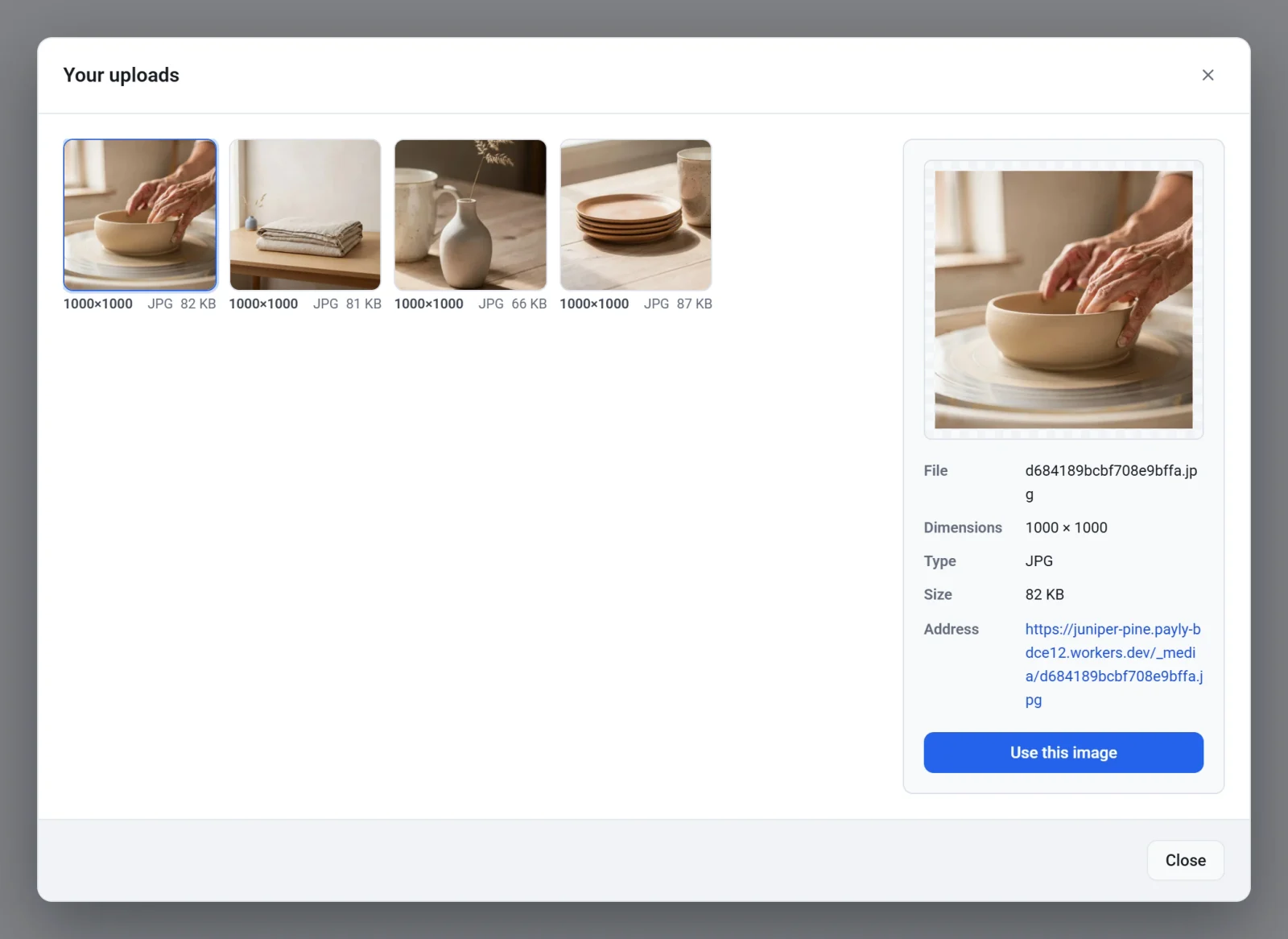
- Click Use this image.
If you have many images, the window shows them a page at a time. Use Previous and Next under the thumbnails to move through them.
Control how the image looks
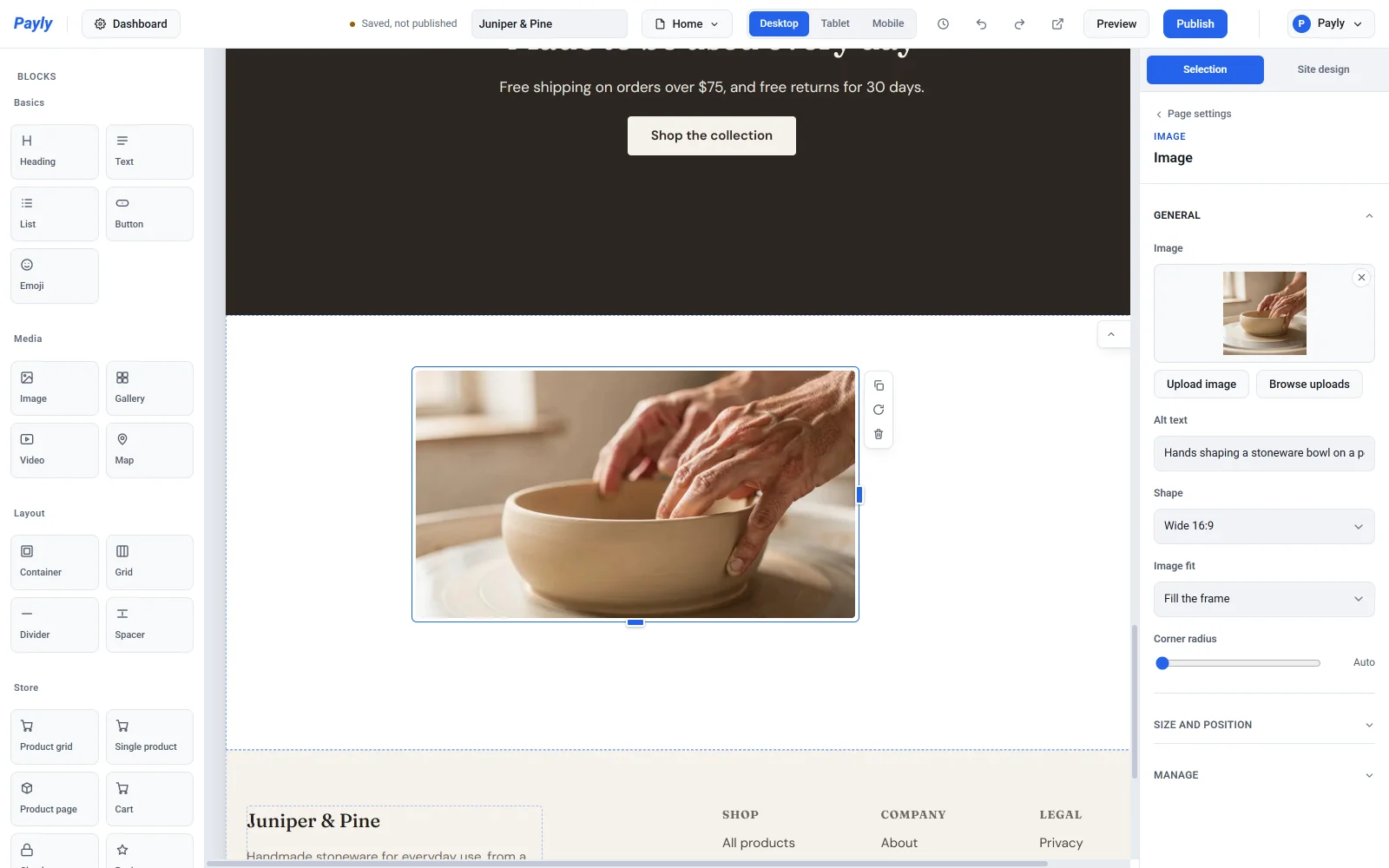
- Shape sets the frame: Wide 16:9, Standard 4:3, Square or Original (the picture's own proportions).
- Image fit decides what happens when the picture and the frame are different shapes. Fill the frame crops the picture to fill the frame completely. Fit inside shows the whole picture and may leave empty space around it.
- Corner radius rounds the corners. Auto uses your site design's setting.
The width and height of the block come from its size on the page. Drag its handles to change them.
Other places that use your images
- A section's Background image has the same Upload image and Browse uploads buttons. See Work with sections.
- Your logo and your browser icon use the same buttons. See Set your colors, fonts and layout.
- Photos you add to a product are kept in the same library.
- A Gallery block asks for each picture's web address. Upload the picture first, then copy its address from the library, as described below, and paste it in.
Manage your media library
Go to your site dashboard and click Media in the left menu. The list shows each image's file name, dimensions, type and size.
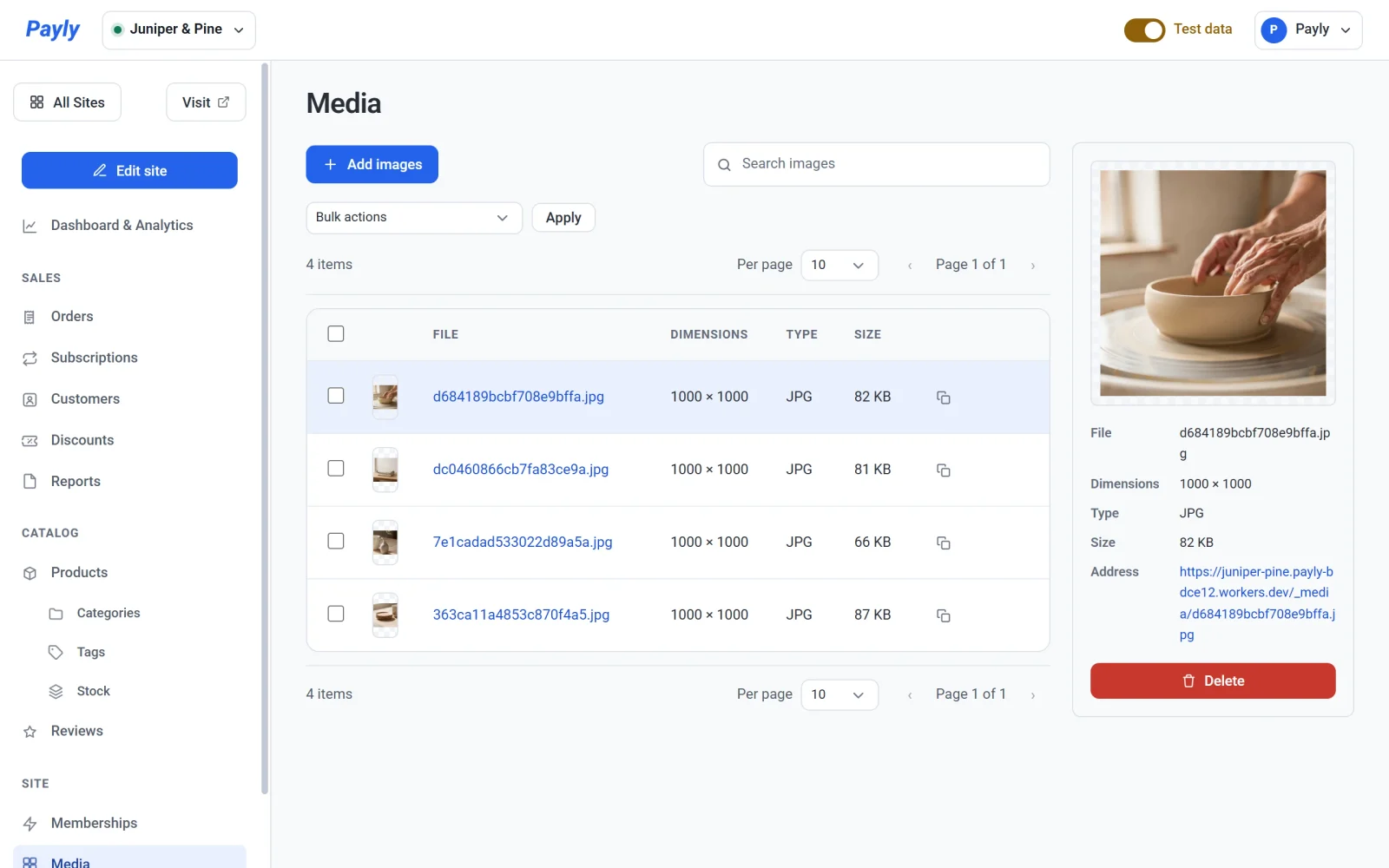
- Click Add images to upload one or more pictures at once.
- Type in Search images to find a file by name.
- Click an image's name or row to see a larger preview and its details on the right.
- Click the copy icon at the end of a row to copy the image's web address.
Delete an image
- Click the image to select it.
- Click Delete in the details on the right. To delete several, tick their boxes, choose Delete from Bulk actions and click Apply.
- Read the message and confirm. If the image is used on your site, the message says how many places it appears in.
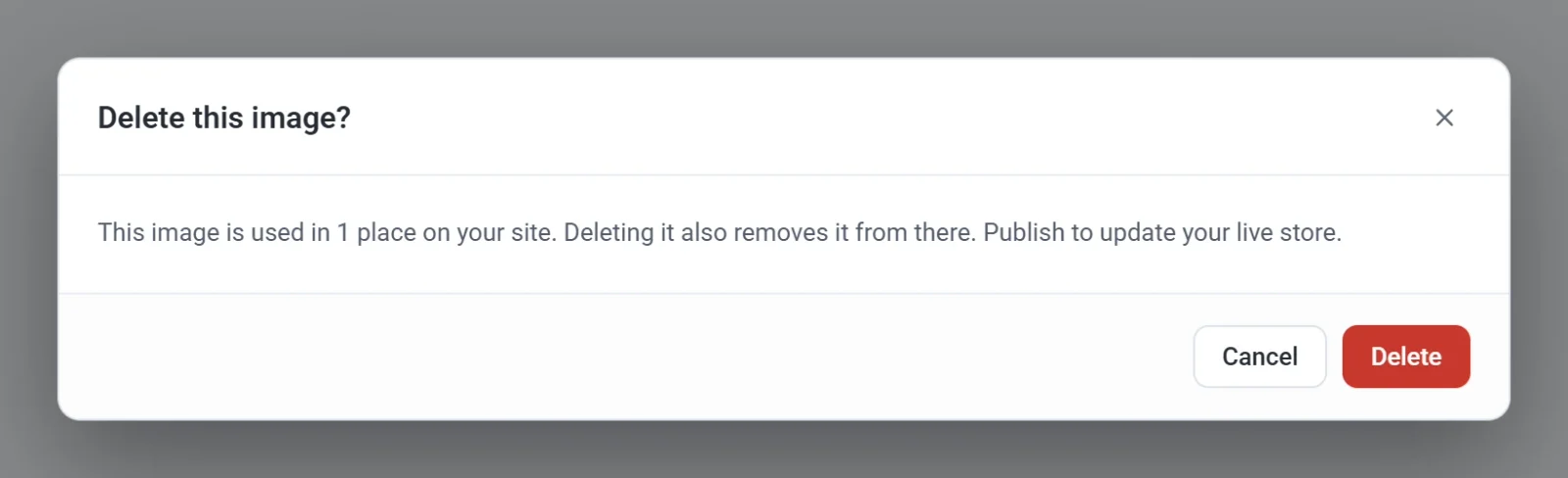
Important: A deleted image is gone for good. There is no trash to restore it from. Payly removes the image from the places where your draft uses it and asks whether to publish. Until you publish, your live pages still point to the deleted file, so visitors can see a broken image (a copy saved by a browser may linger for a while). Publish soon after you delete.