
Create an order by hand
Record a phone order, a market sale or a bank transfer as an order in Payly, and choose whether it is paid or pending.
Sometimes a sale happens outside your store: a phone order, a customer at a market stall, or an invoice paid by bank transfer. You can write these orders into Payly by hand, so your order list and customer list include them.
Before you start
- You need at least one product that is not a draft. Prices come from your products, so Payly asks you to add a product first if you have none. See Add a product.
- Decide whether you have already been paid. It changes what Payly does when you save. See Choose Paid or Pending below.
Add the order
- In your site dashboard, click Orders.
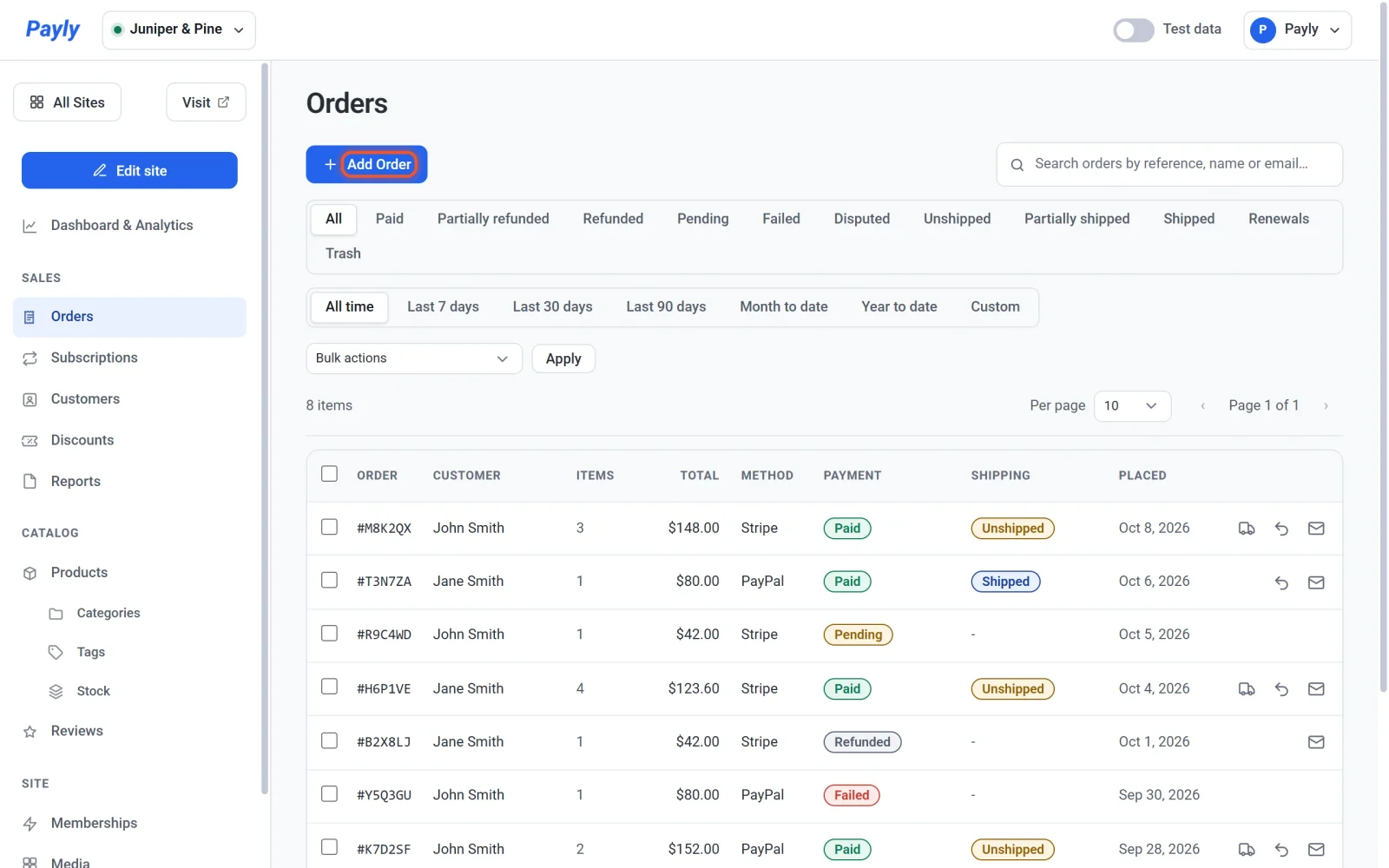
- Click Add Order.
- Enter the customer's name in Customer name and their email address in Email. Both are optional, but an order with no email address does not appear under any customer and cannot send the customer an email.
- Under Items, click Add Item. Choose a product from the list, which shows each product's price, and enter the quantity beside it. Repeat for every product in the order. Click the bin icon to remove a line.
- Enter Shipping, Tax and Discount if they apply. Type the amounts you actually charged, and leave 0.00 where nothing applies.
- Choose a Status: Paid or Pending.
- Check the Total at the bottom. It adds up the item prices and shipping and tax, then takes off the discount.
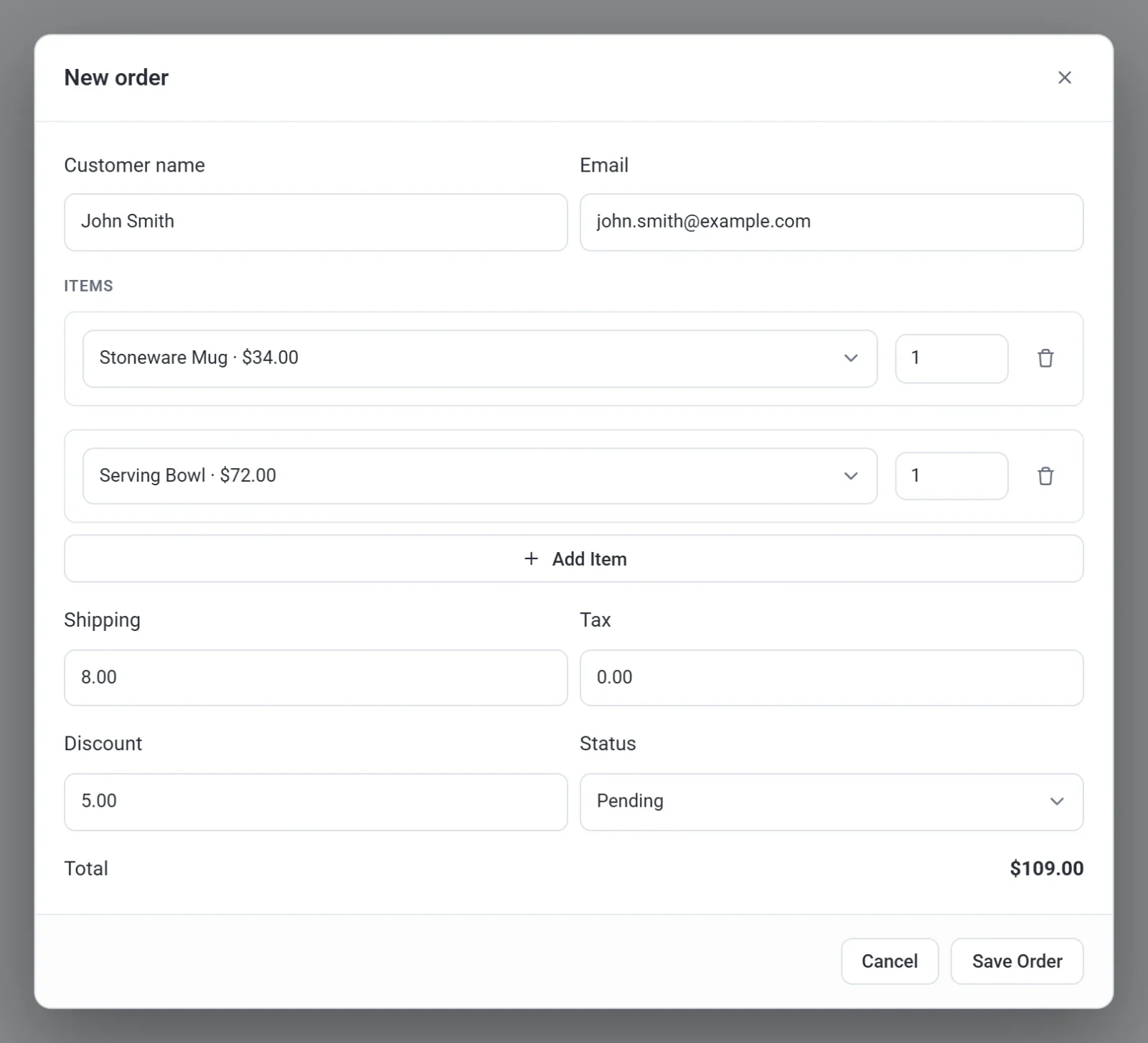
- Click Save Order. A message says Order added. and the order appears in your list.
Choose Paid or Pending
The status you choose when you save decides what Payly does next.
- Paid means you already have the money. Payly records a paid order, creates an account for the customer, emails the customer an order confirmation and a sign-in link, emails you a new order notice, and takes the items out of stock if you track stock.
- Pending means the order is only written down. Nothing is sent and your stock does not change.
Important: An order saved as Paid sends real emails to the address you enter. Check the address before you click Save Order.
You can change the status later. Tick the order in the list, choose Mark as Paid from Bulk actions and click Apply. This only changes the status: it does not send emails or change your stock. See View and manage orders.
Good to know
- Payly takes each item's price from your product, so you cannot type a different price for one line. Use Discount to lower the total. A product with options such as sizes or colors is added at the product's own price.
- The order has no shipping address. You can still click Mark as shipped on a paid order that has physical items. See Mark orders as shipped.
- An order you add by hand is not linked to a Stripe or PayPal payment. It has no payment ID, and Payly cannot send a refund for it, so the order has no Refund button. If you give the money back yourself, tick the order and choose Mark as Refunded to keep your records right.
- An order you add by hand follows the Test data switch: add it while the switch is on and it is a test order, kept out of your live figures; add it while the switch is off and it is live. See Test data and live data.