
Download sales, tax and shipping reports
Make a Sales, Taxes or Shipping report for any dates, place and payment method, and download it as a spreadsheet file.
The Reports screen turns your orders into a spreadsheet file. You choose the report, the dates, how the rows are grouped and which orders to include, and Payly downloads a CSV file you can open in Excel, Google Sheets or Numbers, or send to your accountant.
Make a report
- In your site dashboard, click Reports in the Sales group of the left menu.
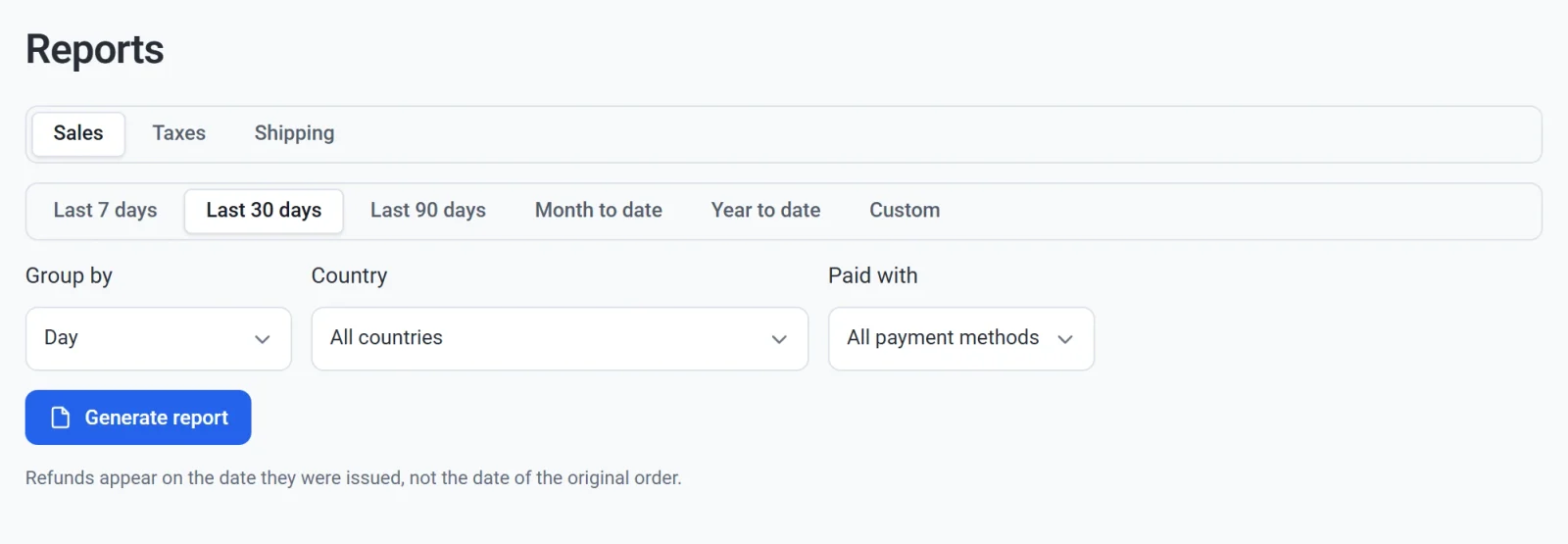
- Choose Sales, Taxes or Shipping.
- Choose a period: Last 7 days, Last 30 days (the default), Last 90 days, Month to date, Year to date or Custom. Custom shows From and To date fields. Days follow your computer's time zone.
- In Group by, choose what each row of the report stands for. See the table below.
- To report on only some orders, choose a Country, then a State or region if that country has them, or a payment method in Paid with.
- Click Generate report. The file downloads to your computer.
When no orders match your choices, no file downloads and the screen says No data for this period.
Reports follow the Test data switch in the top bar. While it is on, a report holds only orders placed in test mode. See Test data and live data.
Group the rows
Each report starts on its most useful grouping: Sales by Day, Taxes by State or region and Shipping by Shipping method.
| Group by | One row for each | Reports |
|---|---|---|
| Day, Week, Month | Day, week or month of the period. A week starts on Monday and is named by that Monday's date. | All |
| Country | Country the order went to | All |
| State or region | State or region, with its country | All |
| Product | Product, with the units sold. An order with several products is shared among them by what each one cost. | Sales |
| Payment method | PayPal, Stripe, Manual (orders you added by hand) or Free (orders that cost nothing) | Sales |
| Tax rate | Tax rate charged, with its name and percentage | Taxes |
| Shipping method | Shipping method the buyer chose | Shipping |
| Each payment | Payment or refund, with its date and order number | All |
An order belongs to the country and state of its shipping address. An order with nothing to ship belongs to the place the buyer paid from, and a renewal of a download-only subscription to the place of its first order. Rows with no place say No address.
The Sales report
Every row adds up the same way: Gross sales + Discounts + Refunds = Net sales, and Net sales + Shipping + Tax = Total sales.
| Column | What it holds |
|---|---|
| Orders | The number of payments, subscription renewals included. |
| Gross sales | What your products sold for before discounts, sign-up fees included. |
| Discounts | What discount codes took off, as a negative amount. |
| Refunds | Money you refunded, without its shipping and tax, as a negative amount. |
| Net sales | Gross sales after discounts and refunds. |
| Shipping | Shipping charged, less shipping refunded. |
| Tax | Tax charged, less tax refunded. |
| Total sales | What buyers paid, less what you refunded. |
The Taxes report
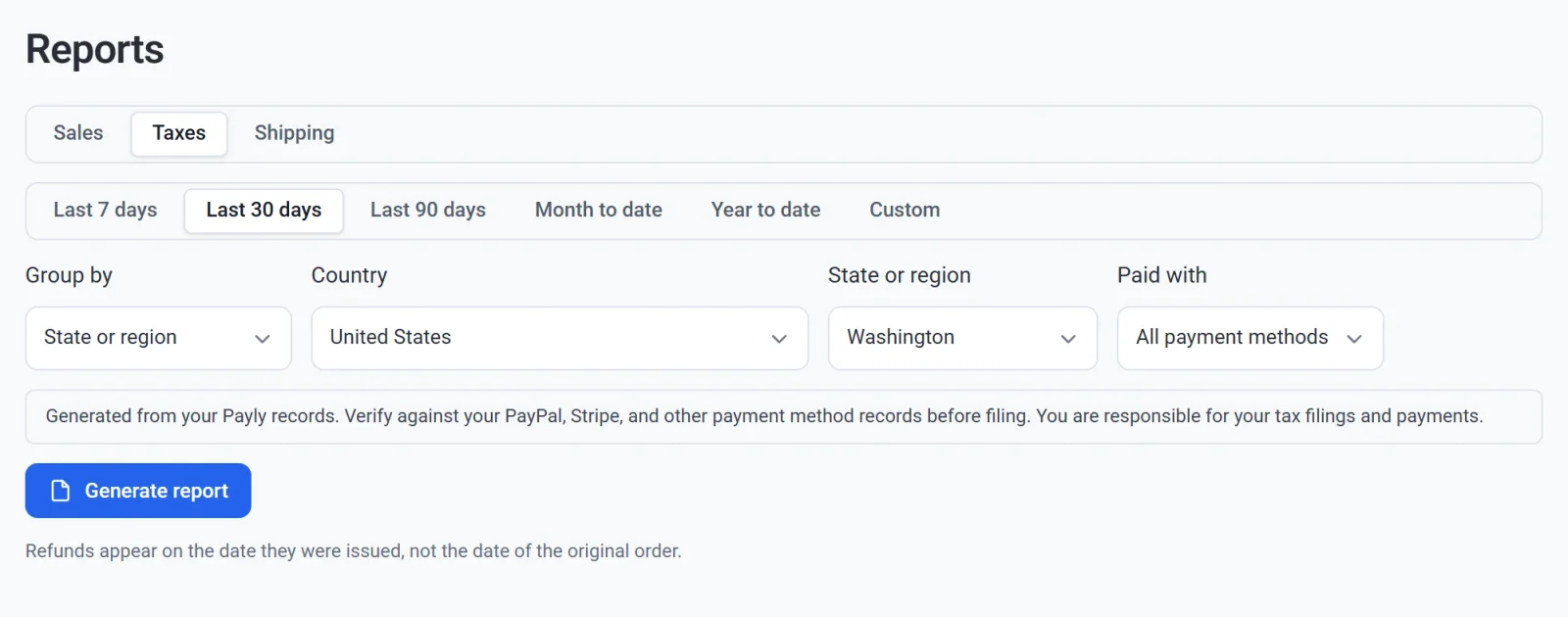
Every amount is after refunds.
| Column | What it holds |
|---|---|
| Payments | The number of payments. |
| Sales before tax | What buyers paid without the tax, shipping included. |
| Taxable amount | The part of Sales before tax that was taxed. Shipping is in it when your tax rate also taxes shipping. |
| Non-taxable amount | The rest: orders with no tax, and shipping your rate does not tax. |
| Tax on items | Tax charged on products. |
| Tax on shipping | Tax charged on shipping. |
| Tax | All the tax. |
Grouped by Each payment, the report also shows each payment's Transaction ID and Subscription ID from Stripe or PayPal, its Postal code, Tax rate, Rate and Shipping taxed, so you can match it with your payment records.
A payment that came to a different amount than it was sold at is marked in the Check column, for example Charged 54.00, sold at 59.00. After you generate the report, a note under the button says how many there are. Look these payments up in PayPal or Stripe before you file.
Important: The Taxes report is made from your Payly records. Check it against your PayPal, Stripe and other payment records before you file. You are responsible for your tax filings and payments.
The Shipping report
The Shipping report holds only orders that shipped: orders charged for shipping, or sent with a shipping method, free shipping and pickup included. It shows Orders, Shipping (what buyers paid for shipping, less refunds) and Tax on shipping.
How payments and refunds are counted
- A payment counts on the day it was paid. A refund counts on the day you made it, as a negative amount. Refunding an order from an earlier period lowers the period you refund it in, not the period of the order.
- A refund comes off each column in proportion: its share of the order's shipping and tax comes off Shipping and Tax, and the rest off Refunds.
- Paid, shipped and refunded orders count. Pending, failed and cancelled orders do not.
- A payment with an open chargeback still counts. A lost chargeback counts as a refund on the day it was lost.
More than one currency
A report holds one currency. If your store sold in more than one during the period, a Currency list appears after you generate a report. Choose another currency and click Generate report again to get its file.
Inside the file
- One header row, then one row per group. There is no total row: add up a column with your spreadsheet's SUM.
- Amounts are plain numbers in the report's currency, with no currency sign. Discounts and refunds are negative.
- Dates are written as 2026-10-08 and months as 2026-10.
- The file name says what is in it, for example
my-store-taxes-by-region-USD-2026-09-01-to-2026-09-30.csv.