
Repair or reconnect hosting
Fix a store that will not publish or has no address. Use Repair to deploy again, or Connect again when Payly has lost access to your Cloudflare account.
Most stores never need this article. If publishing fails, your store has no address, or Payly says it has lost access to Cloudflare, two buttons on the Hosting tab fix it: Repair and Connect again.
Which one do you need?
Open Settings > Hosting and look at the label next to Your Cloudflare account.
| What you see | What it means | What to do |
|---|---|---|
| A red message, the label Needs attention, or No address yet. Use Repair to deploy again. | Setting up or deploying your store did not finish. | Click Repair. |
| The label Access was withdrawn | Cloudflare no longer accepts Payly's access to your account. | Click Connect again. |
| A page like the one before you connected, with a message that your store is still running | You disconnected Cloudflare. | Click Connect again. |
| A window titled Reconnect Cloudflare when you click Publish | Payly has no access to Cloudflare right now. | Click Reconnect Cloudflare in the window. |
Your store address no longer opens your store after you renamed your workers.dev name in Cloudflare | The address Payly shows is out of date. | Click Repair, or publish again. |
Your store usually stays online while you fix this. If it was deployed before the problem, it keeps running in your Cloudflare account, but Payly cannot update it until the problem is fixed.
Repair your hosting
Repair runs the setup in your Cloudflare account again and then deploys your store again. It checks the store's name, its free address and the database that holds your images, and recreates anything that is missing. It does not change your products, orders, settings or payment connections.
- Go to Settings > Hosting.
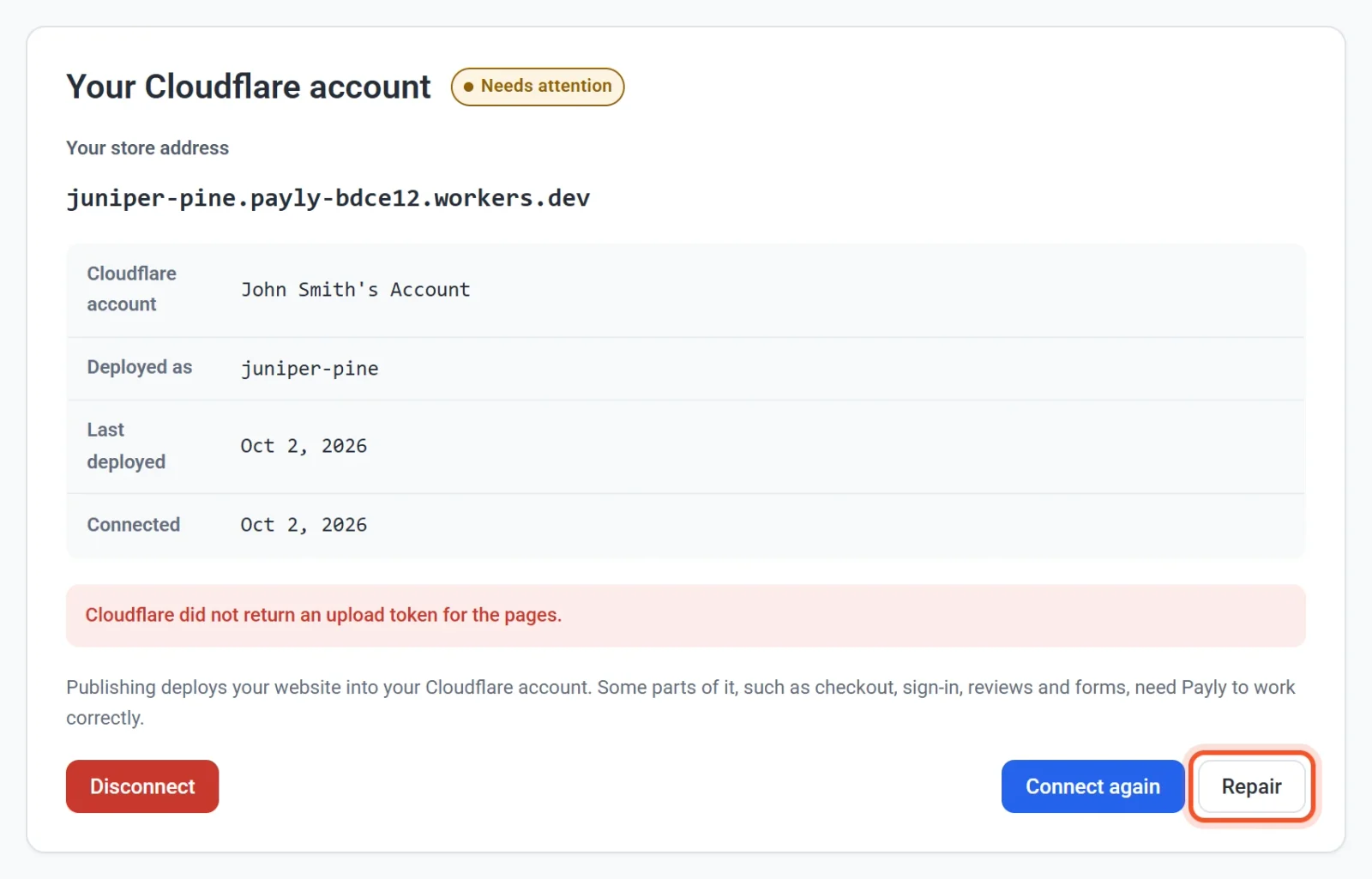
- Click Repair.
- Wait while the button shows a spinner.
- Check for the message Deployed again. The label returns to Connected and Last deployed shows the new date.
When the label is Needs attention, the tab shows both Repair and Connect again. Try Repair first. The red message under the details, as in the picture, is the error from the last attempt.
Note: If your store is live, Repair deploys it by publishing your saved site. Anything you have saved but not published yet goes live too. If the store is not published, Repair deploys the "not published yet" page.
If Repair fails, a message appears and the tab shows the label Needs attention with the error under it. Read the error, then try Connect again.
Connect again
Use this when Payly has lost access to your Cloudflare account, whether because you disconnected it or because Cloudflare stopped accepting the connection.
- Go to Settings > Hosting and click Connect again. If you came from the Publish button, click Reconnect Cloudflare in the window instead.
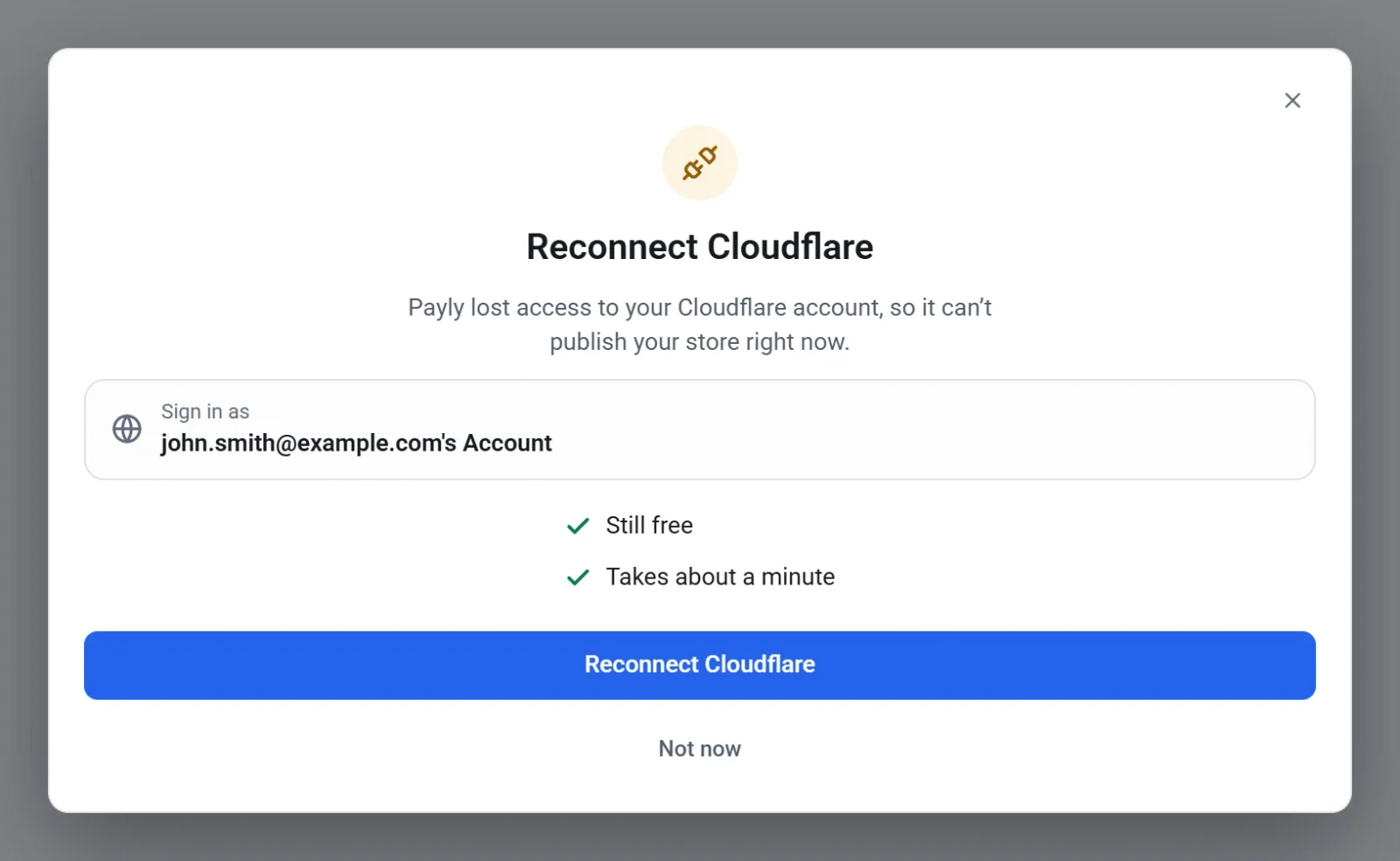
- In the Cloudflare window, sign in and approve the request, the same way as the first time. See Connect your Cloudflare account.
- Wait for the window to close. Payly shows Cloudflare connected. Your store is deployed.
When you sign in with the same Cloudflare account as before, Payly picks up where it left off. Your store keeps the same name, address, images and custom domain.
Important: Sign in with the same Cloudflare account. If you sign in with a different one, Payly does not connect it and nothing is changed. Sign out of Cloudflare, then connect again with the account named in the window.
If it still does not work
Your store stays online, so you have time. Check that you are the owner or an admin of the site, because editors cannot change hosting. If the problem remains, see Contact Payly support.