
Set your store currency
Choose the one currency your store uses for every price, and learn what changes, and what does not, when you switch.
Your store has one currency. Every price, shipping rate and discount amount is written in it, and it is the currency Stripe and PayPal are asked to charge your customers in. New stores start with US dollars (USD).
Before you start
- Choose your currency before you add products and take orders. It is much easier to set once than to change later.
- Make sure your Stripe and PayPal accounts can accept the currency you choose. Each processor supports its own list of currencies, and the list depends on the country of your account. Check their documentation if you are not sure.
Change your currency
- In your site dashboard, click Settings. The General tab opens.
- Find Currency, below Store language.
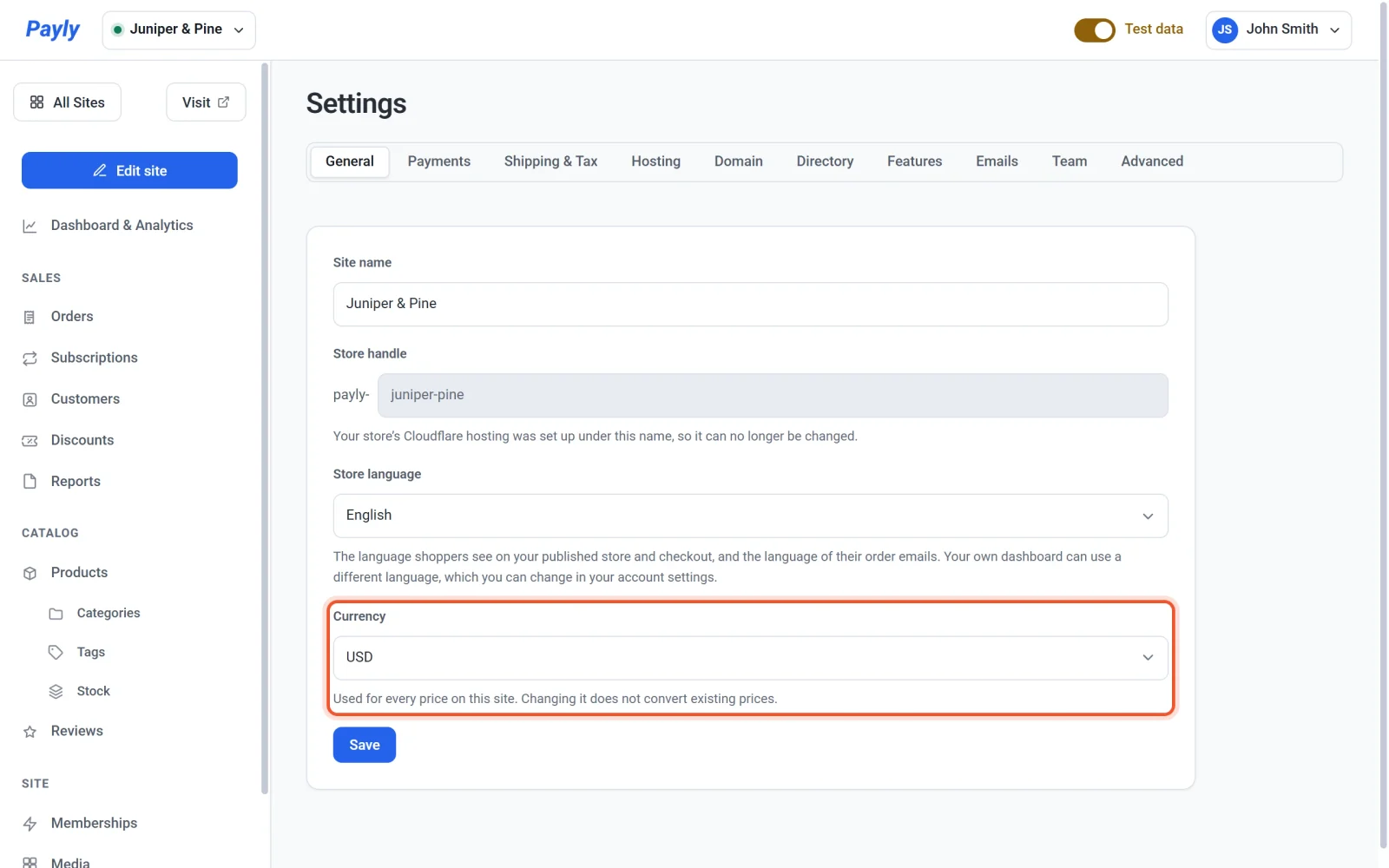
- Open the list and choose a currency by its three-letter code. You can choose from
USD,EUR,GBP,CAD,AUD,NZD,JPY,CHF,SEK,NOK,DKK,PLN,MXN,BRL,INR,SGD,HKDandZAR. - A message asks you to confirm and reminds you that prices are not converted. Click Change currency. To keep your current currency, click Cancel instead.
- Look at your prices. Click Products and check every price, as described below.
- Publish your store again, so that your store pages show the new currency.
The currency is saved as soon as you confirm it. You do not need to click Save, which saves only your site name and store handle.
Important: Payly does not convert your prices when you change the currency. The amounts stay exactly as they were, and only the currency changes. Check every price afterward.
What happens to your prices
Because nothing is converted, a product that cost 34.00 in dollars costs 34.00 in euros after the change. Currencies without cents behave differently. The Japanese yen (JPY) has no cents, so a $34.00 product shows as ¥3,400.
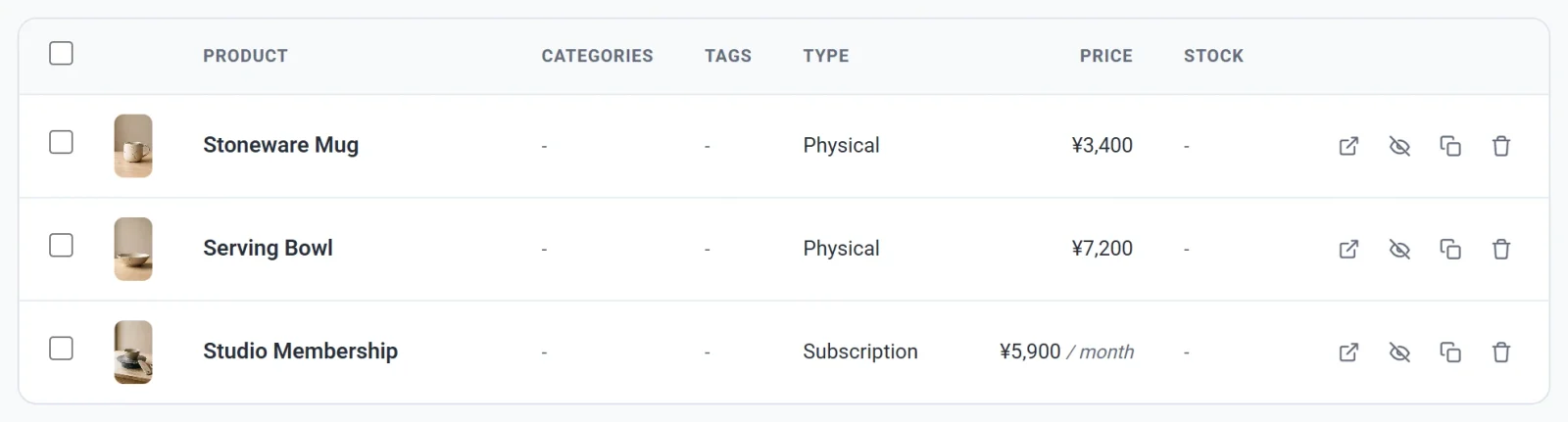
JPY. The stored amounts were kept, so $34.00 became ¥3,400.The same goes for other amounts you have entered, such as shipping rates, the order total above which shipping is free, and the amounts and minimum spends of discount codes. Review them too. Tax rates are percentages, so they are not affected.
What stays the same
- Orders you have already received keep the currency they were paid in.
- Subscriptions that customers have already started keep billing in the currency they started with.
- Your reports add up order totals without converting between currencies. If you sell in one currency and then switch, your totals mix the two and stop being meaningful.
What your customers see
After you publish, the product pages, cart and checkout show prices in the new currency, and the same currency is sent to Stripe and PayPal when the customer pays. If your payment account holds its balance in a different currency, your processor may convert the money for you and may charge its own conversion fee. Payly adds no fee. See When and how you get paid.