
Offer sizes, colors and other options
Sell one product in several versions, such as colors or sizes, each with its own price, SKU and stock count, using attributes and variations.
Variations let one product come in several versions, such as a vase in three colors or a shirt in four sizes. Shoppers choose a version from a drop-down list on the product page, and each version can have its own price, SKU and stock count.
Attributes and variations
Two words are worth knowing before you start:
- An attribute is a feature that varies, with a list of options. For example, the attribute Color has the options Sage, Sand and Charcoal.
- A variation is one version a shopper can buy. With one attribute, each option is a variation. With two attributes, such as Color and Size, every combination is a variation, so 3 colors and 2 sizes make 6 variations.
Add options to a product
- In your site dashboard, click Products, then click the product, or click Add Product to create one. The product needs a main Price, even when every version has its own.
- Scroll down to Attributes & variations and click Add an attribute.
- Enter the attribute's name in Attribute, for example
Color. - Enter the choices in Options, separated by commas, for example
Sage, Sand, Charcoal.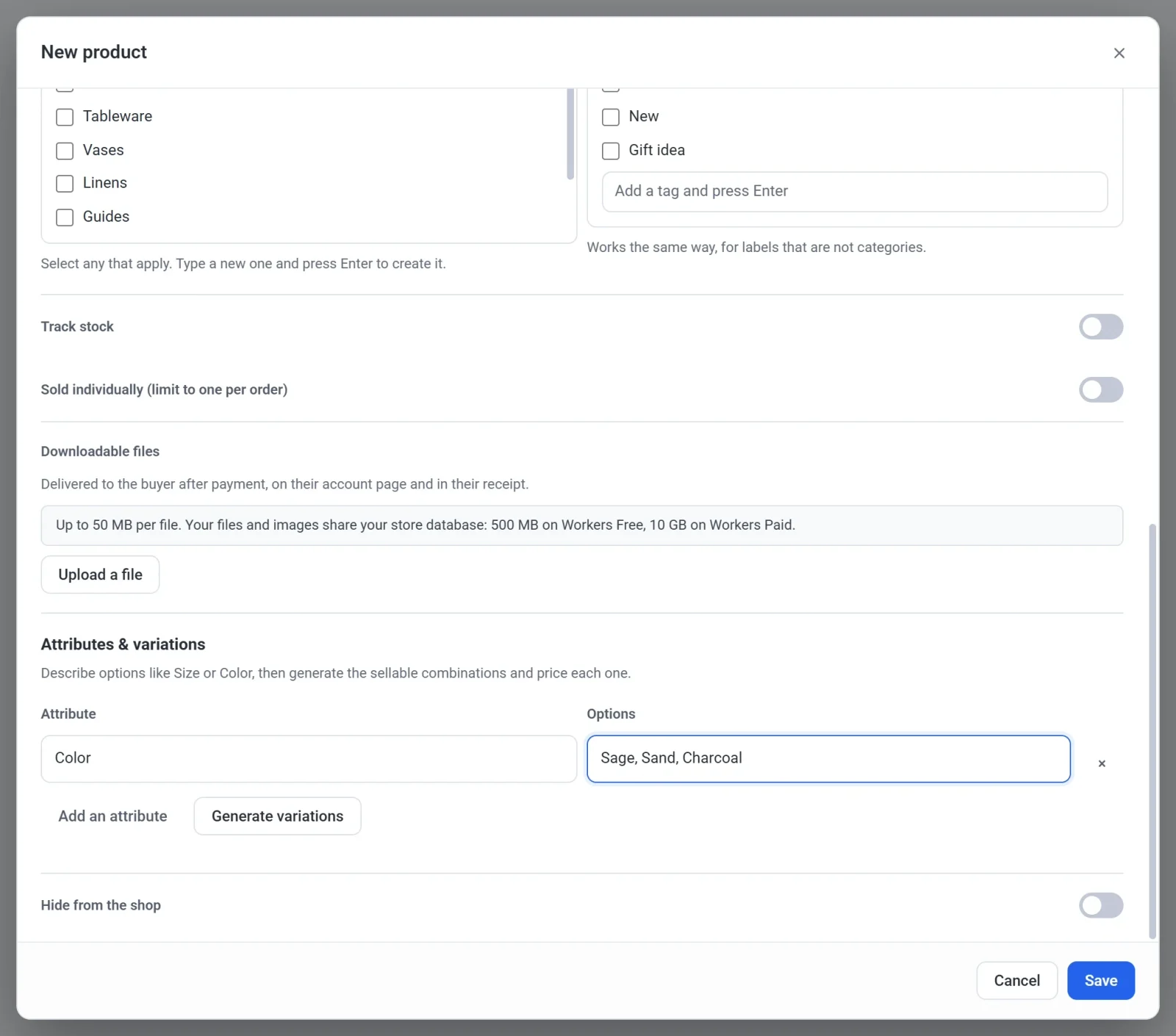
- To add a second attribute, such as
Size, click Add an attribute again and repeat steps 3 and 4. - Click Generate variations. A Variations list appears with one row for each version.
- Fill in the row for each version:
- The price box is optional. Leave it empty to use the product's price, which is shown in gray as a reminder. Enter an amount to charge more or less for that version.
- The SKU box is optional. It is your own code for that version.
- Tick the box at the end of the row to give that version its own stock count, then enter how many you have. Leave it unticked and the version shares the product's own stock, if you turned on Track stock for the product.
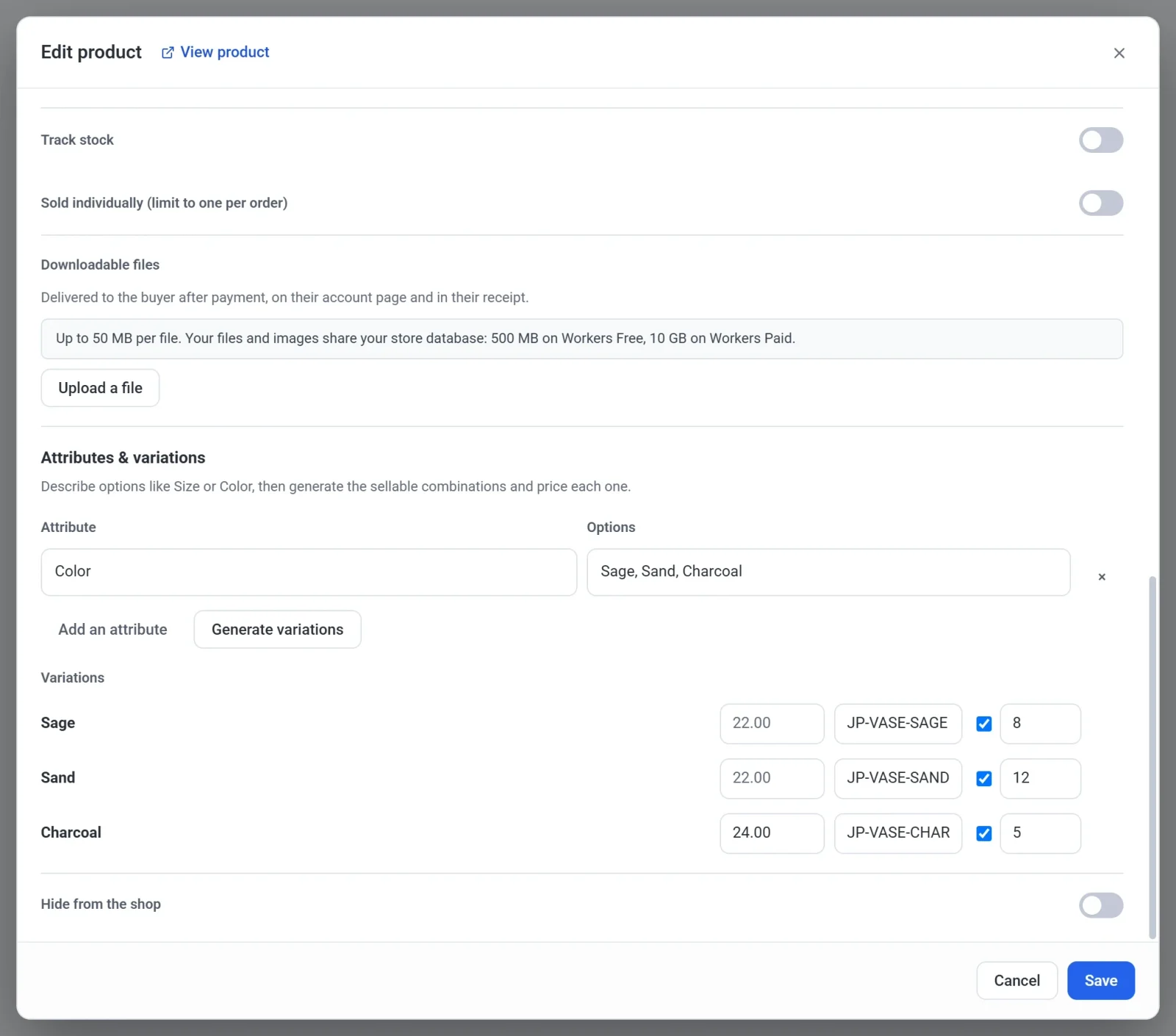
- Click Save. On a published site, the options appear on your store straight away.
A product can have up to 100 variations. If your options would create more, Payly asks you to reduce them first.
What shoppers see
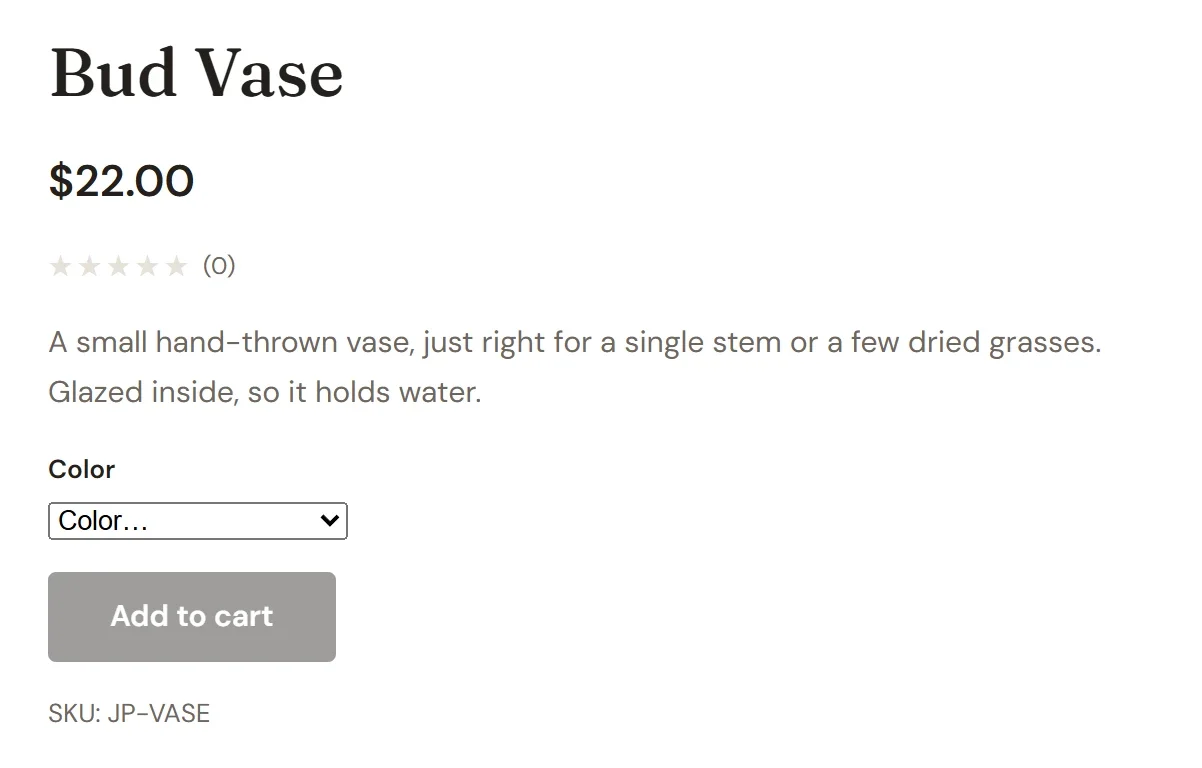
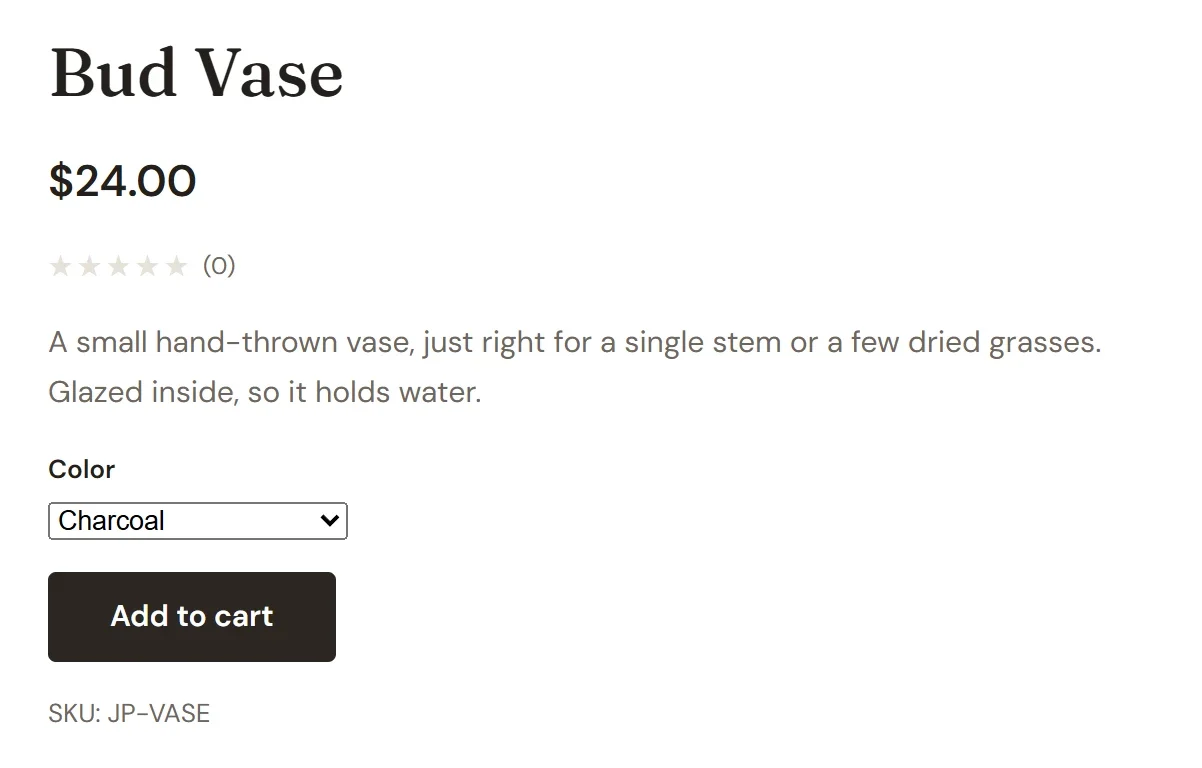
The product page shows one drop-down list for each attribute. The Add to cart button stays grayed out until the shopper has chosen an option from every list. When they choose a version that has its own price, the price on the page changes to match.
The cart and checkout name the chosen version, and the order records it too. If a version is out of stock, checkout stops that item with a message. Stock is not shown beside the drop-down list.
Change options later
Editing an attribute or its options does not change the variations by itself. After you add, rename or remove an option, click Generate variations again. Versions that still exist keep their price, SKU and stock. New versions start empty, and versions that no longer exist are removed. If you add a whole new attribute, every combination is new, so you enter the prices and stock again.
Note: A subscription product can also give each variation its own billing terms, such as a monthly and a yearly plan. See Offer monthly and yearly plans.