
Connect a custom domain
Use your own domain, such as example.com, for your store. Type it in Settings > Domain, then change two nameservers where you bought it. Payly charges nothing for it.
A custom domain lets customers reach your store at an address you own, such as example.com, instead of the free workers.dev address. Connecting a domain in Payly costs nothing. You pay only the company you buy the name from.
Before you start
- Connect Cloudflare first. Your domain is attached to your store inside your own Cloudflare account. See Connect your Cloudflare account.
- Own a domain. Payly does not sell domains, so buy one from any domain registrar.
- Be the owner of the site, or an admin on its team.
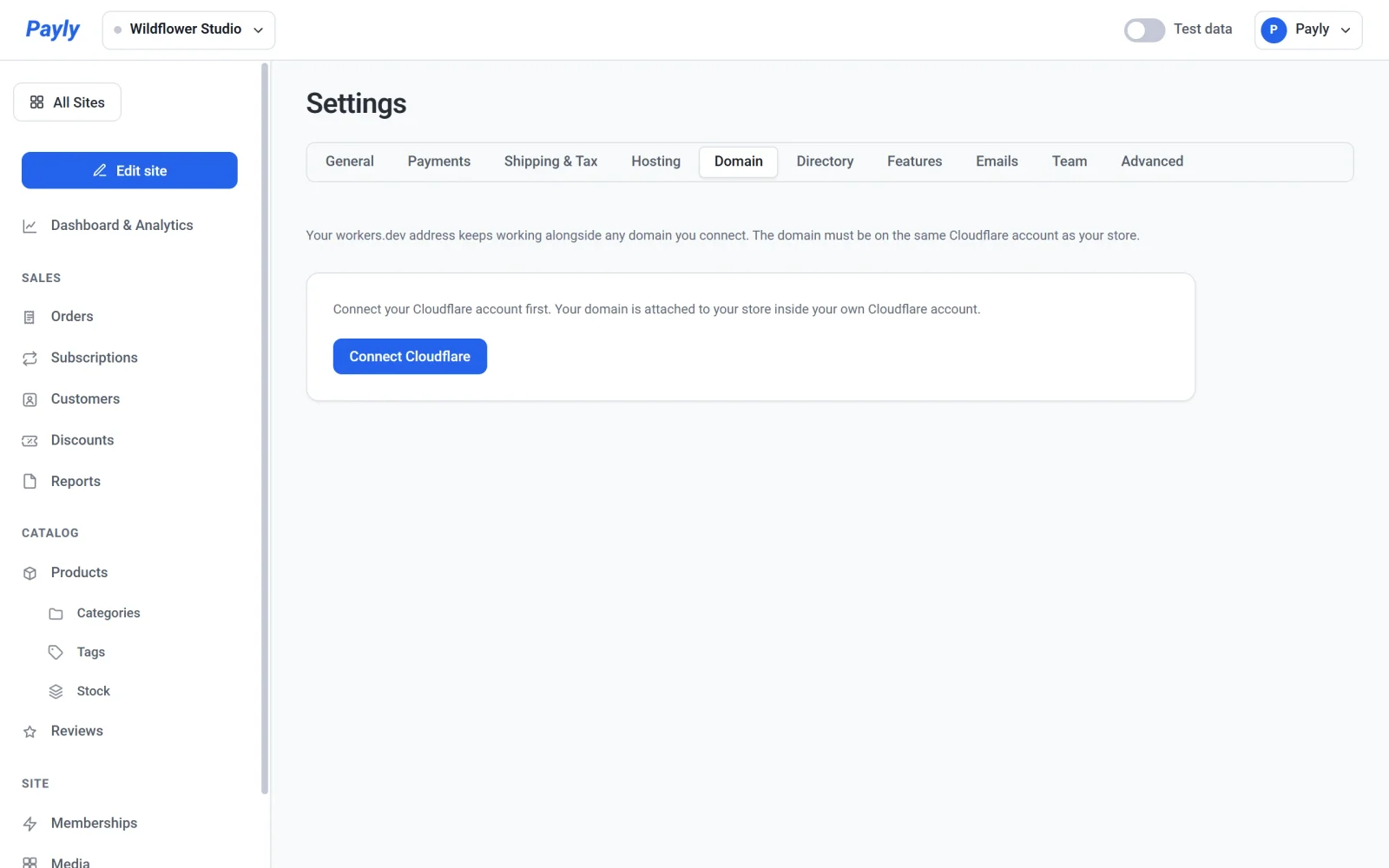
Connect your domain
- In your site dashboard, go to Settings > Domain.
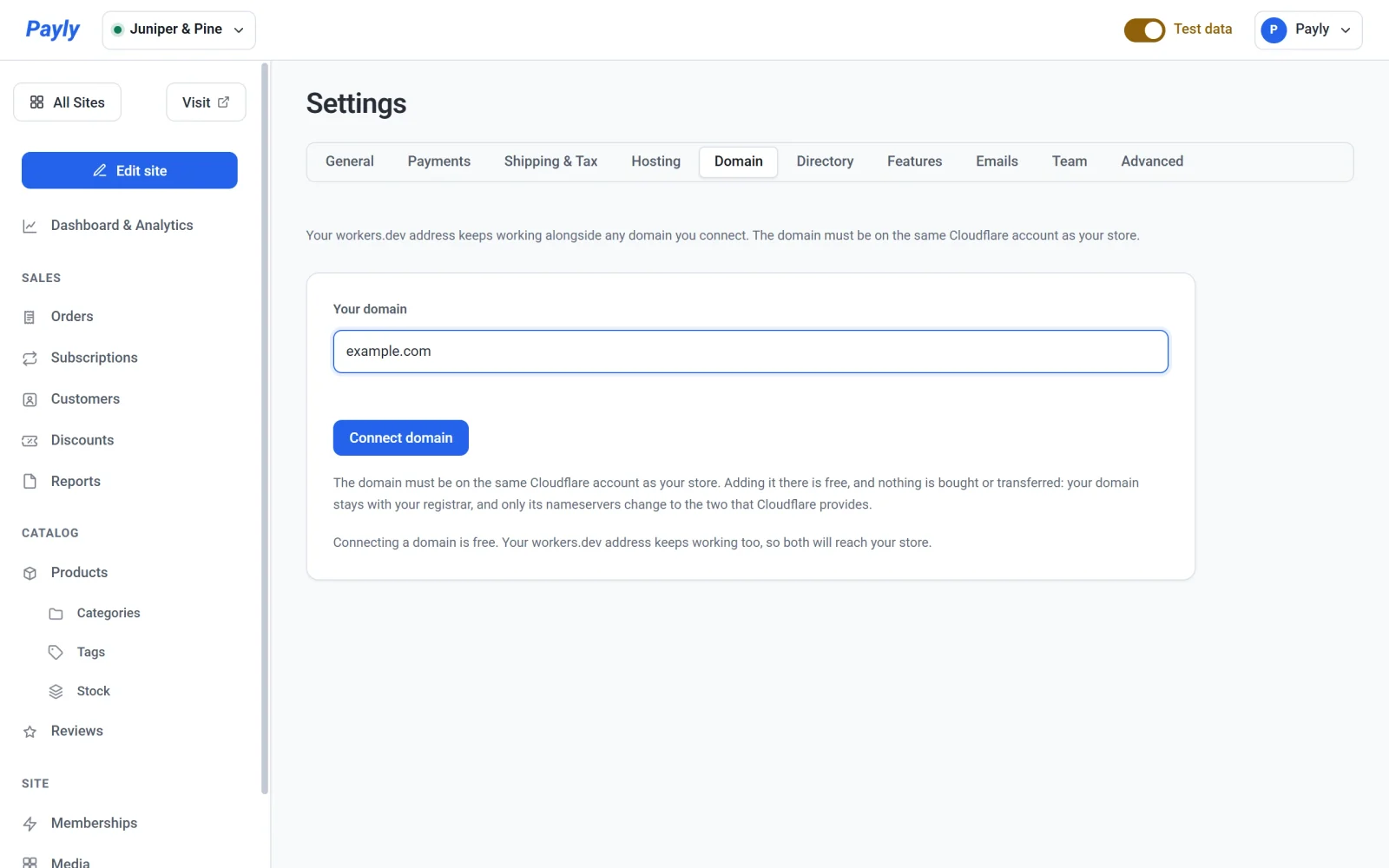
- Enter your domain in Your domain, without
http://. For example,example.com. - Click Connect domain.
If the domain is already on the Cloudflare account Payly is connected to, it connects in a few seconds and the tab shows a green Live label. Otherwise, Payly adds it to your Cloudflare account for you and shows One last step, below.
If you connected Cloudflare before October 14, 2026, Payly first says it needs one more permission from Cloudflare. Click Reconnect Cloudflare, approve it on Cloudflare's screen, and Payly tries again by itself.
Change your nameservers
Payly adds your domain to your Cloudflare account on the free plan and copies its existing settings, including your email settings. Nothing is bought or transferred: the domain stays with the company you bought it from, and only its nameservers change.
- On the Domain tab, find One last step. It names the company you bought your domain from, when Payly can tell.
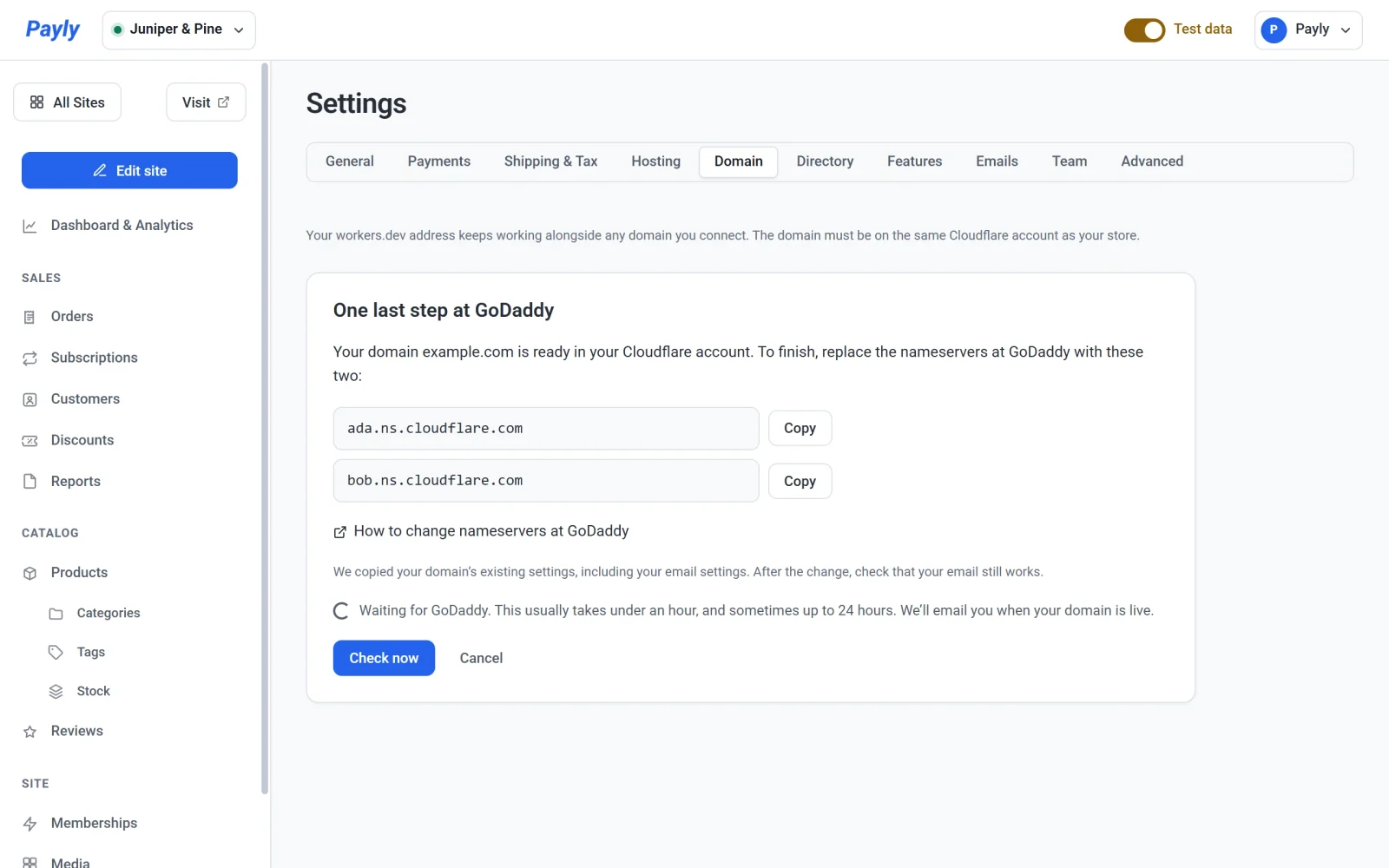
- Click Copy next to each of the two nameservers.
- Sign in where you bought your domain and replace its nameservers with those two. How to change nameservers at… opens that company's instructions.
- Come back to Payly. Payly checks every 15 minutes and emails you when your domain is live. To check sooner, click Check now.
Tip: After the change, send yourself a test email to check that email on your domain still works.
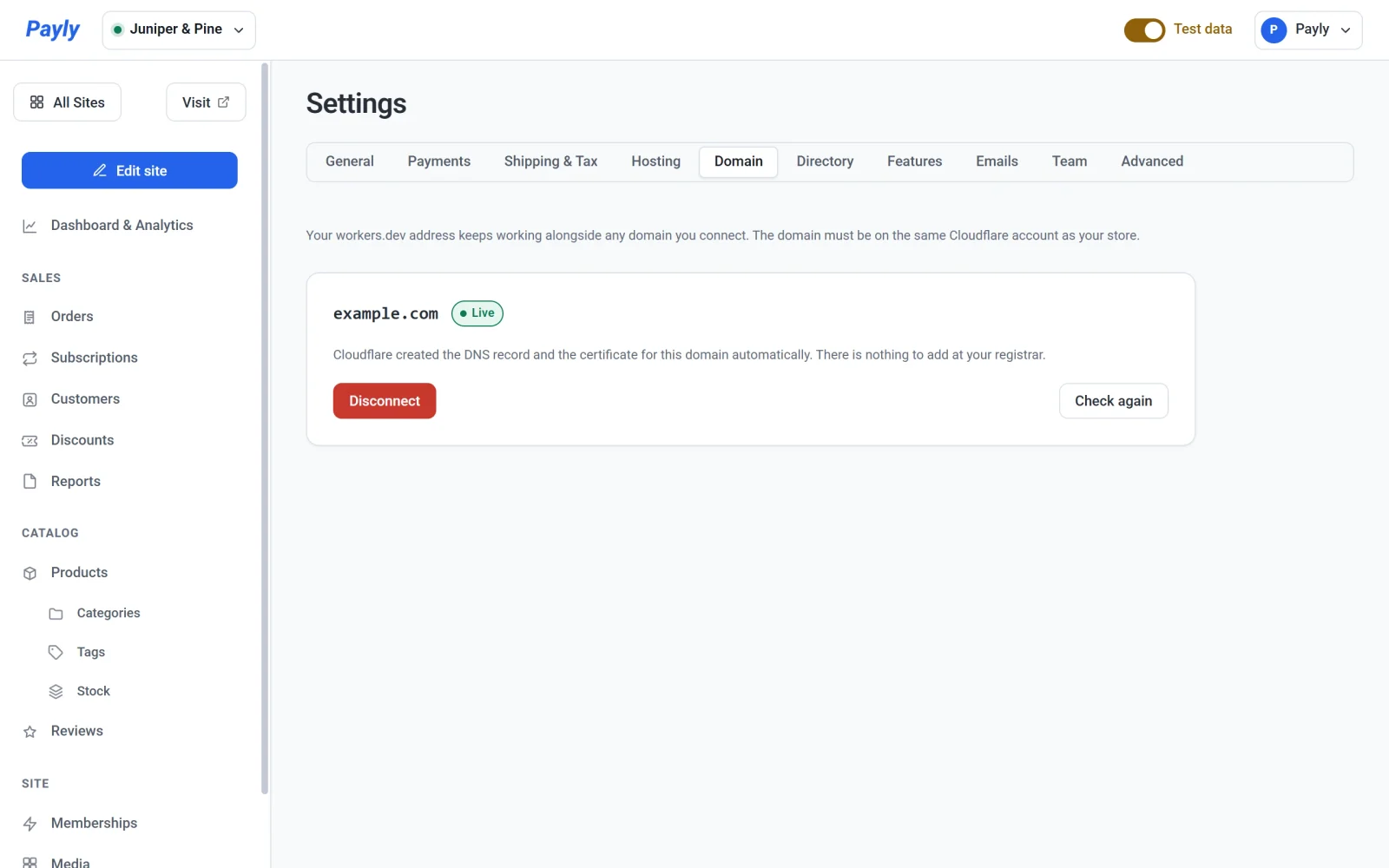
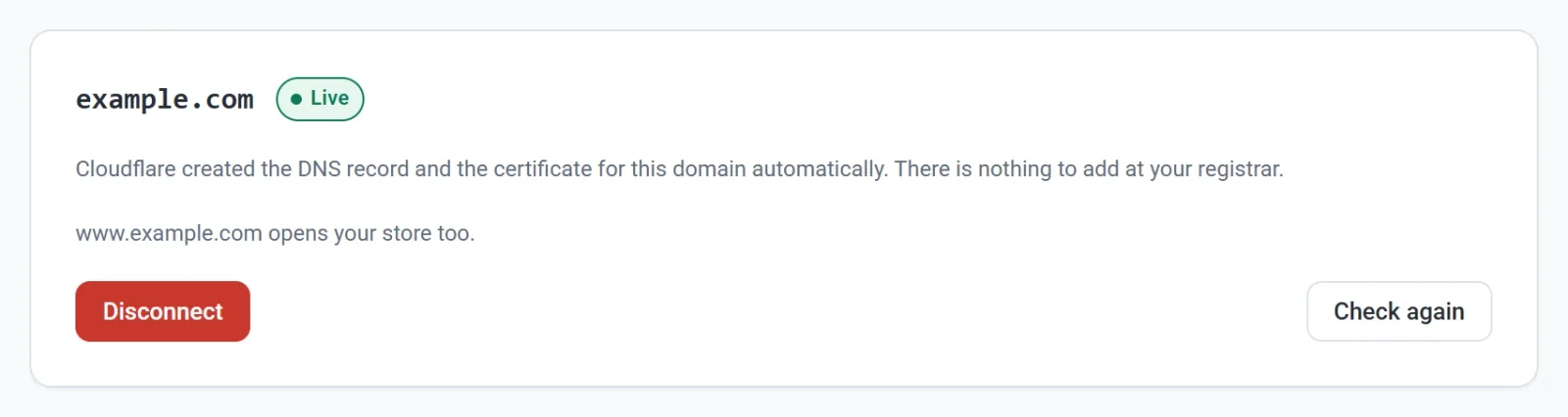
When it works, the tab shows your domain with a green Live label. The Overview tab of Dashboard & Analytics then shows your domain as the store address, and Connect a custom domain is ticked in the Getting set up list.
To stop, click Cancel. Payly removes the domain from your Cloudflare account again, as long as it is not live yet.
What customers can type
- Your
workers.devaddress keeps working. Both addresses show the same store. - If you connect
example.com, Payly also connectswww.example.com, so customers who type either name reach your store. If you connectwww.example.com, Payly also connectsexample.com. - The two names show the same store. Neither redirects to the other.
- If the other name already points somewhere else in your DNS, Payly tells you that your domain is connected but the other name could not be set up. Only the name you typed reaches your store.
Check, change or disconnect a domain
- Check again asks Cloudflare whether the domain is still attached to your store, and sets up the
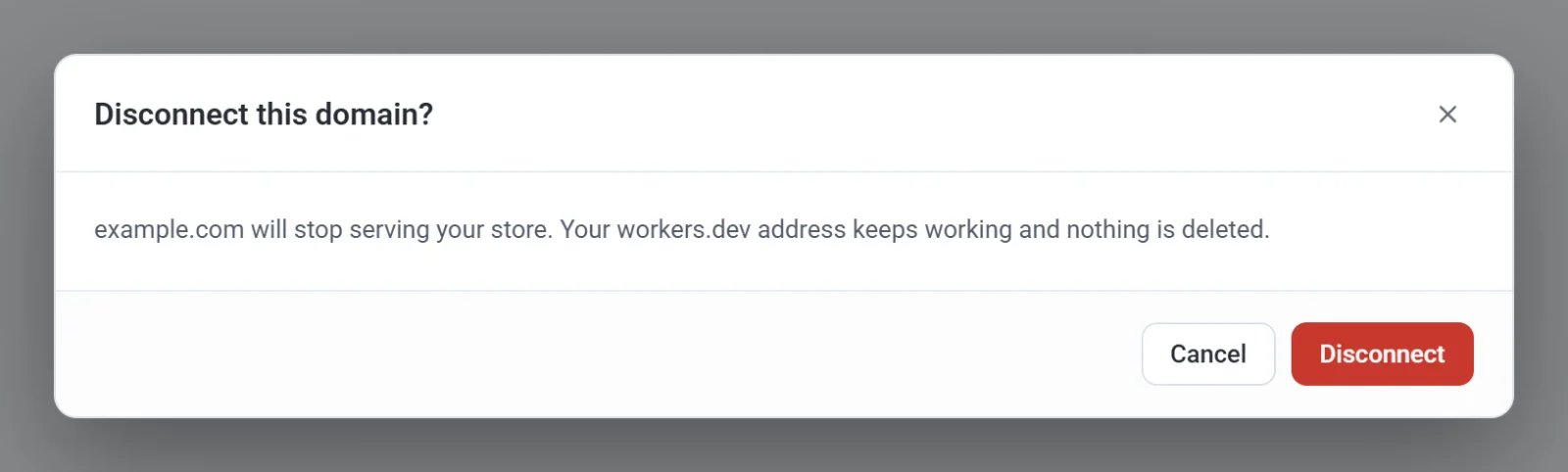
wwwversion if it is missing. When thewwwname is connected, the tab says www.example.com opens your store too. - Disconnect removes the domain from your store after you confirm. Your
workers.devaddress keeps working and nothing is deleted. The Disconnect this domain? window says so. Click Cancel in it to keep the domain. - To use a different domain, disconnect the current one, then connect the new one. A store has one custom domain at a time, and a domain can belong to only one site.
Important: Disconnecting stops your domain from serving your store straight away. If you connect it again, some visitors may still see an error for a while, because their internet provider remembers that the name did not work. Disconnect a live domain only when you need to.
If Payly shows an error
- The domain is not on your Cloudflare account yet. This appears if you declined the permission to add domains when you connected Cloudflare. Add the domain in Cloudflare yourself (Onboard a domain, free plan), change its nameservers, then click Connect domain again. The message includes an Open your domains in Cloudflare button.
- Cloudflare couldn't add your domain. It has more DNS records than Cloudflare's free plan allows (200). Nothing was changed.
- Cloudflare refused to attach the domain. The line under the message starts with Cloudflare said and gives Cloudflare's own reason.
- That domain is already connected to another site. Disconnect it from that site first.
- Payly cannot connect domains on your Cloudflare account yet. This means the connection lacks a permission, which Payly has to fix. Adding the domain to Cloudflare does not help. See Contact Payly support.
Note: When you connect a domain, Payly also switches off Cloudflare's own Web Analytics for it, if it was on, so Cloudflare does not add a script to your pages. Payly counts visits itself. See Traffic and visitors. Cloudflare applies this setting to the whole domain, so other websites on the same domain lose Cloudflare's analytics too.