
How customers manage their subscriptions
Customers sign in to My account on your store to see, pause, resume, switch or cancel their subscriptions. You choose which of these they can do.
Every store has a My account page, where customers see their orders and manage their subscriptions without writing to you. This article describes what customers see and do there, and the settings that let you decide which actions they have.
How a customer gets to their account
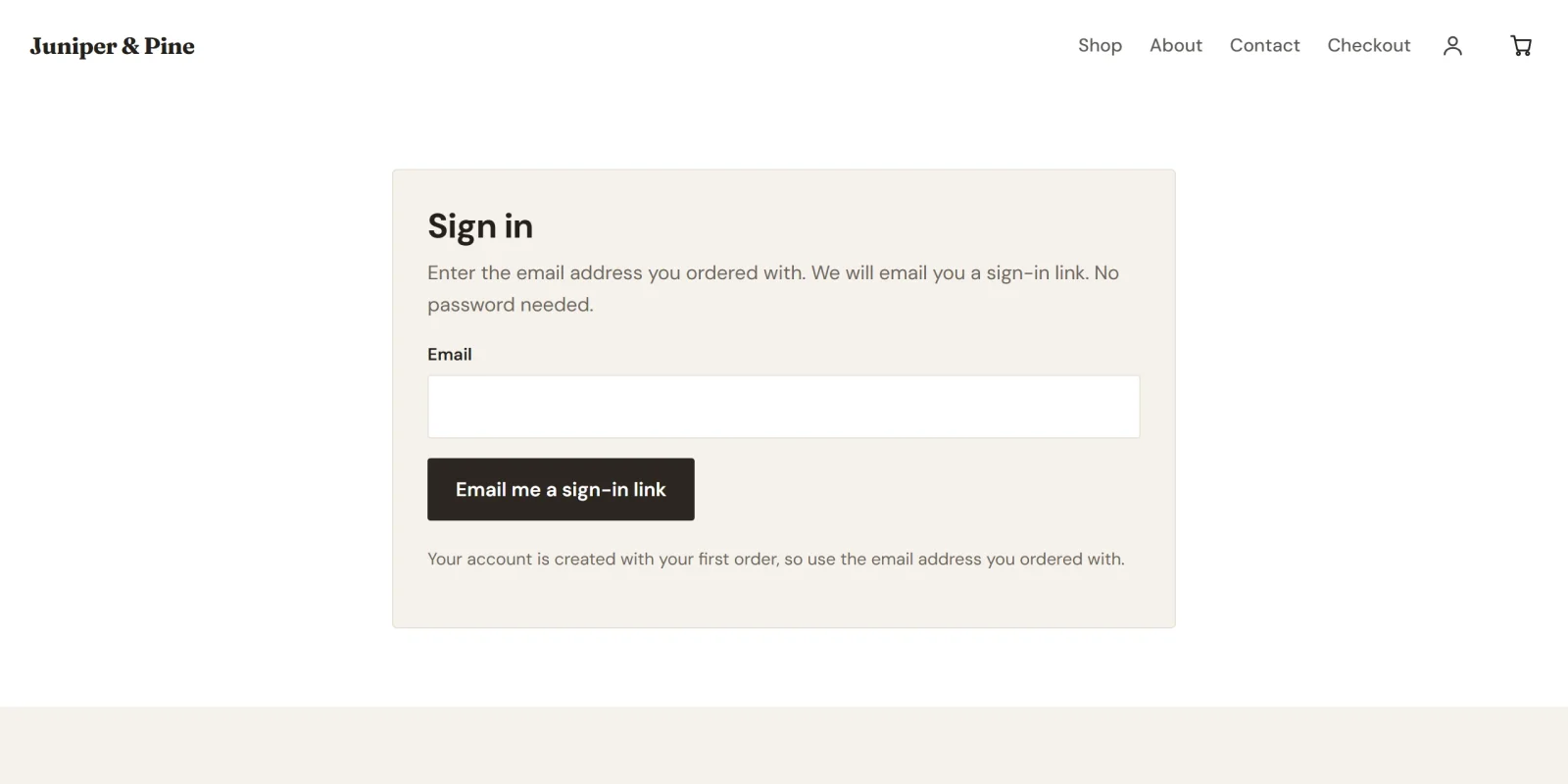
A customer's account is created when they subscribe, from the email address they enter at checkout. Payly emails them a link to sign in right after their first payment, unless you have turned off the Sign-in link after a purchase email in Settings > Emails. They can also click the account icon in your store's header at any time.
There are no passwords. The customer enters their email address, and Payly emails them a sign-in link and a six-digit code. See How customer accounts and sign-in work.
What the customer sees
Under Subscriptions, each subscription is a card with its name, a status, its price and schedule, the payment method (Stripe or PayPal) and when it renews. The status reads Active, Free trial, Past due, Paused or Cancelled.
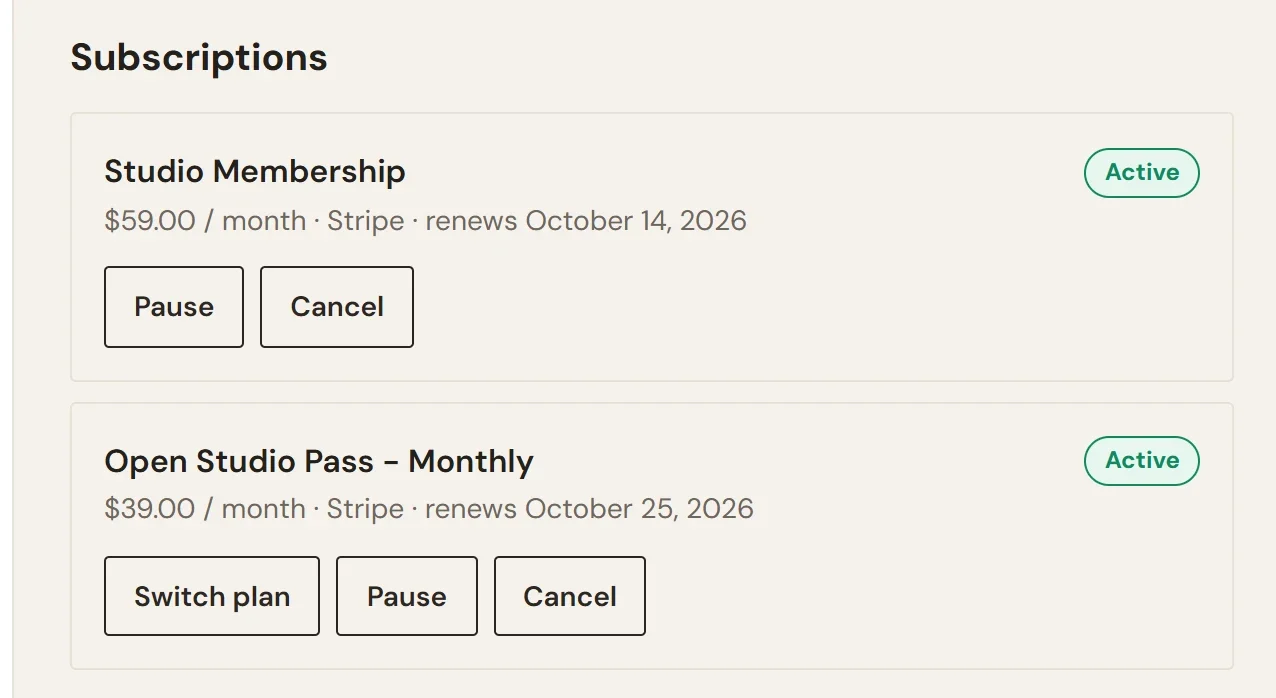
In this example, plan switching is turned on, so the Open Studio Pass card also has a Switch plan button. Studio Membership has no plan options, so its card does not.
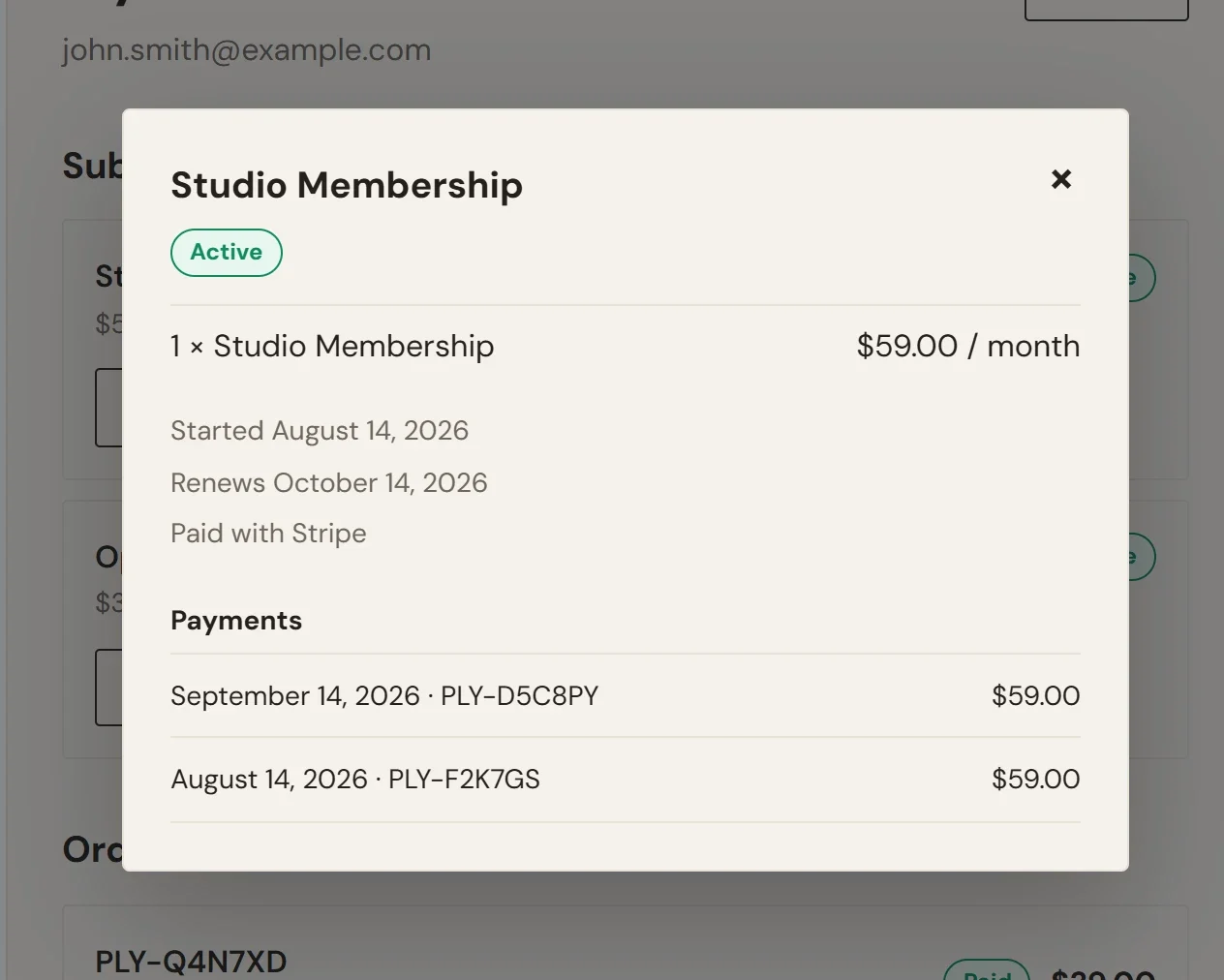
Clicking the card opens a window with more detail: the date it started, the end of any free trial, the number of payments it will run for, who it ships to if it ships, and the list of payments. Each payment opens as an order. Below the subscriptions, Orders lists everything the customer has bought.
What the customer can do
- Pause. After a confirmation, billing stops until the customer resumes. The card then reads that no payments are taken until they resume, and shows a Resume button.
- Resume. Billing starts again.
- Cancel. After a confirmation, the next payment is stopped. The customer keeps the subscription until the end of the period they have already paid for, and the card reads no more payments, access until followed by the date. A cancelled subscription cannot be paused.
- Switch plan. Shown only if you have turned on plan switching and the product has plan options. See Let customers switch plans.
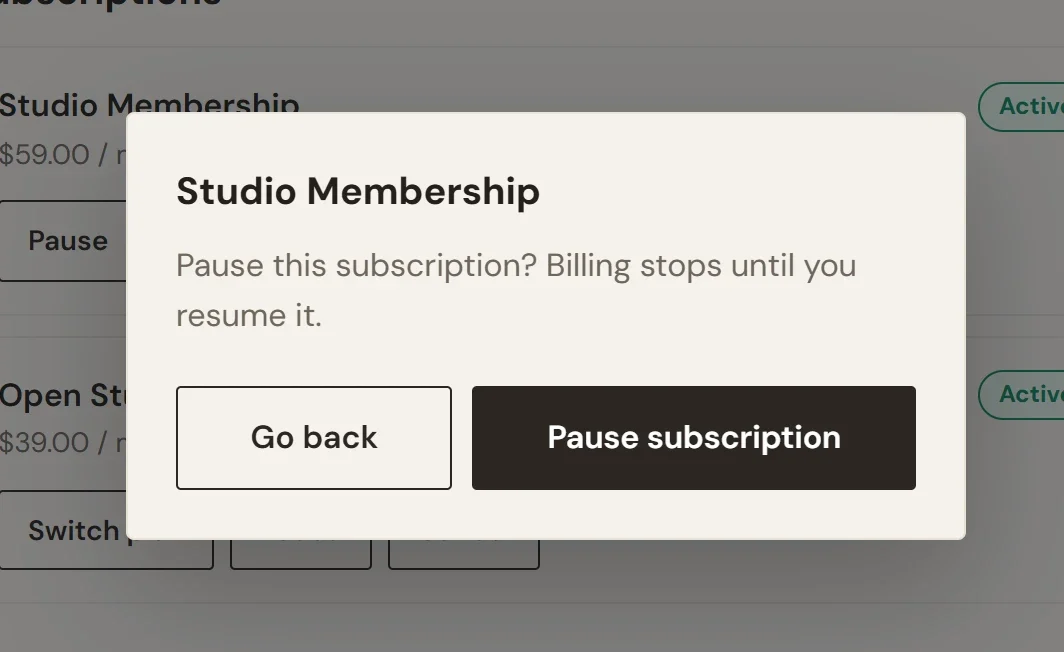
Before it pauses or cancels, the store asks the customer to confirm. The box names the subscription and says Pause this subscription? Billing stops until you resume it. The customer clicks Pause subscription to go ahead, or Go back to leave everything as it was. Cancel works the same way, with Cancel this subscription? You keep it until the end of the period you have paid for. and a Cancel subscription button.
The account page has no form for changing a card. A customer whose card has changed contacts you, or replies to the email they get about a failed payment. See Renewals and failed payments.
Choose what customers can do
Cancelling and pausing are both allowed by default. To change that:
- In your site dashboard, go to Settings > Features.
- In the What customers can do themselves card, turn Cancel their own subscription or Pause and resume their own subscription off or on.
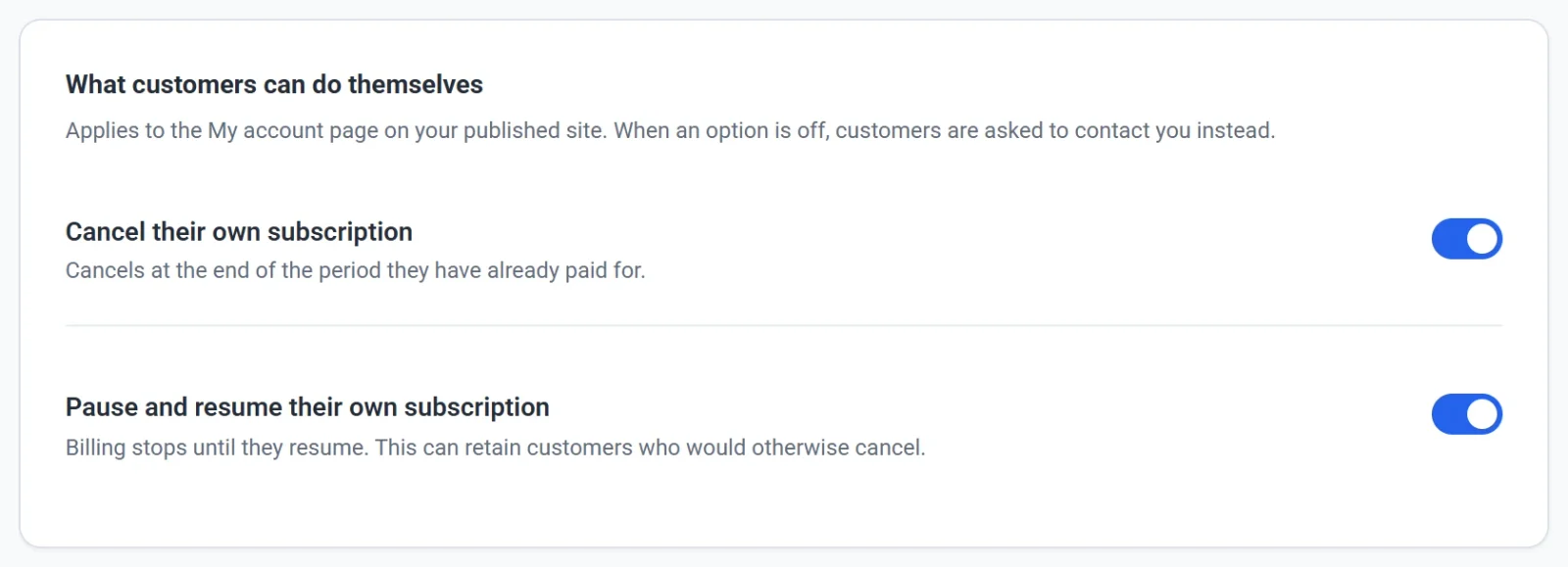
When an option is off, the button is not shown, and customers who try anyway are asked to contact you. The account page also says To cancel or change a subscription, please contact us. The renewal notice in your cart changes too, so publish your site after changing the setting. See Publish, update and take your site offline.
Tip: Leave pausing on if you can. A customer who would otherwise cancel may pause instead, and you keep the relationship.
Whatever you choose, you can always pause or cancel a subscription yourself. See View and manage subscriptions.