
Switch to a different site design
Swap your store's look for one of Payly's nine ready-made designs, and learn what is replaced, what stays, and how to go back.
When you create a site you pick one of Payly's ready-made designs. You can switch to a different one later. The switch gives your store a new look and new starting pages in a few clicks, while your products, orders and settings stay where they are.
What changes and what stays
Before anything happens, Payly shows you a summary. In short:
| Replaced by the new design | Kept as it is |
|---|---|
|
|
The switch is a change to your draft. Your live store does not change until you publish.
Before you start
- Anything you wrote or arranged on your Home, Shop, About and Contact pages is replaced. If you want to keep some of it, copy the text somewhere safe first.
- Click the clock icon (Backups) in the top bar and then Create a backup. A backup lets you return to your current design later. See Undo changes and restore an earlier version. Backups are kept in your own Cloudflare account, so they need Cloudflare to be connected. Every time you publish, Payly also saves a backup of what you published.
Switch your design
- In the editor, click the Site design tab in the settings panel.
- At the bottom of the panel, click Change site design?
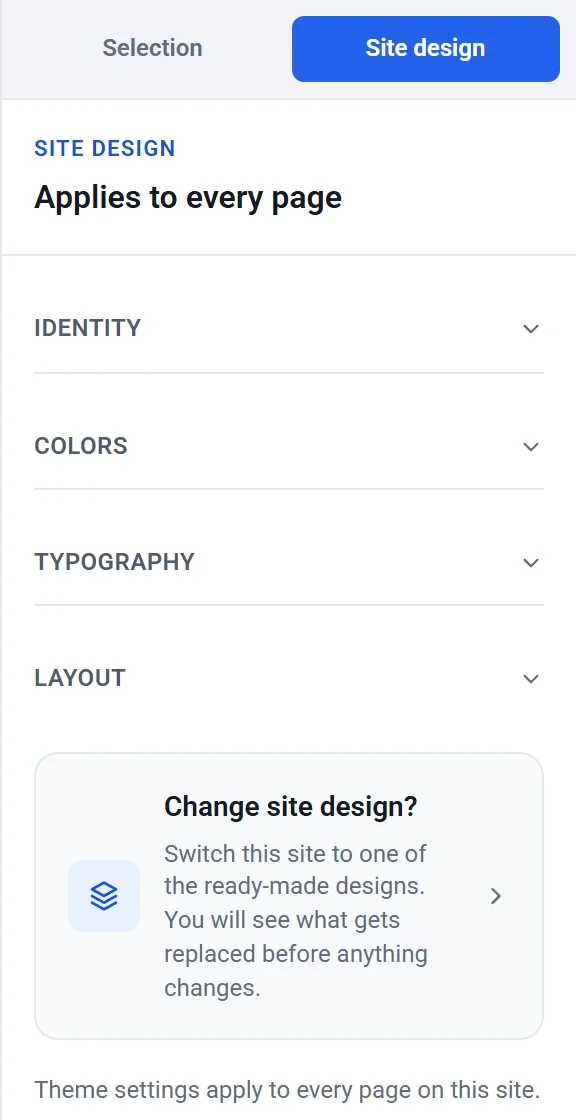
- In the Change design window, click the design you want. Each card shows a picture of the design's home page. Your current design is marked Current.
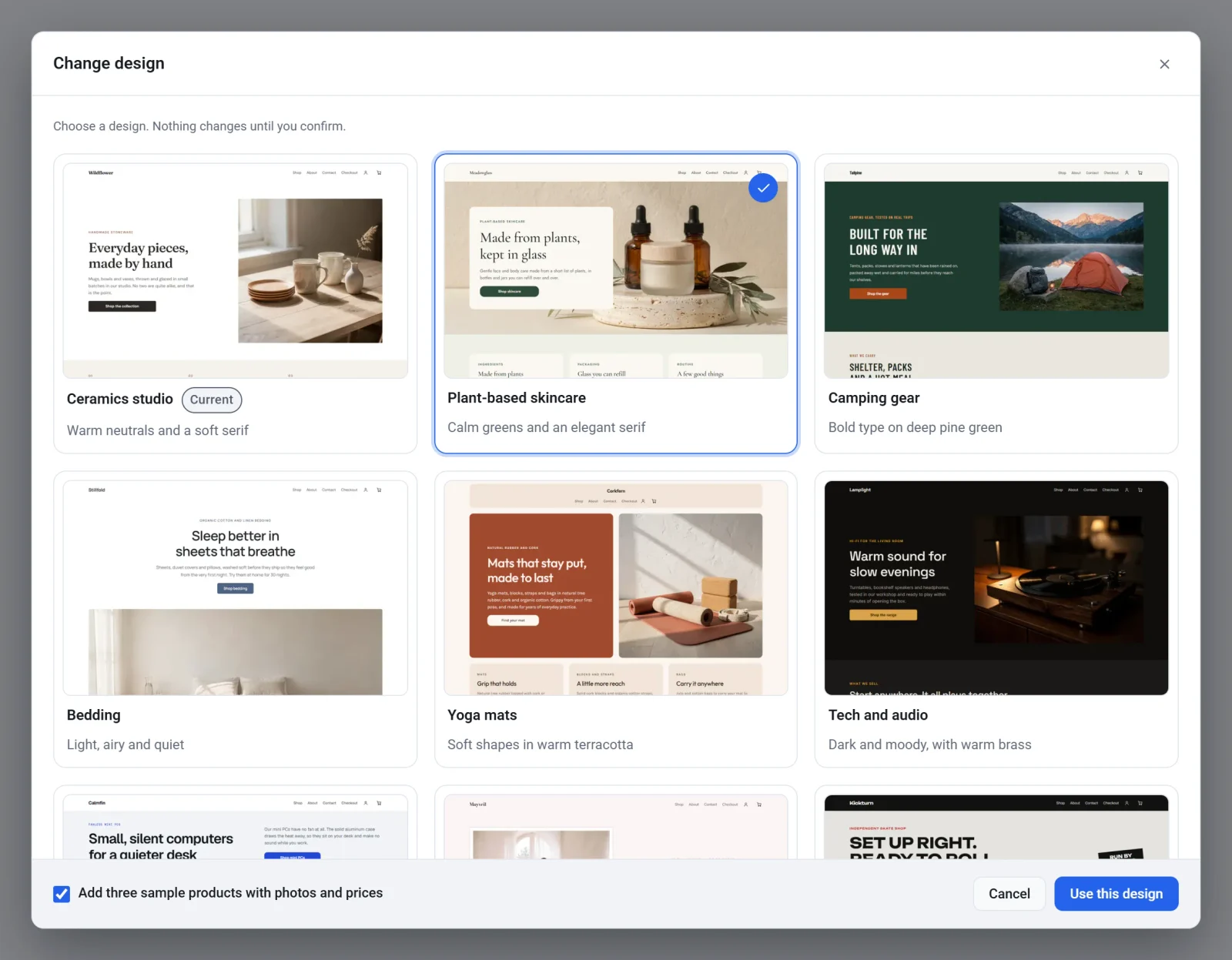
- Look at the box at the bottom left, Add three sample products with photos and prices. It is ticked at first. Leave it ticked if you want the new design's three example products, or untick it if you already have your own products.
- Click Use this design.
- Read the confirmation message. It names the design and repeats what is replaced and what is kept.
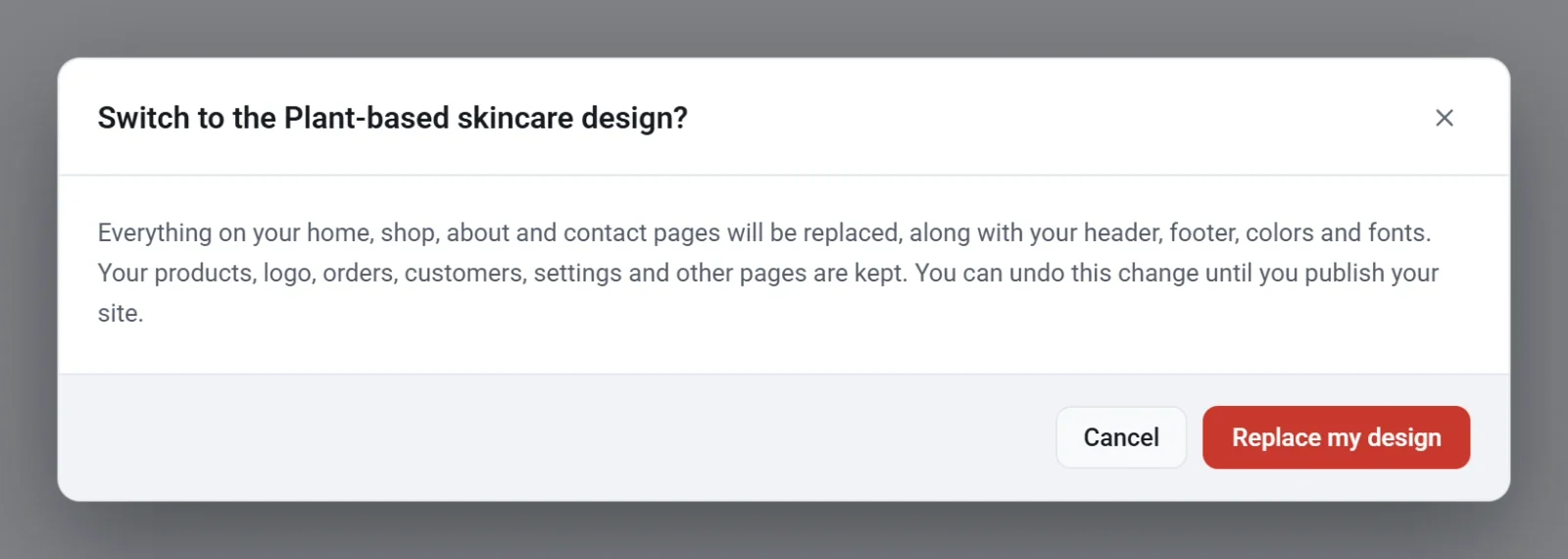
- Click Replace my design to go ahead. Click Cancel to stop. Nothing changes until you click Replace my design.
The editor then opens your Home page in the new design and shows a message saying your site now uses it. Look through your pages, then replace the example words and photos with your own.
Go back if you do not like it
- Right away, click Undo in the top bar, or press Ctrl + Z. The whole switch is undone in one step. This only works until you close or reload the editor.
- Later, open Backups and restore the backup you made, or the one saved when you last published.
Important: Your changes are saved as you go. Once you close the editor, the switch cannot be undone with Undo. Publish only when you are happy with the result.
The designs
| Design | Style |
|---|---|
| Ceramics studio | Warm neutrals and a soft serif |
| Plant-based skincare | Calm greens and an elegant serif |
| Camping gear | Bold type on deep pine green |
| Bedding | Light, airy and quiet |
| Yoga mats | Soft shapes in warm terracotta |
| Tech and audio | Dark and moody, with warm brass |
| Fanless mini PCs | Crisp and cool, with cobalt blue |
| Wedding dresses | Airy blush pink with deep plum |
| Skateboards | Chunky capitals on concrete and signal red |
You do not have to change the whole design to change your colors or fonts. See Set your colors, fonts and layout.