
Create discount codes
Create percentage or fixed-amount discount codes with a minimum spend, dates, a usage limit and rules for products and subscriptions.
A discount code is a word or number that a customer types in at checkout to take a percentage or a fixed amount off their order. You can limit a code by minimum spend, by dates, by how many times it can be used, and by what it applies to.
Create a discount code
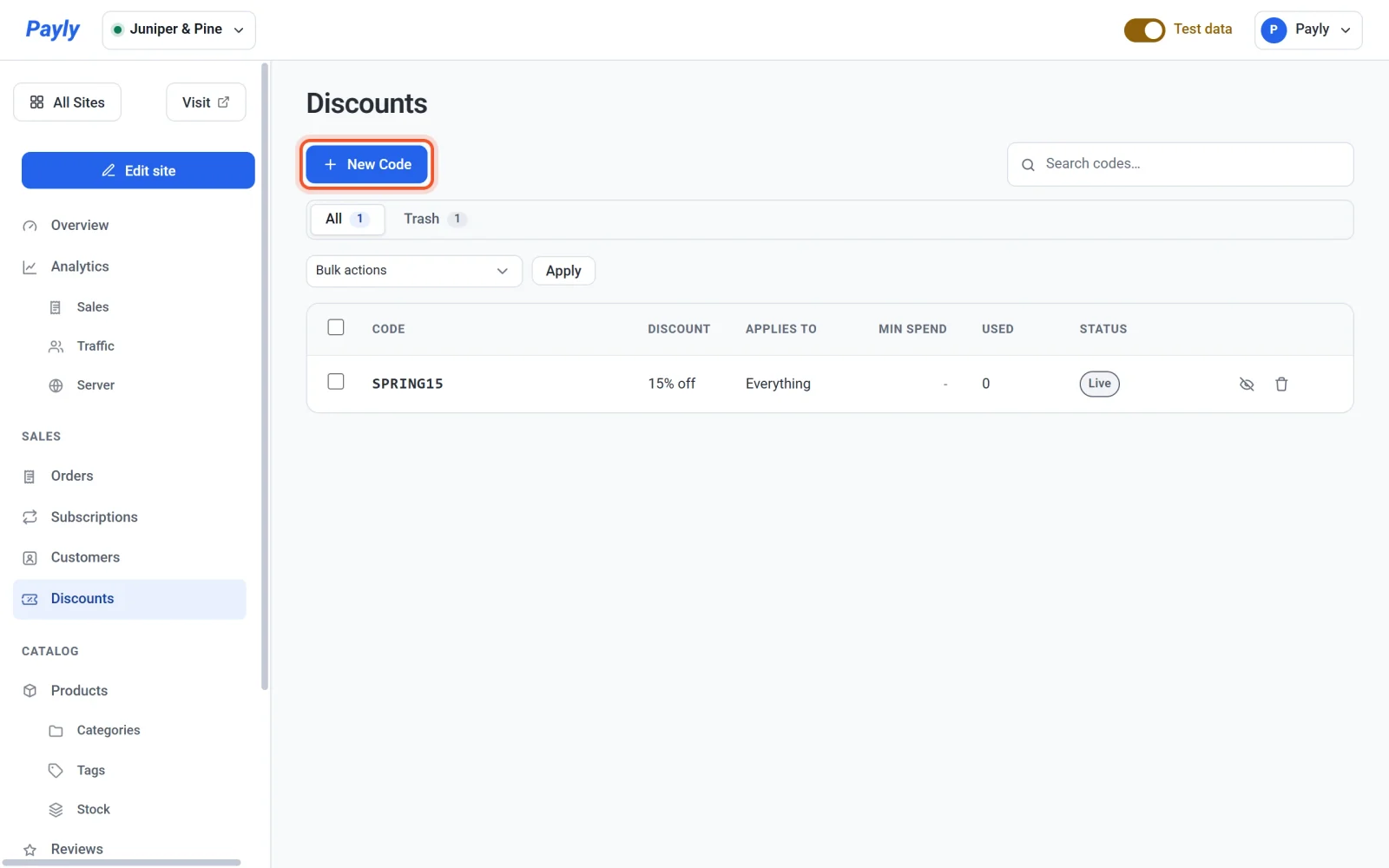
- In your site dashboard, click Discounts.
- Click New Code.
- Enter the Code your customers will type, such as
HOLIDAY20. Payly changes it to capital letters and removes spaces as you type. Customers can enter it in any case. - Choose a Type: Percentage off or Amount off. Then enter the value in the box beside it.
- Fill in any of the optional limits described below.
- Click Save. The code works at checkout straight away. You do not need to publish your site.
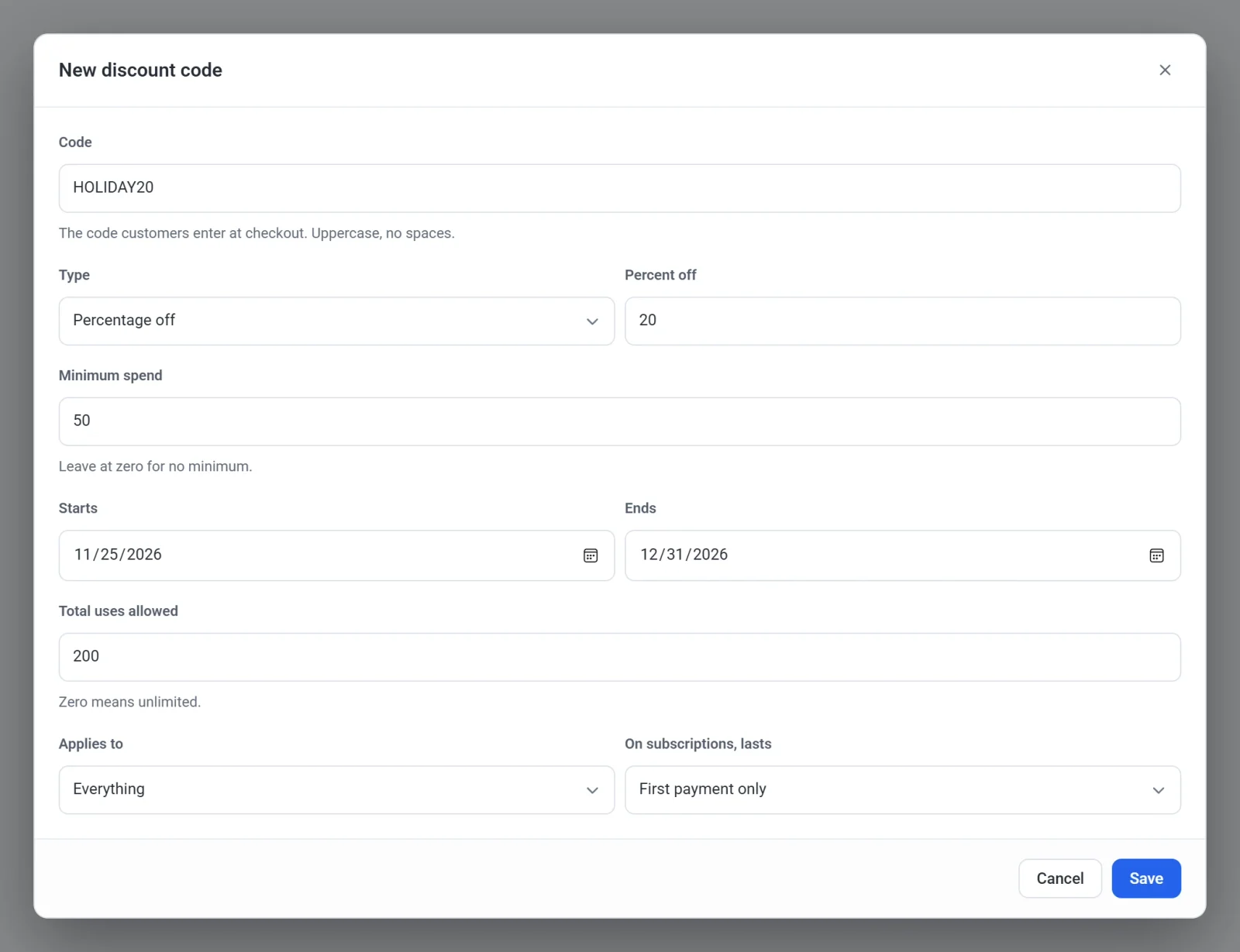
What each field does
| Field | What it does |
|---|---|
| Code | What the customer types. Each code must be different from your other codes. |
| Type | Percentage off takes a percentage off the eligible items, up to 100. Amount off takes a fixed amount in your store currency. A fixed amount never takes off more than the eligible items cost. |
| Minimum spend | The smallest total of the items in the cart, before the discount, that the code accepts. Leave it at zero for no minimum. |
| Starts and Ends | The first and last day the code works. The code works through the whole end date. Leave either one empty to leave that side open. The end date cannot be before the start date. |
| Total uses allowed | How many orders can use the code in all. Zero means unlimited. Refunded orders still count as uses. |
| Applies to | Which items the code reaches: Everything, Everything except sign-up fees, One-off items only, Subscriptions only or Sign-up fees only. Everything takes the discount off sign-up fees too. Everything except sign-up fees charges them in full. Codes you made before this choice was added are set to Everything except sign-up fees, so they still charge what they always did. |
| On subscriptions, lasts | How long the code keeps discounting a subscription (see below). |
Discounts on subscriptions
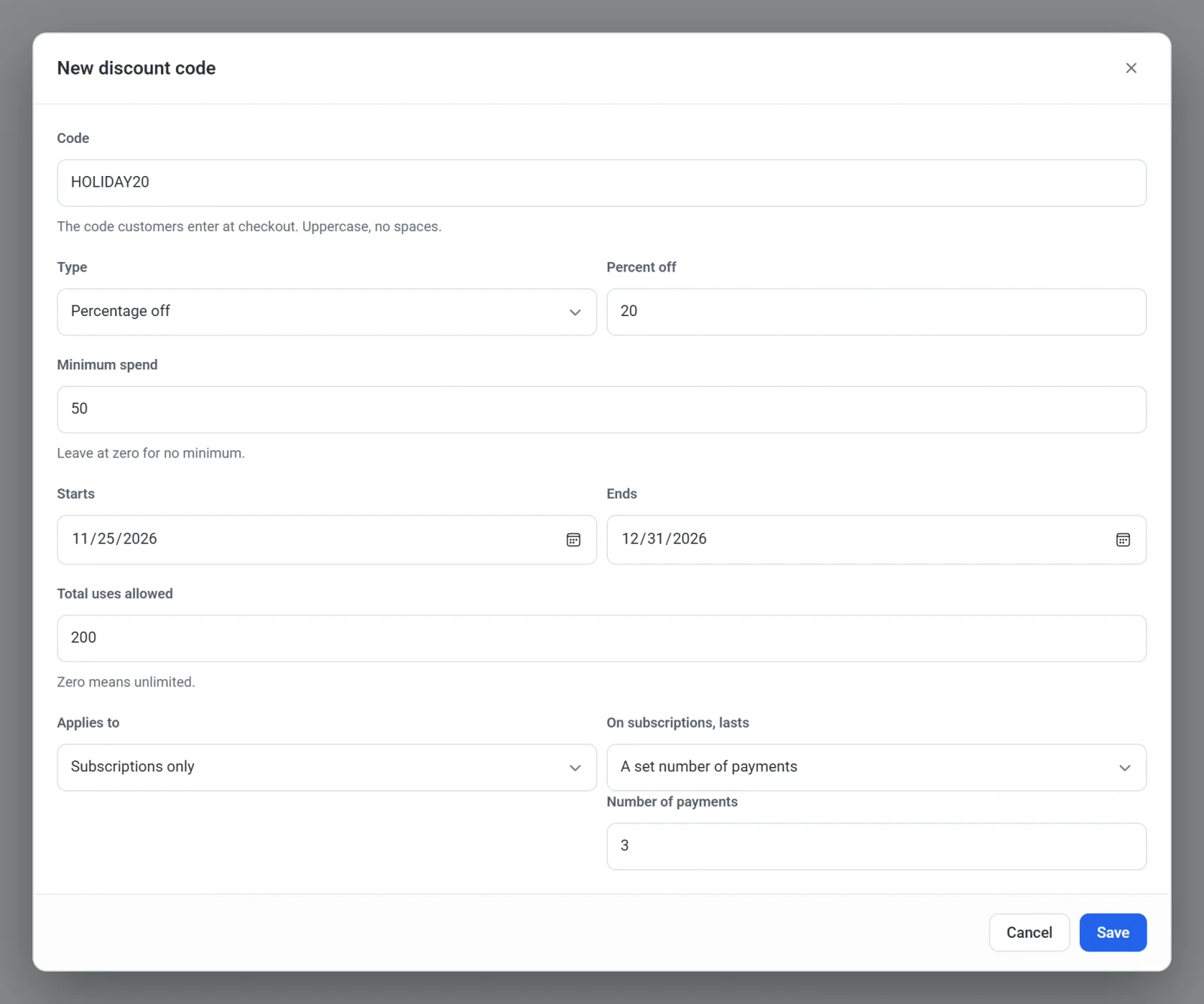
When a code applies to subscriptions, On subscriptions, lasts decides how many of the subscription's payments get the discount:
- First payment only discounts the first payment.
- A set number of payments discounts that many payments in a row. Enter the count in Number of payments.
- Every payment, forever discounts every payment for as long as the subscription runs.
The setting is hidden when Applies to is One-off items only or Sign-up fees only, because those are charged once. A free trial does not use up a discounted payment.
How customers use a code
At checkout, the customer types the code in the Discount code box and clicks Apply. The box only appears while your store has at least one code that can be used right now: one that is not paused, not before its start date and not past its end date. A customer can use one code per order.
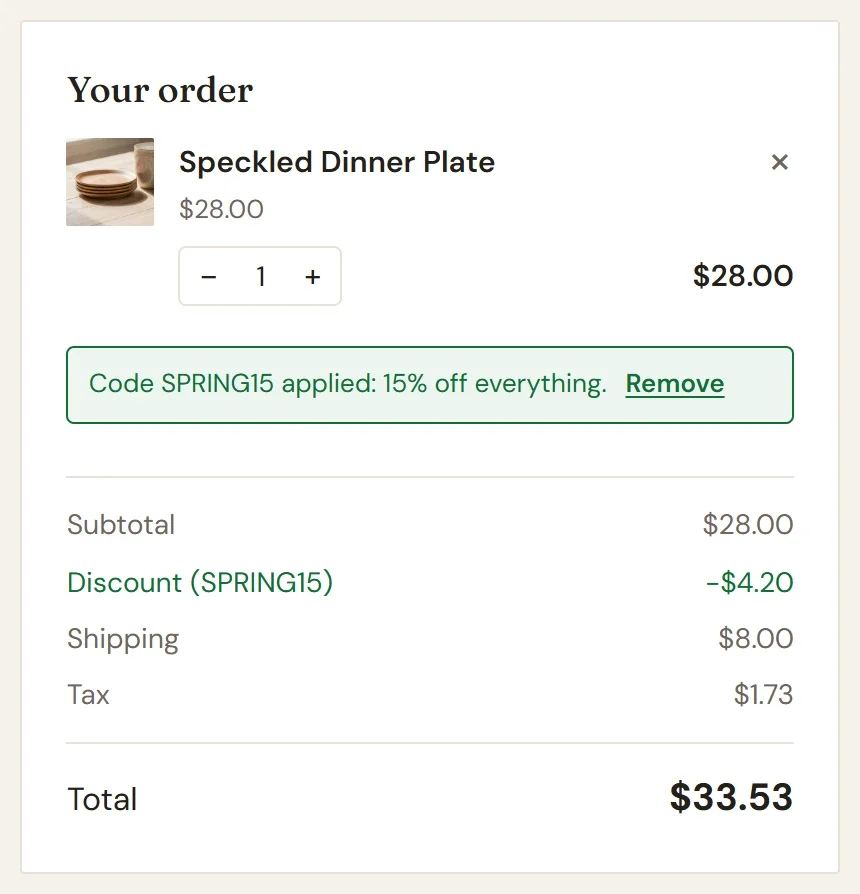
The order summary then shows a Discount line with the code, and a message confirms that the code is applied and says what it takes off, for example Code SPRING15 applied: 15% off everything. The customer can click Remove to take it off. A code only reduces the price of items. Shipping is not discounted, and tax is worked out on the price after the discount.
If a code cannot be used, a message under the box says why, for example that the code is not valid, has expired, is not active yet, has reached its usage limit, or that the order is below its minimum.
Manage your codes
- The list shows each code, its discount, what it applies to, its minimum spend, how many times it has been used and its status: Live, Paused, Scheduled, Expired or Limit reached.
- Click a code to edit it.
- Click the eye icon on a row to Pause a code, and click it again to Resume it. A paused code is refused at checkout.
- To change several codes at once, tick them, choose an option under Bulk actions and click Apply. The list works like every other list in your dashboard, as Search, filter and bulk-edit lists explains.
Note: A code in the Trash stops working at once. To use it again, open the Trash tab and restore it. To remove it for good, tick it there and choose Delete permanently.