
Shipping and tax figures
Read the Shipping and Tax tabs: what customers paid for shipping, by method and country, and the tax you collected, by state and by rate.
The Shipping and Tax tabs of Dashboard & Analytics show what your customers paid for shipping and how much tax your store collected, for any period you choose. They are quick figures to check how things are going. To file a tax return, download a report instead (see the end of this article).
Open the tabs
- In your site dashboard, click Dashboard & Analytics.
- Click the Shipping or Tax tab.
- Choose a period with the buttons under the tabs: Last 7 days, Last 30 days (the default), Last 90 days, Month to date, Year to date or Custom. Days follow your computer's time zone.
Each payment counts on the day it was paid, and each refund on the day you made it, so a period's figures never change afterward. Both tabs follow the Test data switch in the top bar. See Test data and live data.
The Shipping tab
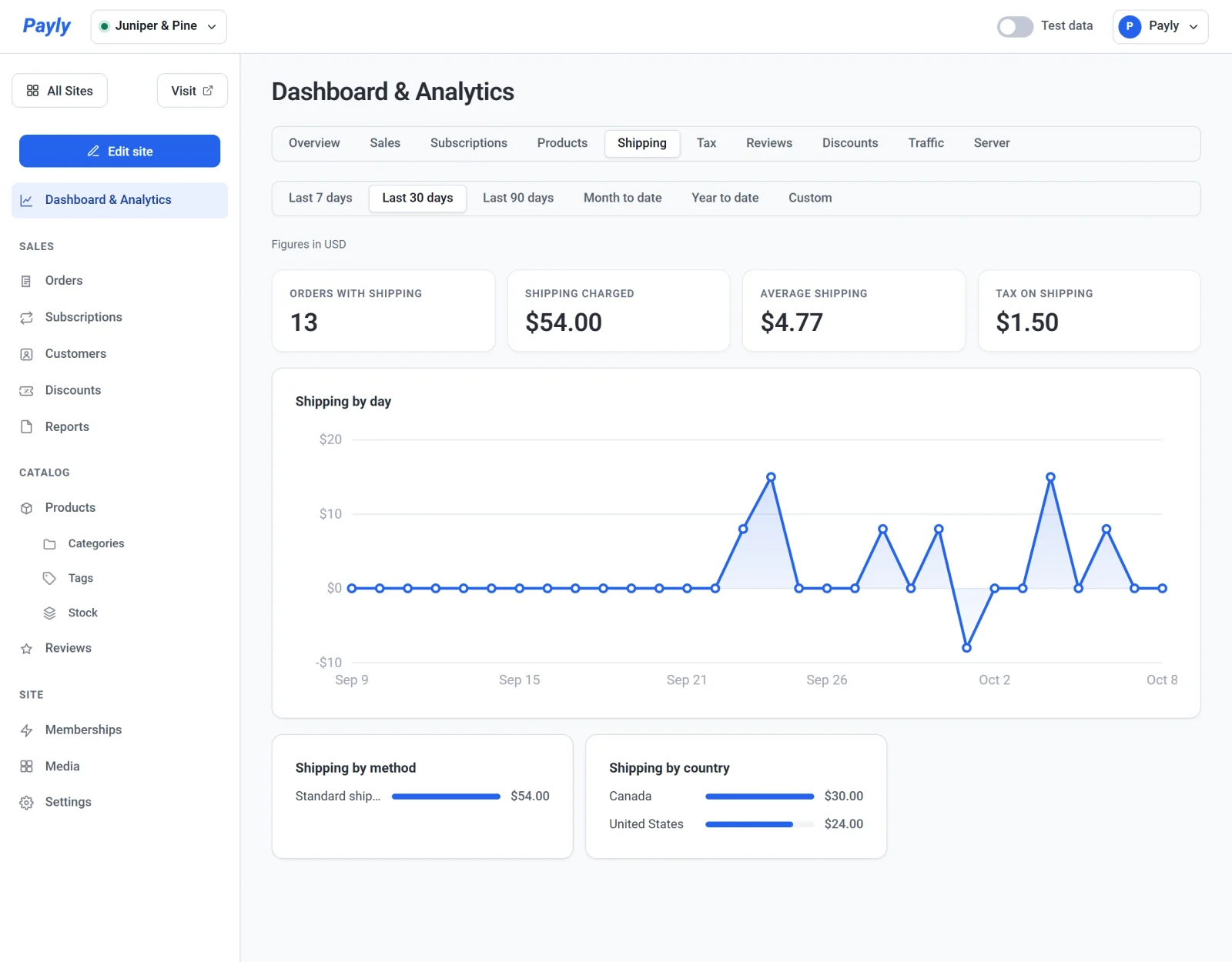
| Figure | What it shows |
|---|---|
| Orders with shipping | The payments in the period for orders with a delivery: orders charged for shipping, or with a shipping method such as free shipping or pickup. |
| Shipping charged | What customers paid for shipping, minus the shipping you refunded. |
| Average shipping | The average shipping charge of those orders. |
| Tax on shipping | The tax charged on shipping, where your tax rate also taxes shipping. |
Under the Shipping by day chart, Shipping by method and Shipping by country show where the shipping charges came from, largest first. A method that cost the customer nothing, such as free shipping or pickup, has nothing to show there. To set up your methods, see Shipping methods and rates.
The Tax tab
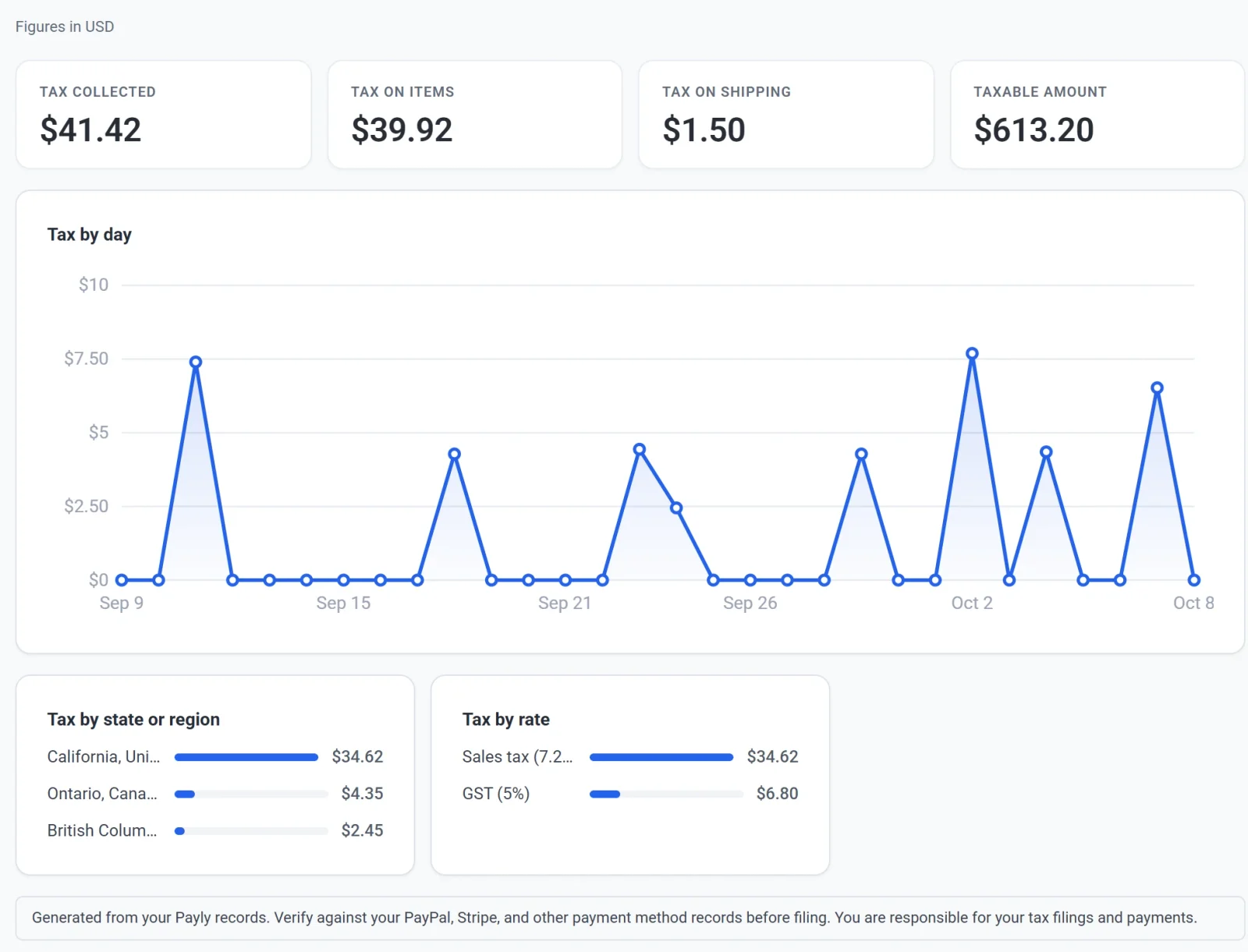
| Figure | What it shows |
|---|---|
| Tax collected | All the tax your customers paid in the period, minus the tax you refunded. |
| Tax on items | The part of it charged on products. |
| Tax on shipping | The part of it charged on shipping. |
| Taxable amount | The part of your sales that was taxed. Shipping is in it when your tax rate also taxes shipping. |
Under the Tax by day chart, Tax by state or region groups the tax by where each order went, and Tax by rate by the rate charged, with its name and percentage. Every order records the rate it was charged when it is paid, so changing a rate later does not change these figures. To set up your rates, see Set up sales tax.
More than one currency
A line under the period buttons says which currency the figures are in, for example Figures in USD. If your store took payments in more than one currency during the period, a Currency list appears in its place. Choose a currency to see its figures.
Reports for your records
To keep the figures or file a tax return, download them as a spreadsheet file from Reports, in the Sales group of the menu. A report can cover any dates, one country or state, and one payment method, with one row per day, place, rate, method or payment. See Download sales, tax and shipping reports.
Important: These figures come from your Payly records. Check them against your PayPal, Stripe and other payment records before you file. You are responsible for your tax filings and payments.