
Server usage and Cloudflare limits
See how much of your free Cloudflare allowance your store has used today on the Server tab, what counts, and what happens at the daily limit.
Your store runs on Cloudflare's free plan, which allows a set amount of work each day. The Server tab of Dashboard & Analytics shows how much of that allowance your store has used, so a busy day never takes you by surprise.
Open the Server tab
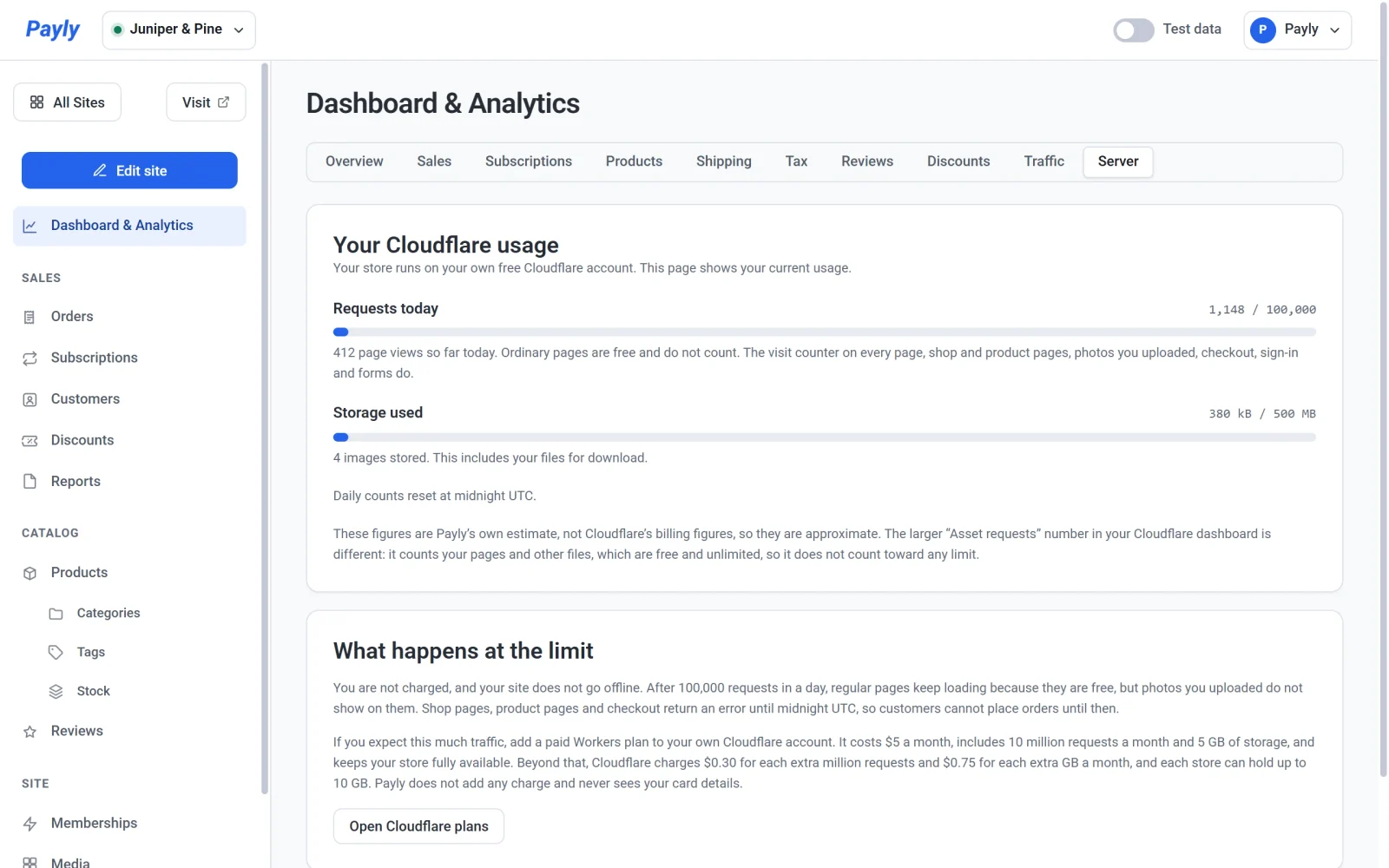
In your site dashboard, click Dashboard & Analytics, then click the Server tab. It has no period buttons, because it shows today's usage. If you have not connected Cloudflare yet, the tab says Not connected yet and offers a Connect Cloudflare button. See Connect your Cloudflare account.
Read the meters
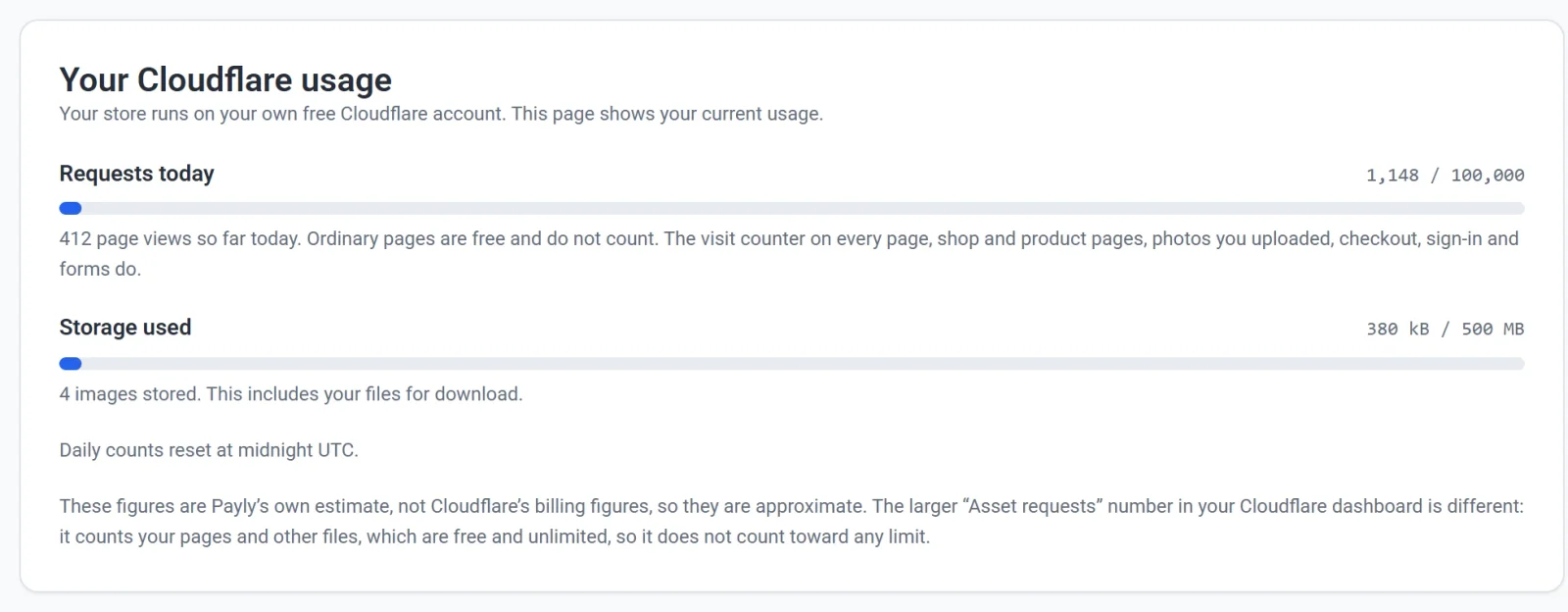
- Requests today is an estimate of how many requests have run your store's code so far today, out of a limit of 100,000. Payly works it out from today's page views and what each page shows: two requests for the visit counter on every view, one more for each shop or product page and one for its review stars if reviews are on, one for each photo you uploaded that appears on the page, and one for each visit to checkout. Below the bar, Payly shows the page views behind the estimate.
- Storage used shows the space your store's photos and files for download take, out of 500 MB, and how many images are stored. Photos usually take most of it.
Each bar turns amber when you pass three quarters of the limit and red at the limit. The daily count resets at midnight UTC. Storage does not reset, because it is what your store holds.
What counts toward the limit
Serving ordinary pages is free and unlimited on Cloudflare, so it never counts, and neither do the photos that came with your design. Only requests that run your store's code count:
- The visit counter behind your analytics, which runs twice on every page view: once when the page opens and once when the visitor leaves.
- Shop pages and product pages, and their review stars.
- Photos you uploaded, each time a visitor's browser loads one.
- Checkout.
- Customer sign-in.
- Forms.
The figures are Payly's own estimate and are approximate. They will not match your Cloudflare dashboard, which shows a much larger number called Asset requests. That number counts your pages and other files, which are free, so it does not count toward any limit.
What happens at the limit
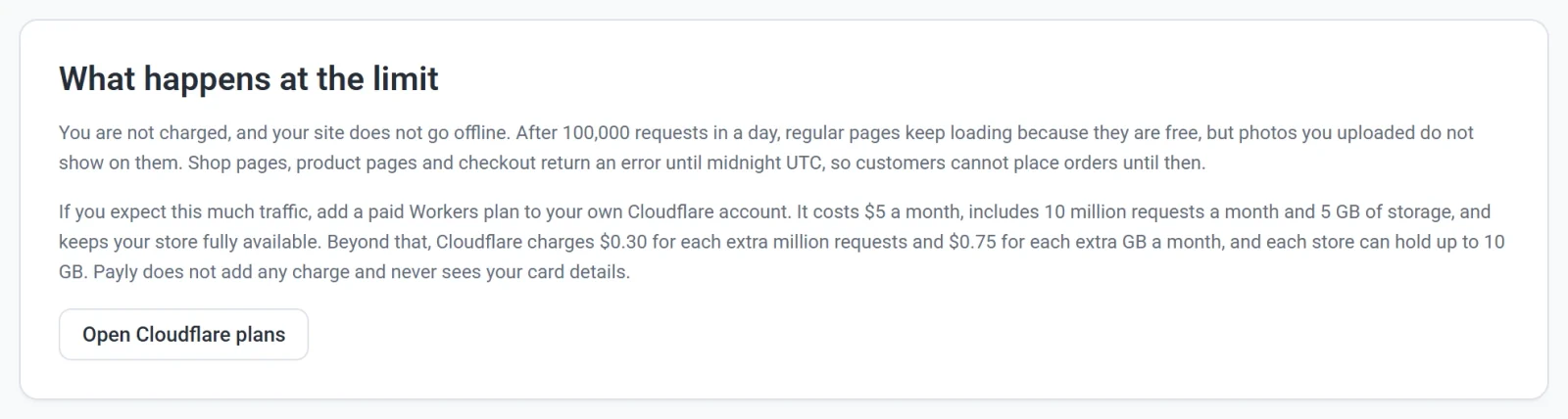
If a day's requests reach 100,000, you are not charged and your site does not go offline. Ordinary pages keep loading, but photos you uploaded do not show on them. Shop pages, product pages and checkout return an error until midnight UTC, so customers cannot place orders until then.
Payly emails you when your store passes about three quarters of a day's limit. It sends that email at most once a week.
Keep your store available on busy days
If you expect this much traffic, add a paid Workers plan to your own Cloudflare account. It costs $5 a month, includes 10 million requests a month and 5 GB of storage, and keeps your store fully available. Beyond that, Cloudflare charges $0.30 for each extra million requests and $0.75 for each extra GB a month, and each store can hold up to 10 GB. See What does Payly cost? for what each plan covers.
- On the Server tab, click Open Cloudflare plans. Cloudflare opens in a new tab.
- Choose a paid Workers plan on Cloudflare's own page.
Payly adds no charge and never sees your card details. To free up storage instead, delete images you no longer use. See Add images and use the media library.