
Create your Payly account
Sign up for a free Payly account with your email address or your Google account, sign in again later, and reset your password if you forget it.
Your Payly account holds all of your sites and your personal settings. It is free, and it does not ask for a card. You create it once, then use it every time you sign in to build or run your store.
Before you start
- Have an email address you can open. Payly sends account emails there, such as a link to reset your password.
- If you would rather not choose a password, you can use your Google account instead.
Create your account
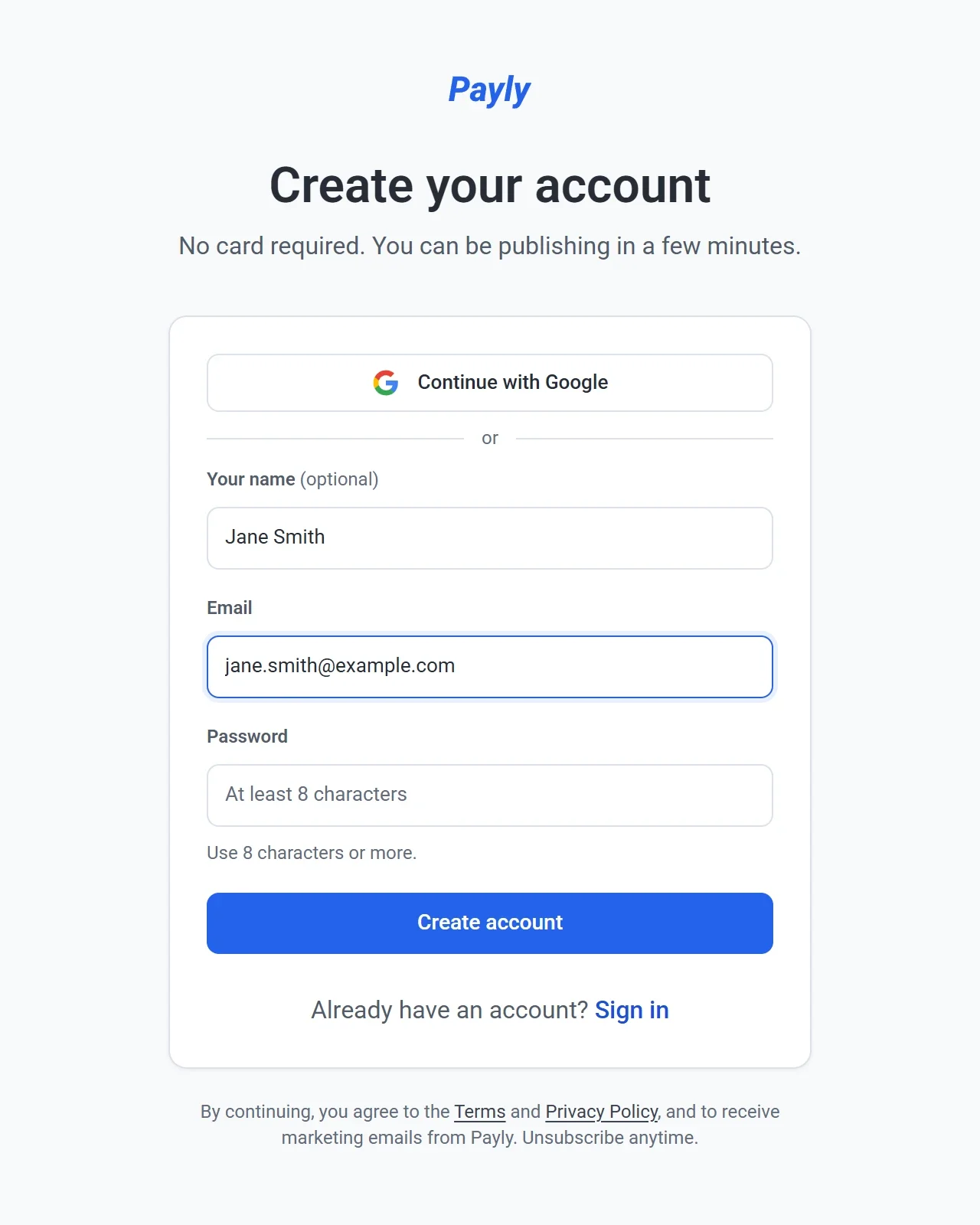
- Go to payly.org and click Start building.
- Enter your name in Your name. This is optional.
- Enter your email address in Email.
- Enter a Password of at least 8 characters.
- Click Create account.
- If Payly asks you to confirm your email address, open the email it sends you, click the link, and then sign in.
To sign up with Google instead, click Continue with Google on the same page and choose your Google account. You do not fill in the form or choose a password.
When you finish, you land on the Your sites screen, where you create your first site. See Create your first site.
The page also tells you that by continuing you agree to the Terms and the Privacy Policy, and to receive marketing emails from Payly. You can unsubscribe from those emails at any time.
Sign in later
- Go to payly.org and click Sign in.
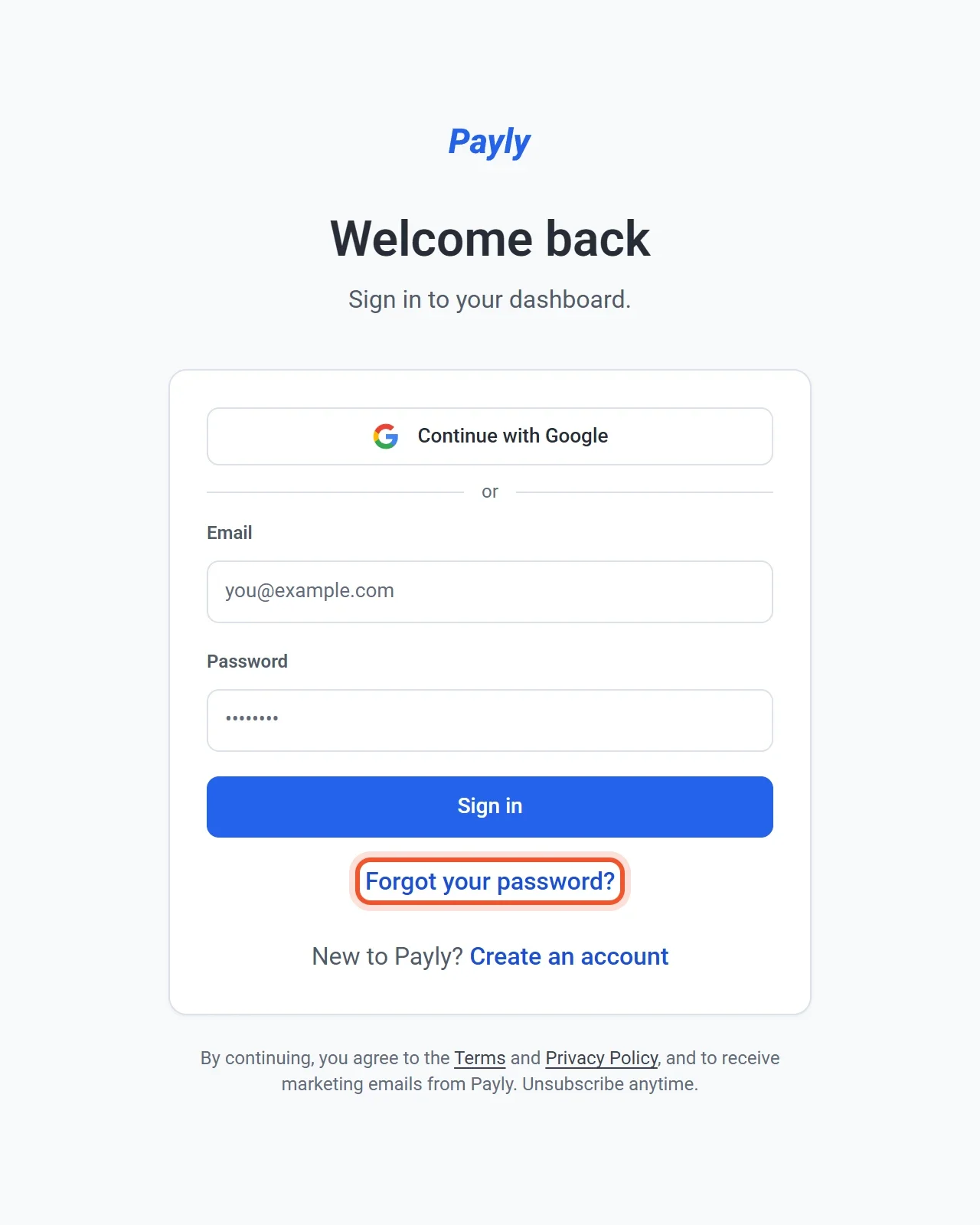
- Enter your Email and Password, then click Sign in. If you signed up with Google, click Continue with Google instead.
Reset a forgotten password
- On the sign-in page, click Forgot your password?
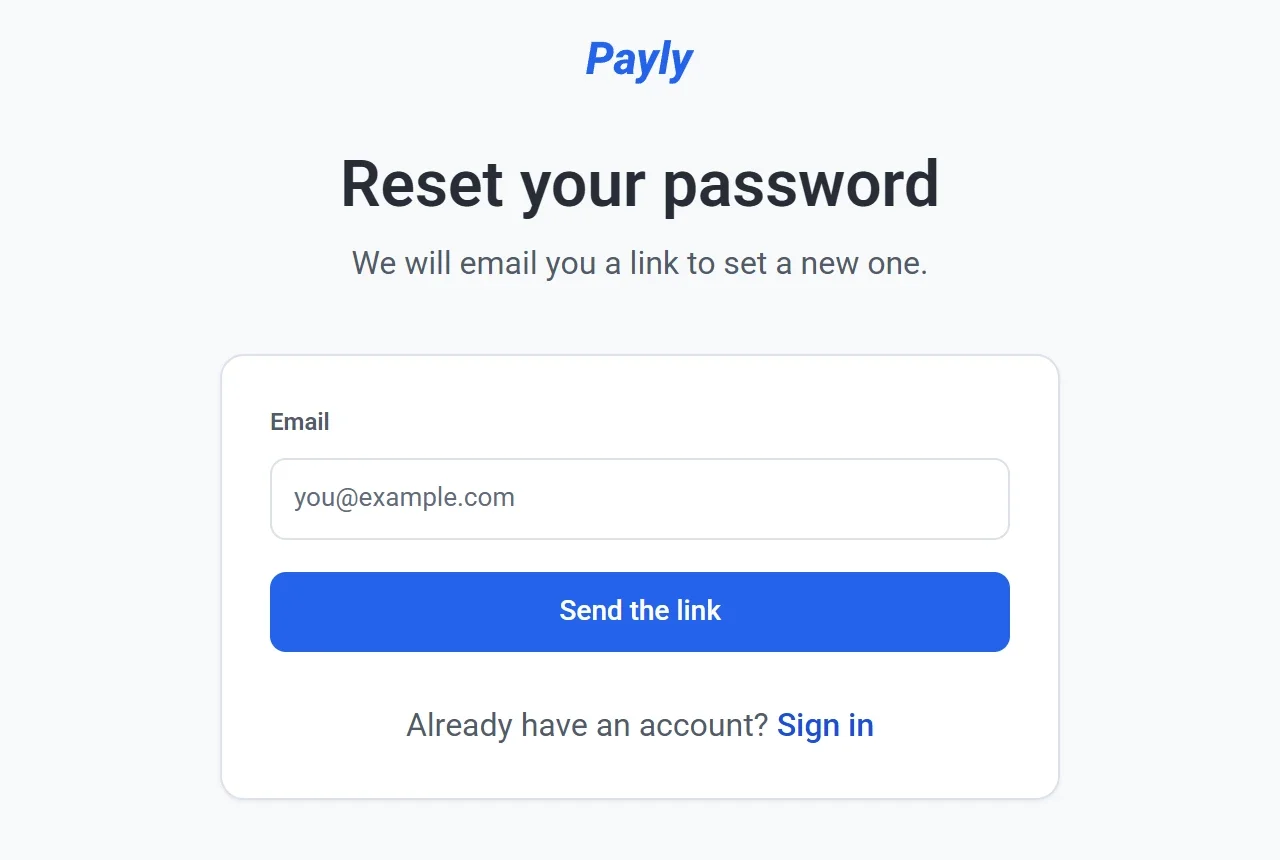
- Enter your email address and click Send the link.
- Open the email and click the link. It works for one hour.
- Enter a new password of at least 8 characters and click Save it. Payly signs you in and opens your dashboard.
The message on screen is the same whether or not the address has an account, so the page cannot be used to find out who has an account. If the link has expired or you already used it, the page says so and offers Send me another link.
Sign out
Click your name at the top right of any dashboard screen, then click Sign out. The same menu lets you change the language and the theme, and opens your account Settings. See Manage your account settings.