
Test data and live data
Use the Test data switch in your site dashboard to see test orders and real orders separately, so practice sales never mix with real money.
Your store can hold two kinds of sales records: test data, from practice purchases made while your store is in test mode, and live data, from real customers. The Test data switch at the top of your site dashboard decides which kind you are looking at, so the two are never added together.
Find the switch
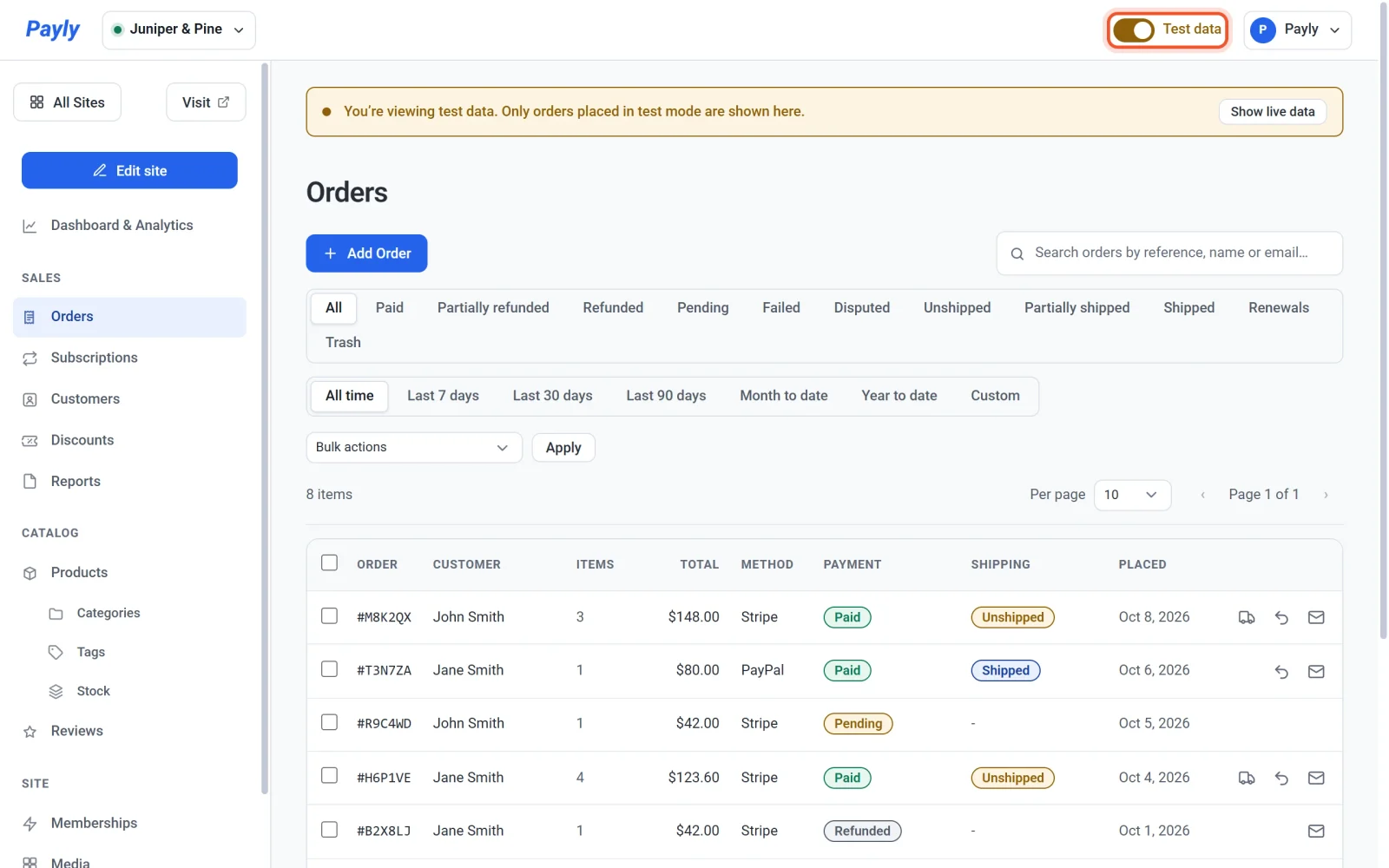
The switch is in the top bar of your site dashboard, to the left of your account menu. It appears on every screen of the dashboard, but it only changes the screens listed below.
What the switch changes
These screens show one kind of data at a time:
- Dashboard & Analytics: the Overview, Sales, Subscriptions, Products, Shipping, Tax and Discounts tabs, including their totals and charts
- Orders
- Subscriptions
- Customers: the number of orders and the amount spent count only the side you are viewing
- Reports: a report you download holds only that side's orders
Everything else, such as your products, pages and settings, is the same whichever way the switch is set.
Switch between test data and live data
- In the top bar, click the Test data switch to turn it on. You now see test data.
- Look at the top of the screen. A band says You’re viewing test data. Only orders placed in test mode are shown here. It keeps practice sales from being read as real money.
- To see live data again, click the switch to turn it off, or click Show live data in the band. The band disappears.

Where the switch starts
The switch starts on the side your store is taking payments on. If test mode is on in Settings > Payments, the dashboard opens showing test data. If test mode is off, it opens showing live data.
When you move the switch, Payly remembers your choice while you keep that browser tab open. The next time you open the dashboard, it starts again from your store's test mode setting.
The switch is not test mode
The two are easy to confuse:
- Test mode in Settings > Payments decides how checkout takes payments. While it is on, shoppers pay with your sandbox accounts and no real money moves. See Take test payments with test mode.
- The Test data switch only decides what you see in your dashboard. It never changes how checkout works.
For example, you can turn the switch off to look at your live orders while your store is still in test mode.
How test orders are marked
- Open a test order and a Test mode label appears at the top, under the amount and the date.
- Emails about a test order, such as the order confirmation, the shipping notice and the refund notice, start with [Test] in the subject line.
Note: An order you add yourself with Add Order follows the switch: added while Test data is on, it is a test order; added while it is off, it is live. See Create an order by hand.