
Mark orders as shipped
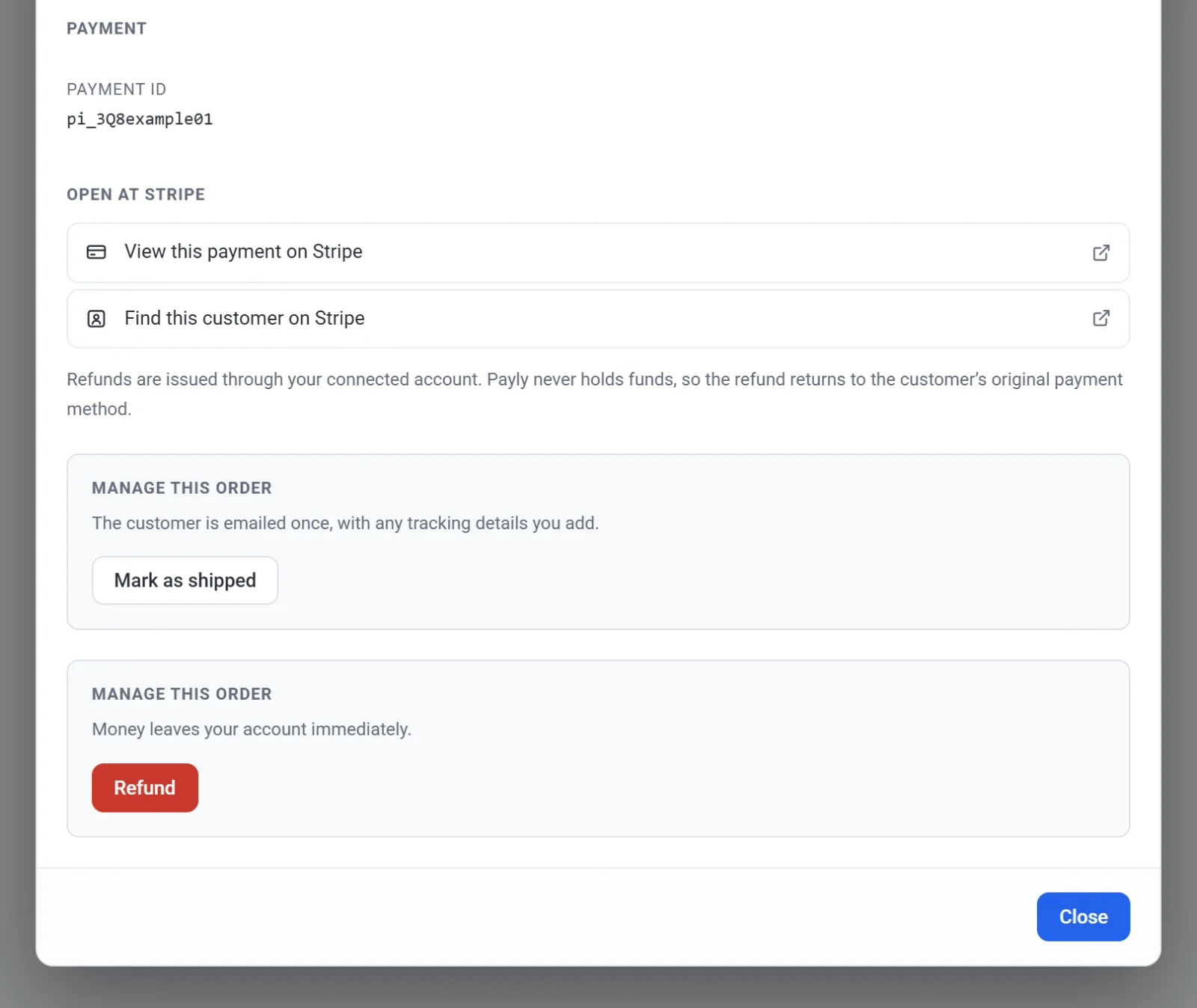
Mark a paid order as shipped, add a carrier and tracking number, and email your customer that their order is on its way.
Marking an order as shipped tells Payly, and your customer, that the order has left you. The customer gets an email saying it is on its way, with a carrier and tracking number if you add them.
Before you start
- Only an order with the status Paid can be marked as shipped. A pending, failed or refunded order cannot.
- An order that contains only digital downloads has nothing to ship, so it has no Mark as shipped button.
Important: The email goes to the customer as soon as you confirm. Mark an order as shipped only when it is really on its way.
Mark one order as shipped
- In your site dashboard, click Orders.
- Click the paid order. It opens in a pop-up.
- Scroll to Manage this order and click Mark as shipped.
- Enter the Carrier, for example USPS, UPS or DHL. This is optional.
- Enter the Tracking number. This is optional too.
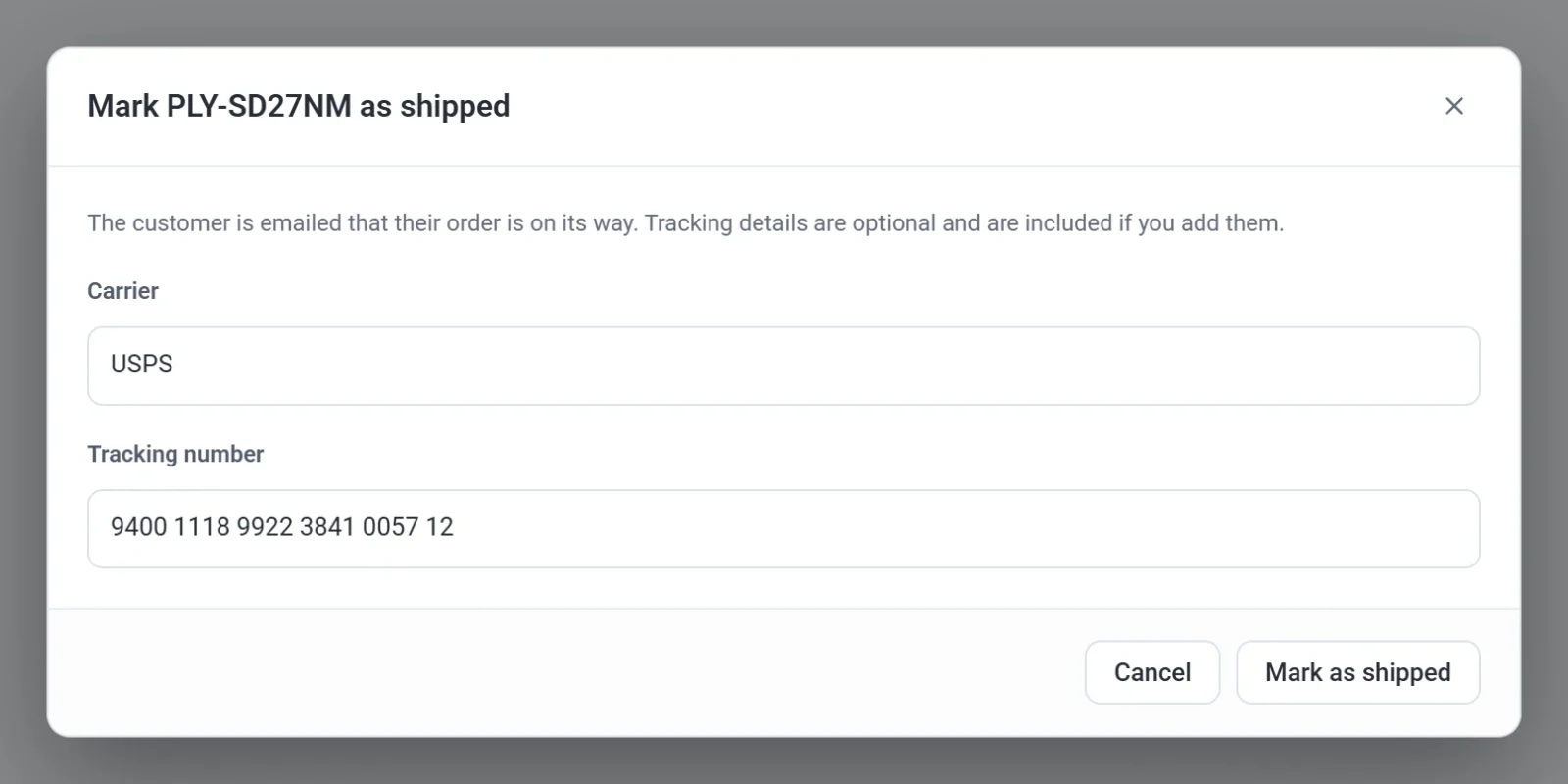
- Click Mark as shipped. A message says Marked as shipped. The customer has been emailed. The order's status changes to Shipped. If the order has no email address, the message says so and no email is sent.
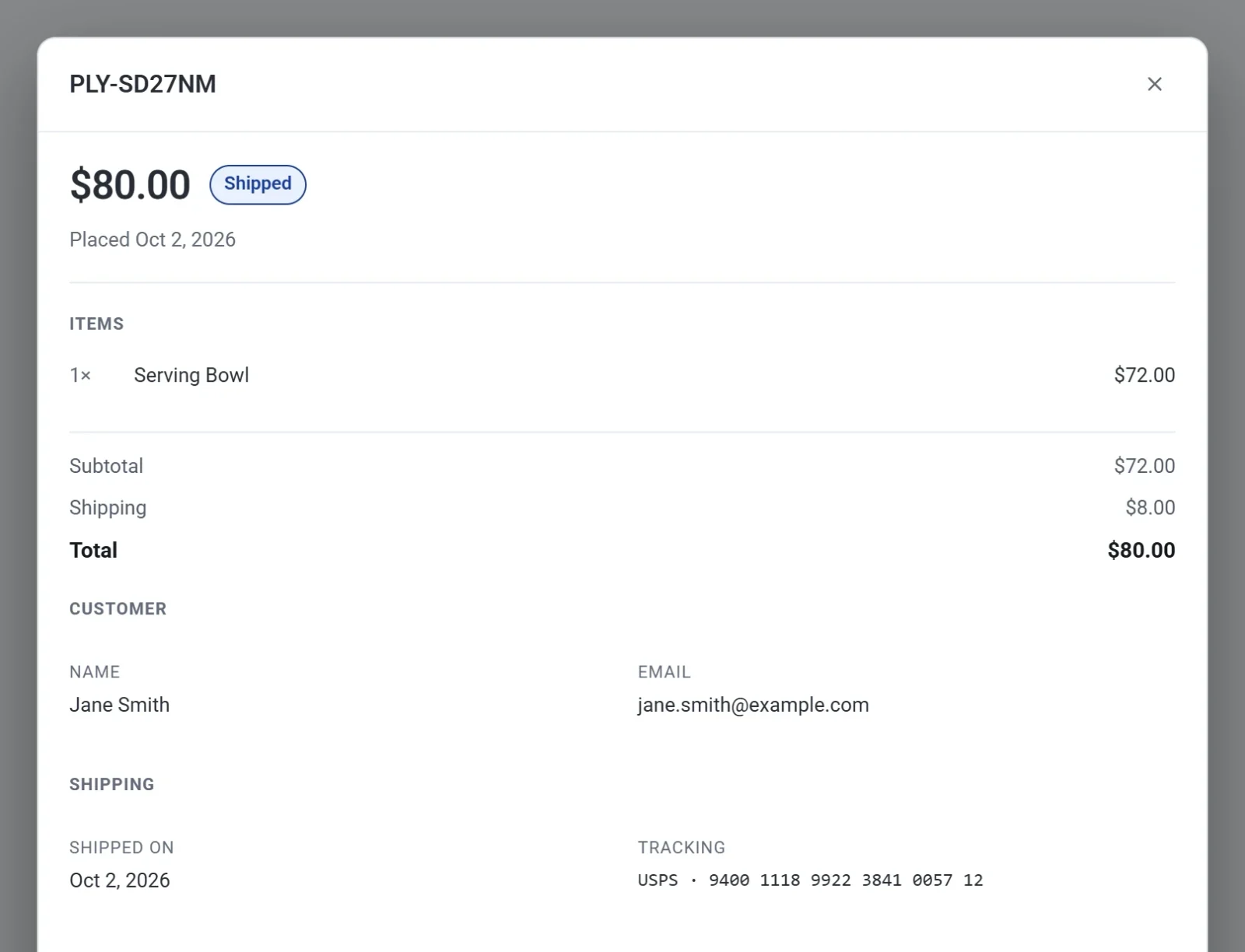
Open the order again and you see a Shipping section with the date and the carrier and tracking number.
Mark several orders as shipped
- On the Orders screen, tick each paid order you have sent.
- Open the Bulk actions menu and choose Mark as shipped.
- Click Apply.
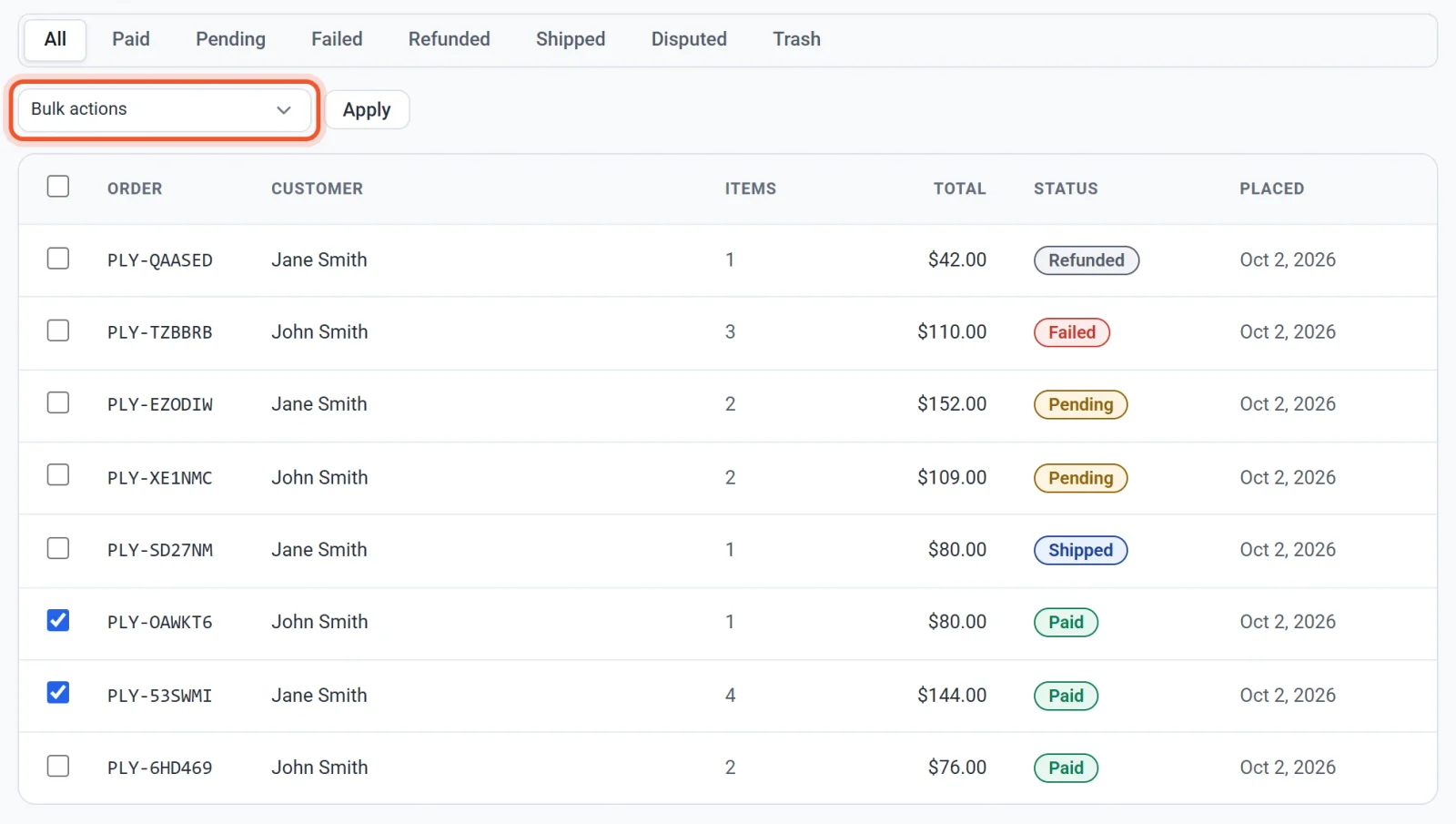
Each customer is emailed. You cannot add a tracking number this way. To include one, mark that order as shipped on its own.
Payly skips any order that cannot be shipped, such as an order that is already shipped, one that is not paid, or one with nothing to ship. The message tells you how many it skipped, for example Marked 2 orders as shipped (1 skipped: already shipped, unpaid, or nothing to ship).
What your customer sees
- One email, Your order has shipped, with the items and the carrier and tracking number if you entered them. See Emails your customers receive.
- In My account, the order shows as Shipped, and its receipt shows the tracking number. See How customer accounts and sign-in work.
If you marked the wrong order
There is no button to undo it, and you cannot edit a tracking number afterwards. Instead, tick the order, choose Mark as Paid from Bulk actions and click Apply. The order goes back to Paid, and you can mark it as shipped again with the right details.
A customer is emailed only once per order. If you ship the same order a second time, they are not emailed again.
A shipped order can still be refunded. See Refund an order.