
Contact Payly support
Search the help center, then send a message to the Payly team from the Help button in your dashboard or from the contact page.
If the help center does not answer your question, you can send a message to the Payly team. You can do it from inside your dashboard or from the contact page on payly.org, and Payly answers by email.
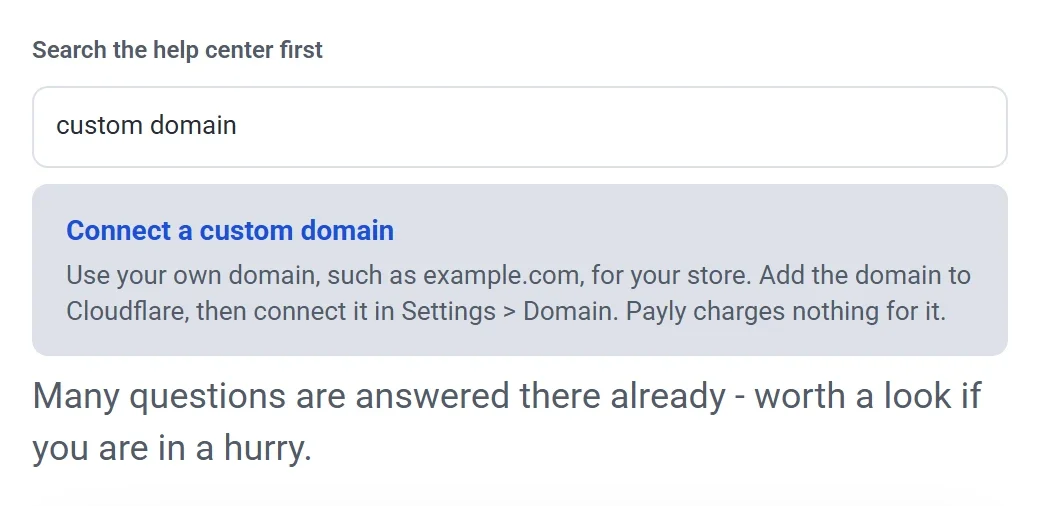
Search the help center first
Many questions are already answered in the help center, and a search takes seconds. The contact page has a Search the help center first box. Type a few words, such as custom domain or refund, and matching articles appear under the box. Click one to read it. If nothing matches, the message form is right below.
Contact support from your dashboard
When you are signed in, this is the quickest way, because Payly already knows your account.
- Click Help at the bottom right of the screen. The button appears on your Your sites screen, on Team, on Settings and in every site dashboard. It does not appear in the editor.
- Search the help center or choose a topic. Articles open inside the panel, and the panel stays open while you keep working on the screen behind it.
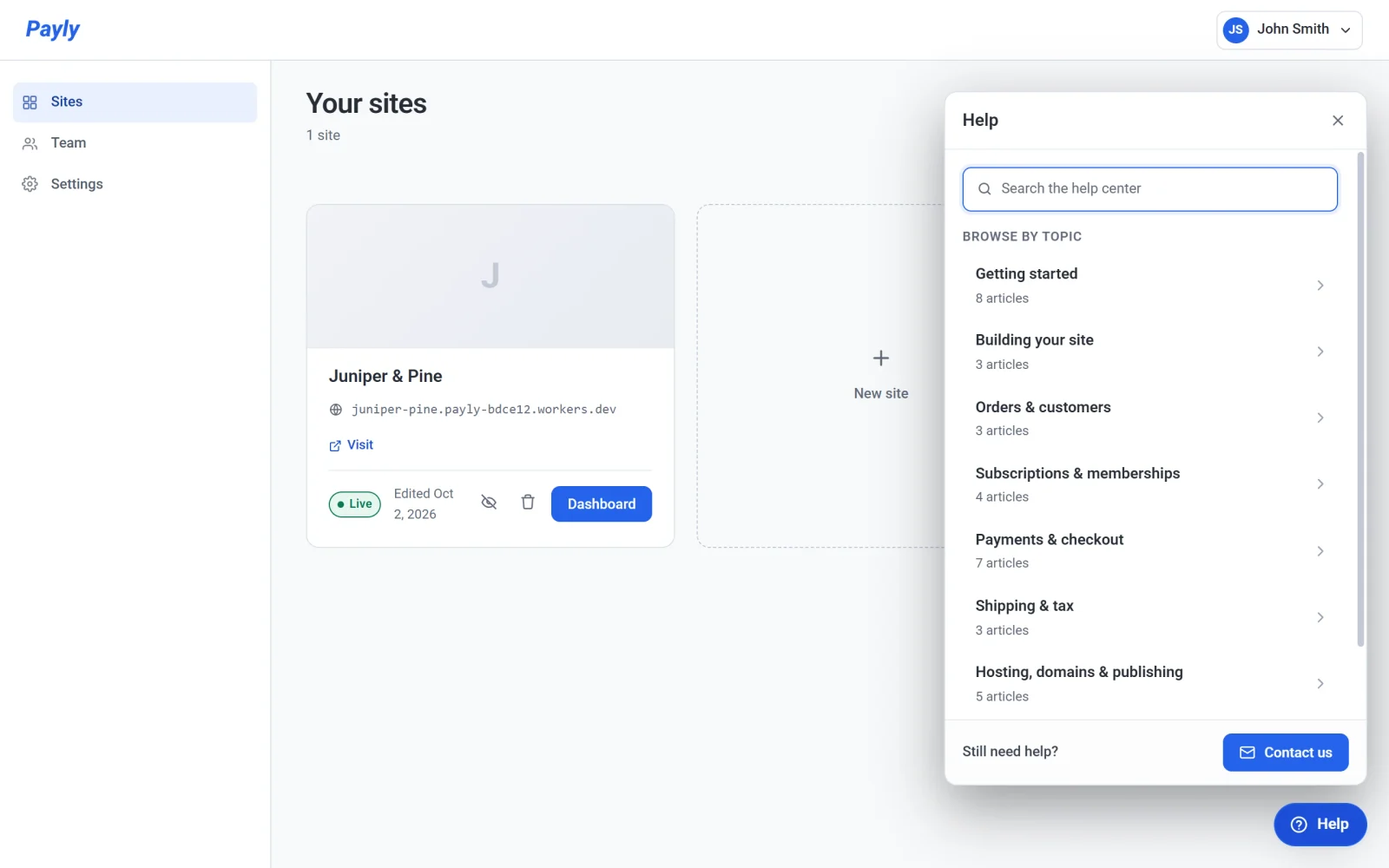
- Click Contact us at the bottom of the panel. The panel is titled Contact support and says which address Payly will reply to. This is the email address of your account.
- Choose the closest topic under What is this about?, enter a Subject, and describe your question under How can we help?.
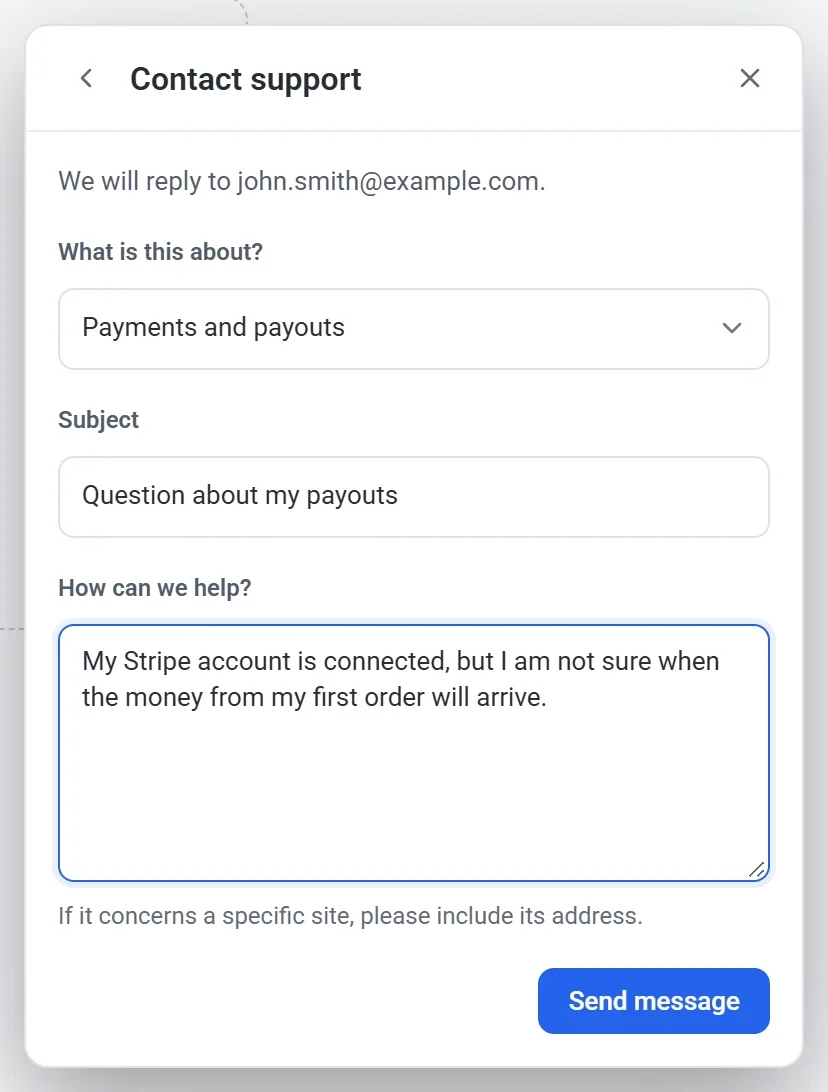
- Click Send message. Payly shows Message sent and a reference that starts with
PLY-. Keep the reference in case you write to Payly again about the same question.
Contact support from the contact page
Use the contact page if you cannot sign in, which is exactly when you most need help. You do not need to be signed in to send a message.
- Click Contact us in the footer of the payly.org home page, or open payly.org/contact.html. The help center home page also has a Still need help? section with a Contact us button.
- Enter your name. It is optional.
- Enter your Email address. Payly replies here, so check it carefully.
- Choose a topic under What is this about?.
- Enter a Subject, then describe the problem under What is happening?. If it involves a specific store, include its address.
- Click Send message.
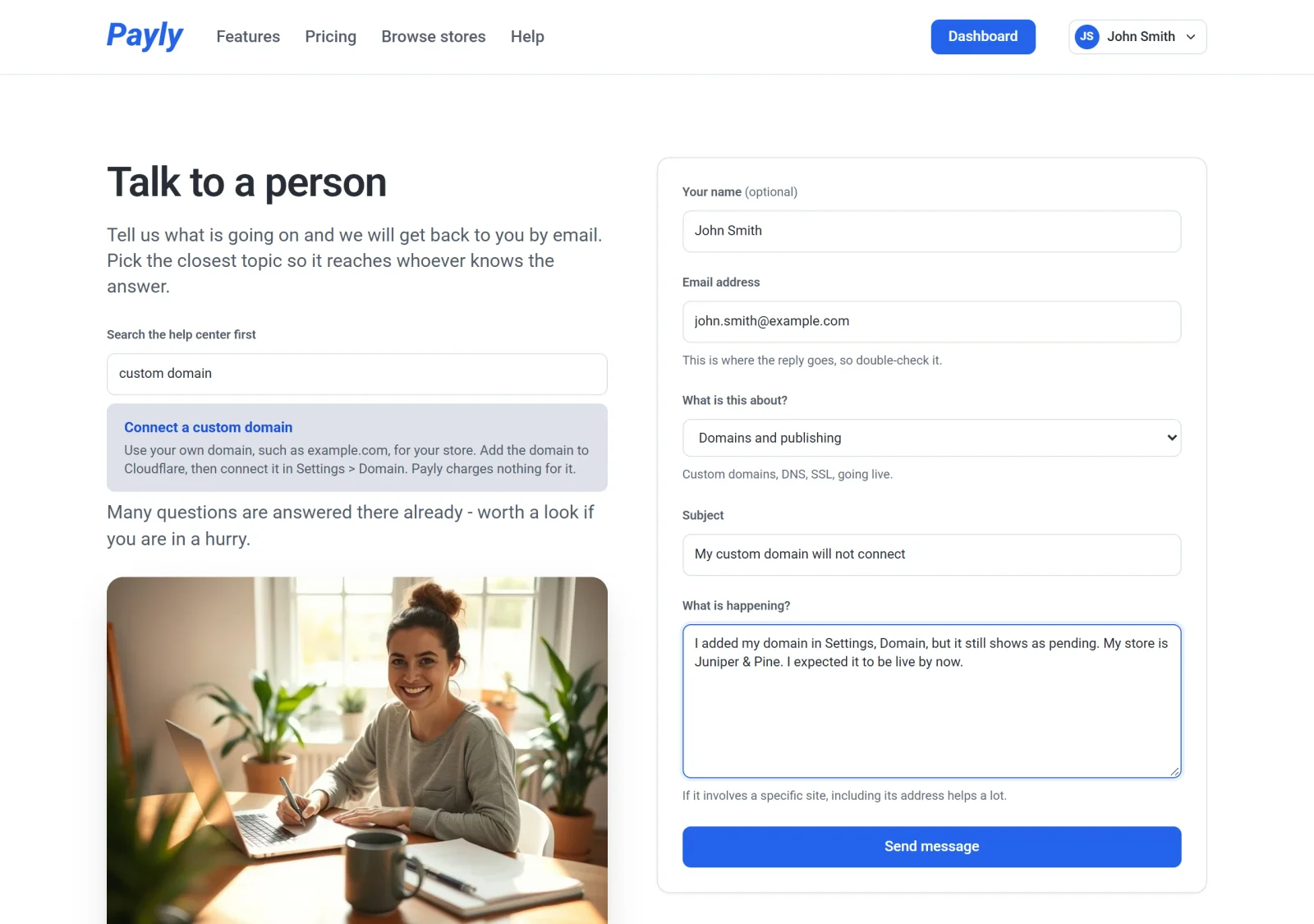
If you are signed in, Payly fills in your name and email address for you. The message needs a valid email address, a subject and a description of at least 10 characters, or the form tells you what to fix.
Choosing a topic
The topic sends your message to whoever knows the answer, so pick the closest one. If none fits, choose Something else.
| Topic | Choose it for |
|---|---|
| Account and sign in | Signing in, passwords, closing an account. |
| Building my site | The editor, pages, sections, templates and layout. |
| Payments and payouts | Connecting Stripe or PayPal, and getting paid. |
| Subscriptions and memberships | Recurring billing, membership tiers, gated pages. |
| Domains and publishing | Custom domains, DNS, SSL, going live. |
| Orders and customers | Orders, refunds and customer accounts on your store. |
| Something is broken | A page, button or feature is not doing what it should. |
| Something else | Anything that does not fit the topics above. |
After you send
Payly replies by email, and the confirmation says you can usually expect an answer within one business day. If you wrote from the contact page, the reply goes to the address you typed. If you wrote from the Help panel, it goes to your account's email address.
Tip: Say what you were doing, what you expected and what happened instead, and include your store's address. Never put your password or a card number in a message.