
Edit your menu links
Add, rename, reorder and remove the links in your header menu, point each one at a page or a custom address, and add dropdowns.
The menu in your header is how shoppers move around your store. You edit it in the editor, one link at a time. Each link goes either to a page of your store or to a custom address, and the same two choices appear wherever Payly asks you for a link, such as on a button.
Open the menu settings
- In the editor, click the menu at the top of your page. The settings panel on the right shows Navigation.
- Click Menu to open that group, then scroll down to Links. Each link has its own card.
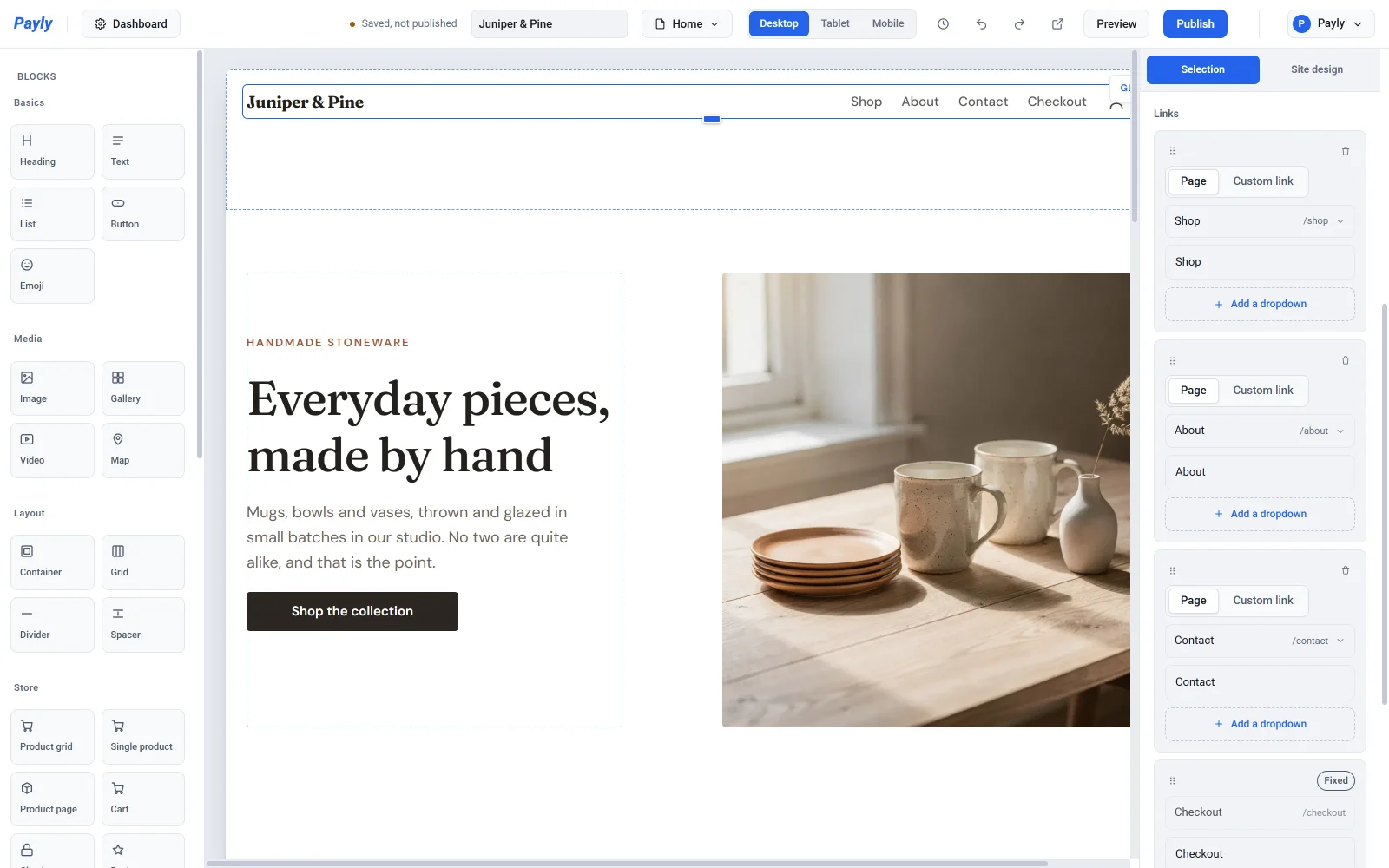
The header is shared by every page, so a change here shows up on all of them.
Point a link at a page
A new link starts as a page link, which is the safest choice: it follows the page if you rename it or change its address later.
- On the link's card, make sure Page is selected.
- Click the page name to open the list of your pages.
- Type in the search box to narrow the list, then click the page you want.
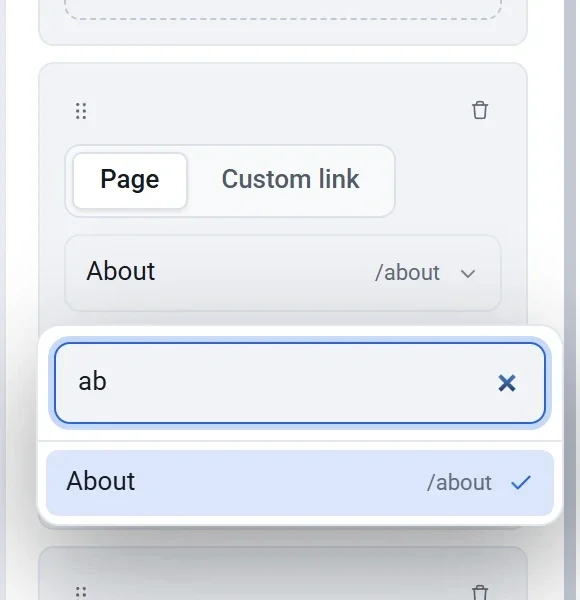
- Change the text in the field below the page if you want different wording. When you pick a page, Payly fills in the page's name for you, unless you already wrote your own text.
Link to a custom address
Use a custom link for anything that is not a page of your store, such as your Instagram profile or a blog on another site.
- On the link's card, click Custom link.
- Enter the text shoppers will see.
- Enter the address in the second field. Type a full web address such as
https://example.com, or a path on your own store such as/about.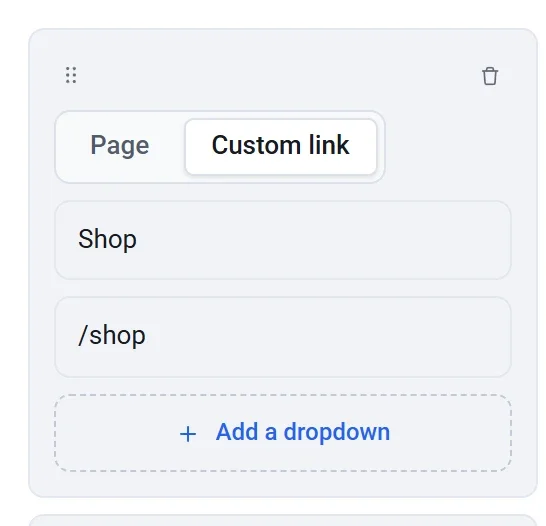
Add, remove and reorder links
- Click Add link at the bottom of the list. The new link points to the first page that is not in the menu yet.
- Drag the dotted handle at the top left of a card up or down to change the order. Links appear in the same order on your page.
- Click the trash can at the top right of a card to remove that link.
Important: The Checkout link is marked Fixed. Shoppers need to reach checkout from anywhere, so you cannot remove it or send it elsewhere. You can still change its text. The account icon and, unless you turn it off with Show cart button, the cart icon also stay in the header.
Add a dropdown
A dropdown groups several pages under one link. Shoppers see it when they point at the link or move to it with the keyboard.
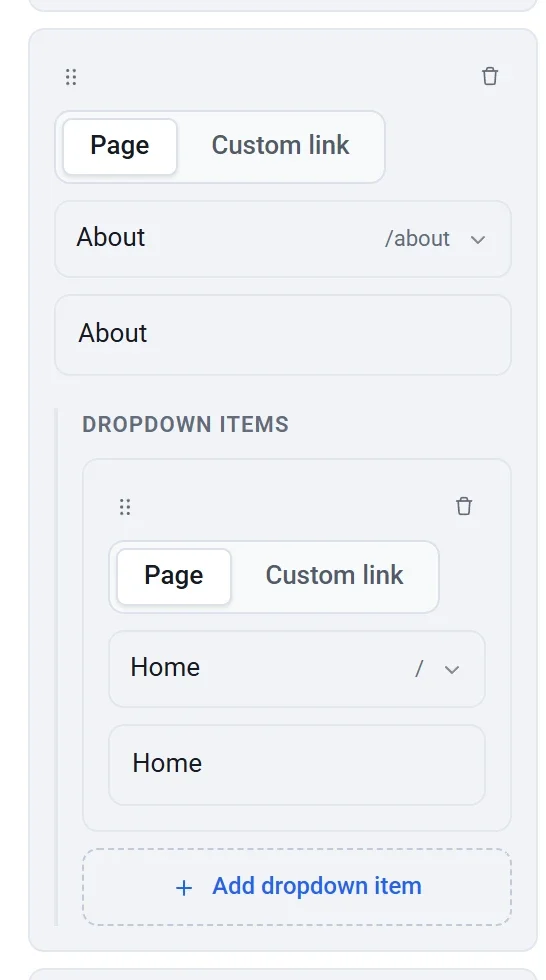
- On the link's card, click Add a dropdown. Payly adds a first item under Dropdown items.
- Choose a page or a custom address for the item, the same way as for any link.
- Click Add dropdown item for each further item.
Only the header menu has dropdowns. The link lists in your footer are plain lists. On a phone, the header links, including the dropdown items, sit behind a menu button instead.
Links on buttons
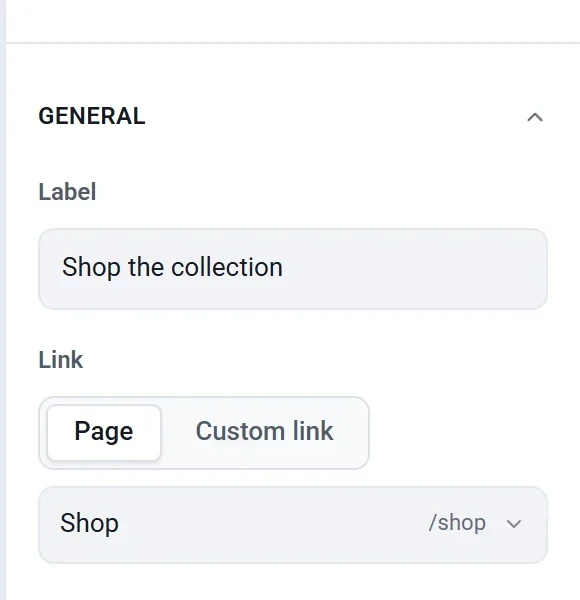
A button block uses the same choice. Select the button, open General, and pick Page or Custom link under Link. Choosing a page does not change the button's label, so a button can say "Shop the collection" and still go to your Shop page.
How pages and the menu stay in sync
When you add a page, Payly adds a link to it in the menu automatically. In Manage pages you can turn that off, and you can use each page's In menu box to add it to or remove it from the menu. If you rename a page or change its address there, its menu link follows. A custom link never changes by itself, because you typed that address on purpose. See Add and manage pages.
Tip: Your changes are saved as you make them, but your live store only shows them after you publish.