
Preview your site before publishing
Open a working preview of your store in a new tab, click through your pages and products, and check desktop, tablet and phone widths before you publish.
Preview shows your store the way a visitor would see it, with working links between pages, without making anything public. Use it to check your latest changes before you publish them.
Open the preview
- In the editor, open the page you want to check.
- Click Preview in the top bar.

The preview opens in a new browser tab, on the same page you were editing. Payly saves your latest edits first, so the preview always shows your current draft, even if you have not published for a while. Your editor stays open in its own tab.
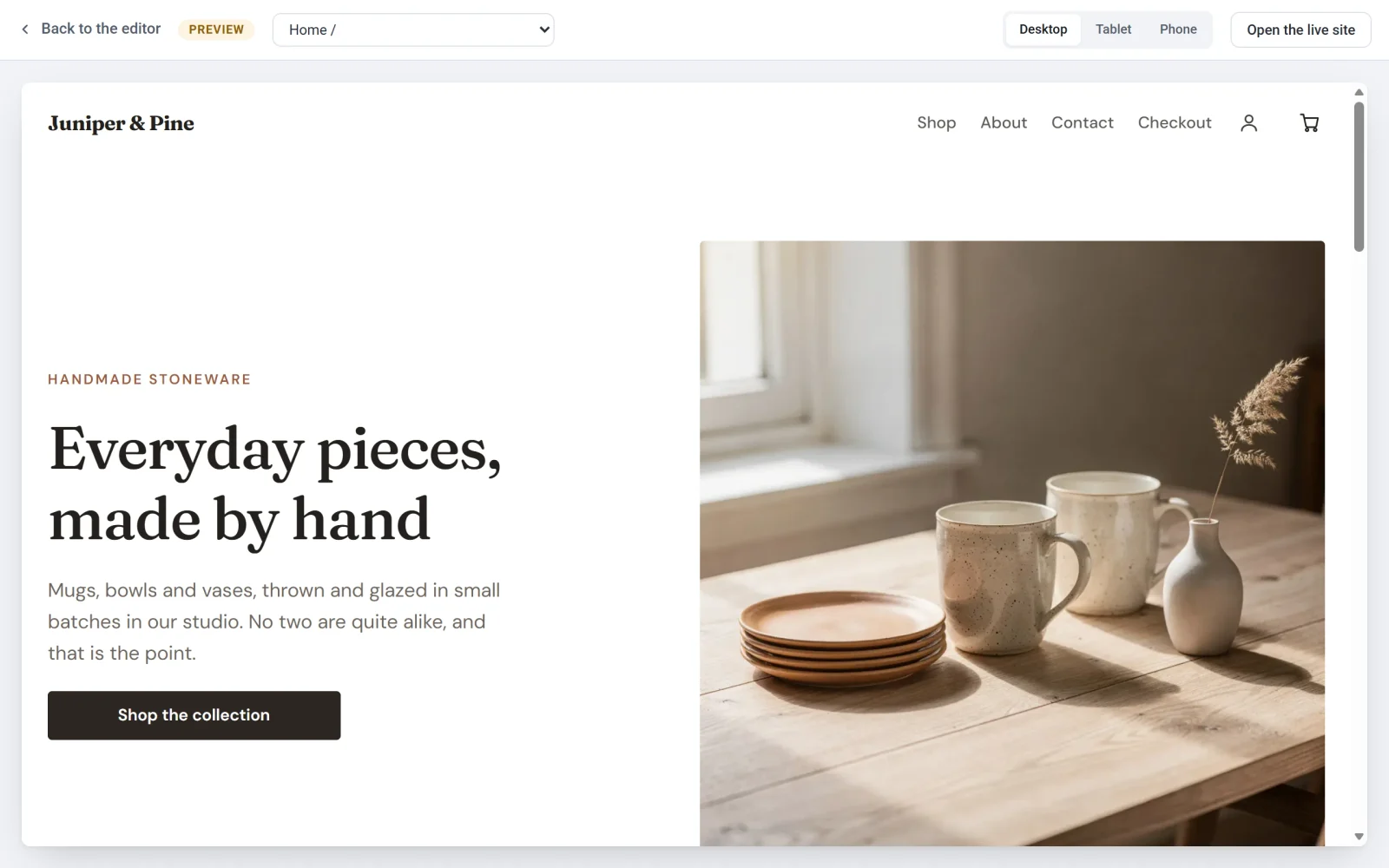
Move around your store
- Click links, buttons and the menu on the page, as a visitor would. Each one opens the matching page inside the preview.
- Use the list at the top to jump straight to any page, including each of your product pages.
- If a link points to an address that is not a page on your site, a message at the bottom of the preview tells you which address it was. That is a quick way to find broken links.
Check tablet and phone widths
Click Tablet or Phone at the top right to narrow the page to those screen widths. Click Desktop to go back to full width.
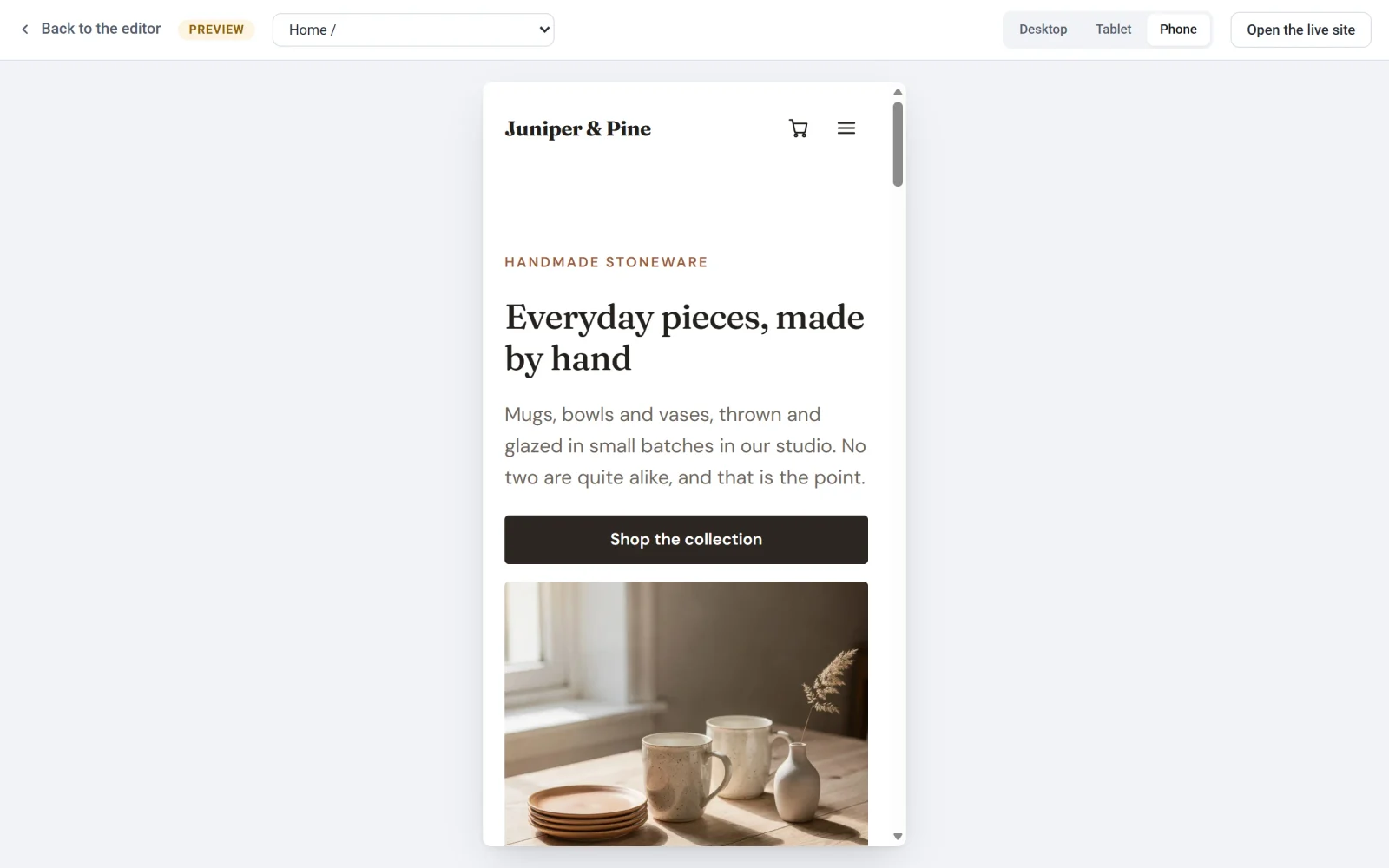
If something looks wrong, go back to the editor and adjust it. See Make your site look right on phones and tablets.
What preview does not do
- It takes no payments. Pay buttons on the checkout page are dimmed and do nothing. To try a real checkout, publish your store and place a test order. See Take test payments with test mode.
- It does not run your forms. If you submit a contact form, a message at the bottom of the preview tells you that forms and checkout are switched off. Test your form on your published store instead.
- It is private. Only people signed in to Payly with access to your site can open it. Your visitors keep seeing your last published version until you publish again.
Go back or go live
Click Back to the editor at the top left to return to editing. When your store is published, an Open the live site button also appears in the preview bar. It opens your published store, so you can compare it with your draft.
Tip: The preview is a snapshot taken when it opens. After you change something in the editor, refresh the preview tab, or click Preview again, to see the change.