
Work with sections
Add ready-made or blank sections to a page, reorder, duplicate and delete them, and change a section's background, spacing and width.
A section is a full-width band of a page, such as a hero at the top, a row of products or a call to action. Every block on a page lives inside a section. Sections stack from top to bottom, and each one has its own background, spacing and width.
See the sections on your page
The Structure list in the left column shows every section of the page you are editing, in order, with the number of blocks in each one. Scroll down below the Blocks to find it. Header and Footer are listed at the top and bottom.
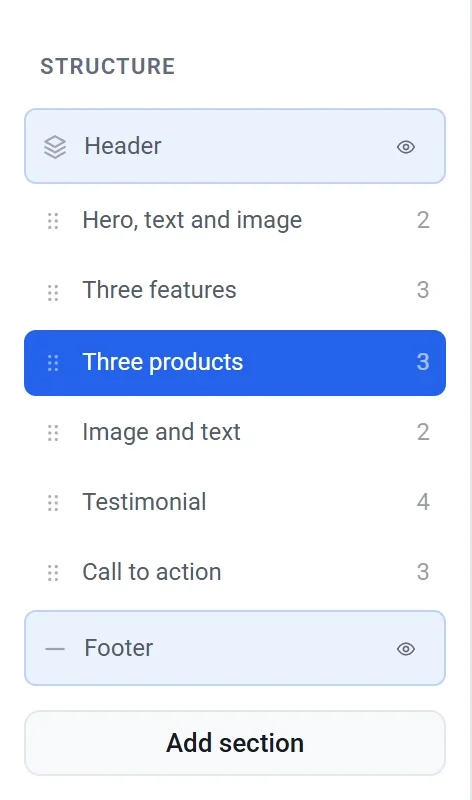
Click a section's name to select it. You can also click an empty part of a section on the page. The settings panel on the right then shows that section's settings.
Add a section
- Click Add section at the bottom of the Structure list, or Add a section at the bottom of the page.
- Choose a layout in the Add a section window. Pick Blank section to start with an empty one, or choose a ready-made layout such as Hero, text and image, Three features or Call to action. The layouts are grouped under headings such as Headers & heroes, Content, Media, Calls to action and Shop.
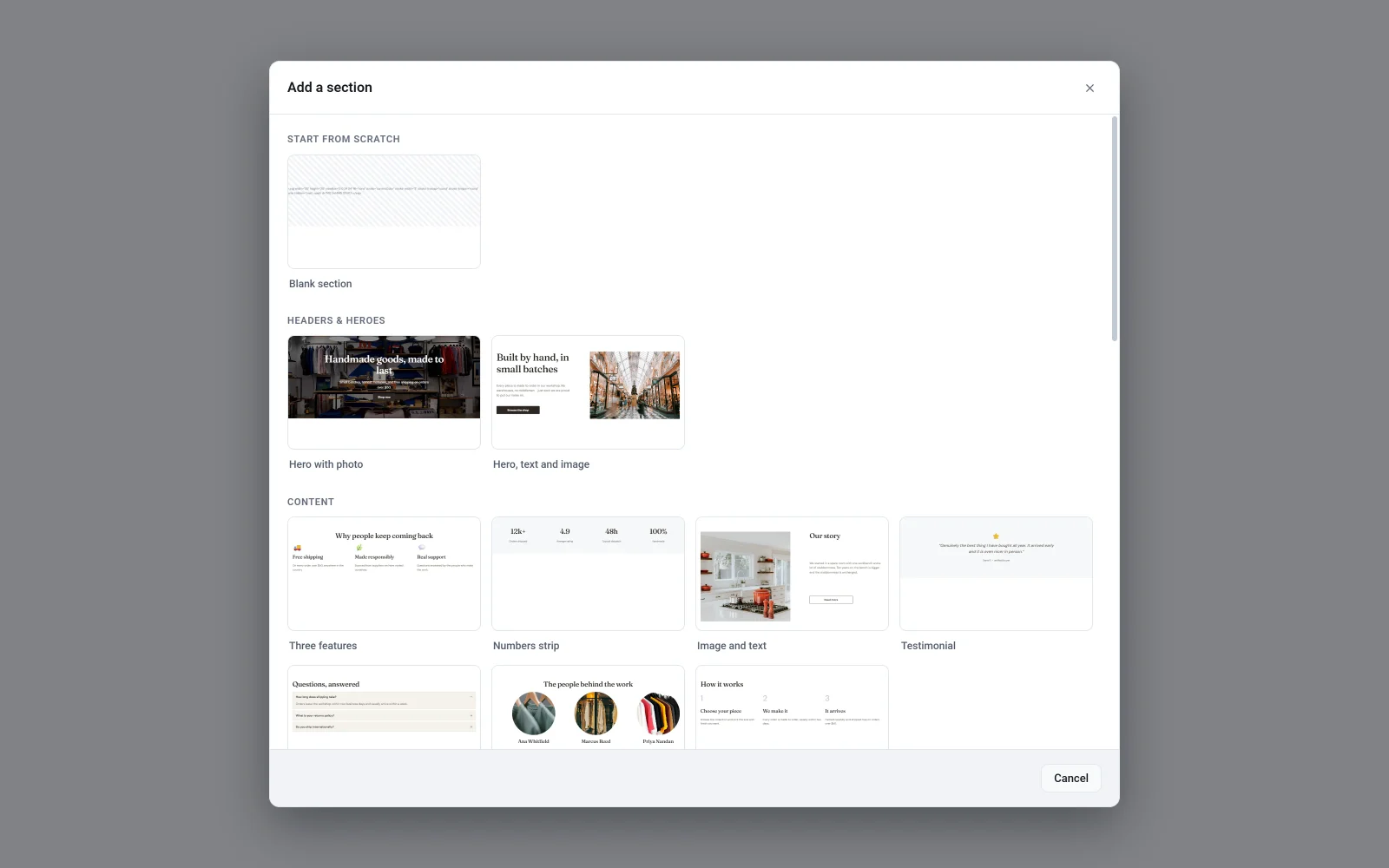
- The new section is added at the bottom of the page, just above the footer, and the editor scrolls to it.
A blank section shows Drag a block here to start this section. Drag blocks in from the Blocks panel. See Add, move and resize blocks. The words and pictures in a ready-made layout are examples. Select each block and replace them with your own.
If you change your mind, click Cancel in the window.
Move a section
There are two ways to change the order of the sections:
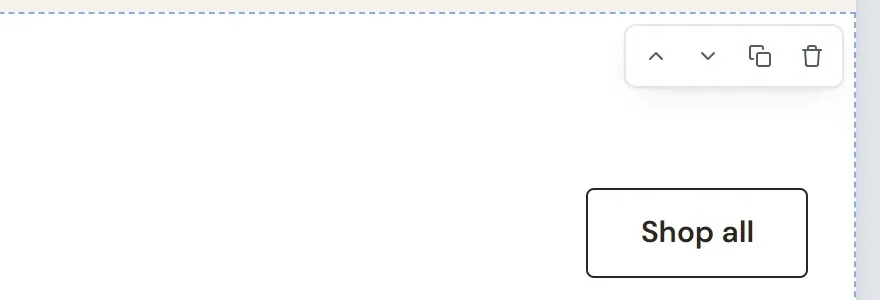
- Hover over a section on the page, or select it, and click the up or down arrow in the small toolbar at its top right corner.
- In the Structure list, press the dotted handle on the left of a section's name, drag it up or down, and release.
The header and footer cannot be moved. They always stay at the top and bottom.
Duplicate a section
Click the Duplicate button (two overlapping squares) in the section toolbar. The copy appears directly below the original with all of its blocks. You can also select the section, open Manage in the settings panel and click Duplicate.
Delete a section
- Click the Delete button (the trash can) in the section toolbar. You can also select the section, open Manage in the settings panel and click Delete.
- If the section has blocks in it, a window asks you to confirm. Click Delete to remove the section and everything in it.
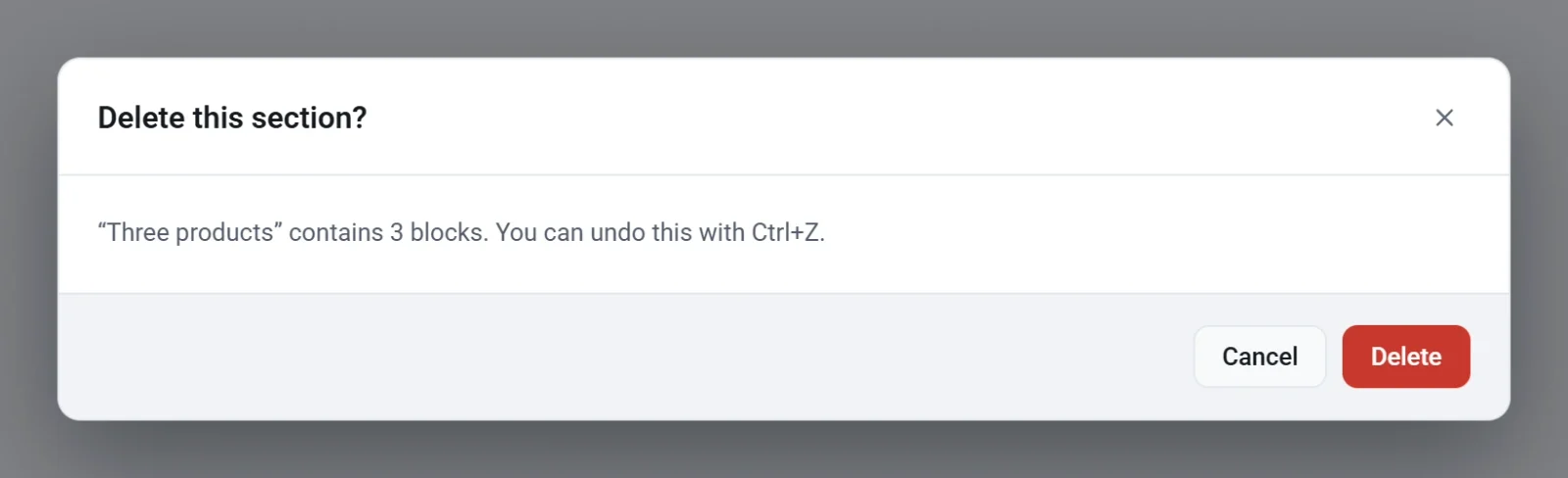
An empty section is deleted at once. Either way you can click Undo in the top bar, or press Ctrl + Z, to bring a section back.
Change a section's settings
- Select the section.
- In the settings panel, click General to open it.
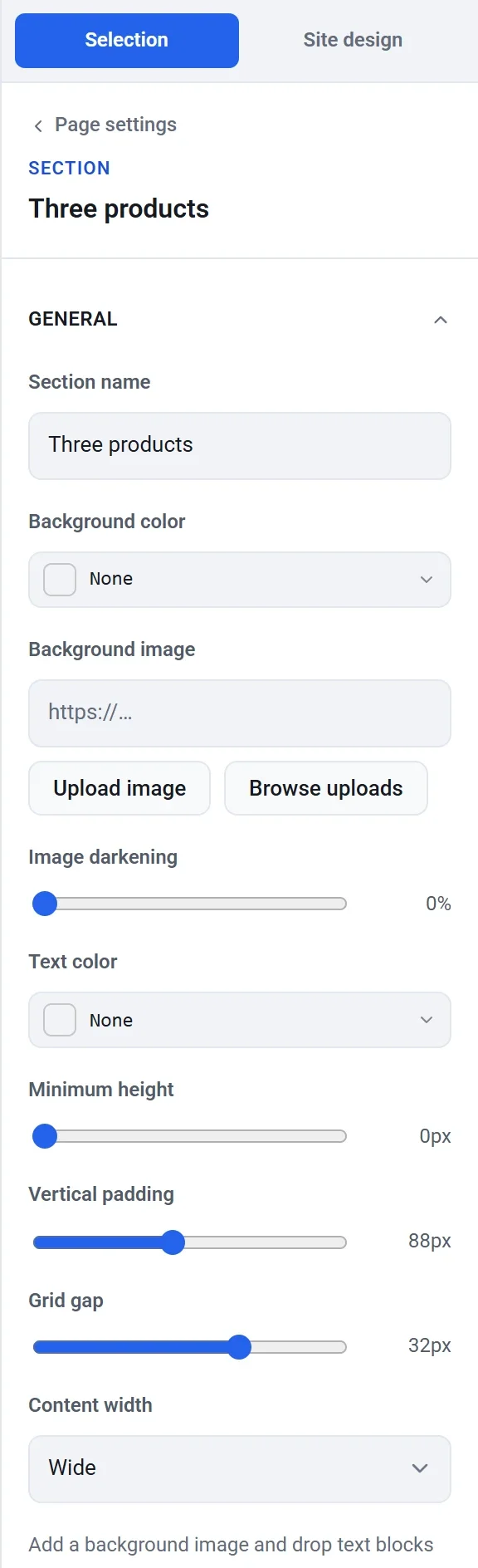
- Change any of these settings:
- Section name: the name shown in the Structure list. Only you see it, not your visitors.
- Background color: a color behind the whole section. Click None in the color picker to remove it.
- Background image: a picture behind the section. Paste an address, or click Upload image or Browse uploads. See Add images and use the media library.
- Image darkening: darkens the background image so light text stays readable. It only matters when the section has a background image.
- Text color: the color of the text in the section, unless a block sets its own.
- Minimum height: makes the section at least this tall, even with little in it.
- Vertical padding: the space above and below the blocks.
- Grid gap: the space between blocks.
- Content width: how wide the blocks are allowed to spread. Choose Standard, Wide, Narrow or Full bleed.
Tip: To build a hero, give a section a background image, raise Image darkening, then drop a heading, some text and a button on top of it.
The header and the footer
The header and footer appear on every page, so they are not part of any one page's sections. Their rows in the Structure list have an eye button instead of a block count. Click it to hide or show the header or footer on your whole site. A hidden header or footer cannot be selected until you show it again. To change what is in them, see Customize your header and footer.