
Help customers find your store on Google
Write a clear browser title and search description for each page, describe your products well, and submit your store's sitemap to Google.
When someone searches for what you sell, Google shows a title and a short description for each page it finds. Payly lets you write both for every page, fills them in for your products, and publishes the sitemap search engines use to find your pages. This article covers what you control and how to set it.
Set a page's title and description
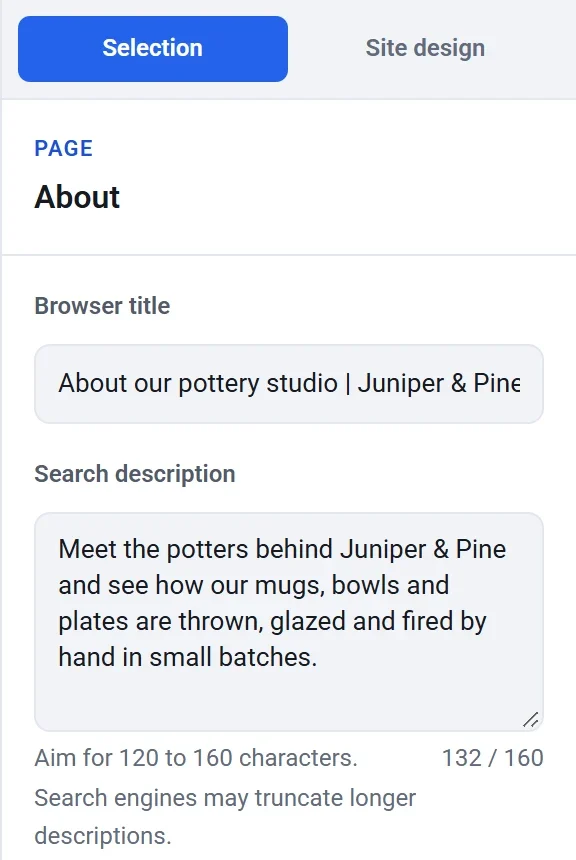
Each page has two search settings. The Browser title is the page's name in browser tabs and the headline of a search result. The Search description is the line shown under the headline.
- In your site dashboard, click Edit site to open the editor.
- Click the page picker at the top, then click the page you want to change.
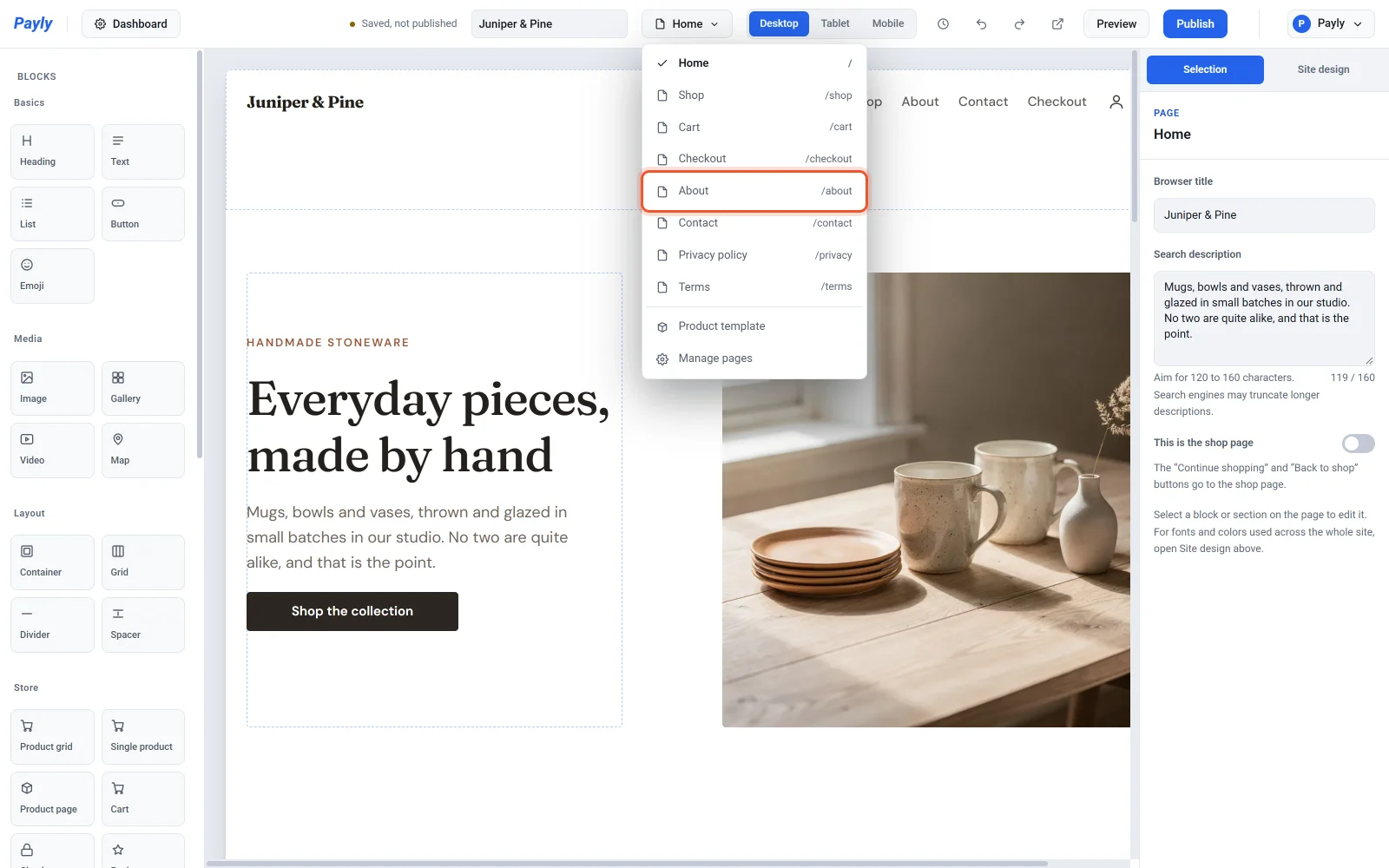
- Make sure no block is selected. If one is, click Page settings at the top of the right panel, or press Esc. The panel then shows the page's settings under Selection.
- Enter a Browser title.
- Enter a Search description. A counter under the box compares its length with the 120 to 160 characters search engines usually show.
- Click Publish to make the change live.
You can also reach both settings from the page picker: click Manage pages, then open Title and description on the page's row.
What happens when you leave them empty
- With no browser title, Payly uses the page's name, and then your site name.
- With no search description, Payly uses the first words of the first text block on the page, up to 160 characters.
Writing your own is better. Give every page a different title and description, say what the visitor will find there, and put the most important words first.
Product pages
Product pages are written for you from the product. You set them in the product itself, not in the editor.
- The browser title is the product name followed by your site name.
- The search description is the start of the product's description, up to 300 characters. Write a clear opening sentence.
- When a product page is shared, the product's first photo is the preview image.
- Search engines also receive the product's price and whether it is in stock, so they can show both next to your page.
See Add a product and How product pages work.
Describe your photos
Select an Image block and fill in Alt text with a short description of the picture, such as "Speckled stoneware plates on a wooden table". Search engines and screen readers use it, and it appears if the image does not load.
Your sitemap
Every published store has a sitemap and a robots file, made for you each time you publish. You do not edit them. The sitemap lists your pages and products. The robots file asks search engines to skip your cart, checkout and account pages, which have nothing to index. Add /sitemap.xml to your store's address to read the sitemap, for example example.com/sitemap.xml.
To tell Google about your store, add it in Google Search Console, a free tool from Google, and submit the sitemap address there. Search engines then find new pages and products on their own, though it can take days or weeks for a new store to appear in results.
More ways to be found
- Use your own domain name. See Connect a custom domain.
- List your store in Payly's directory. See List your store in the Payly directory.