
View and manage orders
Find orders, read their details, understand each status, and update several orders at once from the Orders screen in your dashboard.
The Orders screen lists every order your store has taken. Use it to see what was bought, check whether an order was paid, and follow it through shipping or a refund.
Open the Orders screen
In your site dashboard, click Orders. The newest order is at the top, and new orders appear as soon as a customer checks out.
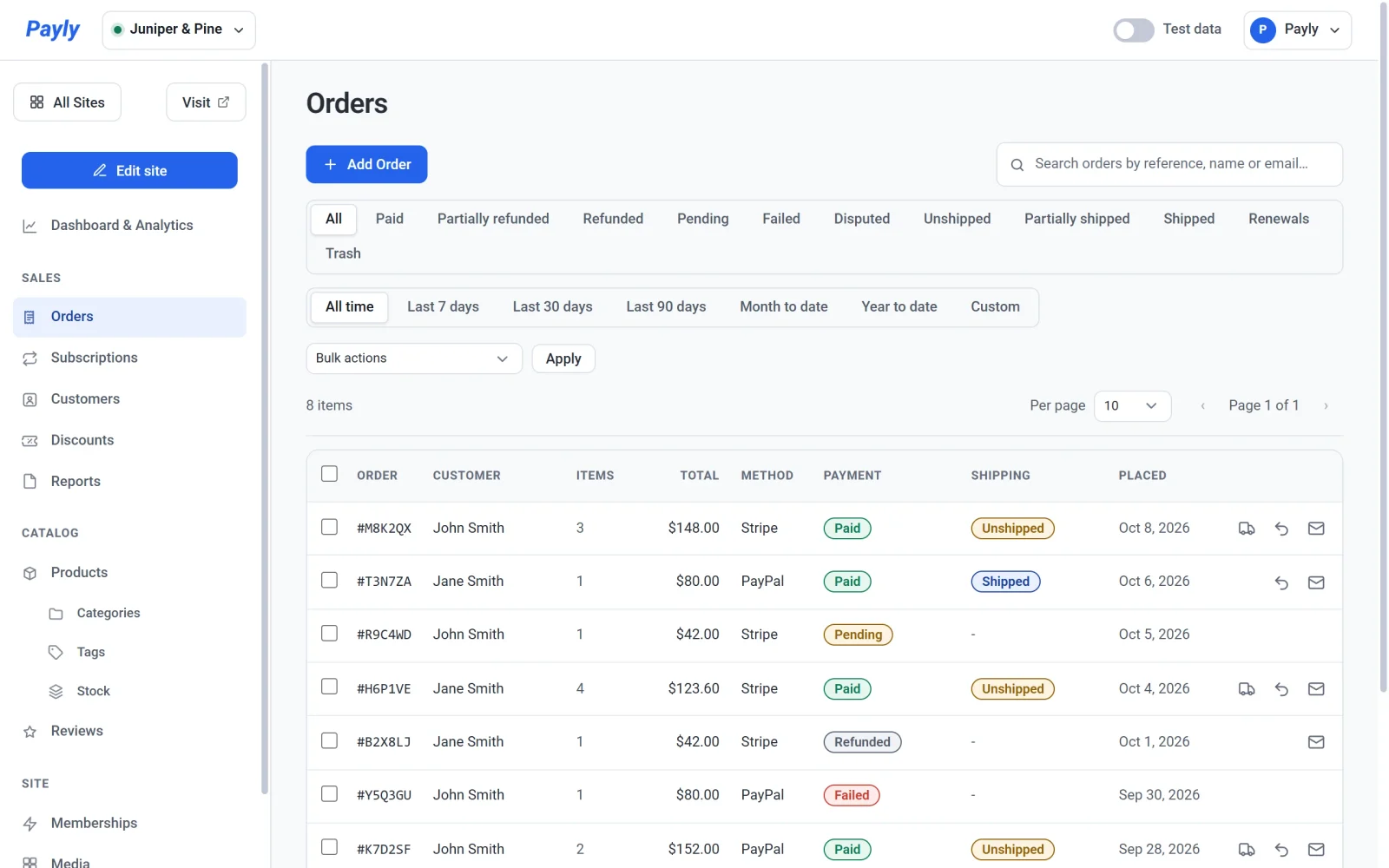
Each row shows:
- Order: the order number, such as #1042.
- Customer: the customer's name, or their email address if they gave no name.
- Items: how many items were bought in total.
- Total and Method: what the customer paid, and how: Stripe, PayPal, Manual (an order you added yourself) or Free.
- Payment and Shipping: where the payment stands, and whether the order has been sent.
- Placed: the date of the order.
Tip: If an order you expect is missing, check the Test data switch in the top bar. Test orders and live orders are shown separately. See Test data and live data.
What the statuses mean
| Status | What it means |
|---|---|
| Pending | The customer started checkout, but the payment is not complete. |
| Paid | The payment went through. |
| Shipped | You marked a paid order as shipped. |
| Failed | The payment did not go through. |
| Refunded | All of the money was sent back to the customer. |
| Disputed | The customer asked their bank to reverse the payment. Payly sets this status for you when Stripe or PayPal reports the dispute, and you answer the dispute in your Stripe or PayPal dashboard. |
Find an order
- Type in the search box to look for a customer's name, an email address, or an order number. Type a number with or without #, for example #1042 or 1042.
- Click a status above the list, such as Paid or Refunded, to show only those orders. Click All to show every order again.
- Choose a period in the row under the statuses, such as Last 30 days, to show only the orders placed then. Custom shows From and To date fields. All time, the default, shows every order.
The list works like every other list in your dashboard. See Search, filter and bulk-edit lists.
Open an order
- Click an order in the list. It opens in a pop-up.
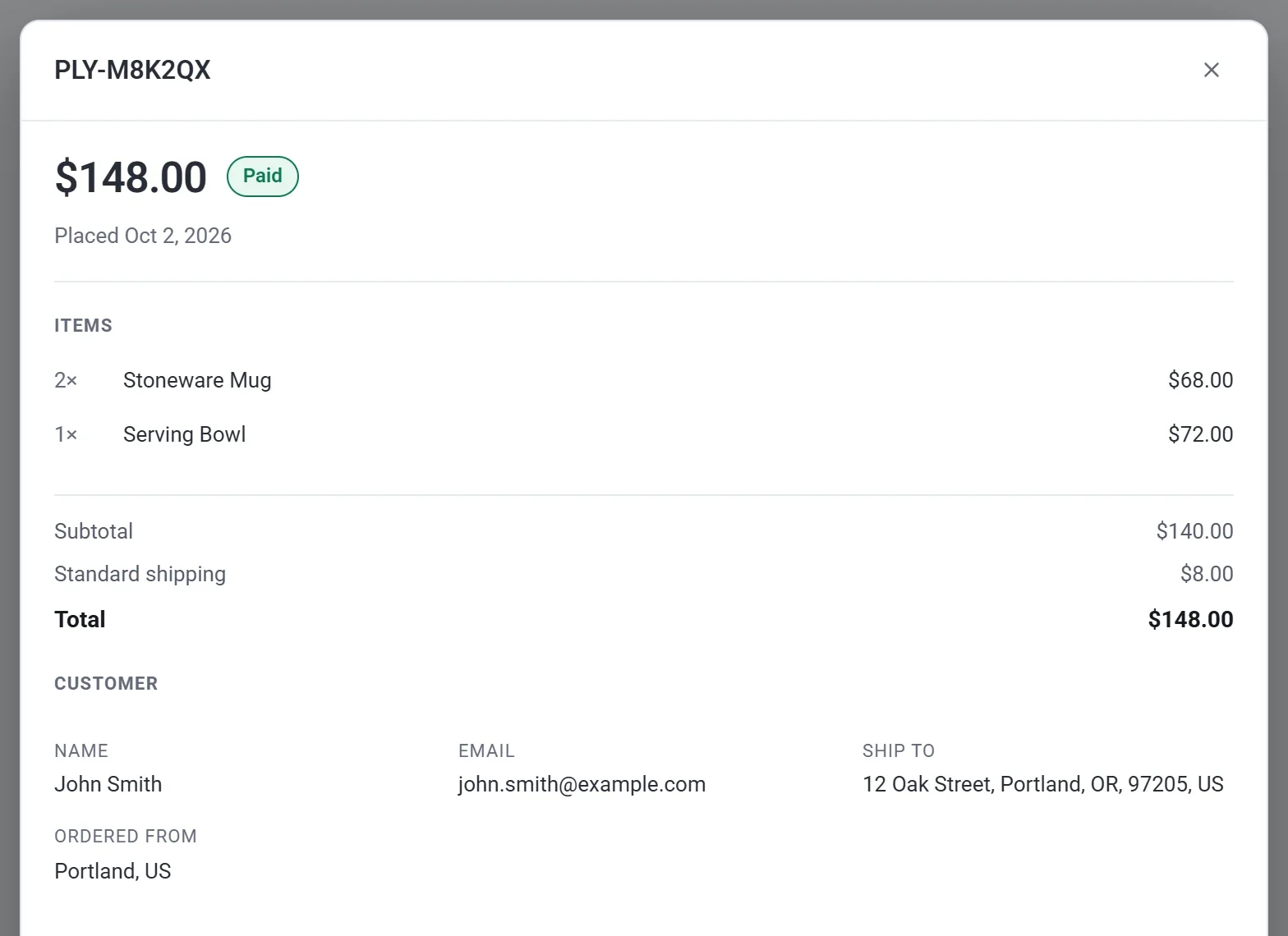
- Read the details from the top. You see the total, the status and the date, then the items and the totals, including any discount code, shipping and tax. Under Customer you see the name, the email address, where to ship it, and the city and country the customer ordered from. Once an order has shipped, a Shipping section shows the date and the tracking number.
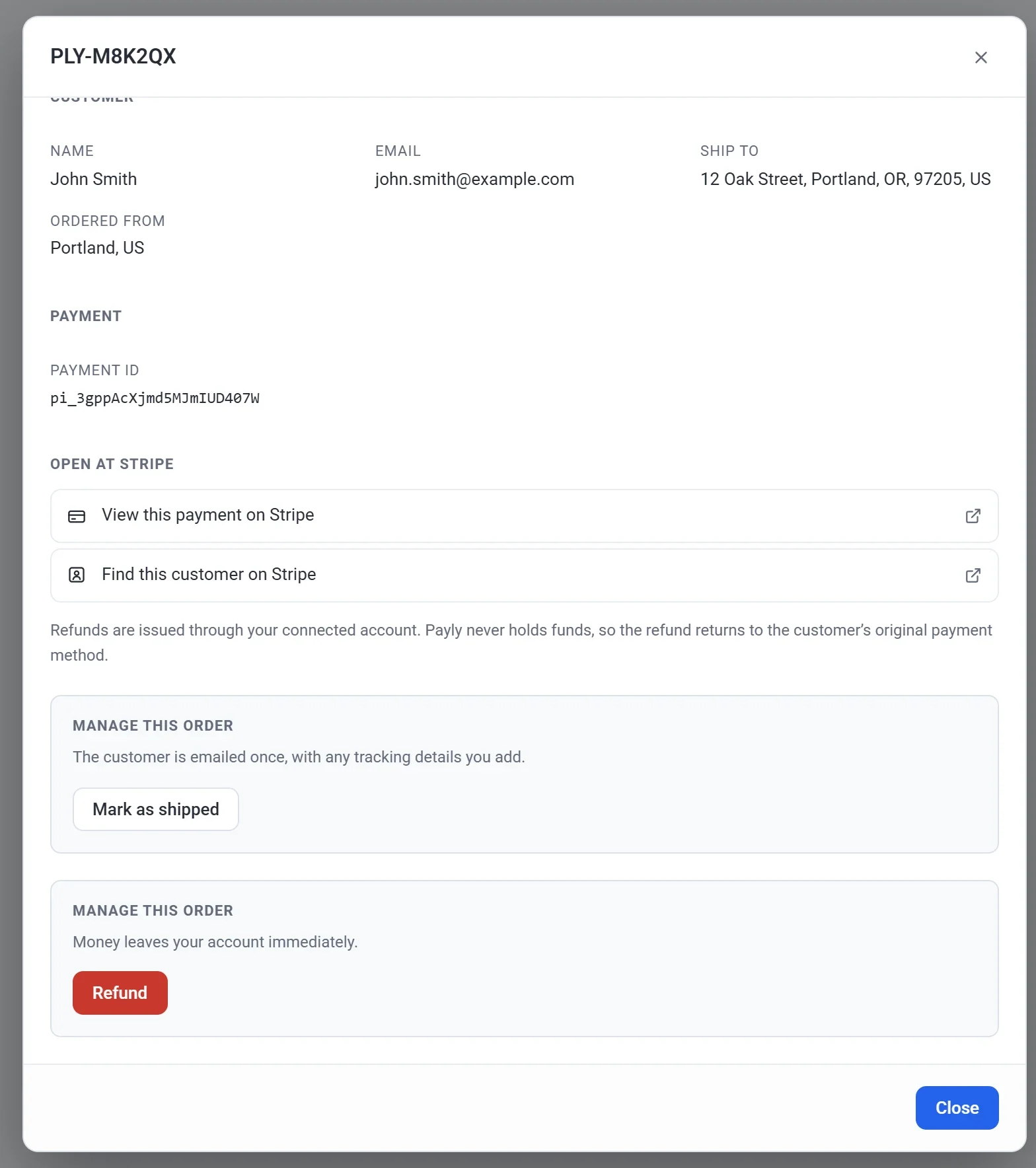
- Scroll down to Payment. It shows the payment ID and links that open the payment and the customer in your Stripe or PayPal account. Under Manage this order you find the buttons for Mark as shipped and Refund.
- Click Close when you are done.
An order that came from a subscription also has a Part of a subscription section. Click it to open the subscription.
Update several orders at once
- Tick the box beside each order you want to change. Tick the box in the header row to select every order on the page.
- Open the Bulk actions menu and choose an action: Mark as Paid, Mark as Pending, Mark as Failed, Mark as Refunded, Mark as shipped or Move to trash.
- Click Apply.
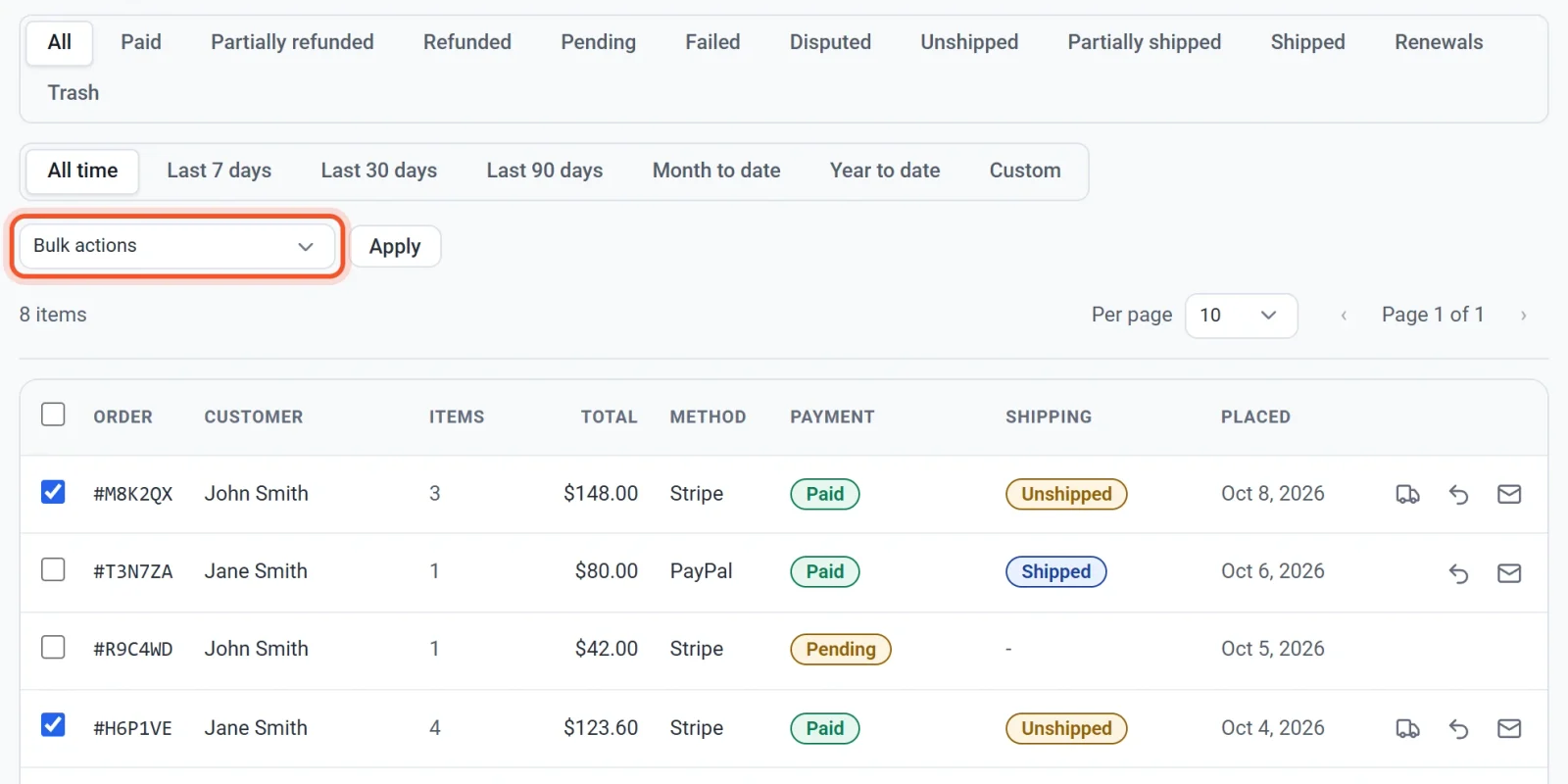
Important: The Mark as actions only change the status that Payly shows. Mark as Paid does not collect a payment, and Mark as Refunded does not send any money back. To return money to a customer, use Refund inside the order. Mark as shipped works differently: it also emails the customer.
Move orders to the trash
Choose Move to trash to hide an order from the list. This does not touch the payment or any refund. Click Trash above the list to see trashed orders, and restore them or delete them permanently.