
Make pages members-only
Limit a page to customers who hold a membership level, so only paying members can open it.
A members-only page can be opened only by signed-in customers who hold a membership level. Everyone else sees a short notice instead. Use it for a members area, a video library, a download page or anything else you want paying members to have.
Before you start
- Create a membership level and link it to a subscription product. See Create membership levels.
- Have the page ready, or add it in the steps below. You build its content like any other page. See Add, move and resize blocks.
The page list shows the members-only choice only after your store has at least one level.
Limit a page to members
- In your site dashboard, click Edit site to open the editor.
- In the top bar, click the name of the page you are on, such as Home, then click Manage pages.
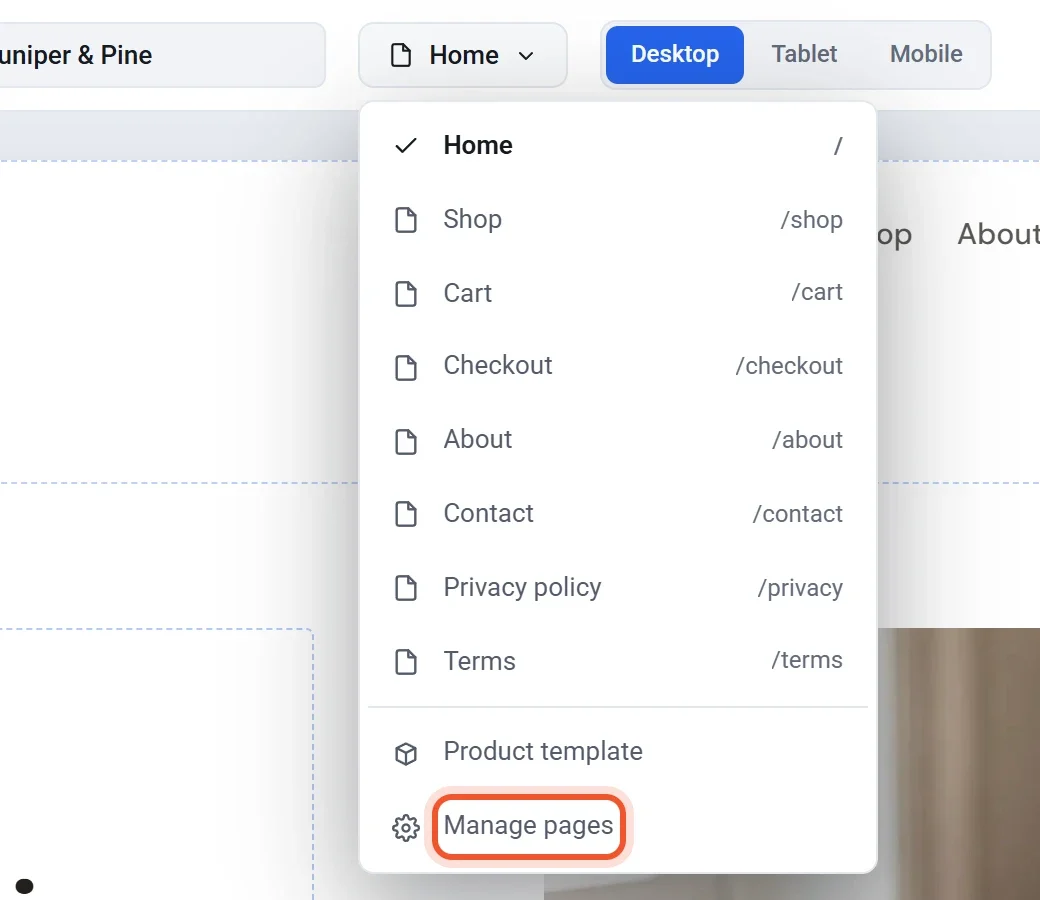
- To make a new page, click Add page at the bottom of the Pages dialog and give it a name.
- Find the page in the dialog. At its right, under In menu, a list is set to Everyone.
- Open that list and choose your level, which reads like Studio Member only.

- Click Done.
- Click Publish. The page is limited to members only after you publish. See Publish, update and take your site offline.
The Cart and Checkout pages cannot be limited, so customers can always pay. To open a page to everyone again, set its list back to Everyone and publish.
What visitors see
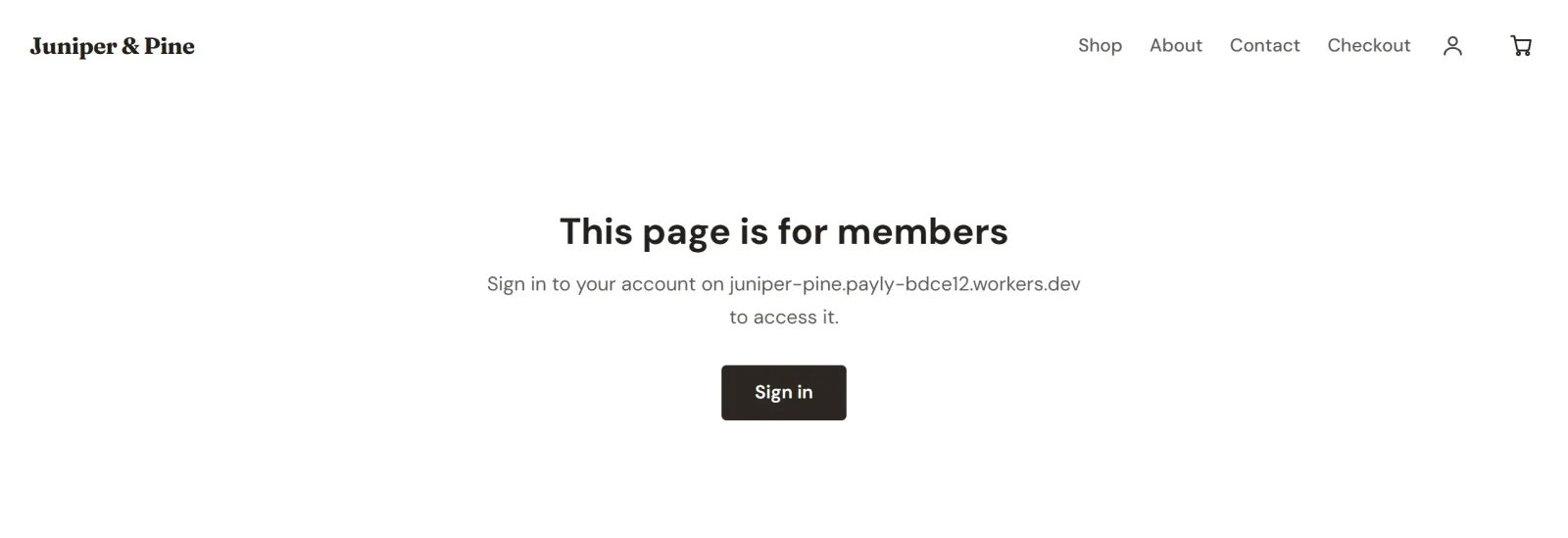
- Not signed in: a notice that says This page is for members, with a Sign in button. After they sign in, they come back to the page. The notice shows nothing of what is on the page.
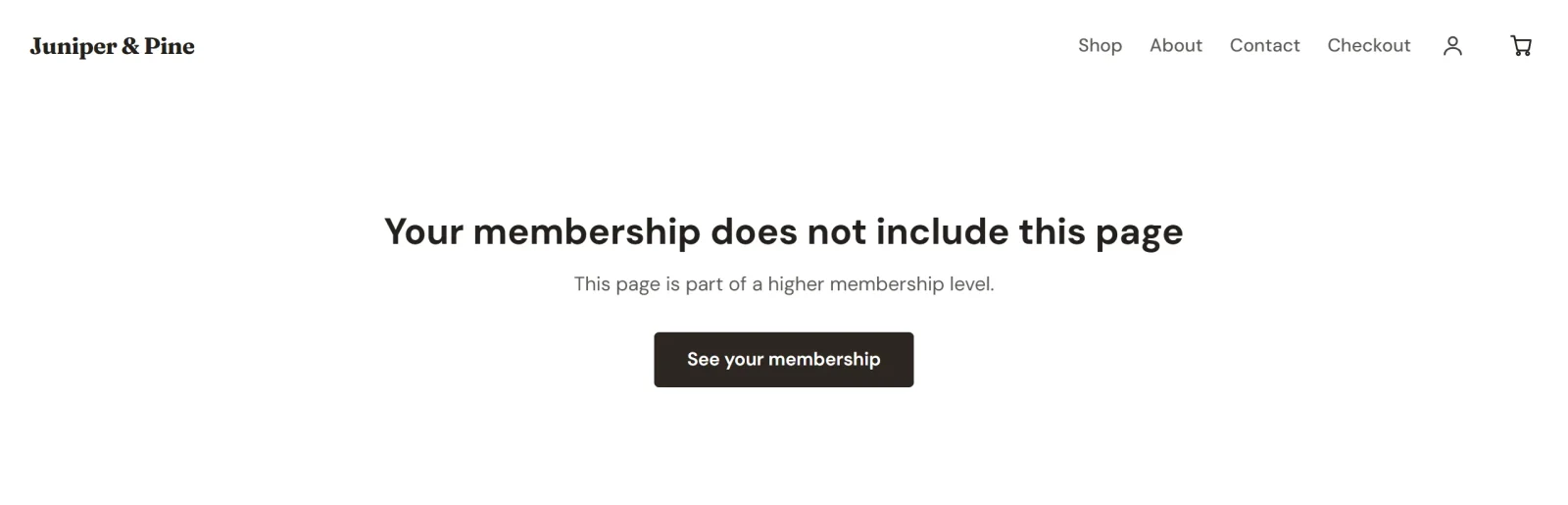
- Signed in without a high enough level: a notice that says Your membership does not include this page, with a See your membership button that opens their account.
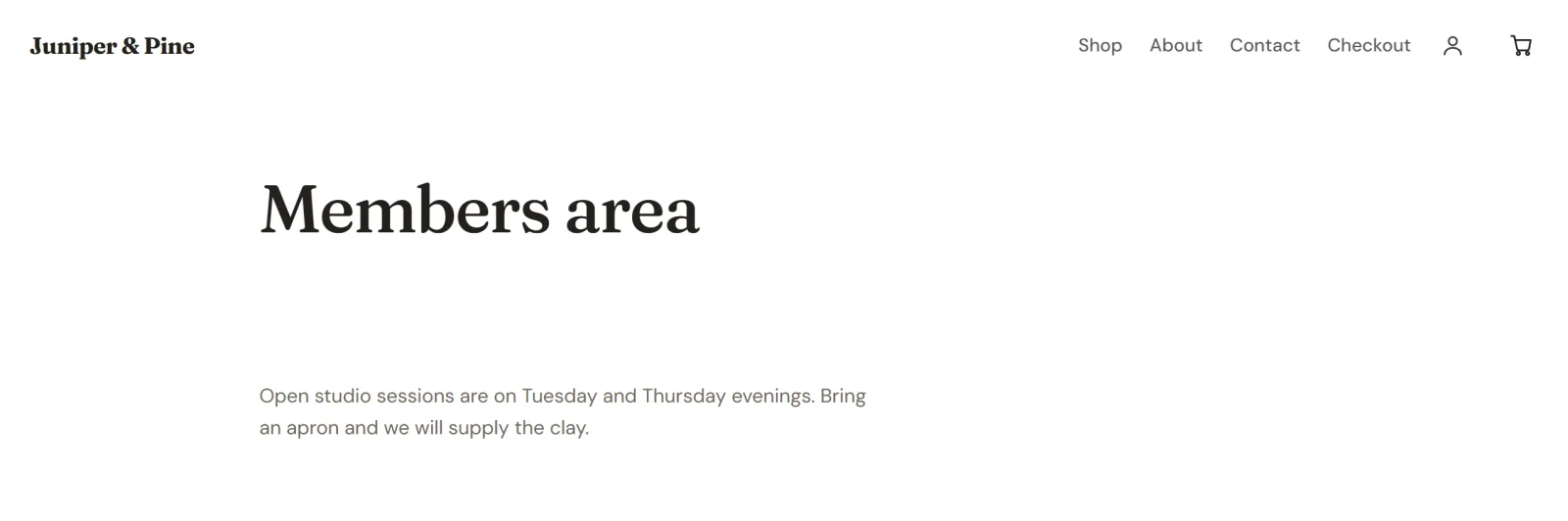
- A member: the page, as you built it, with your store's header and footer around it.
Levels are ranked by their number, so a member at a higher level can also open pages limited to a lower level. Payly checks a customer's membership every time they open a members-only page, so a customer whose subscription has ended loses access.
Customers sign in with an emailed link or code, with no password. See How customer accounts and sign-in work.
Good to know
- A members-only page can stay in your menu. Visitors who are not members see the notice when they open it. Clear In menu if you would rather not list it.
- You cannot turn off Memberships in Settings > Features while any page is still members-only.
- If you delete a level, every page limited to it becomes public again.