
Your customers list
See who has bought from your store, how much they have spent, view their orders, and add customers by hand with a private note.
The Customers screen is your store's address book. It lists everyone who has paid for an order, with what they have spent, and it lets you add people yourself, such as regulars you know from a market stall.
Open the Customers screen
In your site dashboard, click Customers.
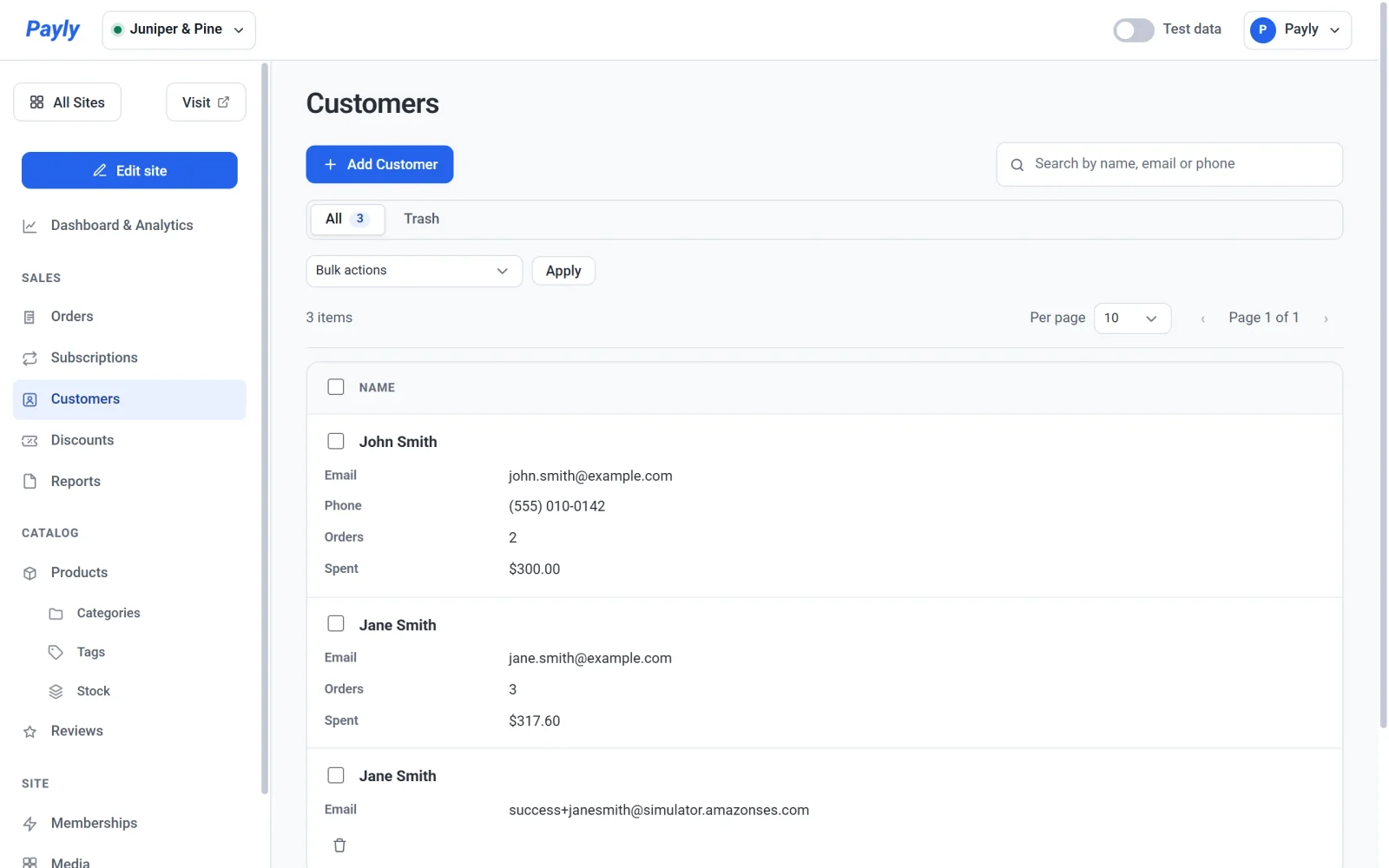
Each row shows:
- Name, Email and Phone.
- Orders: the number of paid orders, including orders you have shipped. Orders that are still pending, failed or fully refunded are not counted.
- Spent: the total of those orders, minus anything you refunded.
A dash means there is nothing to show. A customer you added by hand who has not bought anything shows a dash, not a zero.
Use the search box to find someone by name, email address or phone number.
Where customers come from
There are two kinds of customer, and Payly keeps them apart:
- Customers who ordered. Payly adds a customer automatically when an order is paid, with one row for each email address. Their name, orders and spending come from your orders, so you cannot edit or delete them here.
- Customers you add. You can add anyone, with a phone number and a private note. These you can edit and delete.
If you add a customer with the same email address as someone who has ordered, they appear as one row, and the phone number you entered is shown.
See a customer's details and orders
- Click a customer who has ordered. A pop-up opens.
- Read the details: their email address, how many orders they have placed, how much they have spent, the date of their last order, and whether they can sign in to your store. Can sign in says Yes when they have an account on your store, and No account yet when they do not. See How customer accounts and sign-in work.
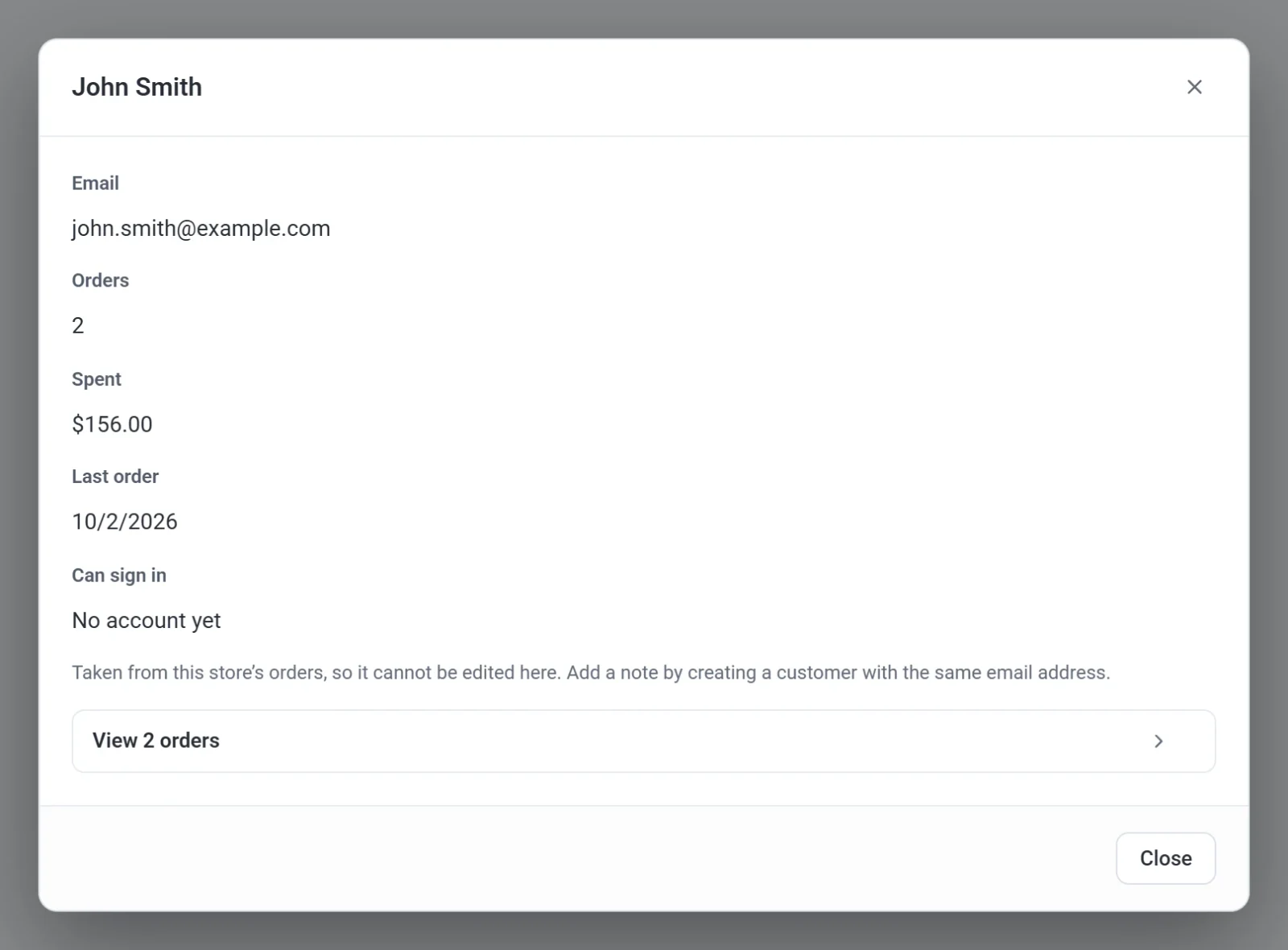
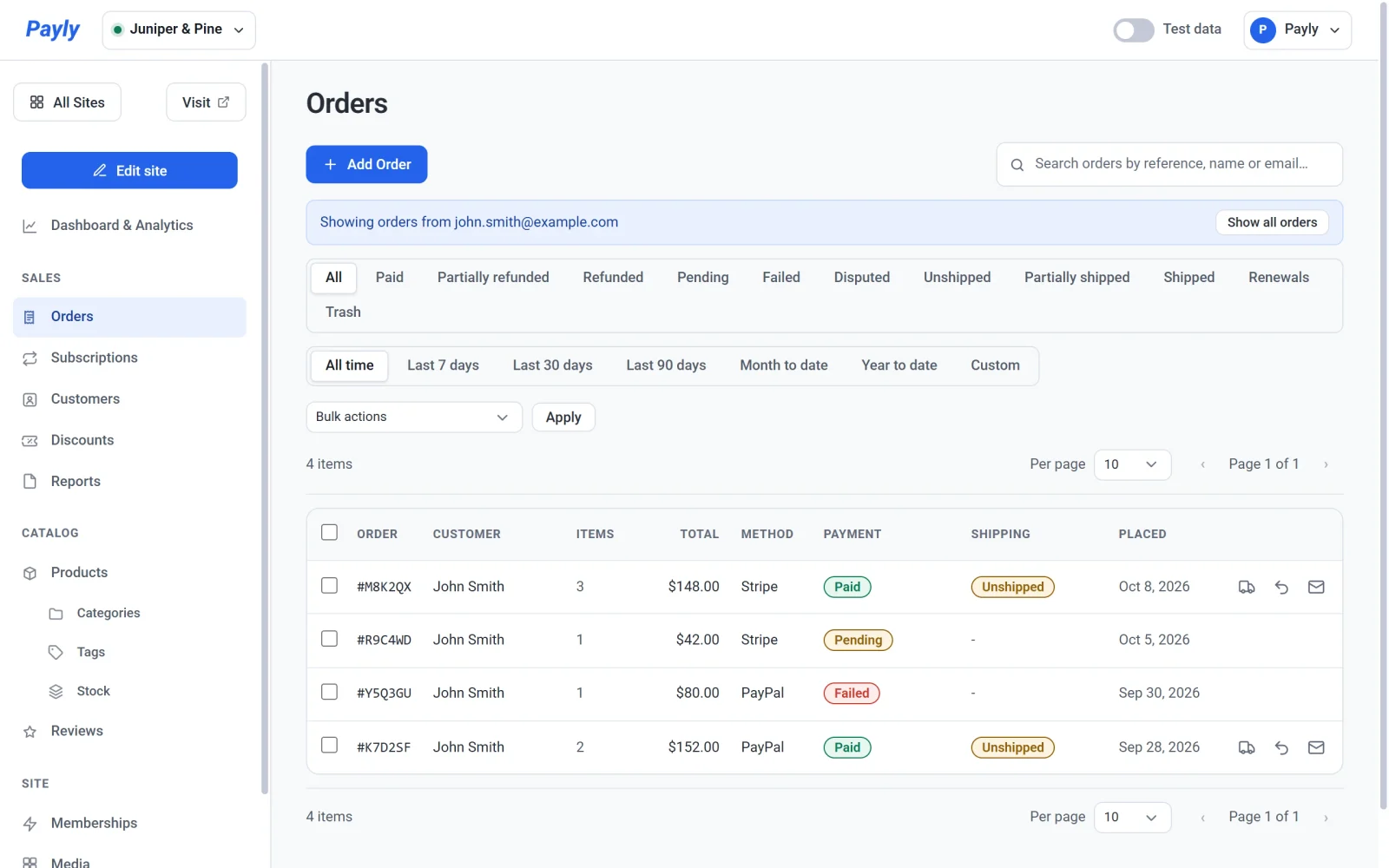
- Click View 2 orders. The number is the customer's paid orders. The Orders screen opens with every order from that customer, including any that are pending or failed, under a line that says Showing orders from their email address. Click Show all orders to see every order again.
Add a customer
- Click Add Customer.
- Enter a Name, an Email, a Phone number, or a Note. You need at least a name or an email address. The note is private: only you see it.
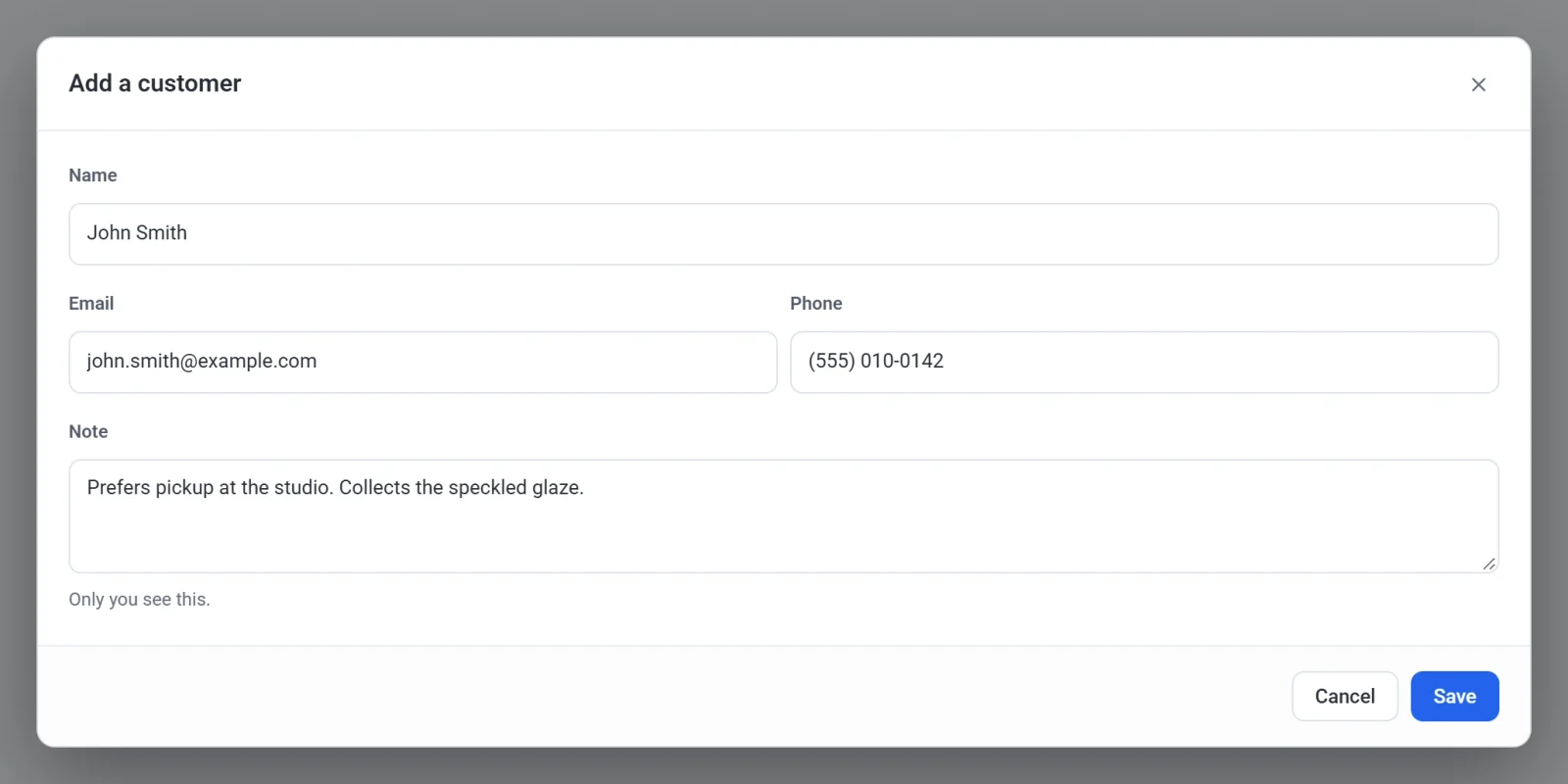
- Click Save.
To change a customer you added, click their row, edit the details and click Save. To remove one, click the bin icon at the end of the row. This moves them to Trash, where you can restore them or delete them permanently.
Test customers and live customers
The orders and spending in this list follow the Test data switch in the top bar. With the switch on, the numbers come from test orders only. With it off, they come from live orders only. See Test data and live data.