Invite your team and set roles
Invite people to help run your store by email and choose a role for each: Viewer, Editor or Admin, on every site or just one.
A team lets other people help run your store without sharing your sign-in details. You invite each person by email and give them a role that decides what they can do. You can invite someone to every site you own, or to one site only.
The roles
You choose a role when you invite someone, and you can change it later.
| Role | What the person can do |
|---|---|
| Viewer | Can view the site and its reports, but cannot make changes. A good fit for an accountant or an advisor. |
| Editor | Can build pages, manage products and publish. An editor can also create orders by hand, mark orders as shipped, and handle reviews and form messages. An editor cannot connect payments or hosting, refund orders, change subscriptions or manage the team. |
| Admin | Can do everything an editor can, plus manage settings, domains and hosting, connect payment accounts, refund orders, change subscriptions and manage the site's team. |
| Owner | The person whose Payly account created the site. The owner can do everything an admin can, and is the only one who can delete the site. You cannot give someone the Owner role. |
Important: An admin can connect payment accounts and refund orders. Give the Admin role only to people you trust with your money, and start with Editor or Viewer for everyone else.
Account team or site team
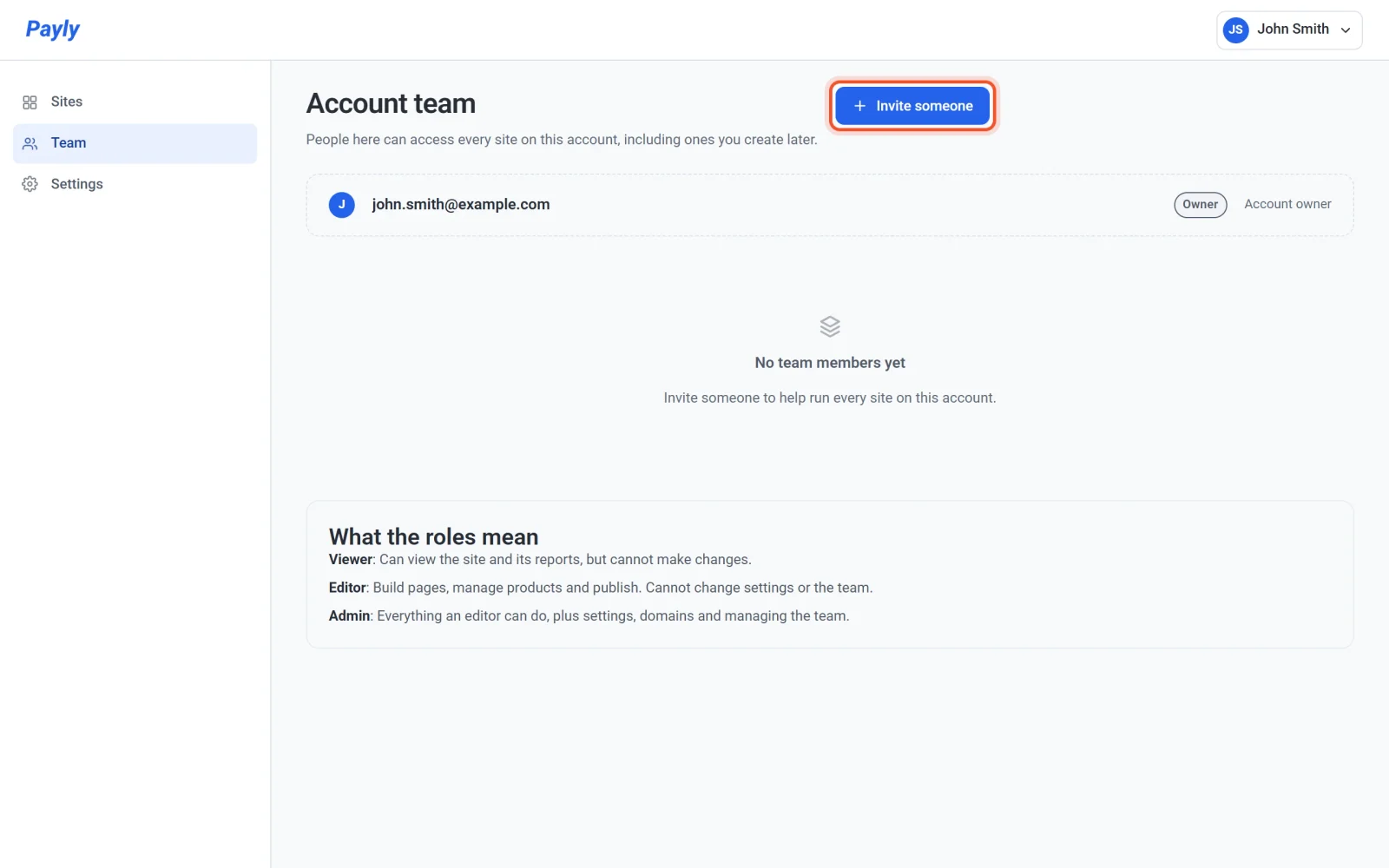
- The account team can reach every site on your account, including sites you create later. Use it for a business partner or a full-time helper. You manage it under Team in the menu on the left of the Your sites screen, and only you, the account owner, can change it.
- A site team can reach one site and nothing else. Use it for a designer or a seasonal helper. You manage it under Settings > Team in that site's dashboard. On the site's team list, account team members also appear, dimmed, with the label Via account team, because that is why they have access. You change them on the account team, not here.
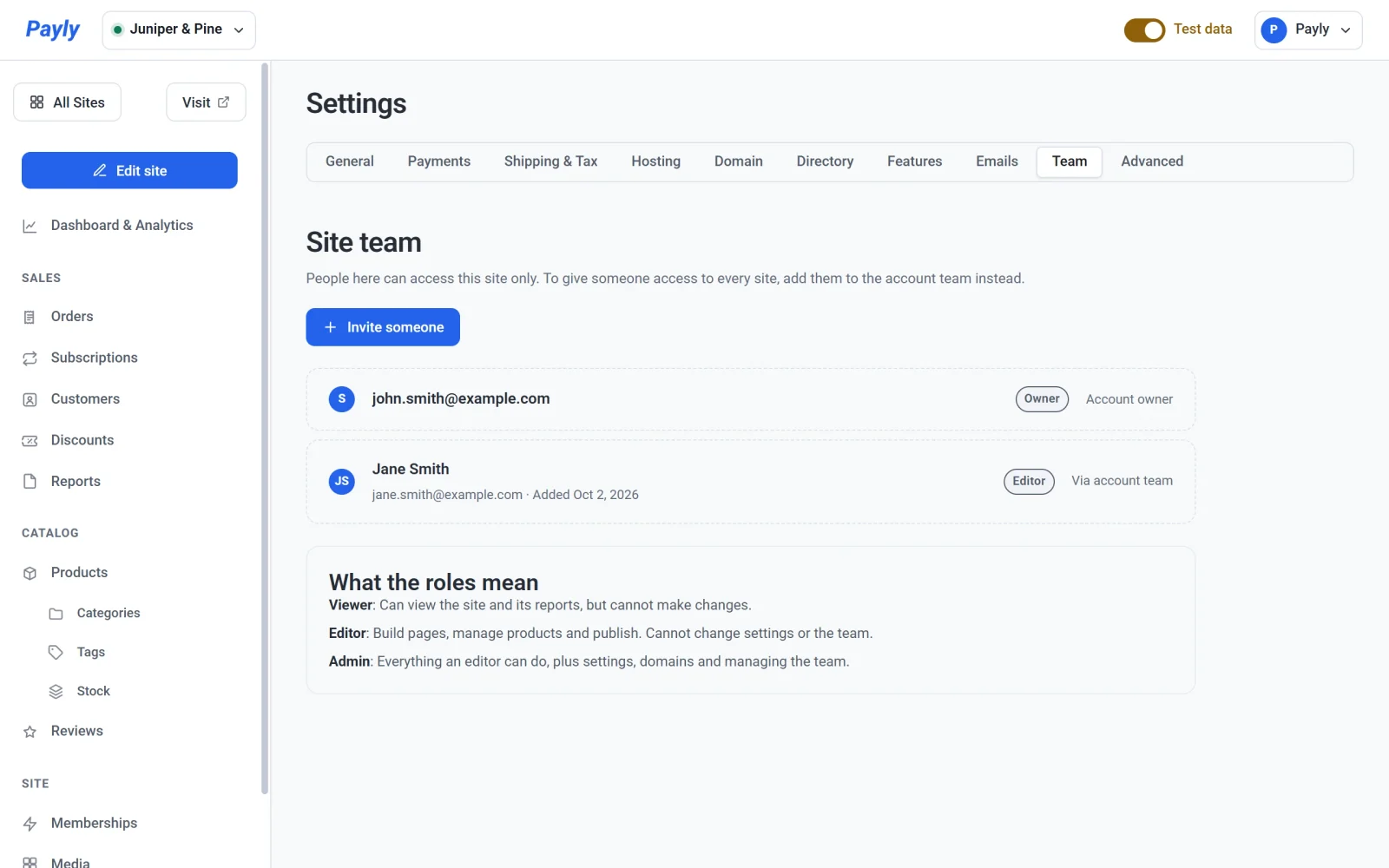
If someone is on both teams, the stronger of their two roles applies. Nobody can give another person a role above their own.
Invite someone
- Open the team you want: Team for the account team, or Settings > Team inside a site for a site team.
- Click Invite someone.
- Enter the person's address in Email address.
- Choose a Role. Editor is selected to start with, and a line under the list describes the role you pick.
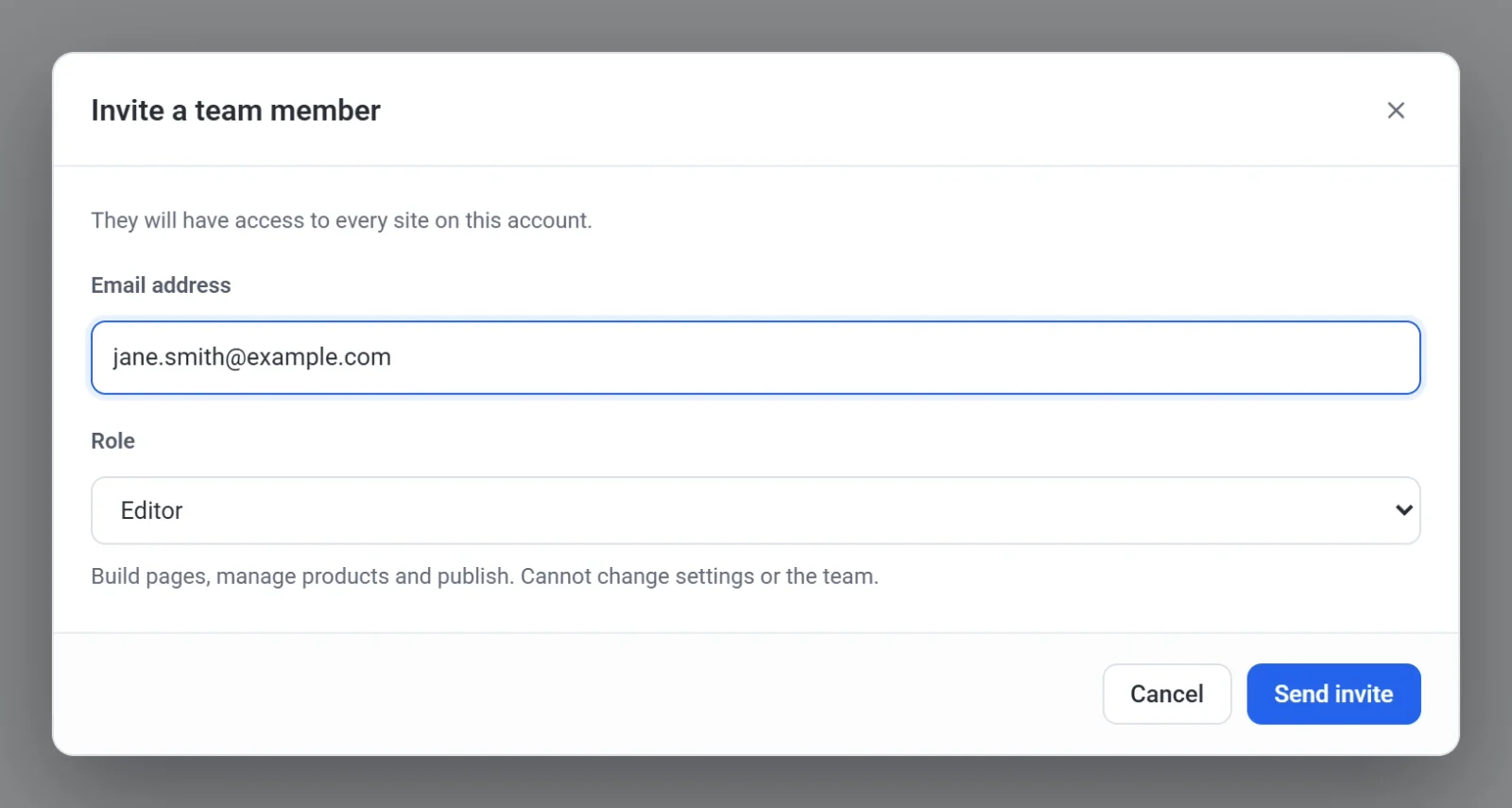
- Click Send invite. Payly emails the person a link, and they appear in your list marked Invite pending.

The person opens the email and clicks the link. If they are not signed in, Payly asks them to sign in or create a free account first. Then they see You are in, and the sites they can reach appear on their Your sites screen. The link works for 14 days.
If Payly cannot send the email, it still adds the person to the list and tells you so. Click Resend invite in a few minutes.
Resend an invite, change a role or remove someone
- Resend invite: appears on a pending invite. It emails a new link, and the earlier link stops working.
- Change a role: pick another role in the person's row. It takes effect immediately.
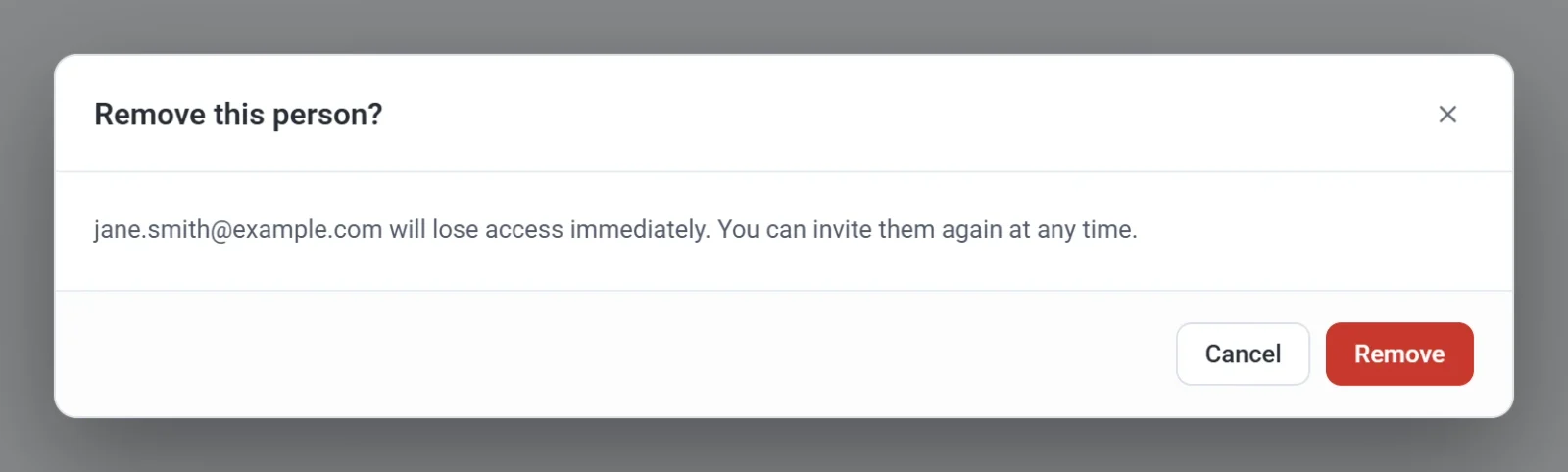
- Remove someone: click the trash button in their row, then click Remove. They lose access immediately, and you can invite them again at any time.