
How customer accounts and sign-in work
Customers get an account when their first order is paid and sign in with an emailed link or code. No password is needed.
Every store gets customer accounts without any setup. An account lets your customers look back at their orders, download files they bought and manage their subscriptions. There is no sign-up form and no password: customers sign in with a link or a code that Payly emails them.
How an account is created
Payly creates an account for a customer when their first order is paid, using the email address they gave at checkout. Customers never have to register before they buy, and they can check out as guests.
- The account belongs to your store. A customer who shops at two Payly stores has a separate account at each one.
- Test orders create accounts too, so you can try the whole thing yourself in test mode.
- An order that you only mark as Paid in the Orders list, or save as Pending, does not create an account. Payly creates one when a payment actually comes in, or when you save a hand-made order as Paid.
- In your dashboard, click a customer on the Customers screen. Can sign in says Yes when they have an account. See Your customers list.
How customers sign in
- The customer clicks the person icon in your store's header. It is always there, and you do not need to add it.
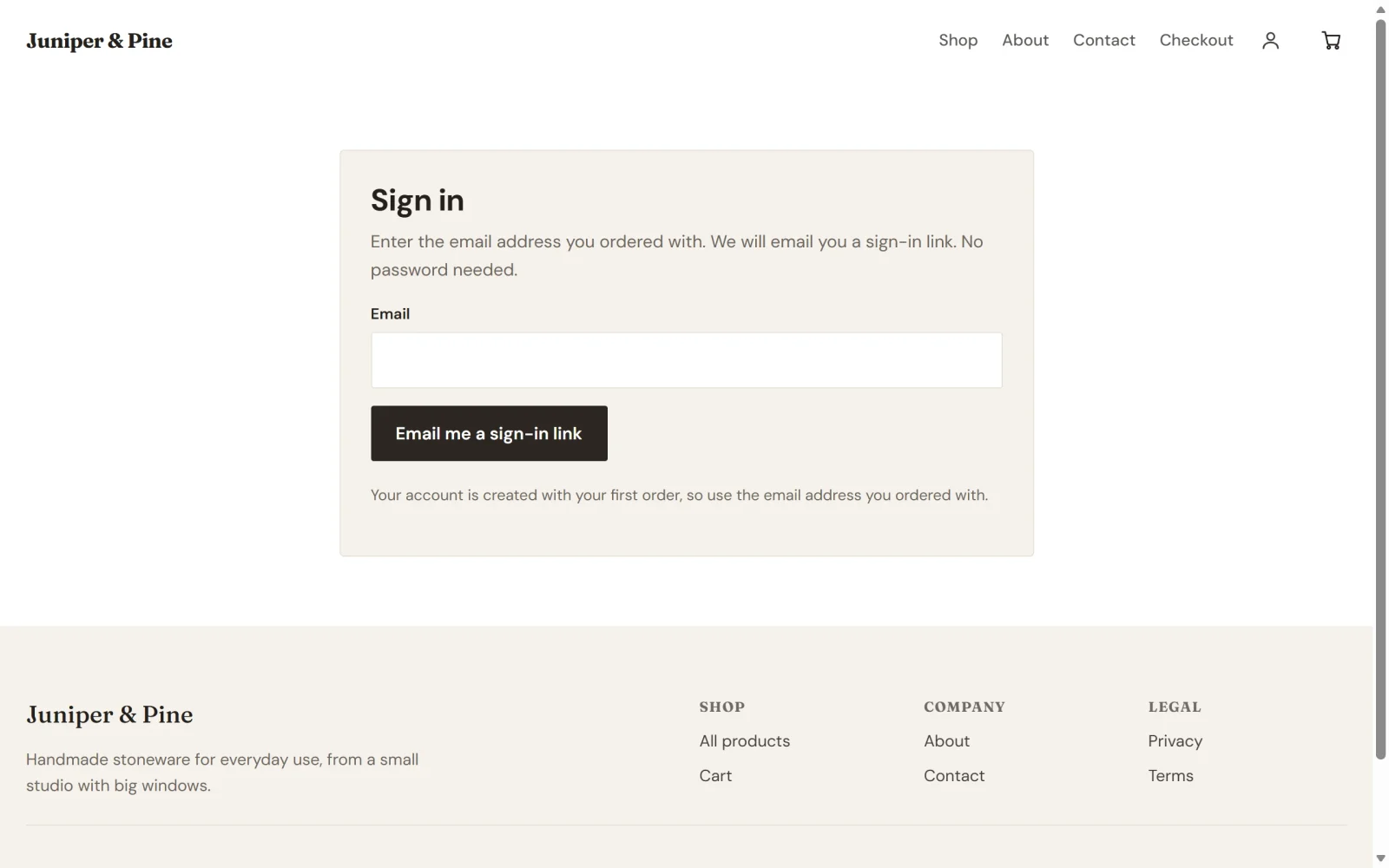
- They enter the email address they ordered with and click Email me a sign-in link.
- They open the email. It has a Sign in button, and a 6-digit code for people who open the email on a different device. The link and the code each work once and expire after 15 minutes.
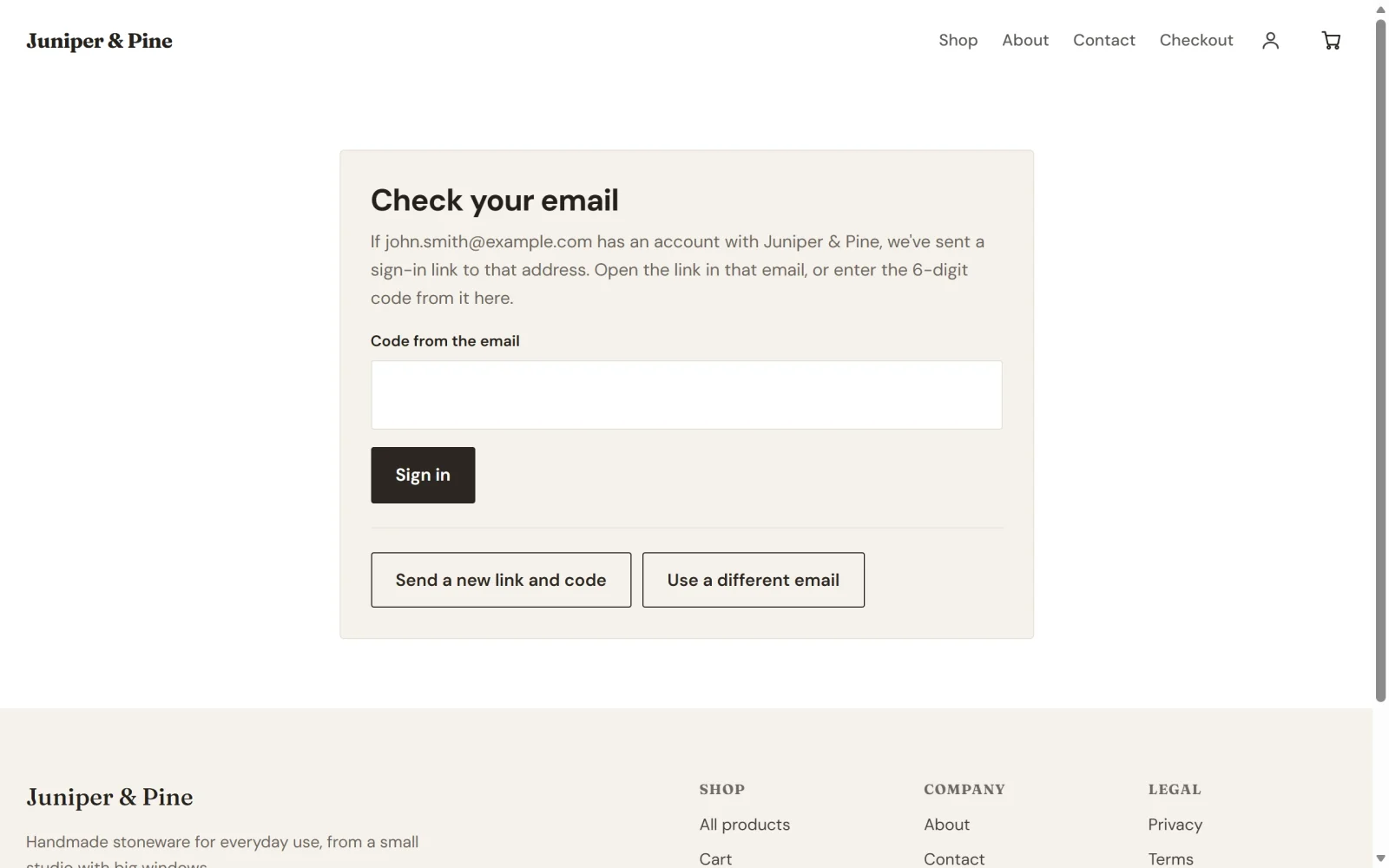
- They click the button, or type the code on the Check your email page and click Sign in. They land on My account.
Payly also emails this sign-in link right after every purchase, so a customer can open their account straight away. You can turn that email off in Settings > Emails. Customers can still ask for a link whenever they like. See Emails your customers receive.
A customer stays signed in on that device for up to a year, until they click Sign out.
What customers see in My account
After signing in, the customer lands on My account. It shows their email address, a Sign out button, a Subscriptions list and an Orders list. Here is the page for a customer who has two subscriptions and six orders.
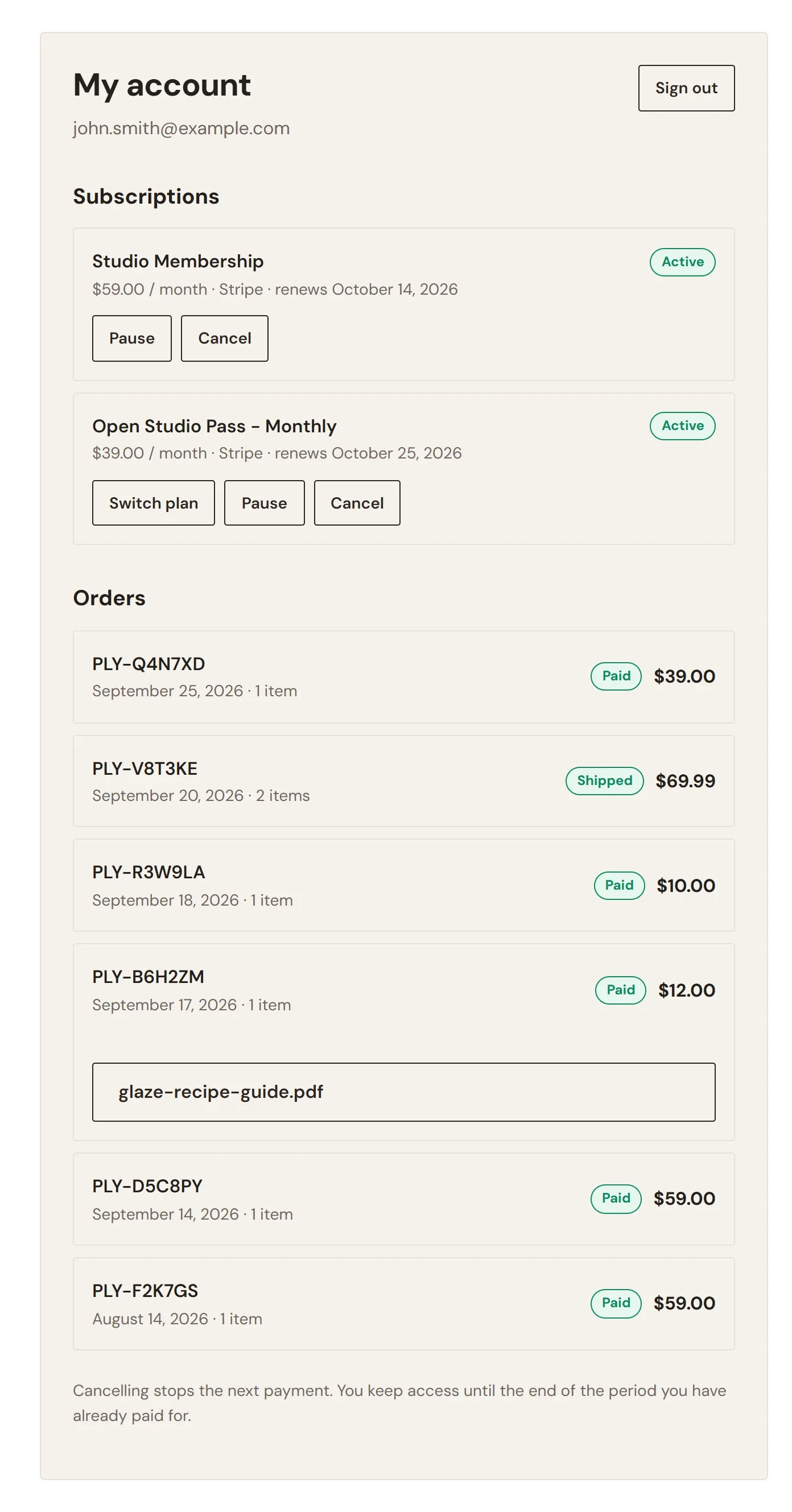
- Subscriptions: each subscription with its price, status and next renewal date. Depending on your settings, customers can pause, cancel or switch plans here. See How customers manage their subscriptions.
- Orders: their recent orders, newest first, each with its reference, date, number of items, status and total. Orders that are still pending or that failed are left out.
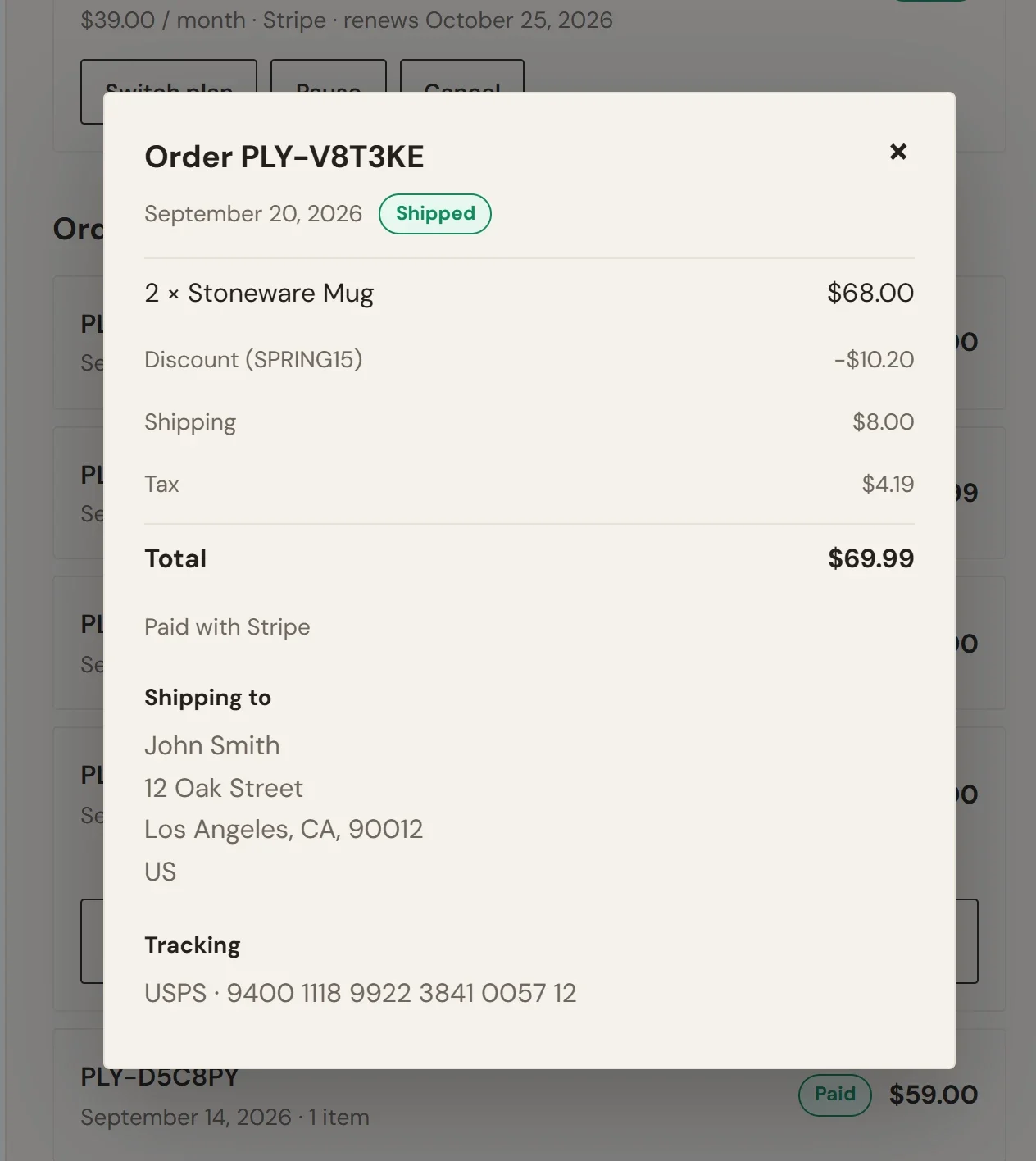
- Order details: clicking an order opens a receipt with the items, discount, shipping, tax and total, how it was paid, the shipping address and any tracking number.
- Downloads: orders with digital files show a download button for each file.
As an example, the receipt below belongs to an order of two Stoneware Mugs. It lists the items, the discount code, shipping and tax, then the total. Under the total it says how the customer paid, where the order shipped and its tracking number.
The pages use your store's design and language.
When a customer cannot sign in
- They did not get the email. Payly only sends a link to an email address that has an account on your store, and the page gives the same answer whether it does or not. Ask them to check their spam folder and to use the address they ordered with. You can see that address in the order. See View and manage orders.
- The link or code stopped working. Each works once, for 15 minutes. Ask the customer to click Send a new link and code on the Check your email page.
- They ordered with a different address. Each address has its own account. They need to sign in with the address on the order they want to see.