
List your store in the Payly directory
Add your store to Browse Stores, Payly's public directory, by choosing a category, writing a short description and turning listing on.
Browse Stores is a public page on payly.org where shoppers can find stores built with Payly. A store appears there only if its owner chooses it, and each card links straight to the store. Listing is free and optional.
Before you start
- Publish your store first. A listing only appears once your store is live. See Publish your first site.
- Decide what the card should say. Shoppers see only the details you enter here, never your orders, customers or sales.
List your store
- In your site dashboard, click Settings, then click the Directory tab.
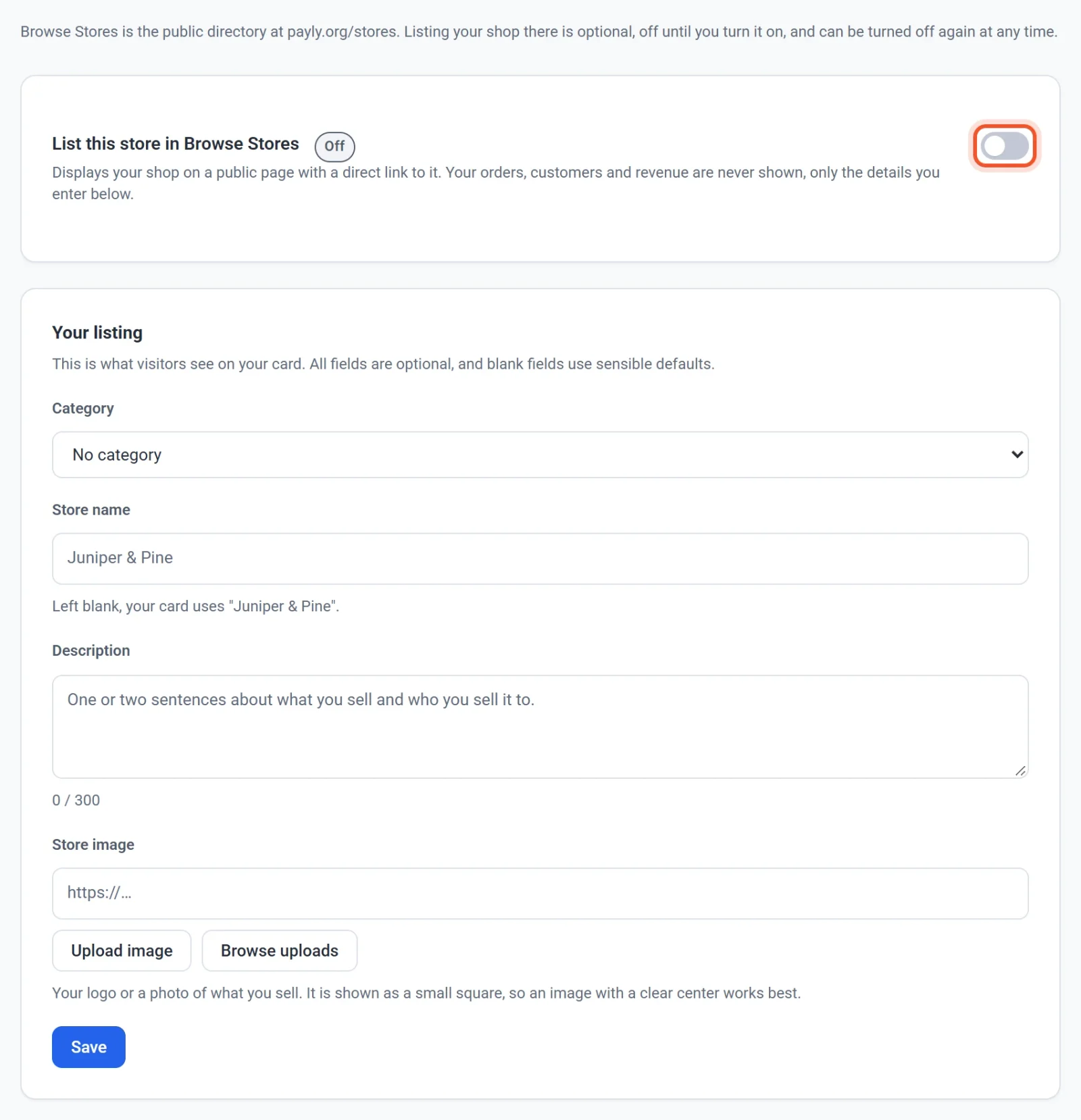
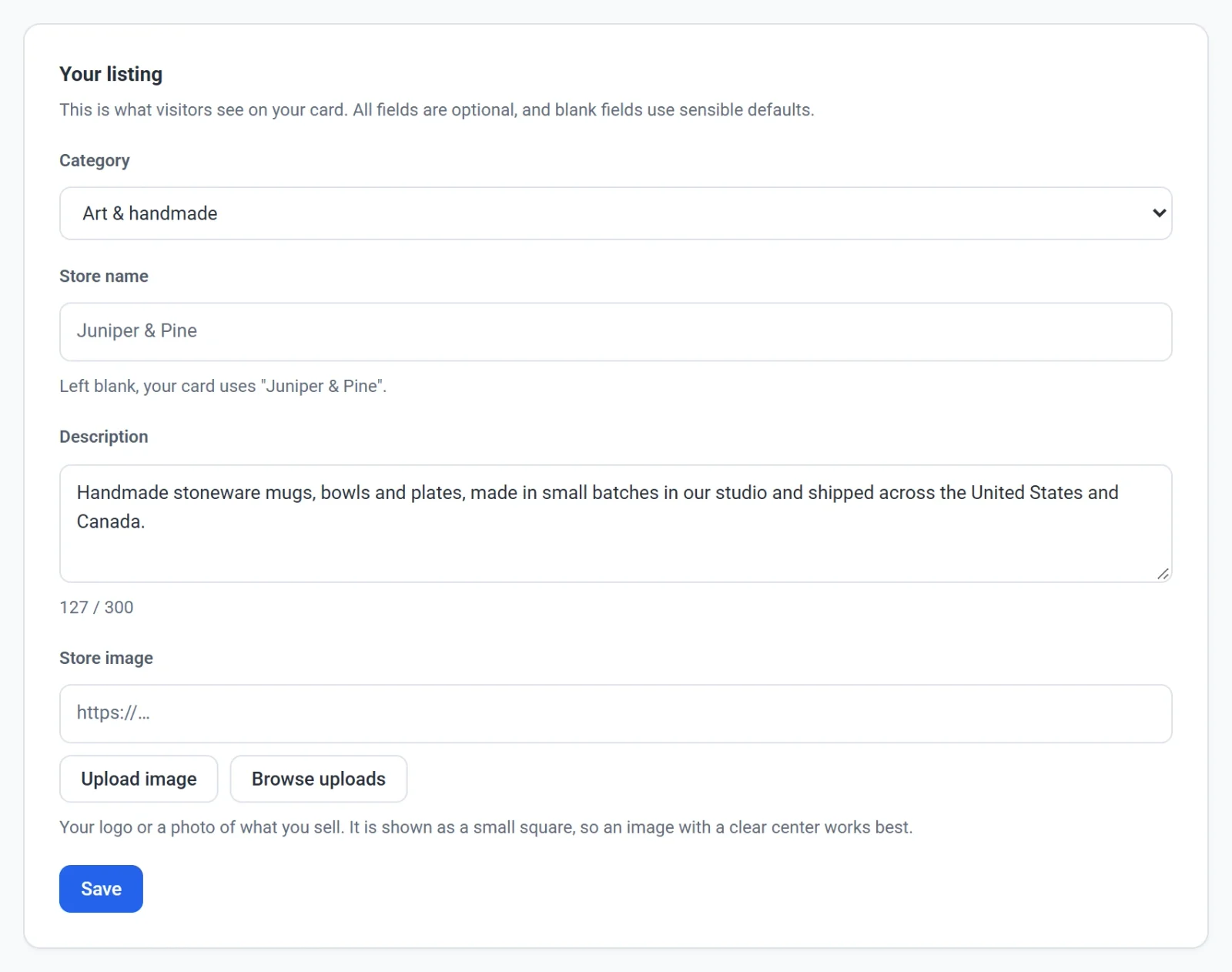
- In Your listing, choose a Category that fits what you sell, such as Art & handmade or Home & garden.
- Optional: enter a Store name for your card. Leave it empty to use your site's name. It can be up to 80 characters.
- Write a Description of one or two sentences about what you sell and who you sell it to. A counter below the box shows how much of the 300 characters you have used.
- Optional: add a Store image. Click Upload image or Browse uploads, or paste an image address. Your logo or a photo of your products works well. The image is shown as a small square, so choose one with a clear center.
- Click Save.
- Turn on List this store in Browse Stores. The switch saves at once, and a message confirms that your listing was sent for review.
The review
Payly checks each listing before it goes on the public page, so your store does not appear the moment you turn the switch on. A line under the switch shows where your listing stands:
- Waiting for review: your listing is in the queue.
- On the directory: anyone browsing Browse Stores can find your store.
- Not listed: the listing was not approved. Payly shows a note when it has one. Your store is not affected and stays online. Change your listing card and click Save to send it for review again.
If you turn listing on before your store is published, a note tells you that it will appear once the store is live.
Change or remove your listing
- When you change the category, name, description or image of a listing that is already on the directory and click Save, it goes back for review and leaves the public page until it is approved again.
- To remove your store, turn off List this store in Browse Stores. A message confirms that your store has been removed.
- When listing is on, a View the store directory link under the card opens the public page.