
How contact forms block spam
Learn how your store's forms are protected from spam bots by Cloudflare Turnstile, what visitors see, and why a form may say it is not accepting messages.
Any form on the internet attracts bots that fill it in with junk. To keep your inbox clean, every form on your store is protected by Cloudflare Turnstile, a service that tells real visitors from automated programs. Payly sets it up for you, so there is nothing to configure.
What Payly does for you
Your store runs in your own Cloudflare account, and Payly already has access to it. The first time you publish a store that has a Form block, Payly creates a Turnstile check for your store in that account. It is tied to your store's address, and Payly updates it if you later connect a custom domain.
You do not register anywhere, copy any keys or turn anything on. In the editor, a form that is not yet protected shows a note that spam protection is set up when you first publish.
What visitors see
A small box appears above the form's submit button. For almost every visitor it checks itself in a moment and shows Success! with a green tick, without any puzzle to solve. Only when Cloudflare is unsure about a visitor does the box ask them to confirm they are human.
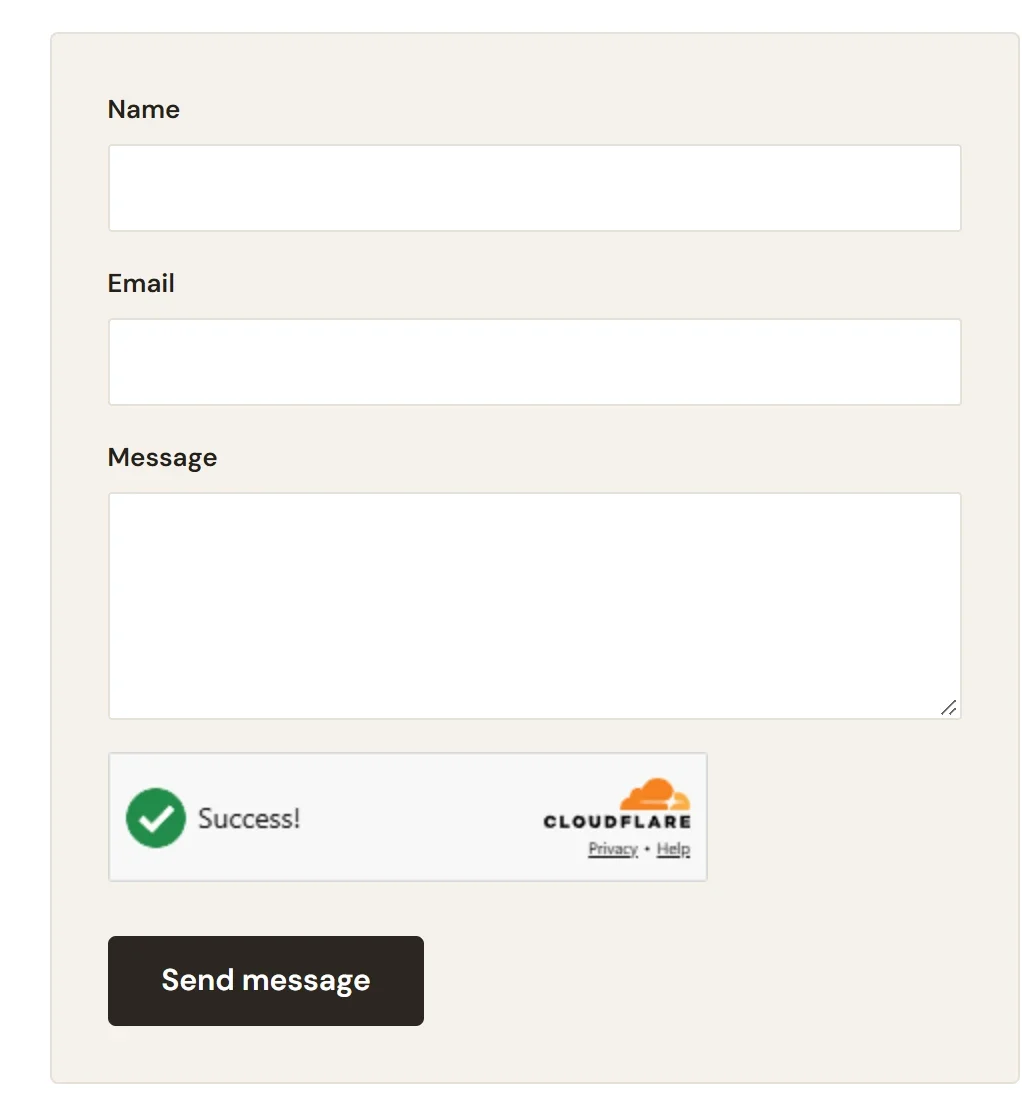
The check is part of the form. If a visitor submits without passing it, or it has expired, they see "We could not verify that this was sent by a person. Please try again." and can send the form again. Messages that pass are emailed to you, as Add a contact form explains.
Match the box to your design
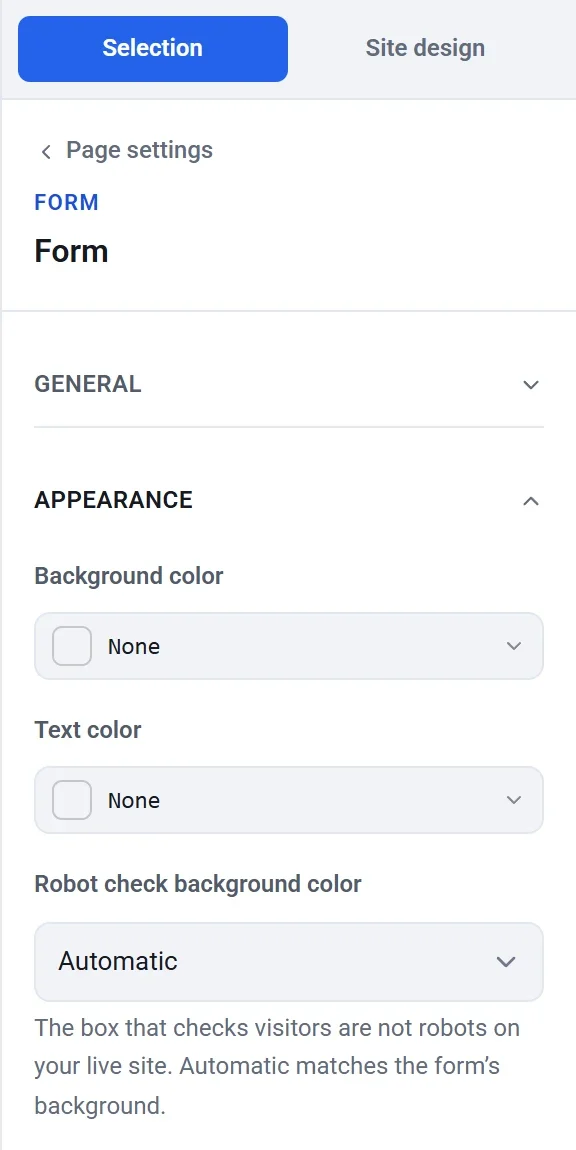
The box can clash with a dark form background. To change it, select the form in the editor, open Appearance and choose Robot check background color: Automatic matches the form's background, or pick Light or Dark.
When a form says it is not accepting messages
A form is only shown, and only works, while its spam protection is in place. If the protection could not be created, your store still publishes, but the form on your live site is replaced by the message "This form is not accepting messages at the moment." No visitor can send anything in the meantime.
- Check that your Cloudflare account is connected and your store is published. See Connect your Cloudflare account.
- Publish again. Each publish tries to create the protection again.
- If the message stays, contact Payly. See Contact Payly support.
If Cloudflare cannot be reached when someone submits, the form is refused and the visitor is asked to try again. This is deliberate: it keeps the form closed to bots during an outage.
Good to know
- Cloudflare's check loads only on pages that have a form.
- You can see the check in your own Cloudflare dashboard, under Turnstile. It is named after your store.
- If you switch the Forms feature off, your forms disappear from the site. See Turn features on and off.