
Create membership levels
Create the levels of access your subscriptions grant, such as Member or Plus, and link each level to a subscription product.
A membership level is a named level of access, such as Studio Member. You attach a level to a subscription product, and everyone who subscribes holds that level while their subscription runs. You can then limit pages to people who hold it. A level is not something you sell: the price and billing belong to the product.
Before you start
- Create a subscription product. It does not need to grant a level yet. See Sell a subscription product.
- Look for Memberships in your dashboard menu. If it is missing, the feature is switched off. Turn it on in Settings > Features. See Turn features on and off.
Create a level
- In your site dashboard, click Memberships.
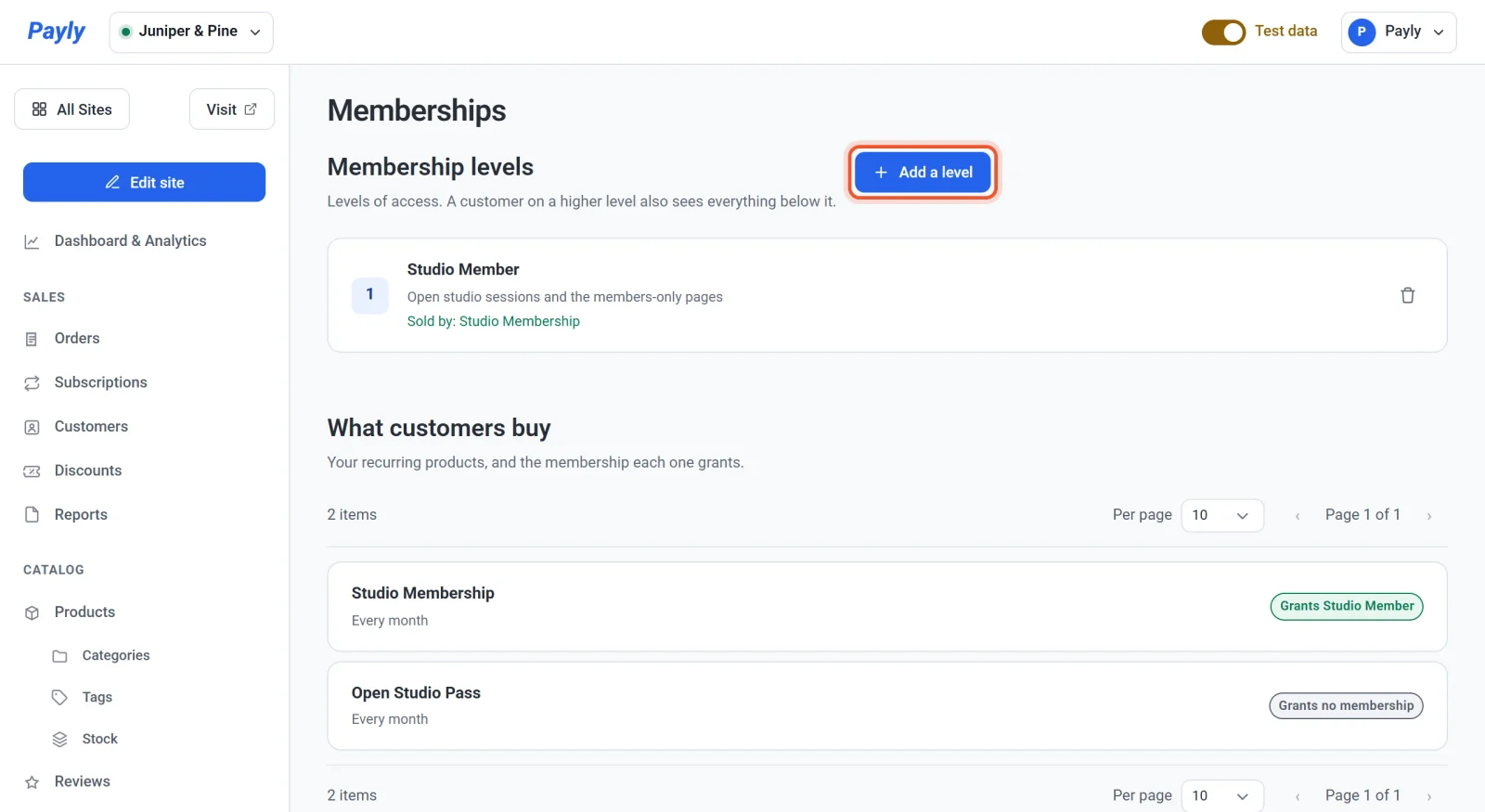
- Click Add a level.
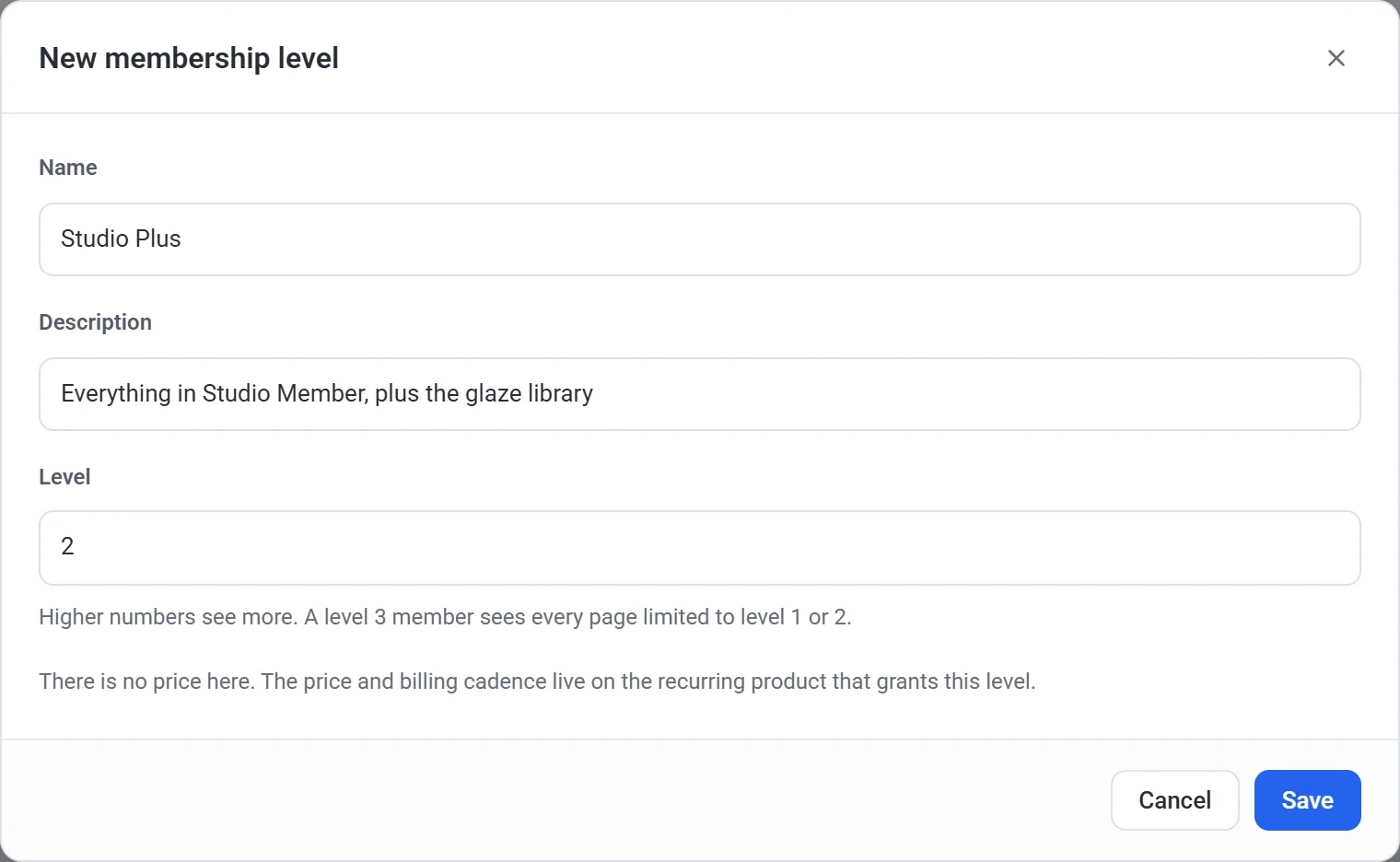
- Enter a Name, such as Studio Member. Shoppers see the name on the product page, in a line such as Membership: Studio Member.
- Enter a Description if you like. It is a note for you, shown in your list. Shoppers do not see it.
- Check the Level number. Payly suggests one higher than your highest level, starting at 1.
- Click Save.
How the level number works
A higher number sees more. A member at level 3 can see every page limited to level 1 or level 2, so you never have to list every level on every page. Give your best level the highest number.
Link a level to a product
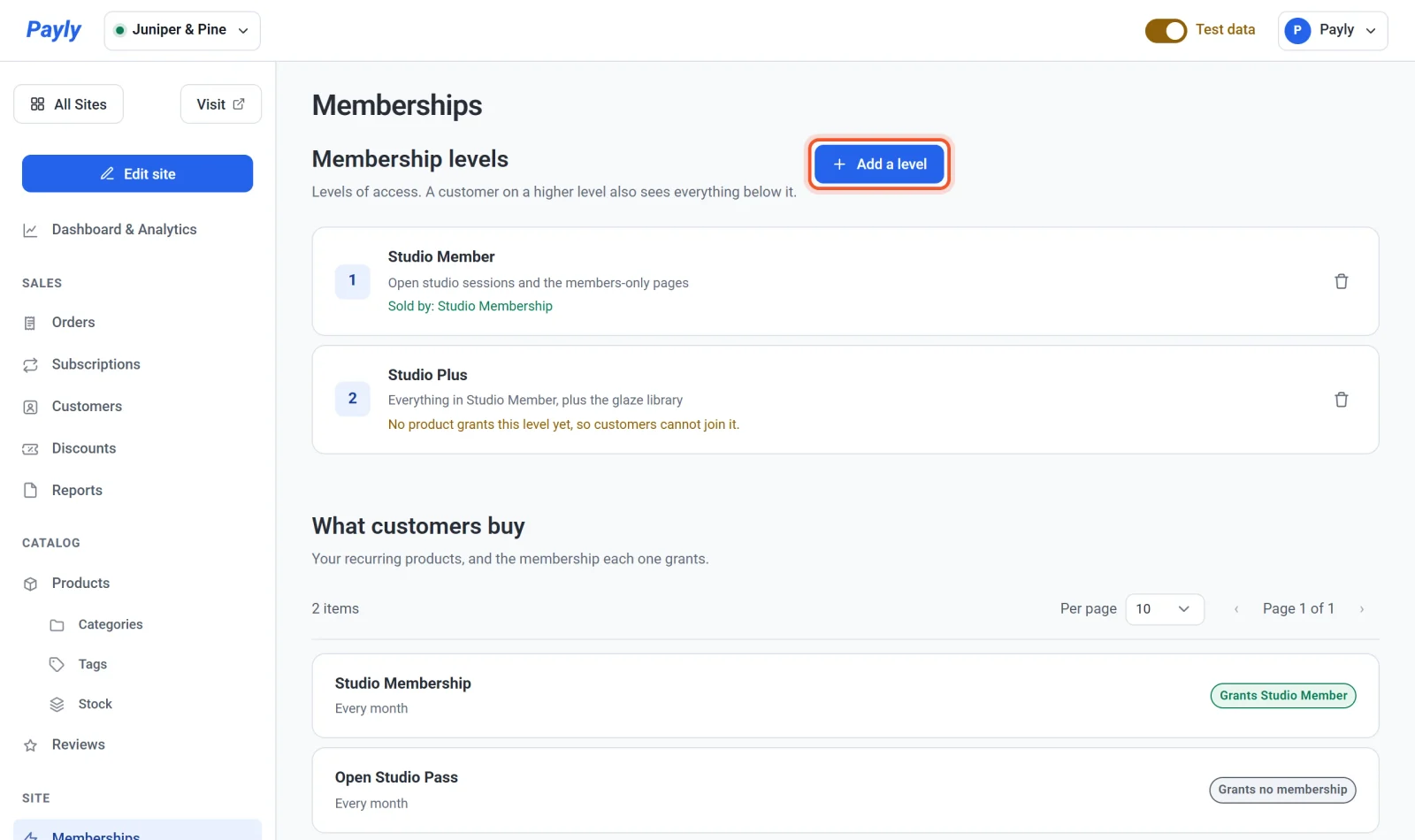
A level does nothing until a subscription product grants it. Until then, the list says No product grants this level yet, so customers cannot join it.
- Click Products, then click the subscription product to open it.
- Scroll to Grants membership in the subscription section.
- Choose the level from the list.

- Click Save.
The Memberships screen now shows Sold by under the level. Under What customers buy, the product shows a badge such as Grants Studio Member.
Several products can grant the same level. For example, a monthly product and a yearly product can both grant Studio Member. If you sell monthly and yearly plans of one product, both plans grant the level set on that product.
Who holds a level
- A customer holds a level once their subscription has started.
- They keep it while the subscription is active, in a free trial or paused. When the subscription ends, the level ends with it.
- A customer with several subscriptions holds the highest level among them.
- Your Subscriptions list shows Grants and the level name under each plan that grants one.
Edit or delete a level
Click a level in the list to change its name, description or level number. To remove a level, click the trash icon on its row and confirm.
Important: Deleting a level makes every page limited to it public again, and any product that granted it stops granting anything. If any pages are limited to the level, the confirmation says how many.