
Understand Dashboard & Analytics
Find your way around Dashboard & Analytics: the Overview tab, what each tab shows, how to choose a period, and how the Test data switch changes the figures.
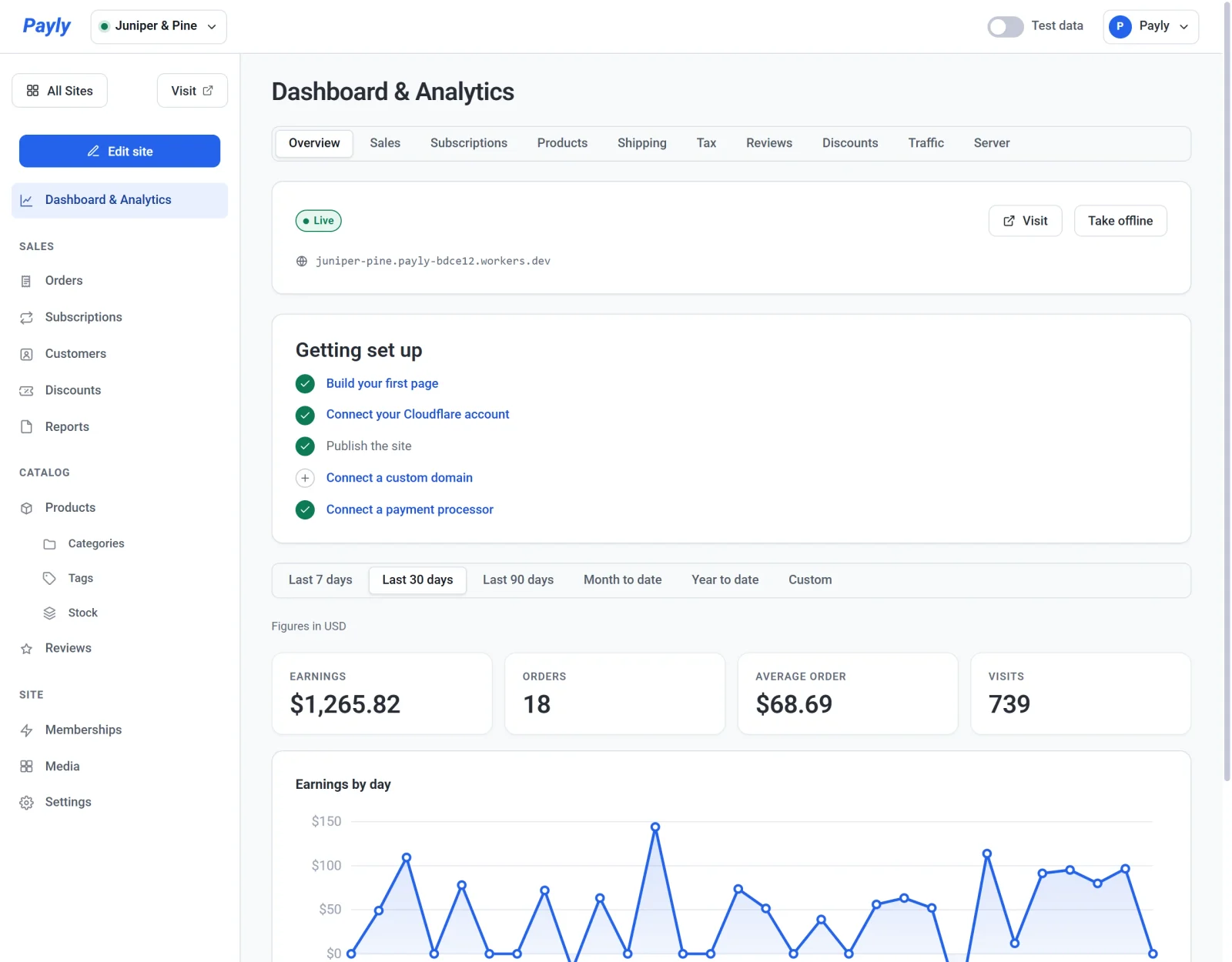
Dashboard & Analytics is the first screen of your site dashboard. Its Overview tab shows whether your store is live, what is left to set up and how sales are going. The other tabs go into detail on sales, subscriptions, products, shipping, tax, reviews, discounts, visitors and your Cloudflare usage. It is all built in, so there is nothing to install and no code to paste.
Open Dashboard & Analytics
In your site dashboard, click Dashboard & Analytics at the top of the left menu. It opens on the Overview tab.
The tabs

| Tab | What it shows | Read more |
|---|---|---|
| Overview | Whether your store is live, the Getting set up checklist, and four key figures with a chart of your earnings. | Below |
| Sales | Orders, total sales, average order, new customers and revenue per visit, with the breakdown from gross sales to total sales. | Sales, subscriptions and products |
| Subscriptions | Your monthly recurring revenue, active subscriptions, new subscriptions, renewals and subscription revenue. | Sales, subscriptions and products |
| Products | Units sold, net sales and page views for each product. | Sales, subscriptions and products |
| Shipping | What customers paid for shipping, by shipping method and by country. | Shipping and tax figures |
| Tax | The tax you collected, by state or region and by tax rate. | Shipping and tax figures |
| Reviews | Your store rating and the reviews written in the period. | Below |
| Discounts | The orders that used a discount, and how much came off, by code. | Below |
| Traffic | Page views, visits, the pages people open and where they come from. | Traffic and visitors |
| Server | How much of your Cloudflare plan your store has used today. | Server usage and Cloudflare limits |
The Reviews tab is shown only while reviews are switched on in Settings > Features. To download your figures as a spreadsheet file, use Reports instead. See Download sales, tax and shipping reports.
Choose a period
The buttons under the tabs set the period for every figure and chart: Last 7 days, Last 30 days (the default), Last 90 days, Month to date, Year to date and Custom. Custom shows From and To date fields. The period stays the same when you move to another tab, and the days follow your computer's time zone.
The Server tab has no period buttons, because it shows today's usage and the storage your store uses now.
The Overview tab
The top of the tab is about your store itself, so it does not change with the period:
- A card shows whether your store is Live or a Draft, its address, a Visit button, and Publish or Take offline. See Publish, update and take your site offline.
- The Getting set up checklist lists the five steps to open your store and disappears once they are all done. See Your launch checklist.
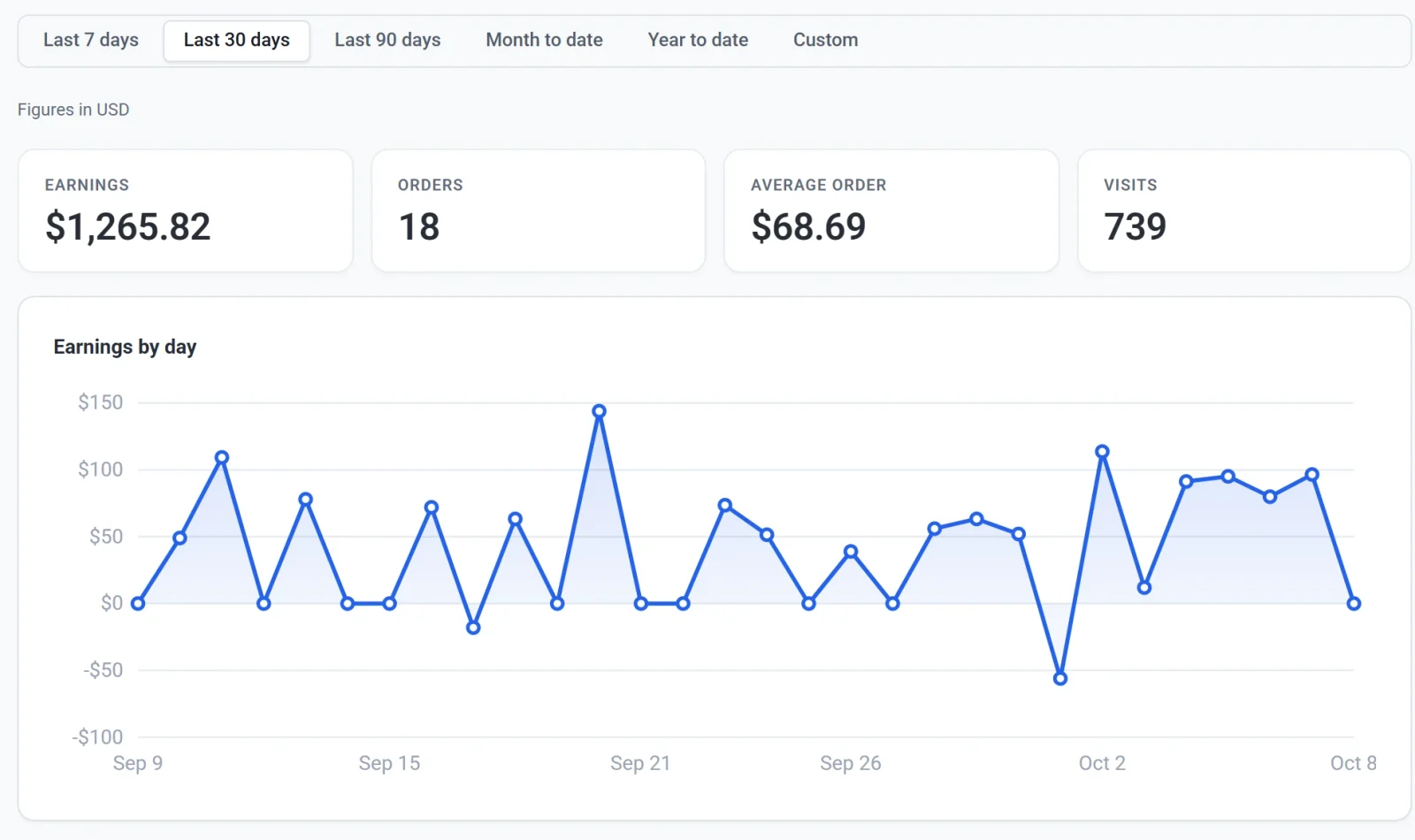
Under the period buttons are four figures and a chart:
| Figure | What it shows |
|---|---|
| Earnings | What the period's paid orders came to, including shipping and tax, minus the refunds you made during the period. |
| Orders | The number of paid orders in the period. Orders you marked as shipped or refunded still count. Pending, failed and cancelled orders do not. |
| Average order | The products' total after discounts, before tax, shipping and refunds, divided by the number of orders. |
| Visits | How many browsing sessions your store had. See Traffic and visitors. |
Earnings by day plots your earnings for each day. A refund counts on the day you make it, not on the day of the order, so a day when you refunded more than you sold goes below zero, and earlier periods never change after the fact.
The Reviews tab
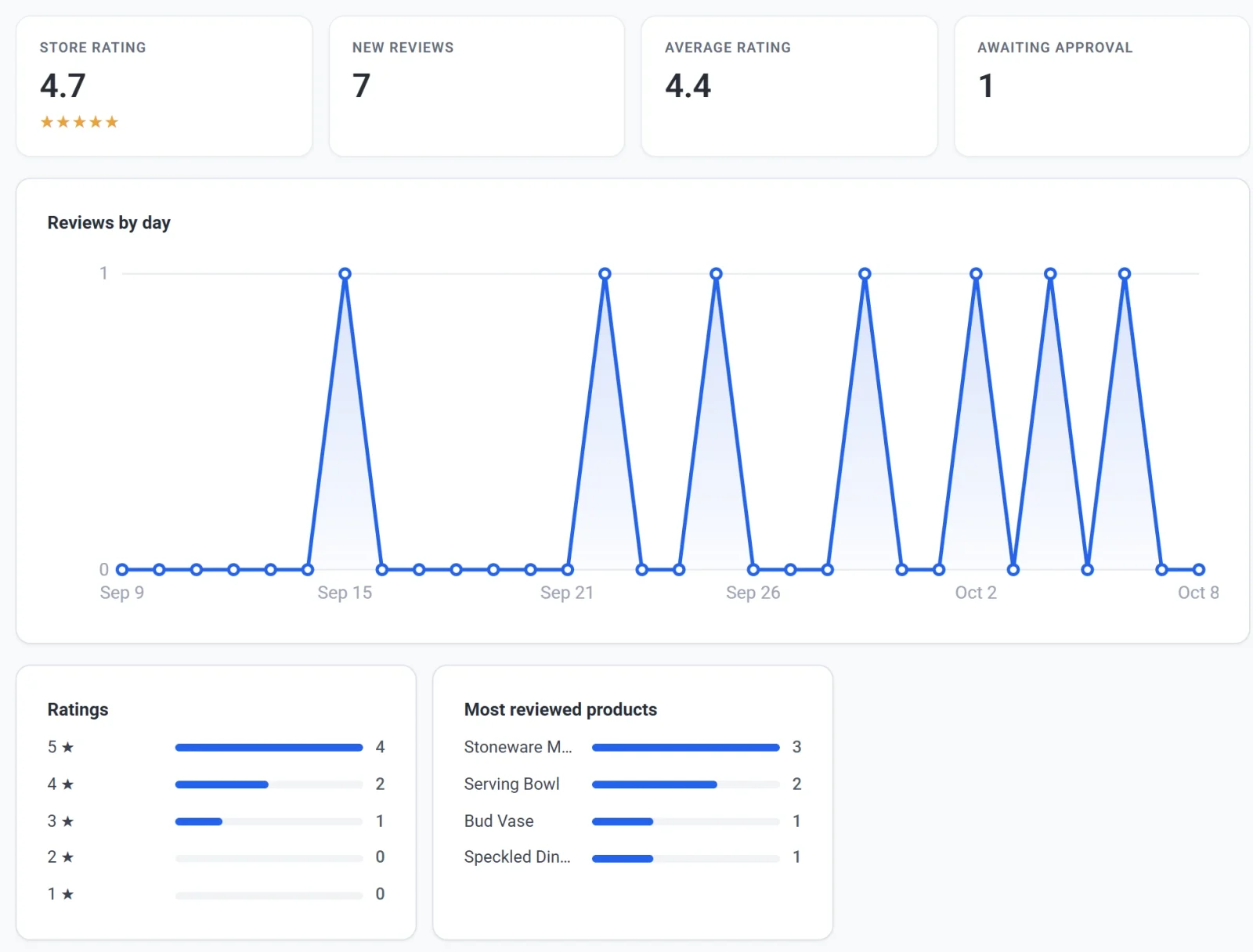
- Store rating is the average star rating of all your published reviews, whatever the period. It is the rating shoppers see.
- New reviews counts the reviews written in the period, published or waiting for approval. Rejected reviews and reviews in the trash are left out.
- Average rating is the average of those new reviews.
- Awaiting approval counts every review waiting for you to approve it, however old.
Below them are Reviews by day, Ratings, which shows how many new reviews gave five stars down to one, and Most reviewed products. See Collect and moderate product reviews.
The Discounts tab
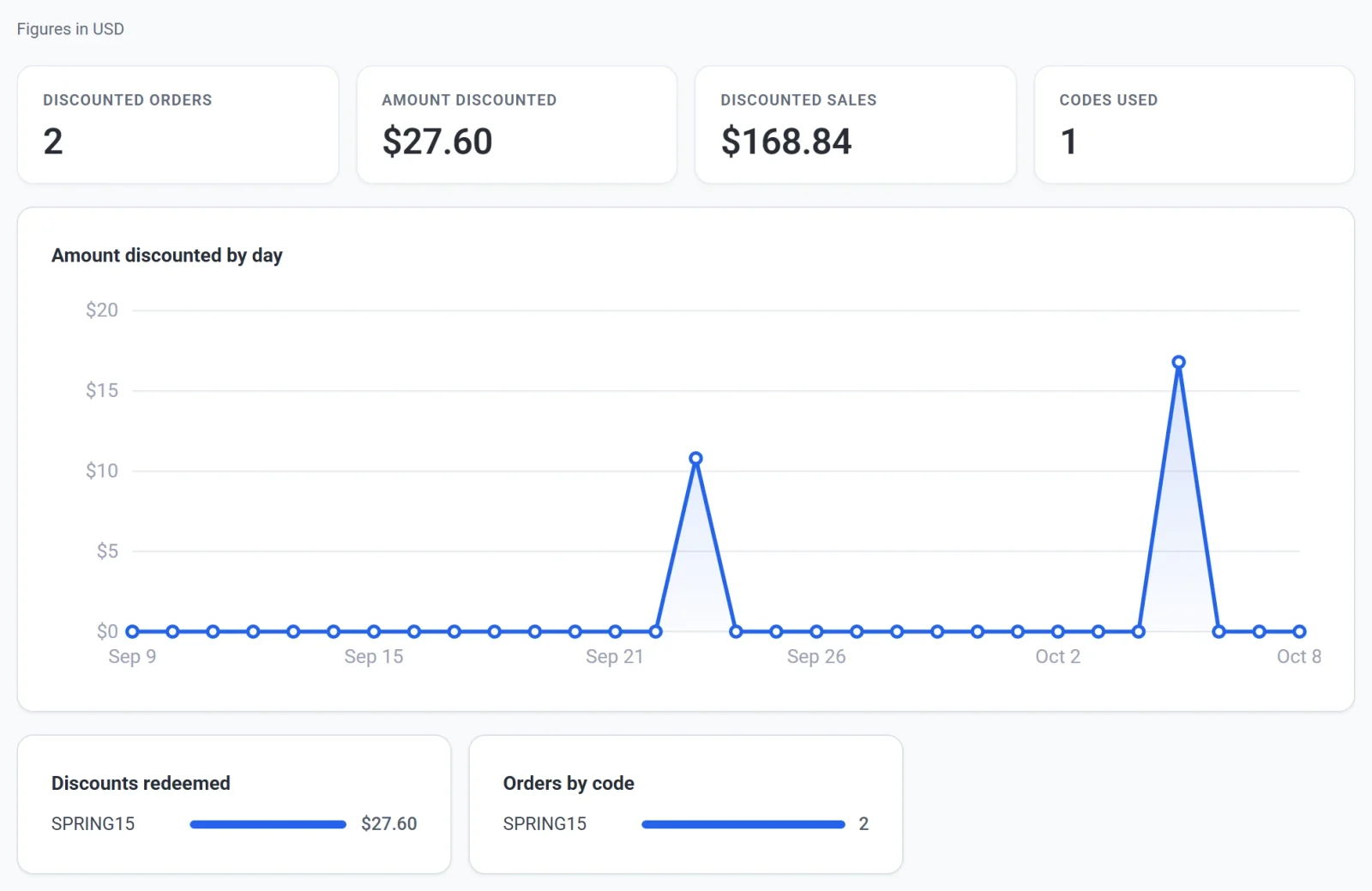
- Discounted orders counts the period's paid orders that took a discount.
- Amount discounted is how much came off those orders, and Discounted sales is what they came to.
- Codes used is how many different codes customers used.
Discounts redeemed shows how much each code took off, and Orders by code how many orders used it. A subscription renewal keeps its discount but not its code, so its discount is listed as No code. See Create discount codes.
Test data and live data
The Test data switch in the top bar decides which orders the money tabs show. With the switch on, they show only orders placed in test mode, and a band at the top says so. With it off, they show real orders. The two are never added together.

- The switch changes the Overview, Sales, Subscriptions, Products, Shipping, Tax and Discounts tabs. Reviews, Traffic and Server are the same either way.
- The switch starts on the side your store is taking payments on, and a choice you make lasts for the current visit.
More than one currency
Money figures show one currency at a time, and a line under the period buttons says which, for example Figures in USD. If your store took payments in more than one currency during the period, a Currency list appears in its place. Choose a currency to see its figures.
Where the numbers come from
- The money tabs come from the orders recorded in Payly. Payouts, fees and disputes are in your Stripe or PayPal account, so their totals may differ. See When and how you get paid.
- Traffic and Visits come from a small counter on your published pages. It uses no cookies, and it skips visitors whose browsers ask not to be tracked.
- Server is Payly's own estimate of how much your store has asked of your Cloudflare account.
If a tab looks empty
- The money tabs show zeros until your first paid order in the period. Check that the Test data switch is on the side you expect.
- Traffic starts counting once your store is published and people visit it.
- Server says Not connected yet until you connect Cloudflare. See Connect your Cloudflare account.