
Set up shipping zones
Group the countries, states and postcodes you ship to into zones, and choose which shipping methods each zone offers at checkout.
A shipping zone is a group of places you ship to, such as a whole country, a few states or a range of postcodes, together with the shipping methods and prices you offer there. At checkout, Payly finds the zone that matches the shopper's address and shows that zone's methods.
Before you start
- Decide where you ship and what you want to charge. The prices live in the zone's shipping methods, which Shipping methods and rates explains.
- You do not need to publish your site after changing zones. Checkout reads your zones as soon as they are saved.
Add a shipping zone
- In your site dashboard, click Settings, then click the Shipping & Tax tab.
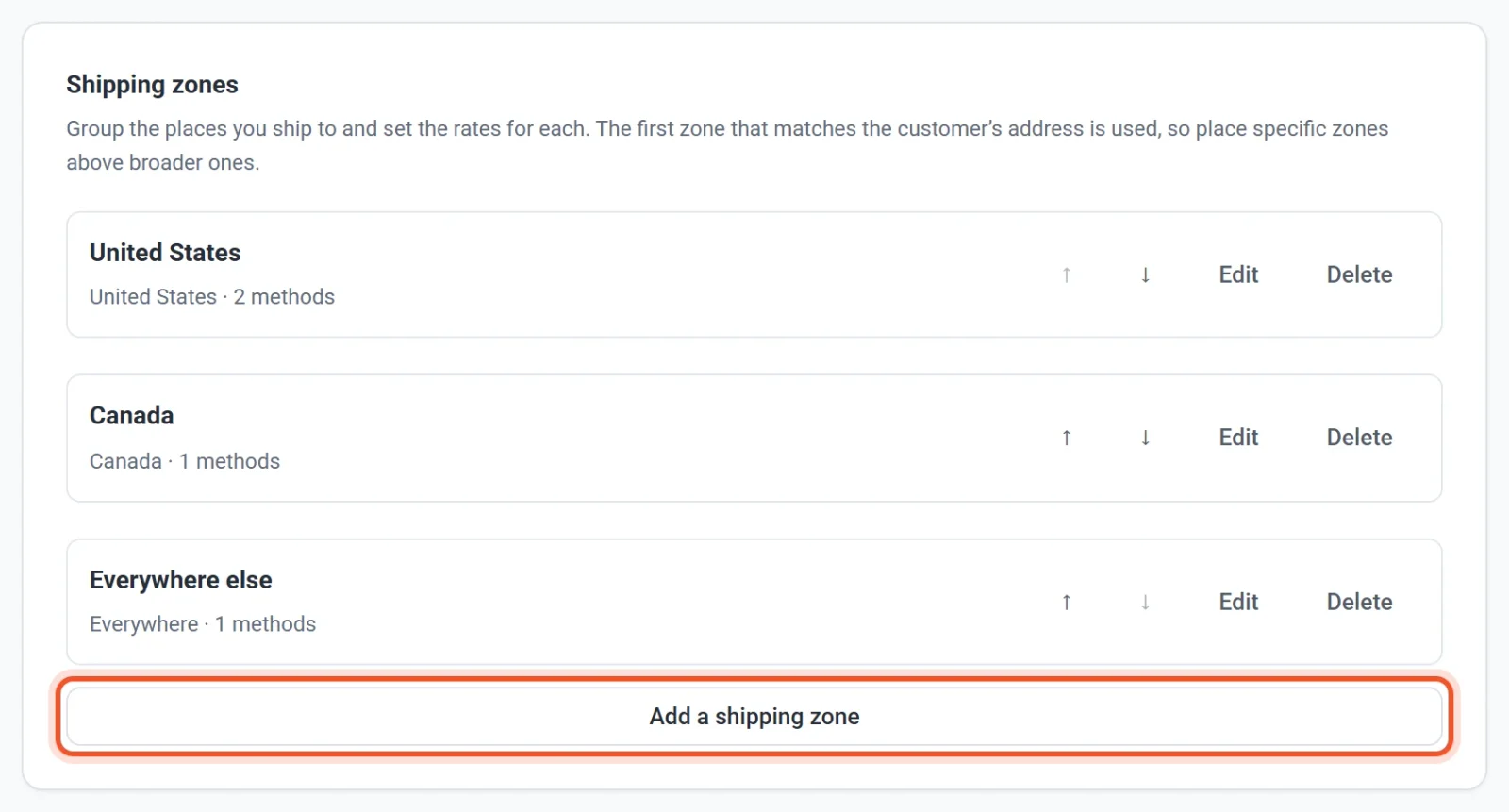
- Scroll to Shipping zones and click Add a shipping zone.
- Enter a Zone name. Shoppers do not see it, so use whatever helps you, such as "United States" or "Europe".
- Under Countries, type in the search box to find a country by name or by its two-letter code, then click the country to select it. Repeat for each country in the zone. Click the × on a country to remove it. If you select no country, the zone covers any country.
- Optional: to cover only part of a country, use States / provinces. A group appears for each selected country that has a list of states, provinces or regions, such as the United States, Canada, Australia and Germany. Click the group to open it and tick the states you want. With none ticked, the whole country is covered.
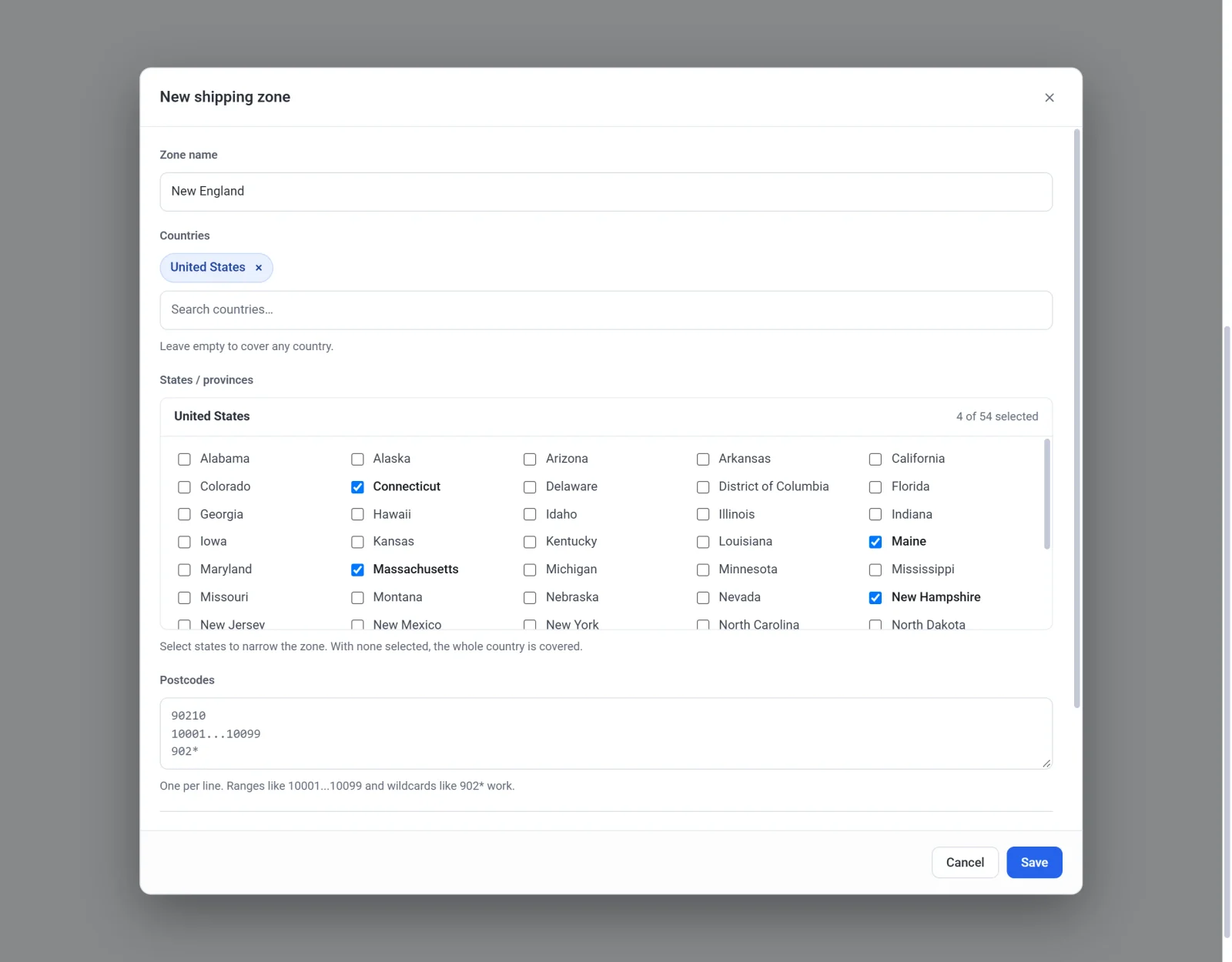
- Optional: to cover only certain areas, enter Postcodes, one per line. You can use an exact postcode (
90210), a range (10001...10099) or a prefix with a star (902*). - Under Shipping methods, click Add a method and set up at least one method. A zone without a method cannot be saved.
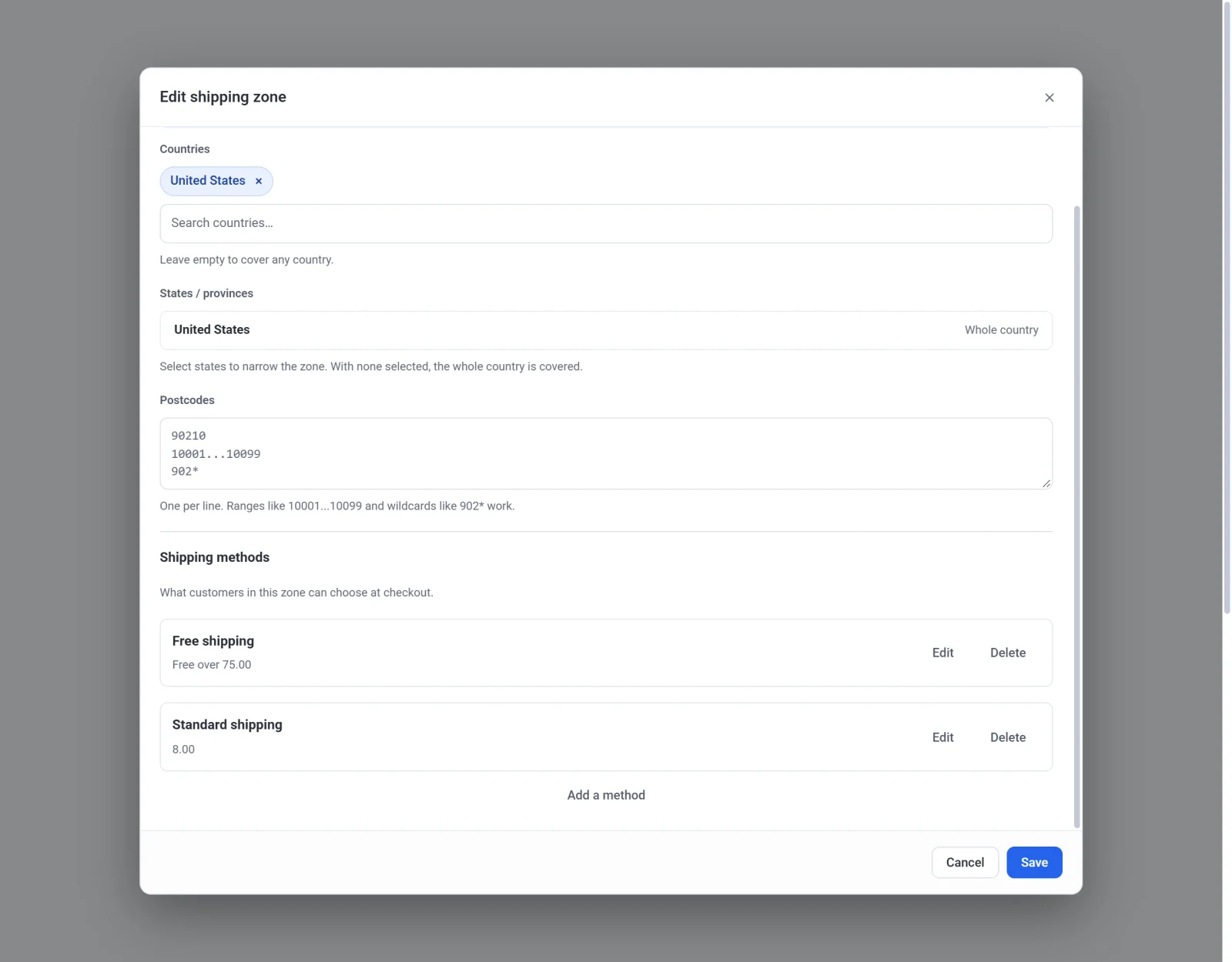
- Click Save.
How Payly picks a zone
Payly checks your zones from top to bottom and uses the first one that matches. A zone matches when the shopper's address fits every part you filled in: the country, the state and the postcode. A part you left empty places no limit. A zone with nothing filled in matches every address, which makes it a good last row, usually named "Everywhere else".
Because the first match wins, put narrow zones above broad ones. If you charge less for New England than for the rest of the United States, place the New England zone above the United States zone. To move a zone, click the up or down arrow beside it.
If no zone matches, the shopper sees "Sorry, this store does not ship to your location." and cannot pay. Add an "Everywhere else" zone if you want to ship worldwide, or leave it out to ship only to the places you list.
Edit, reorder or delete a zone
- Click Edit beside a zone to change its places or methods, then click Save.
- Click Delete and confirm to remove a zone. Shoppers in its places then use the next zone that matches, or are told you do not ship there.
What shoppers see
- Until a shopper enters an address, the cart says "Shipping and tax are calculated once you enter your address."
- Shoppers choose their country from a list at checkout, and their state or province from a list too, for countries that have them. Payly matches the address to your zones.
- Products that are not shipped, such as digital downloads, never add a shipping charge. A cart with only those needs no matching zone.
If you have no zones
With no zones, the Flat shipping and Free shipping over boxes at the top of the Shipping & Tax tab apply to every order. As soon as you add a zone, those two boxes stop being used and your zones decide the price.