
Set your colors, fonts and layout
Use the Site design tab to set your store's colors, typefaces, text sizes and corner roundness once, for every page at the same time.
Site design holds the settings that make your whole store look like one brand: its colors, typefaces, text sizes and corner roundness. You set each one once, and every page follows. Individual blocks can still override these settings when you want them to.
Open Site design
- Open the editor. See The editor at a glance.
- In the settings panel on the right, click the Site design tab.
- Click a heading to open it: Identity, Colors, Typography or Layout.
Changes show on the page straight away and are saved automatically. Your live store changes when you publish.
Colors
Open Colors to see the seven colors that every page is built from.
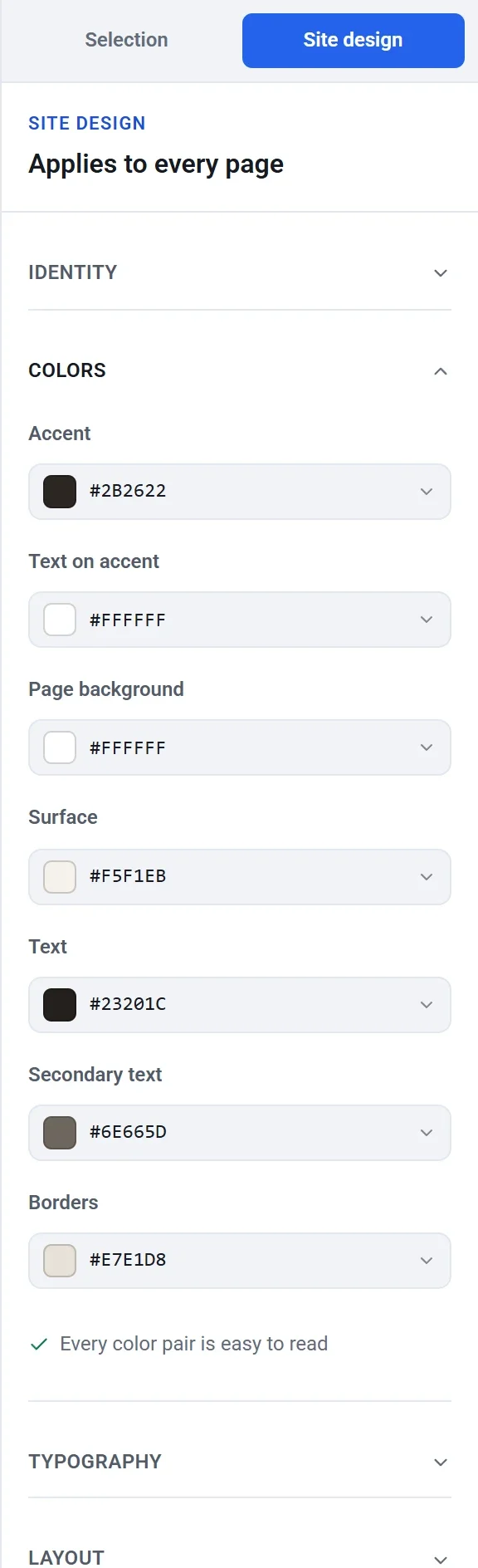
- Accent: the main color of your store. Buttons and links use it.
- Text on accent: the color of the words on top of the accent, such as a button label.
- Page background: the color behind your pages.
- Surface: the color of cards and panels, such as product cards and form boxes.
- Text: the color of headings and other main text.
- Secondary text: the quieter color used for paragraph text, descriptions and small print.
- Borders: the color of thin lines and outlines.
Choose a color
- Click a color box.
- In the picker that opens, do any of these:
- Click or drag in the large square to set how bright and how rich the color is, and drag the strip below it to change the color itself.
- Type or paste a hex code, such as
#2B2622, in the box. - Click a swatch under Theme colors to reuse a color you already have, or one under Recent for a color you picked lately.
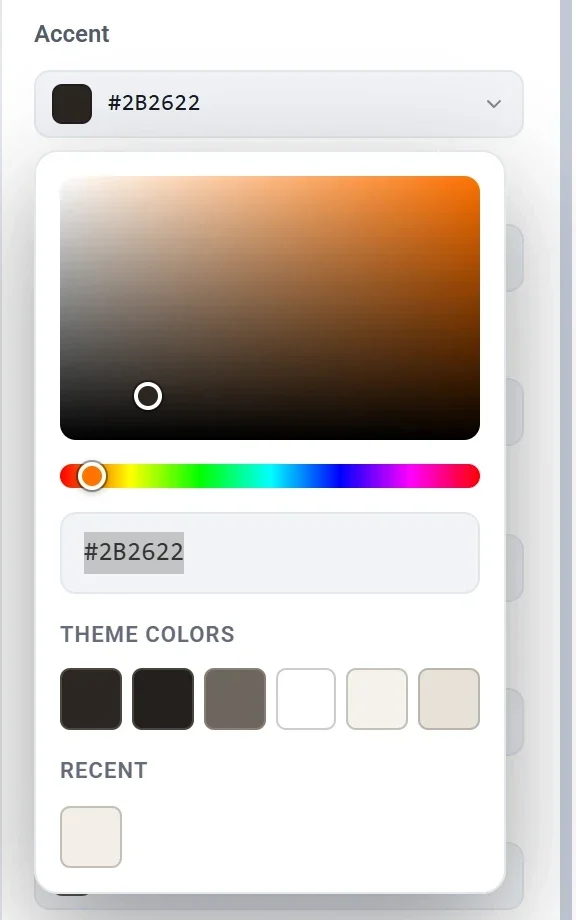
- Click anywhere outside the picker, or press Esc, to close it.
Check that your text is readable
Below the seven colors, Payly checks that each text color is easy to read on the color behind it. If everything is fine, you see Every color pair is easy to read. If a pair is too faint, the list names it, shows its contrast ratio and how much it needs, and offers a Fix button that adjusts the text color for you.
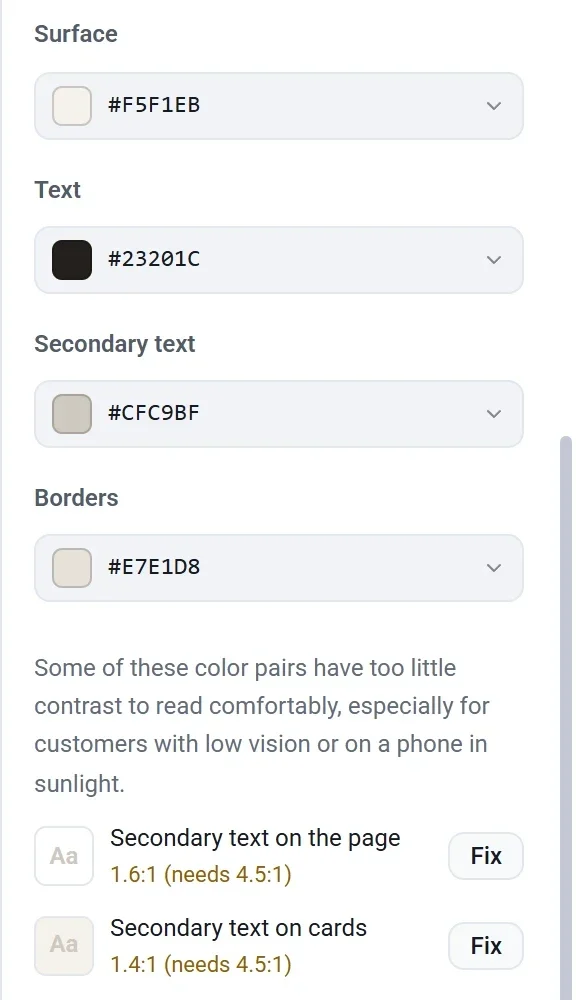
Payly does not stop you from choosing a low-contrast pair, but light gray text on a light background is hard to read, especially on a phone in sunlight.
Typography
Open Typography to choose your fonts and text sizes.
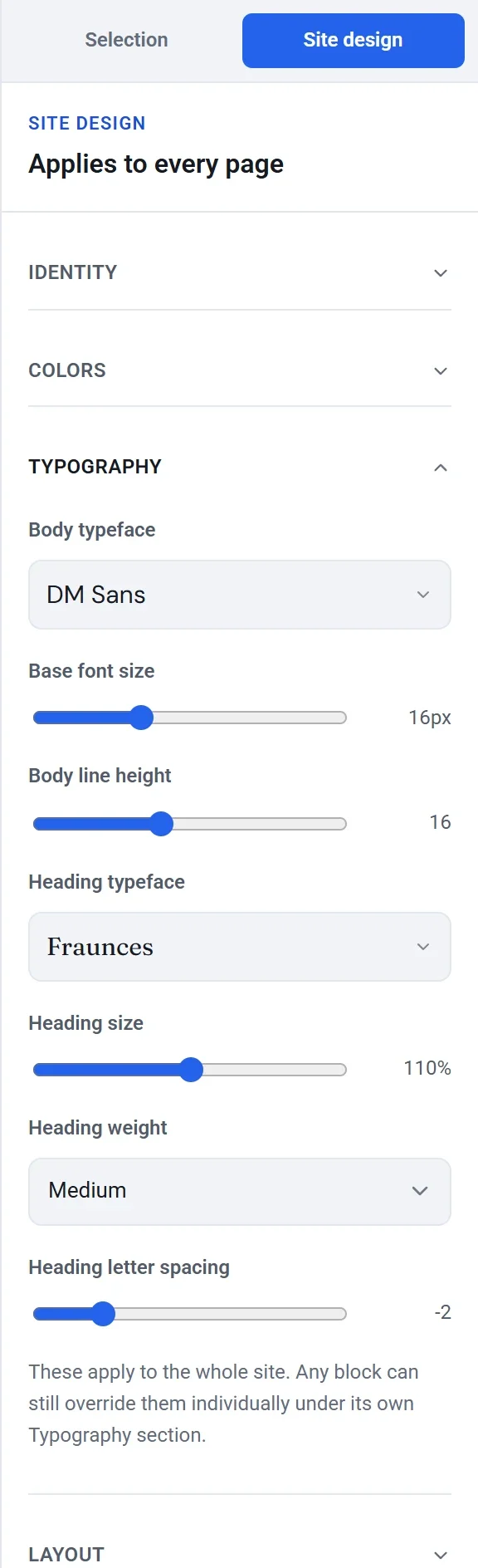
- Body typeface: the font for paragraphs, menus and buttons.
- Base font size: the size of normal text.
- Body line height: the space between lines of text. A bigger number gives more room.
- Heading typeface: the font for headings. Choose Use the site typeface to use the body font for headings too.
- Heading size: makes all headings larger or smaller, as a percentage.
- Heading weight: how bold headings are.
- Heading letter spacing: tightens or loosens the space between heading letters.
Choose a typeface
- Click the Body typeface or Heading typeface box.
- Scroll the list, which shows every name in its own font. The Recommended group at the top has fonts that suit most stores.
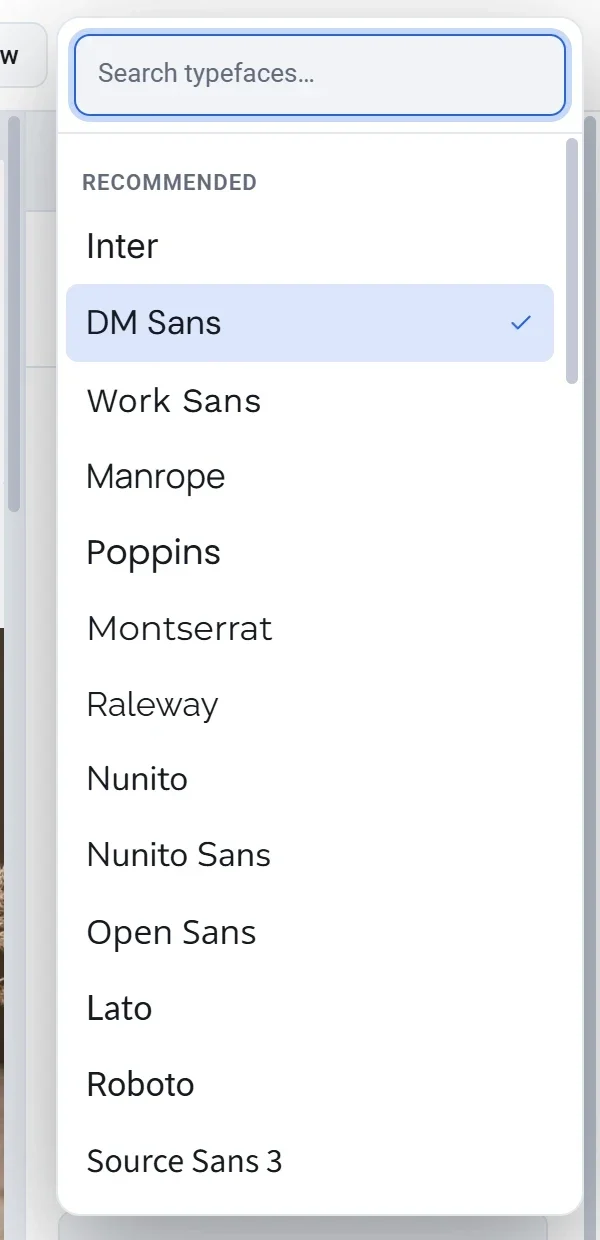
- To find a font by name, type in Search typefaces….
- Click a font to use it.
The list covers the whole Google Fonts library. The fonts you use are included in your store when you publish. If a font is missing from the list, type its exact Google Fonts name in the search box and choose it under Use anyway.
Layout
Open Layout for two settings:
- Corner radius sets how round the corners of buttons, cards and images are. Slide to 0 for sharp corners and to the right for soft ones. Blocks whose own corner radius is Auto follow this setting.
- Text direction is Left to right for most languages. Right to left flips the whole layout for Arabic, Hebrew, Farsi and Urdu.
Identity
Open Identity to set your Browser icon, the small picture shown on a browser tab. Use a simple mark rather than your whole logo, because it is shown at about 16 pixels. Click Upload image or Browse uploads, as described in Add images and use the media library. If you leave it empty, your logo is used.
Your logo is not here. It lives in your header, where it appears. See Customize your header and footer.
Change one block only
Every text block, heading and button can override the site's typeface, size and colors. Select the block and open its Typography or Appearance group. See Edit text, headings and buttons.
Tip: If you want a completely different look, you can start again from one of the ready-made designs. See Switch to a different site design.