
How checkout works
Follow a customer from Add to cart to the order page, see which payment options they get, and learn what you receive afterward.
Checkout is the part of your store where a customer pays. It runs on your own store, with your design around it, and the payment goes straight to your Stripe or PayPal account. This article walks through what your customers see, and what you get at the end.
What you need
- A published store. See Publish your first site.
- At least one payment account connected: Stripe, PayPal or both. Checkout uses the accounts for the mode your store is in, so a store in test mode needs test connections.
Payly sets up the cart and checkout pages for you when you create a site. Customers do not need an account to buy.
What your customers do
- A customer clicks Add to cart on a product. The button changes to Added to cart, and a View cart link appears under it.
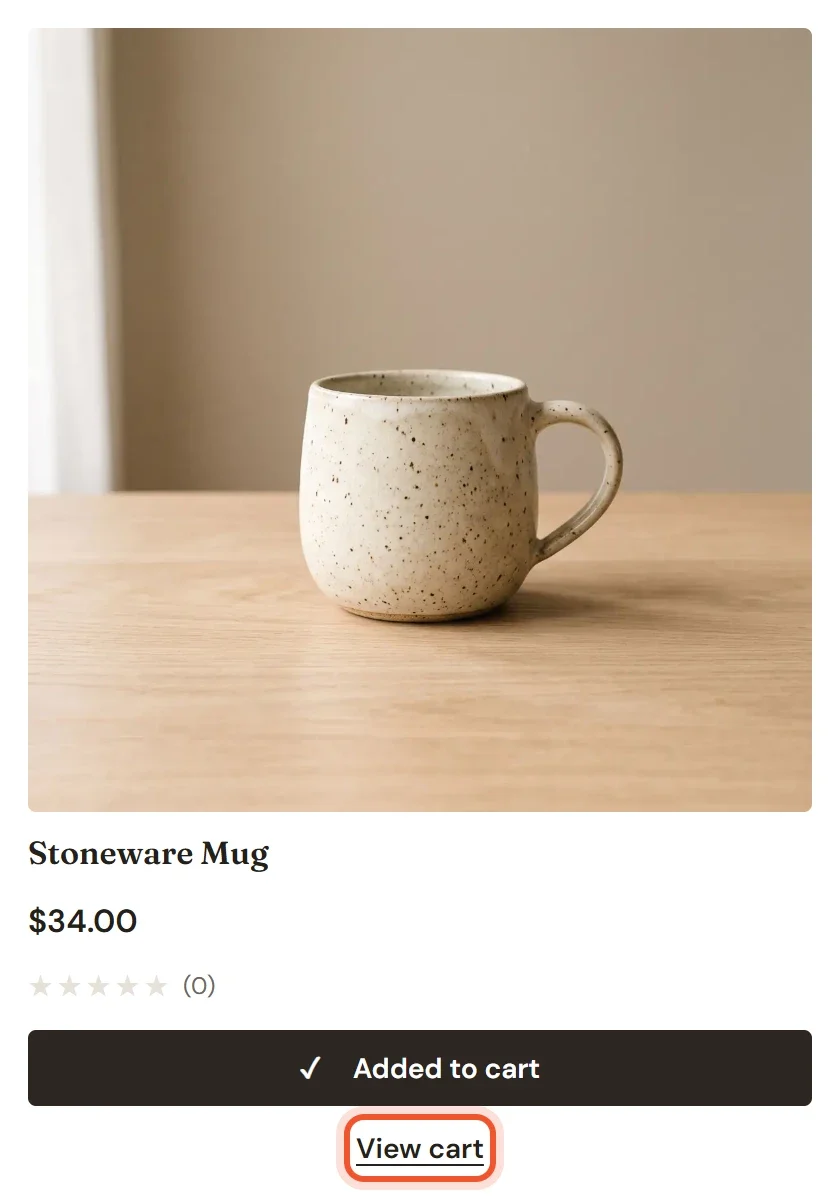
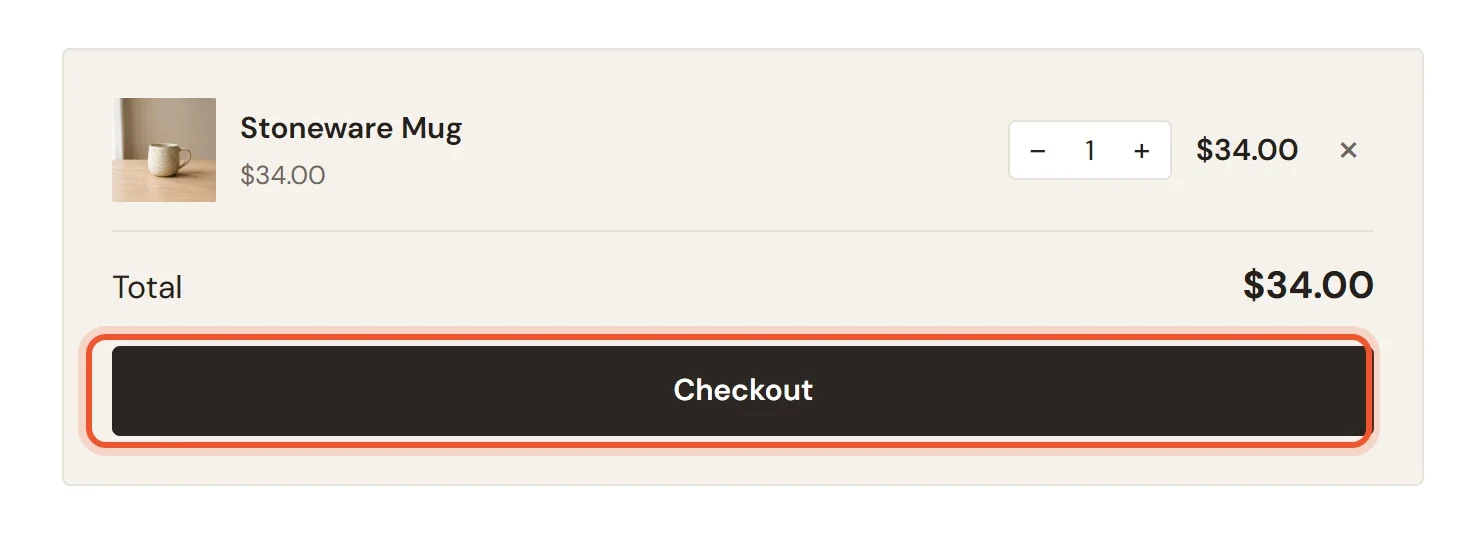
- On the cart page, the customer checks the items, changes quantities or removes an item, then clicks Checkout.
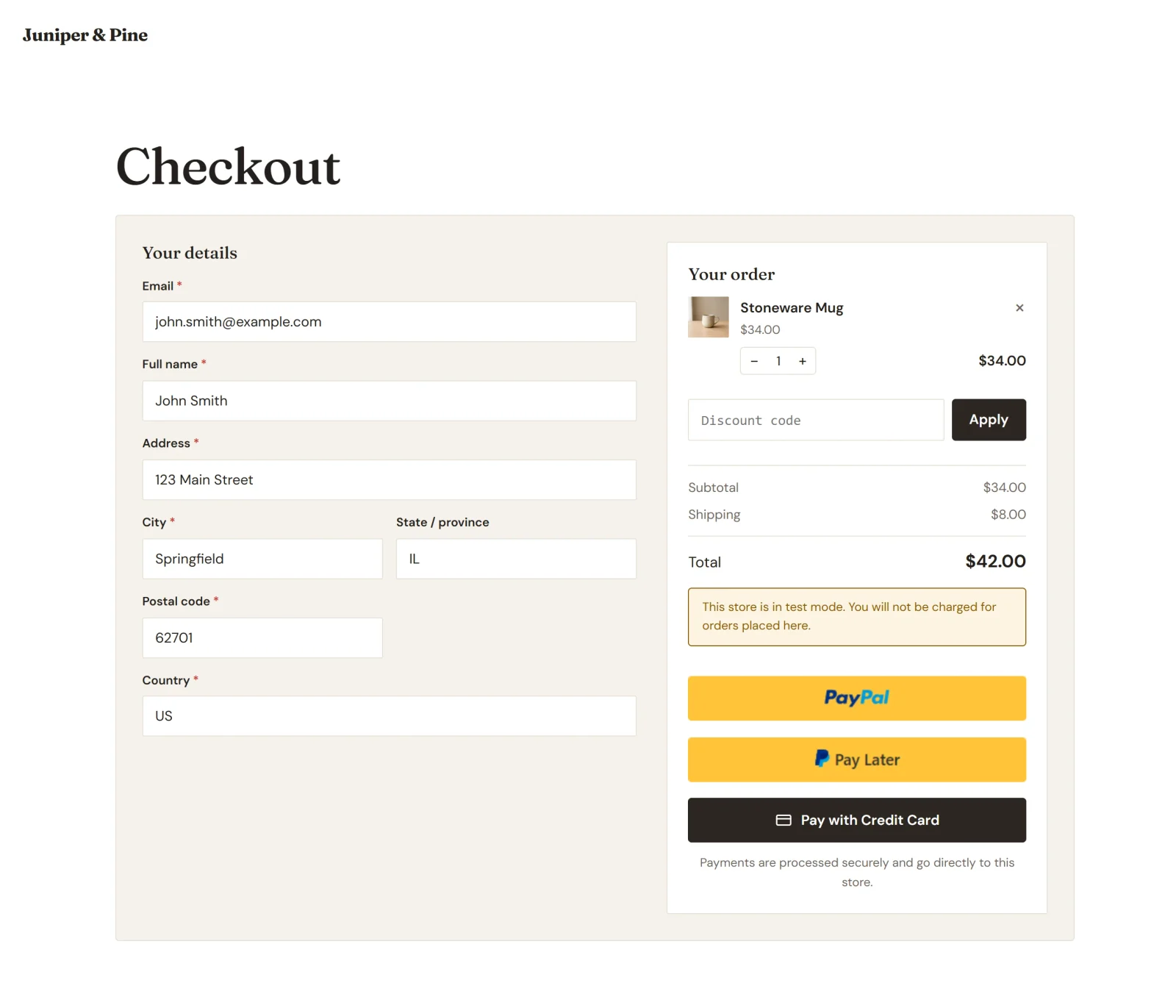
- On the checkout page, the customer fills in Your details: email, full name and shipping address. Their order is summarized in the column on the right.
- If your store has a discount code the customer can use, they type it into Discount code and click Apply. The page shows the discount and the new total right away.
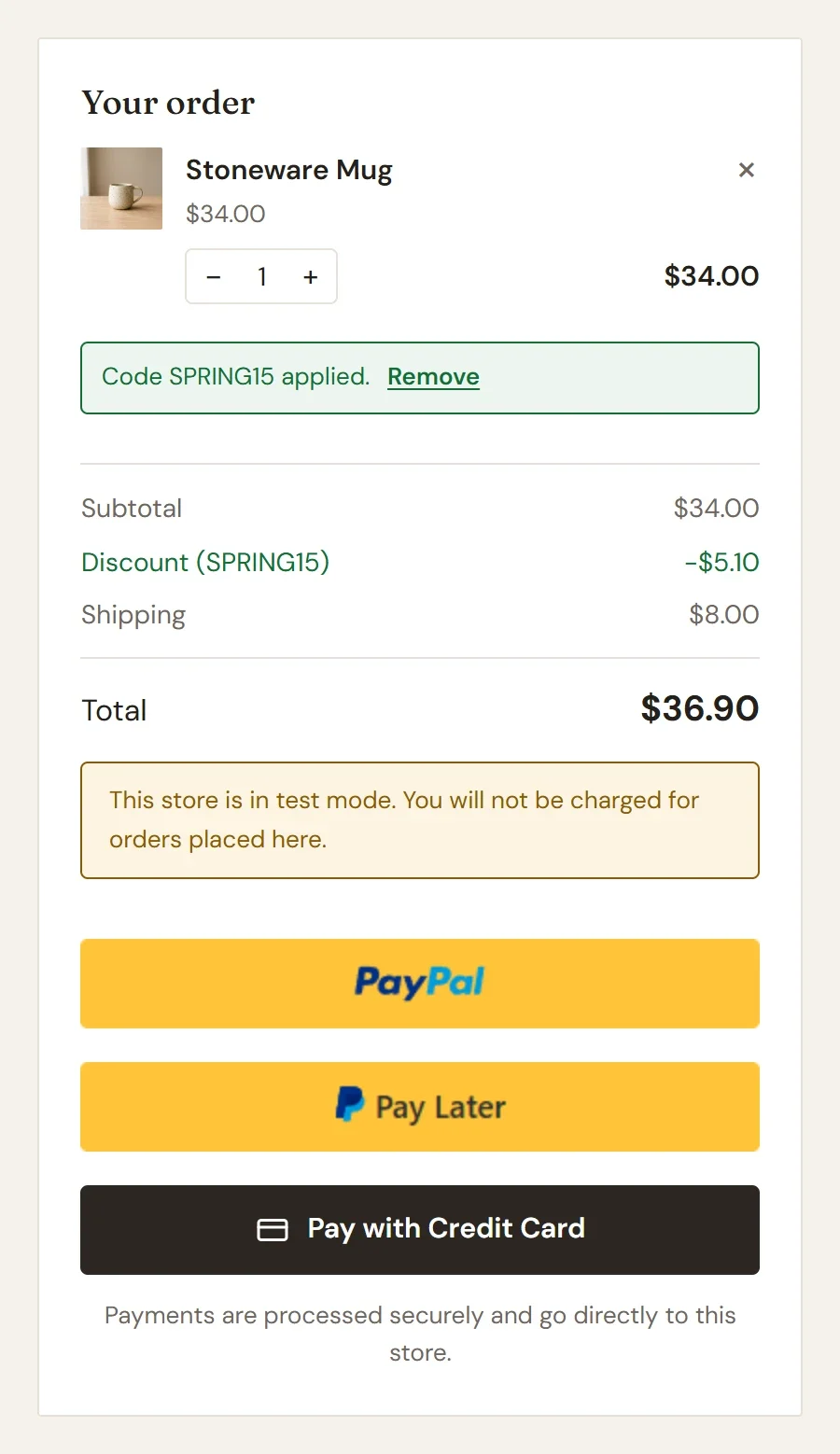
- The customer chooses how to pay, as described below.
- After the payment goes through, the customer lands on an order page that says Thank you for your order and shows the order number. It also lists what they bought, with any discount, shipping and tax, and the total, and it offers Continue shopping and Go to my account.
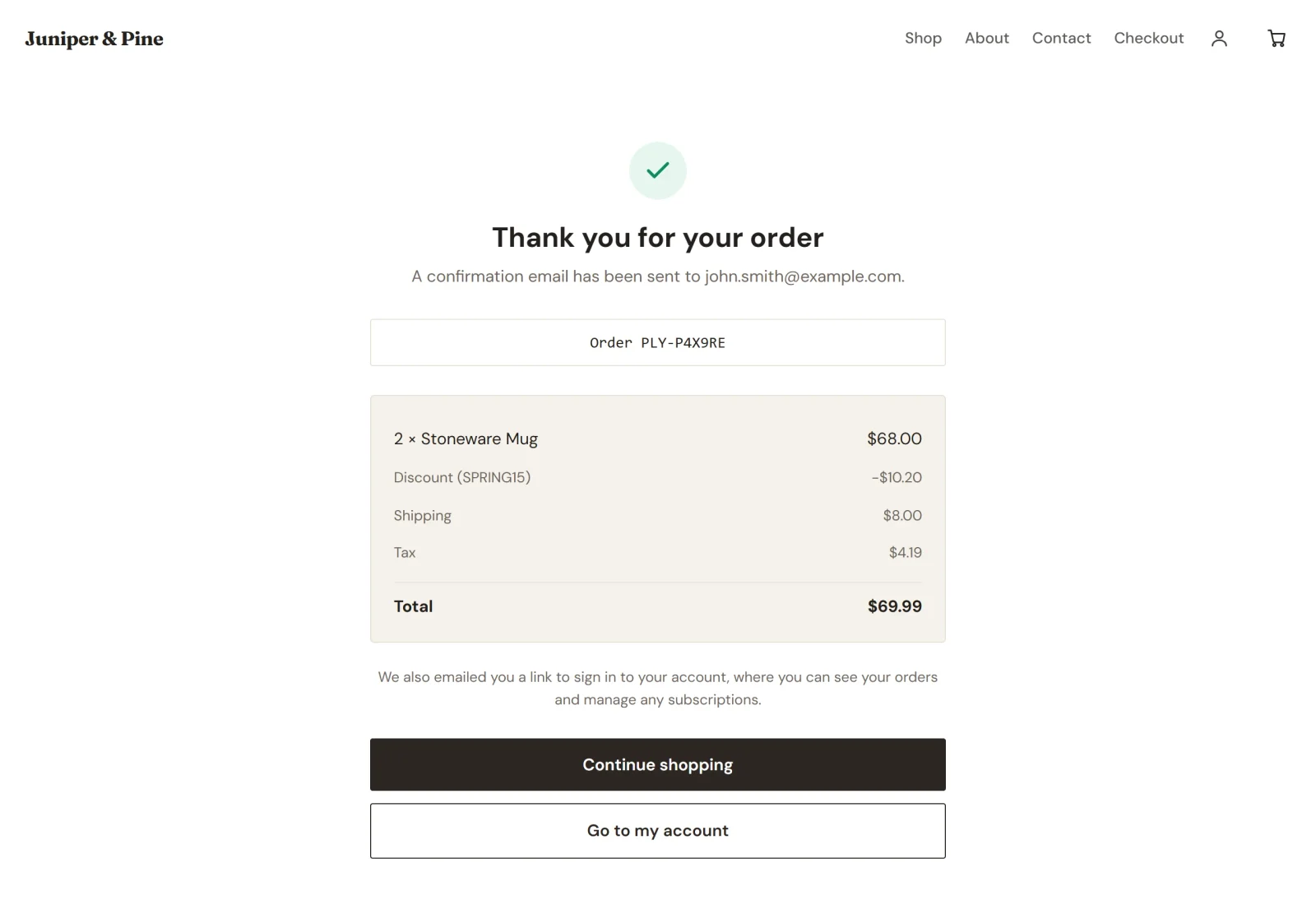
Under the order summary, the page also says that a link to sign in to their account was emailed to them. If the payment has not been confirmed when the customer arrives, the page says We are confirming your payment instead of the thank-you message.
The payment options
The buttons under the order summary depend on which accounts you have connected.
- PayPal. The customer clicks PayPal (or another PayPal button) and approves the payment in a PayPal window that opens over your store. PayPal decides which of its buttons each customer gets, for example Pay Later. The PayPal buttons stay switched off until the customer has filled in the details.
- Credit card. The customer clicks Pay with Credit Card. A Card details form opens on the same page, and Stripe's secure fields take the card number. The customer can click Choose another payment method to go back. Card details never pass through your store.
If you connect only PayPal, customers can still pay by card when PayPal offers its card button to them. If neither account is connected for the current mode, the checkout page tells customers that the store is not set up to take payments yet. You can change the wording and look of the pay buttons in the editor. See Store blocks.
What else checkout does
- Prices come from your store. Checkout works out prices, discounts, shipping and tax from your store settings, never from the customer's browser, so nobody can change what an order costs.
- Shipping and tax appear after the address. Until the customer enters an address, the page says that shipping and tax are calculated once the address is entered. If your shipping zones do not cover the address, checkout says that the store does not ship there. See Set up shipping zones and How tax is shown and charged at checkout.
- Stock is checked. If an item is sold out, or fewer are left than the customer wants, checkout says so before any money moves.
- The discount code box shows only when it is useful. It appears while your store has a code customers can redeem, and it is replaced by a message once a code is applied.
- Test mode shows a notice. While test mode is on, a box above the buttons tells customers that the store is in test mode and they will not be charged.
- Subscriptions follow each processor's rules. Stripe can take several subscriptions in one checkout. PayPal allows one subscription per order, so a customer who pays with PayPal buys a second subscription in a separate order.
What you get
- The order appears in Orders as paid, as soon as the payment is confirmed. See View and manage orders.
- The customer gets an order confirmation email, and you get a New order email unless you have turned it off in Settings > Emails. Orders placed in test mode have [Test] in the email subject.
- The customer gets a link to sign in and see their order. See How customer accounts and sign-in work.
- The money goes to your Stripe or PayPal account. See When and how you get paid.
Tip: Place a test order yourself before you open your store to customers. See Take test payments with test mode.