
Choose which emails you receive
See every email Payly sends about your store, who gets it, and switch off new order, contact form and sign-in link emails.
Payly sends emails about your store to you and to your customers. The Emails tab lists every one of them, says who receives it, and lets you switch off the three that are optional. The rest cannot be turned off, because your store depends on them.
Open the Emails tab
- In your site dashboard, click Settings.
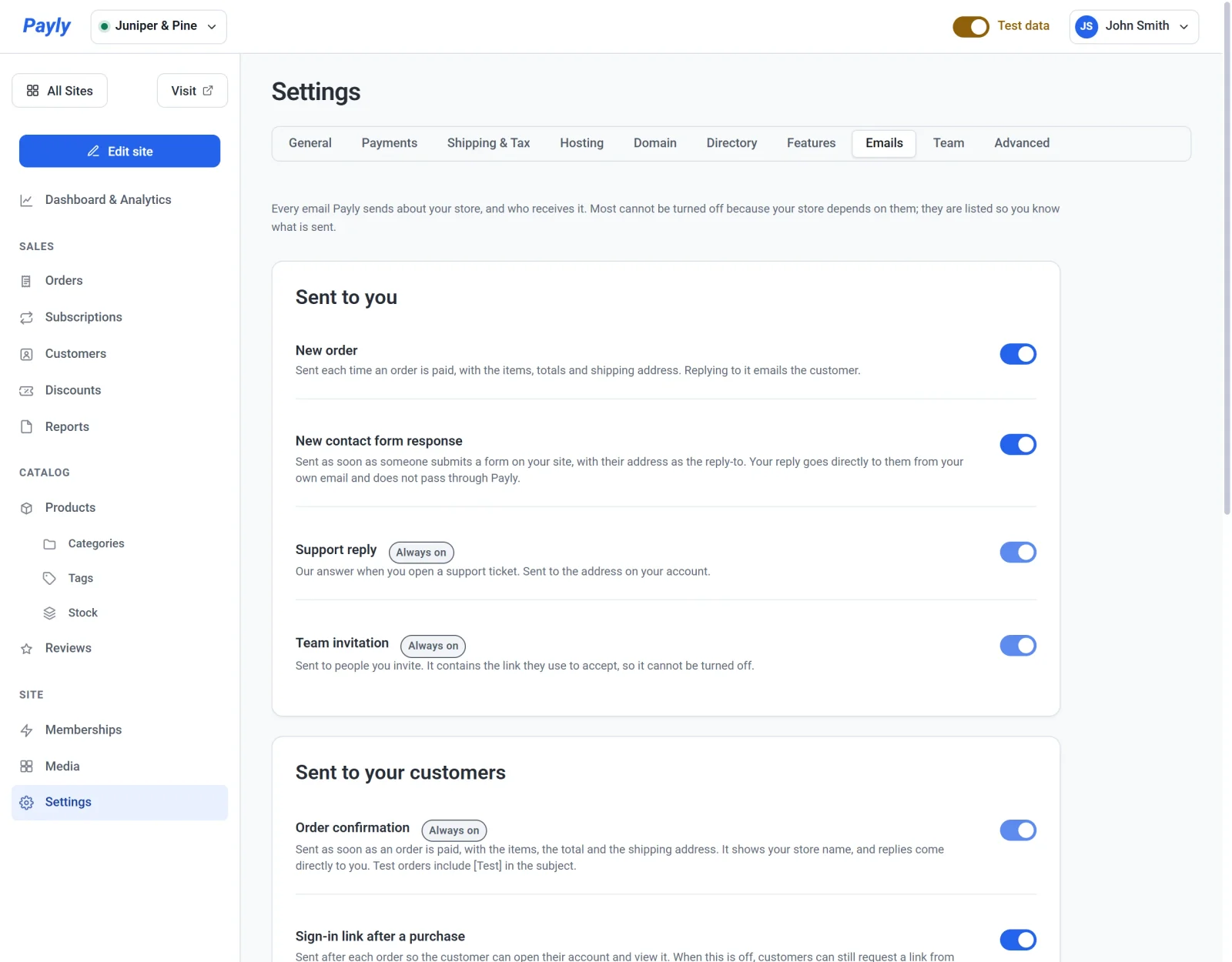
- Click the Emails tab. It has two cards: Sent to you and Sent to your customers.
Emails sent to you
These go to the email address on your Payly account, which is the one you sign in with. To change it, see Manage your account settings. Only the account owner receives them. Your team members do not.
- New order arrives each time an order is paid, with the items, totals and shipping address. If you reply to it, your reply goes to the customer. You can switch this one off.
- New contact form response arrives as soon as someone submits a form on your site. If you reply, your reply goes straight to that person from your own email and does not pass through Payly. You can switch this one off.
- Support reply is Payly's answer when you open a support ticket. It is always on.
- Team invitation goes to people you invite. It holds the link they use to accept, so it is always on. See Invite your team and set roles.
Emails sent to your customers
Payly sends these under your store's name, in your store's language. When a customer replies, the reply comes to you.
- Order confirmation is sent as soon as an order is paid. Emails about test orders include
[Test]in the subject. It is always on. - Sign-in link after a purchase lets the customer open their account and view the order. You can switch this one off.
- Subscription renewed, Subscription cancelled and Refund issued are always on.
The tab also lists a Password reset row. Customers on your store sign in with an emailed link or code and have no password, so this email is not used. For what each customer email says, see Emails your customers receive.
Turn an optional email off
- On the Emails tab, find New order, New contact form response or Sign-in link after a purchase. These are the only rows with a working switch.
- Click the switch. A Not sending label appears beside the email. Payly saves the change at once, and you do not need to publish.
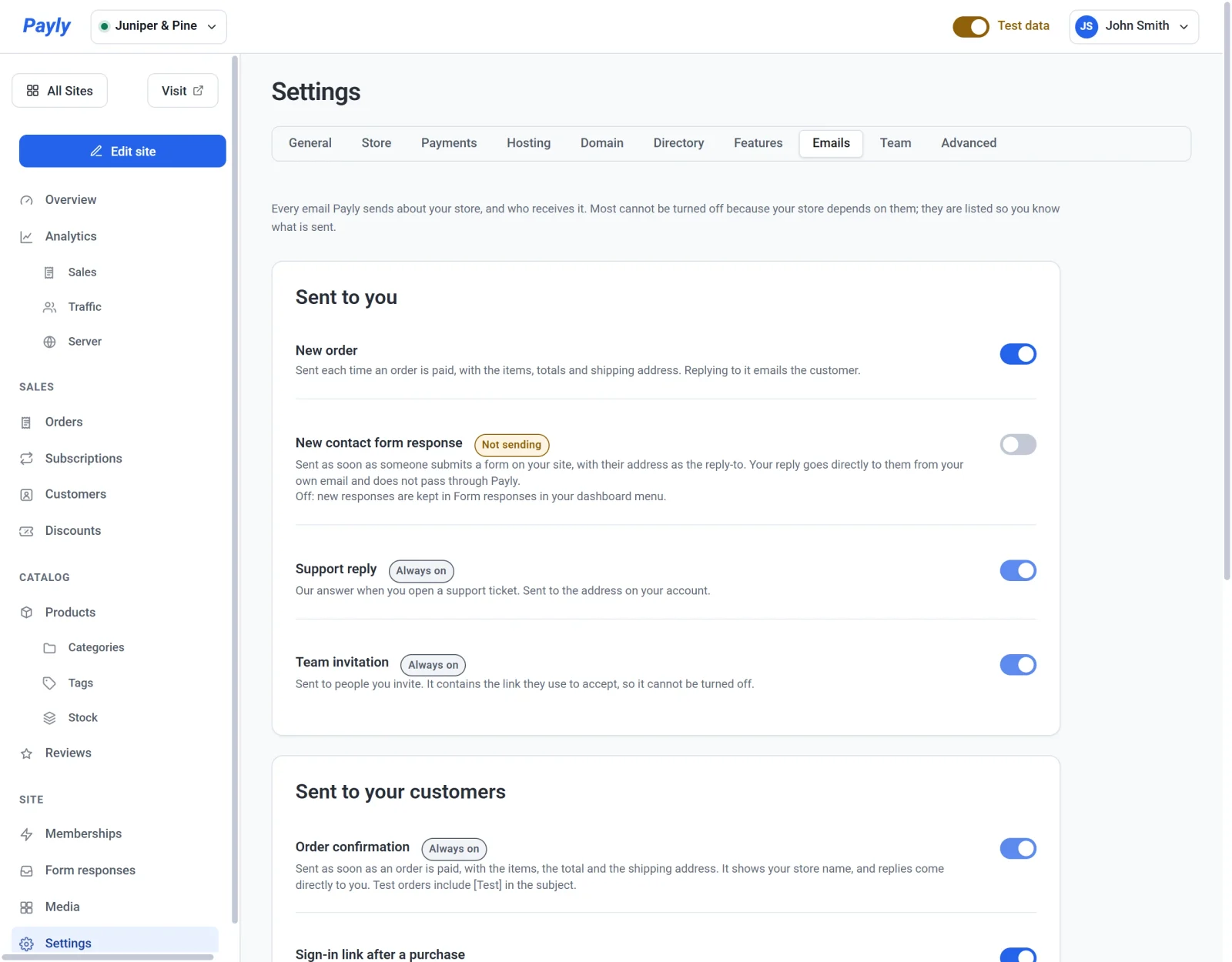
- Click the switch again to turn the email back on.
What happens when you turn each one off:
- New order: you no longer get an email for each paid order. The orders still appear under Orders in your dashboard.
- New contact form response: Payly keeps new messages in a Form responses screen, which is added to your menu so you can read them there.
- Sign-in link after a purchase: customers no longer get a link right after they pay. They can still ask for one on your store's account page.
Tip: Leave the contact form email on unless you prefer to read messages in your dashboard. Email lets you answer from your usual inbox.