
How tax is shown and charged at checkout
See when the tax line appears at checkout, which rate a customer gets, how the amount is worked out, and where tax shows up in your orders.
Once you have set up your tax rates, your store works out tax for every order by itself. The customer sees the tax as its own line in the order summary at checkout, and it is part of the total they pay.
What the customer sees
The cart page lists the items and their total. Shipping and tax appear at checkout, because they depend on where the order is going. Until the customer enters an address, the order summary says "Shipping and tax are calculated once you enter your address."
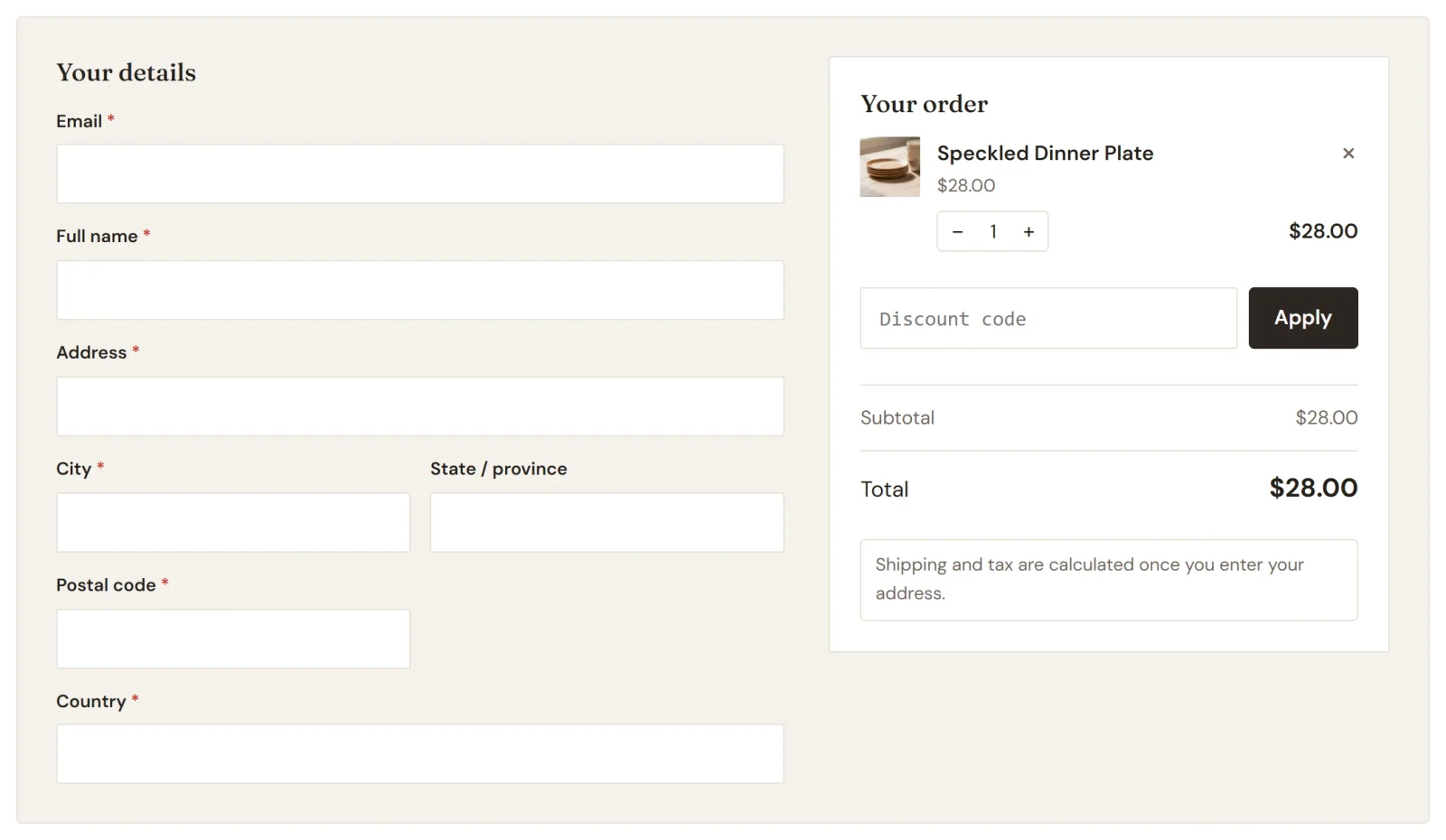
As soon as the customer fills in the country, and the state or province if your rates need it, the summary adds a Shipping line and a Tax line and updates the total. There is no button to press, and the figures change again if the customer edits the address, quantities or discount code.
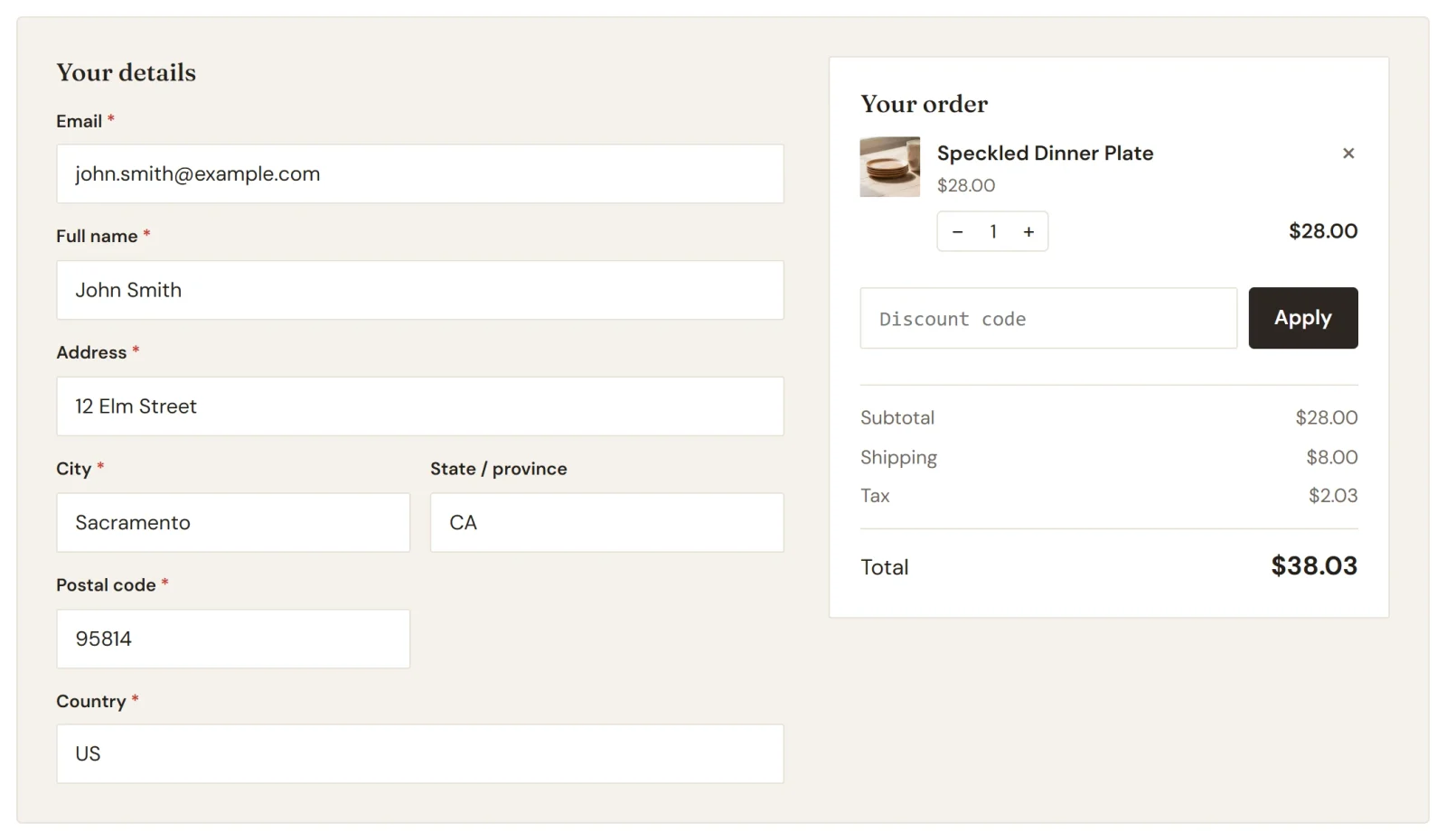
The Tax line only appears when there is tax to pay. A customer whose address matches none of your rates sees no Tax line at all.
Customers choose their country from a list at checkout, and their state or province from a list too, for countries that have them. Payly matches the address to your rates.
How the amount is worked out
- The tax is the matching rate applied to the items, after any discount code. A $28.00 item with a 15% code costs $23.80, so a 7.25% rate adds $1.73.
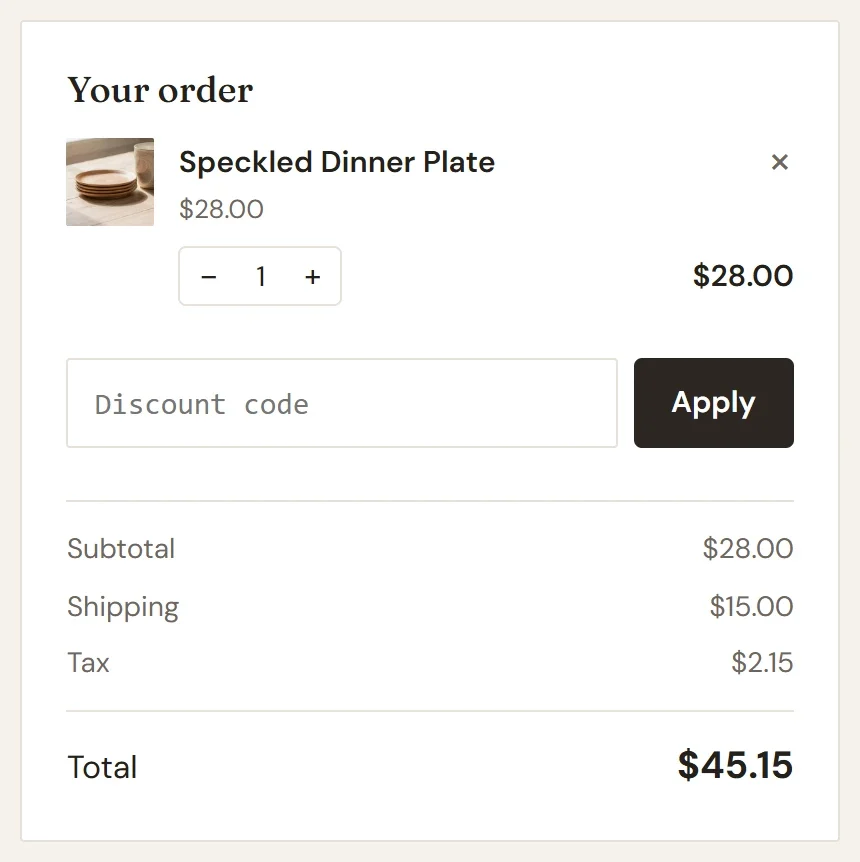
- Shipping is included only when the rate has Also charge this tax on shipping ticked. In the example below, a 5% rate on $28.00 of goods plus $15.00 of shipping adds $2.15.
- Every item in the cart is taxed, including digital products and memberships.
- The result is rounded to the nearest cent.
For a subscription, tax is worked out for each renewal as well, and the recurring totals shown at checkout include it.
How the tax is named
On your own checkout, in your customers' emails and on their order pages, the line is called Tax. The Label you gave the rate, such as "Sales tax" or "GST", is the name Payly sends to Stripe for the tax line of the order.
Tax in your orders
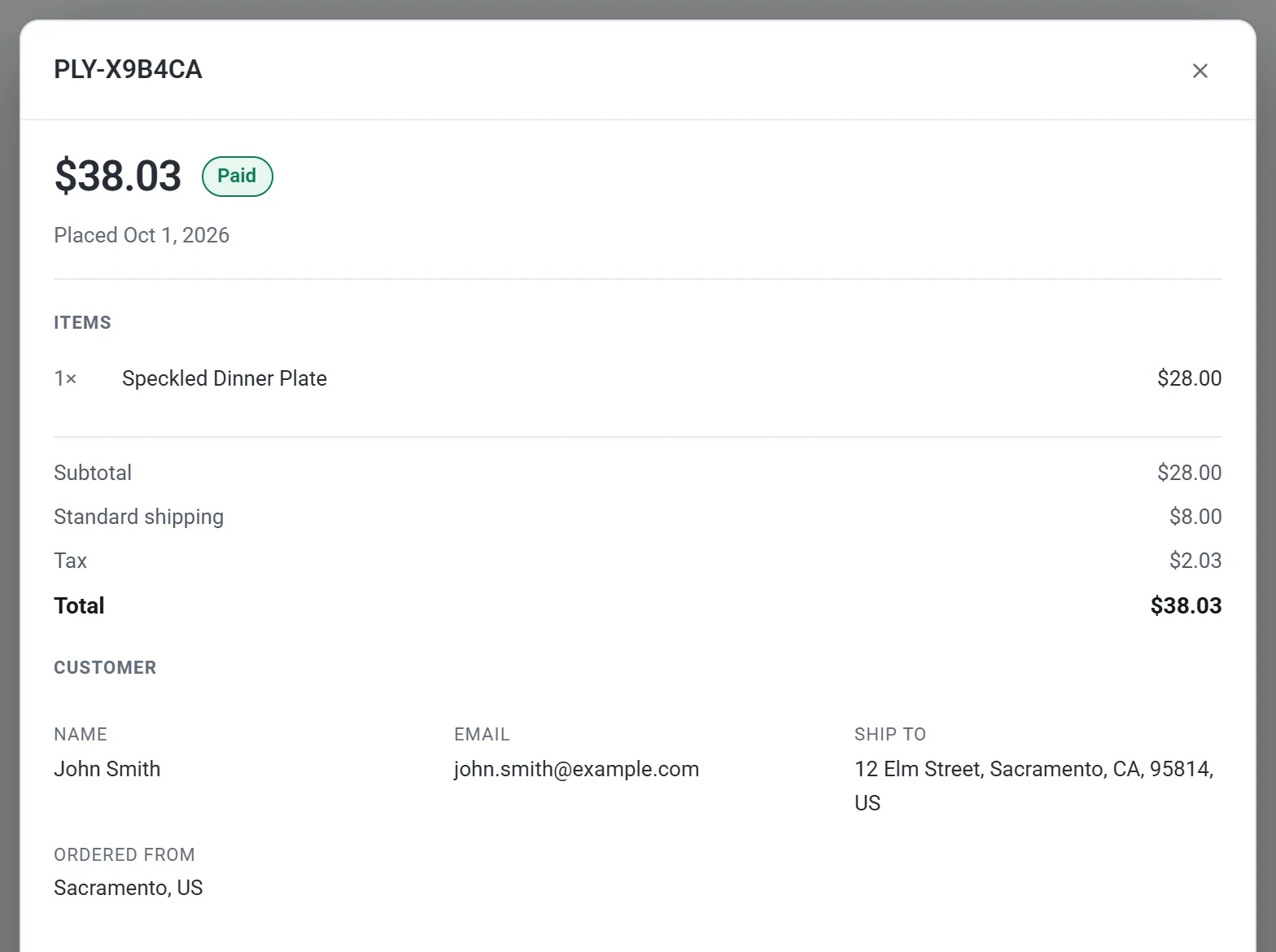
Open an order in your dashboard (click Orders, then click the order). Its totals list the subtotal, any discount, the shipping method and its cost, the Tax amount and the total, in that order. A line only appears when it has an amount. The shipping line carries the name of the shipping method, such as Standard shipping.
For example, an order for one $28.00 plate sent to a California address, with $8.00 shipping, shows a subtotal of $28.00, shipping of $8.00, tax of $2.03 and a total of $38.03. That is the same total the customer saw at checkout.
Check it before you go live
With test mode on, add a product to the cart on your store, go to checkout and enter an address in each place where you charge tax. Compare the Tax line with the amount you expect. Then check an address where you charge no tax.