
Publish, update and take your site offline
Put your store online with Publish, send later changes to your customers, and take the store offline again without losing anything.
Publishing puts your store online at its address, and it is also how you send later changes to your customers. Everything you build is saved as a draft until you publish. You can take the store offline again at any time without losing anything.
Draft and published
The editor saves your work automatically. A saved change is not on your live store yet. The status next to your site name tells you which state you are in:
- Saved, not published (amber): you have changes that customers cannot see yet.
- Saved and published (green): your live store shows everything you see in the editor.
Pages, design, header and footer all wait for a publish. Products do not: once your site has been published, a product you save goes on sale straight away, and a product you hide or move to the trash leaves your shop straight away. To check your changes first, see Preview your site before publishing.
Before you publish
- Connect Cloudflare. If you have not, Payly asks you when you click Publish. See Connect your Cloudflare account.
- You can publish if you are the owner, an admin or an editor on the site. Viewers cannot.
Publish from the editor
- In your site dashboard, click Edit site.
- Look at the status next to the site name, then click Publish at the top right.

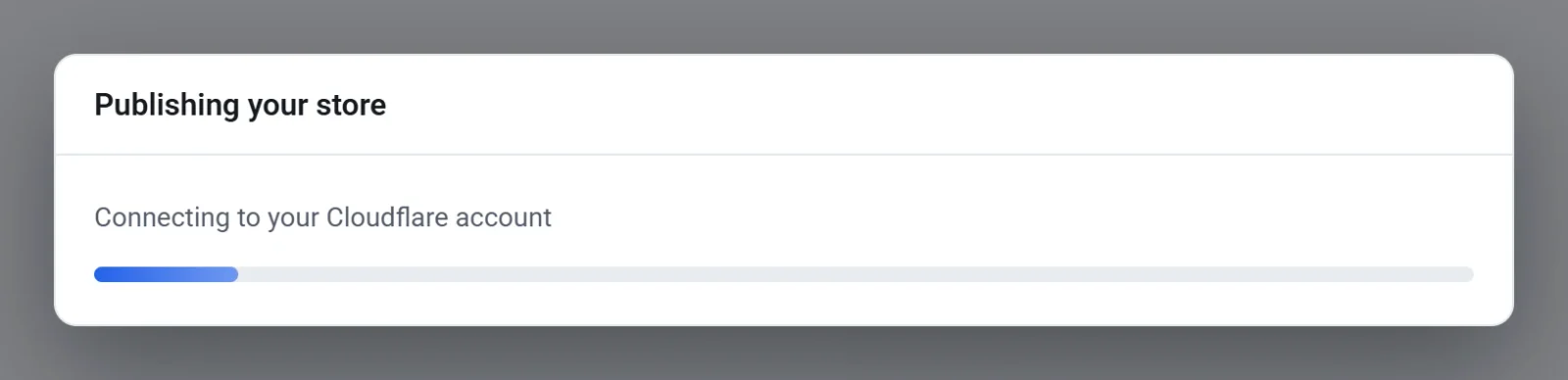
- Wait while the Publishing your store box works through its steps: saving your changes, connecting to your Cloudflare account, preparing your fonts, building your pages, adding images, saving products and members-only pages, and uploading your store. The box cannot be closed until it finishes.
- When the box says Your store is live, click View store to open it, or click Done.
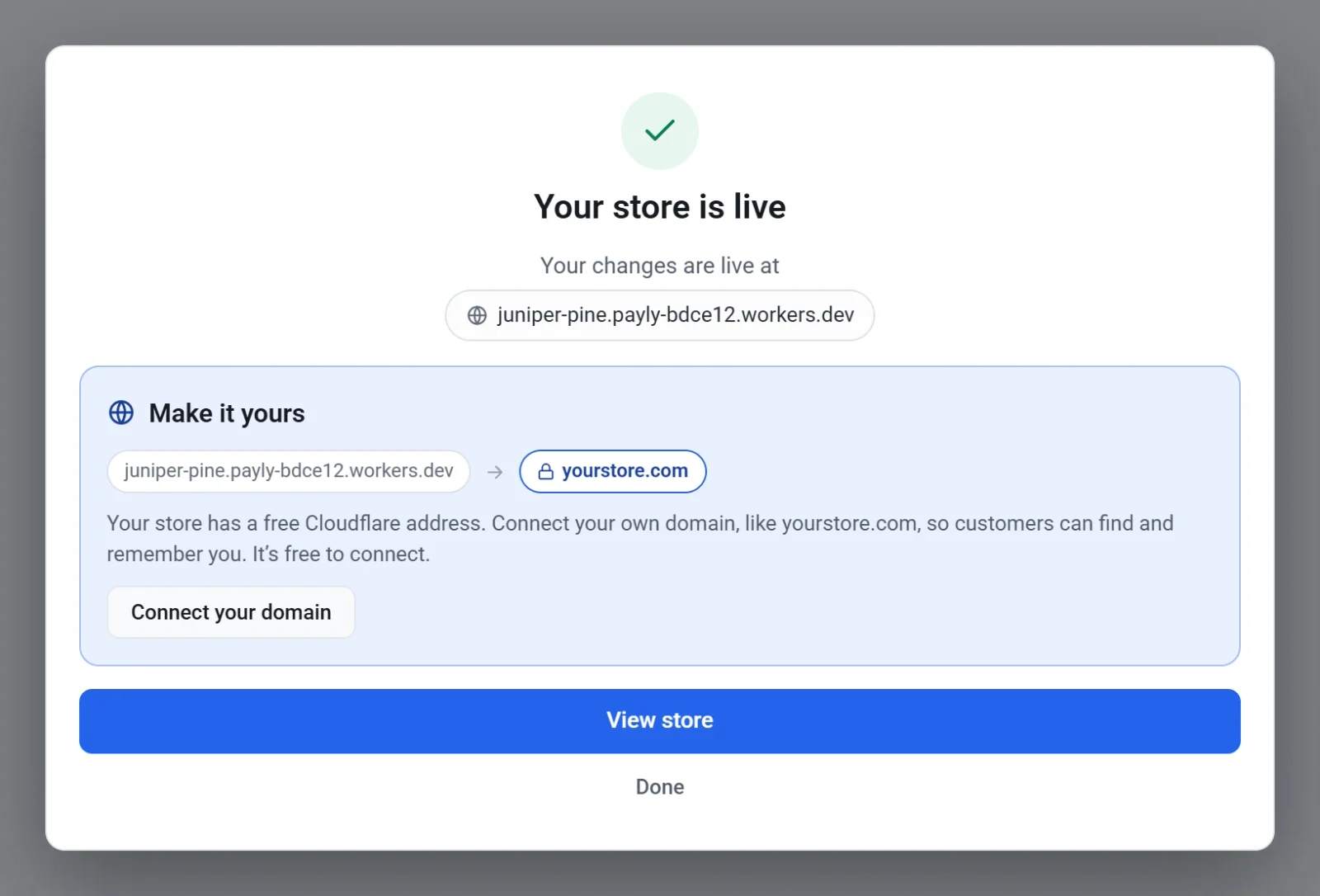
Changes can take up to a minute to appear on your live website, so you may see the old page once more. That does not mean the publish failed. If the box says Publishing did not finish, read the message, click Close and try again.
Publish from Dashboard & Analytics
You can also publish without opening the editor. In your site dashboard, click Dashboard & Analytics, then Publish on the Overview tab. A site that has not been published shows a Draft label there. After a publish the label changes to Live. This publishes everything you have saved, but it does not show the step-by-step box.
Update your store later
Use the same Publish button. Edit your site, wait for the status to say Saved, not published, then publish again. Publishing sends the whole saved site, so it also sends any other changes you have saved and not yet published.
Every publish also saves a backup of your design in your Cloudflare account. See Undo changes and restore an earlier version.
Take your site offline
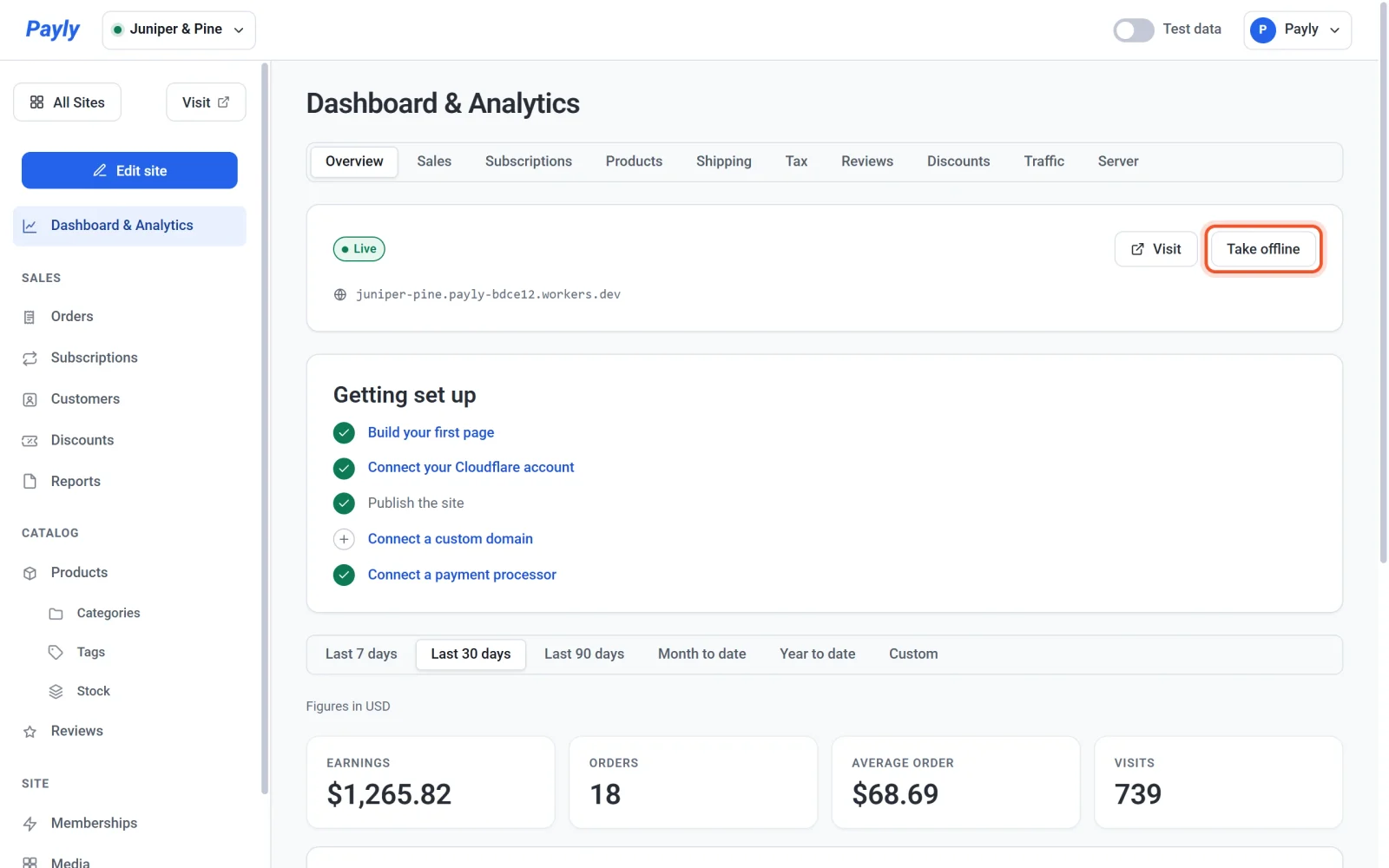
- In your site dashboard, click Dashboard & Analytics. It opens on the Overview tab.
- Click Take offline. This button replaces Publish while your store is live.
- Read the message, then click Take offline to confirm. Click Cancel to leave the store online.
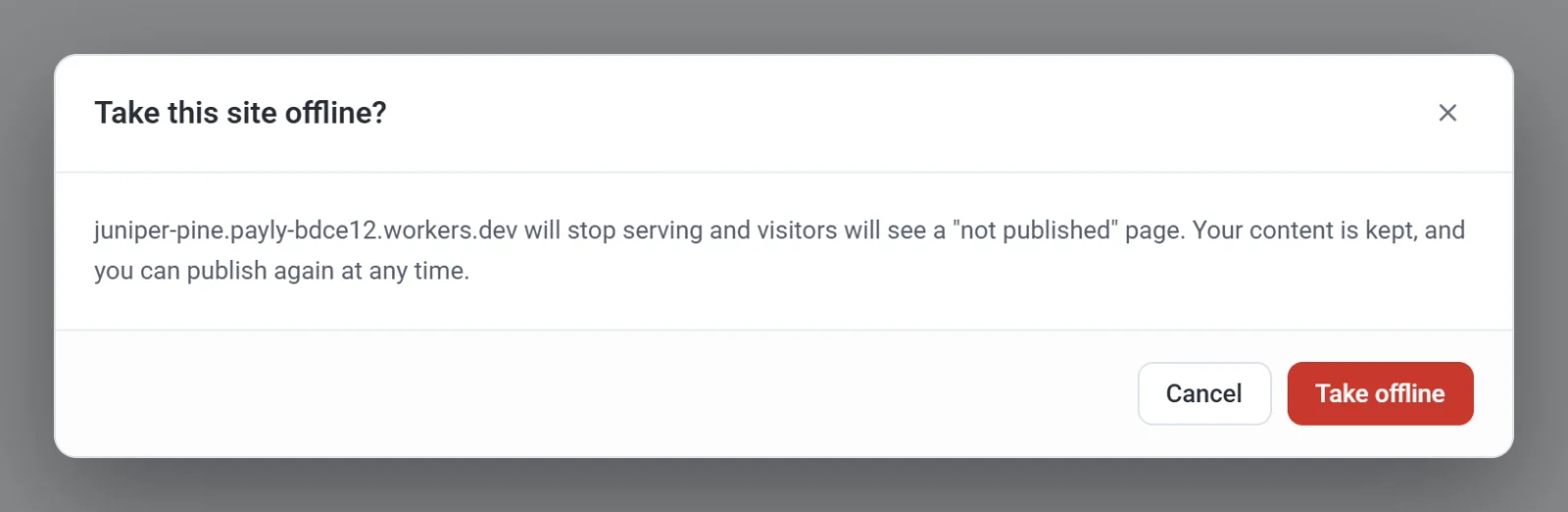
Your store address then shows a page that says the store has not been published yet, and customers cannot browse or buy. Your pages, products, orders and customers are kept, and nothing is deleted. The label on the Overview tab changes back to Draft. To put the store back online, click Publish.
Payly needs your Cloudflare account to take a store offline. If you have disconnected it, connect it again first.