
Sell a subscription product
Create a recurring product that charges customers every day, week, month or year, and put it on sale in your store.
A subscription product is a product that customers pay for again and again, such as a studio membership, a monthly supply of clay or a yearly pass. You set the price and how often it is charged. Stripe or PayPal then collects each payment on schedule, and every payment appears as an order in your store.
Before you start
- Connect Stripe or PayPal, because they run the billing. See Connect Stripe and Connect PayPal.
- Keep test mode on while you try things out, so no real money moves.
Create the product
- In your site dashboard, click Products.
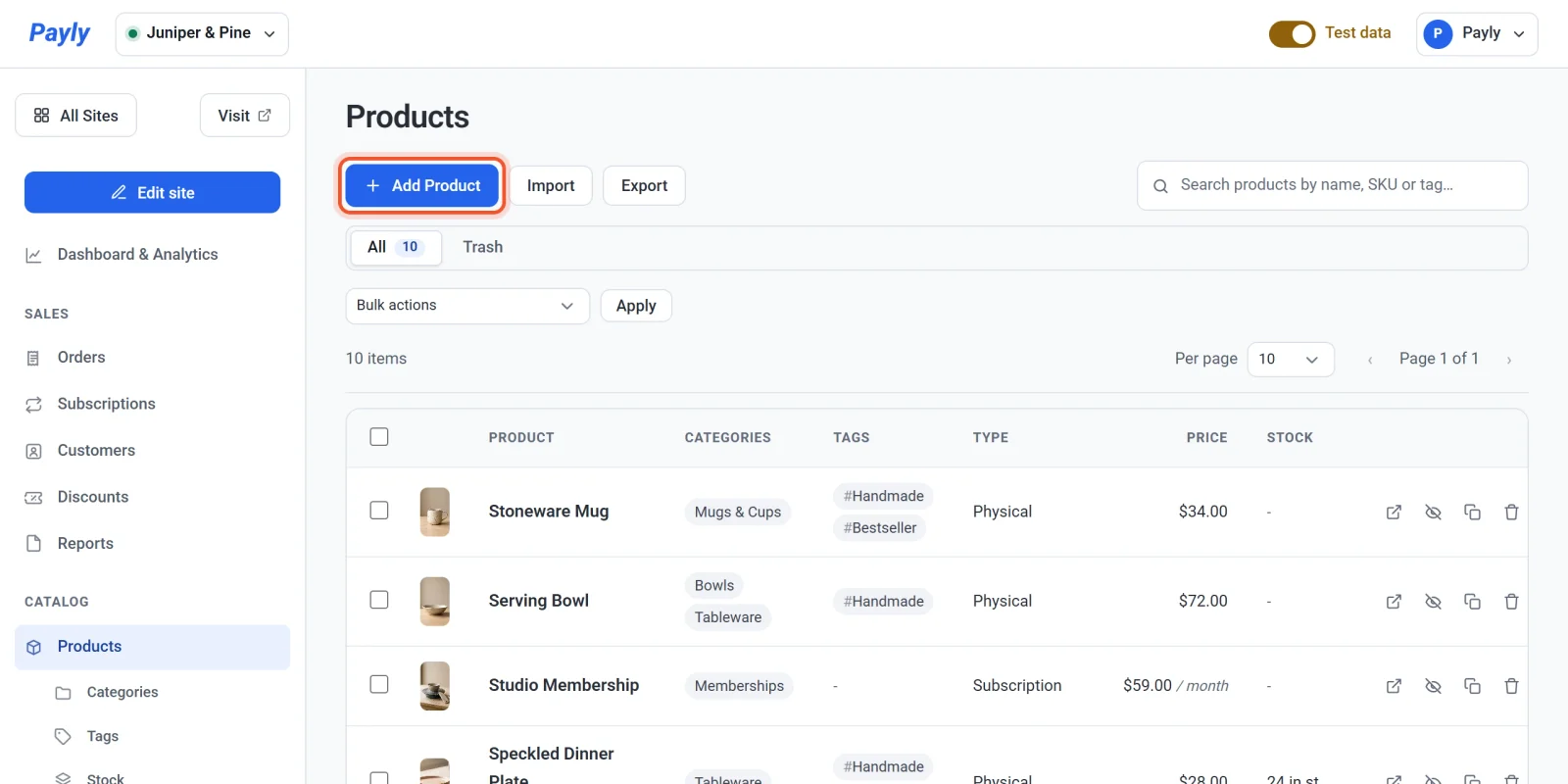
- Click Add Product.
- Open Product type and choose Subscription / membership product. The stock options disappear, and a Subscription / membership product section appears further down the form.
- Enter a Product name and a Description.
- Enter the Price. This is the amount charged for each billing period. For a membership that costs $59 a month, enter 59.00.
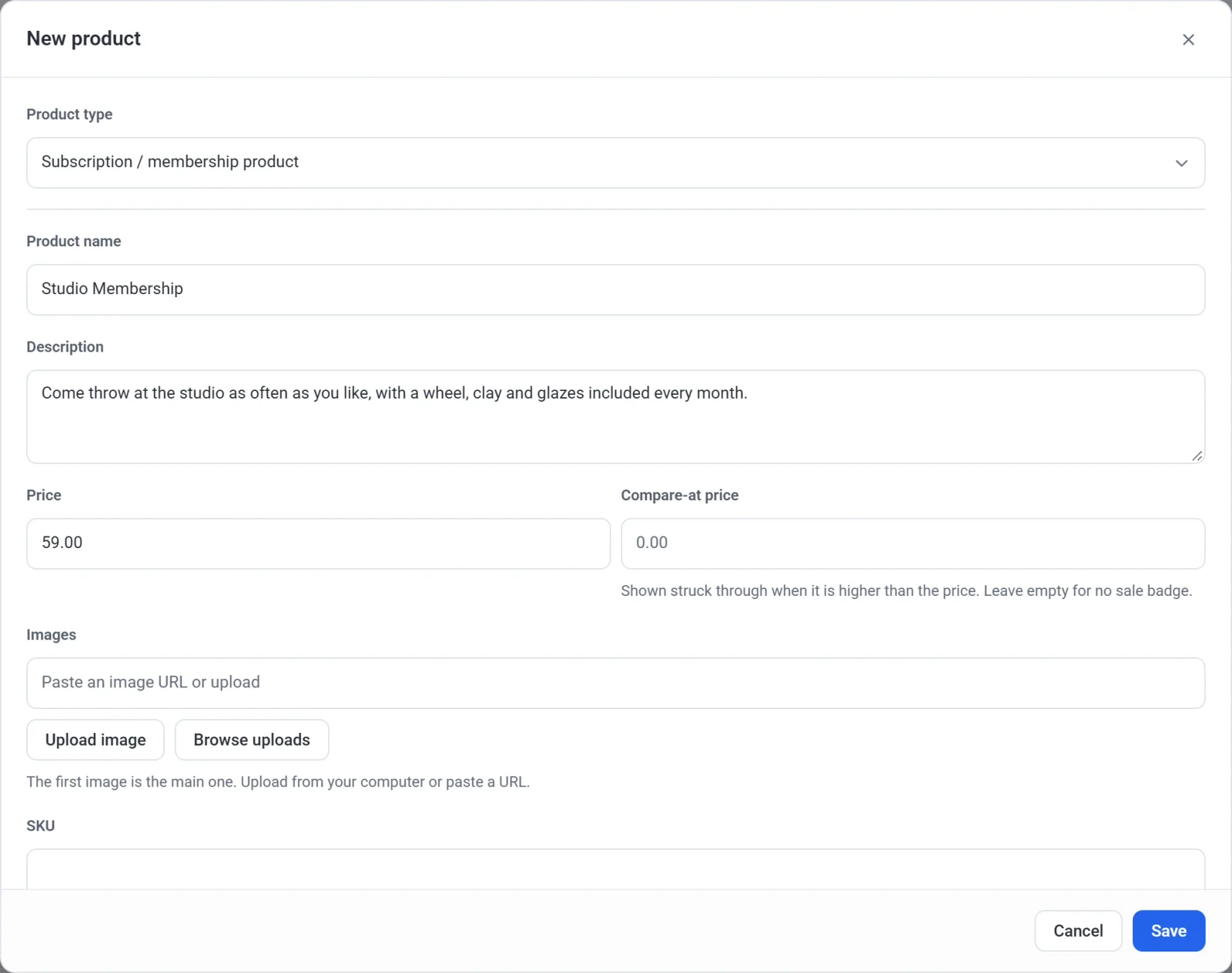
- Add one or more images. Categories, tags and the other basic fields work as they do for any product. See Add a product.
- Scroll to the Subscription / membership product section. Under Bill every, enter a number, then choose Days, Weeks, Months or Years under Period. The default is 1 month.
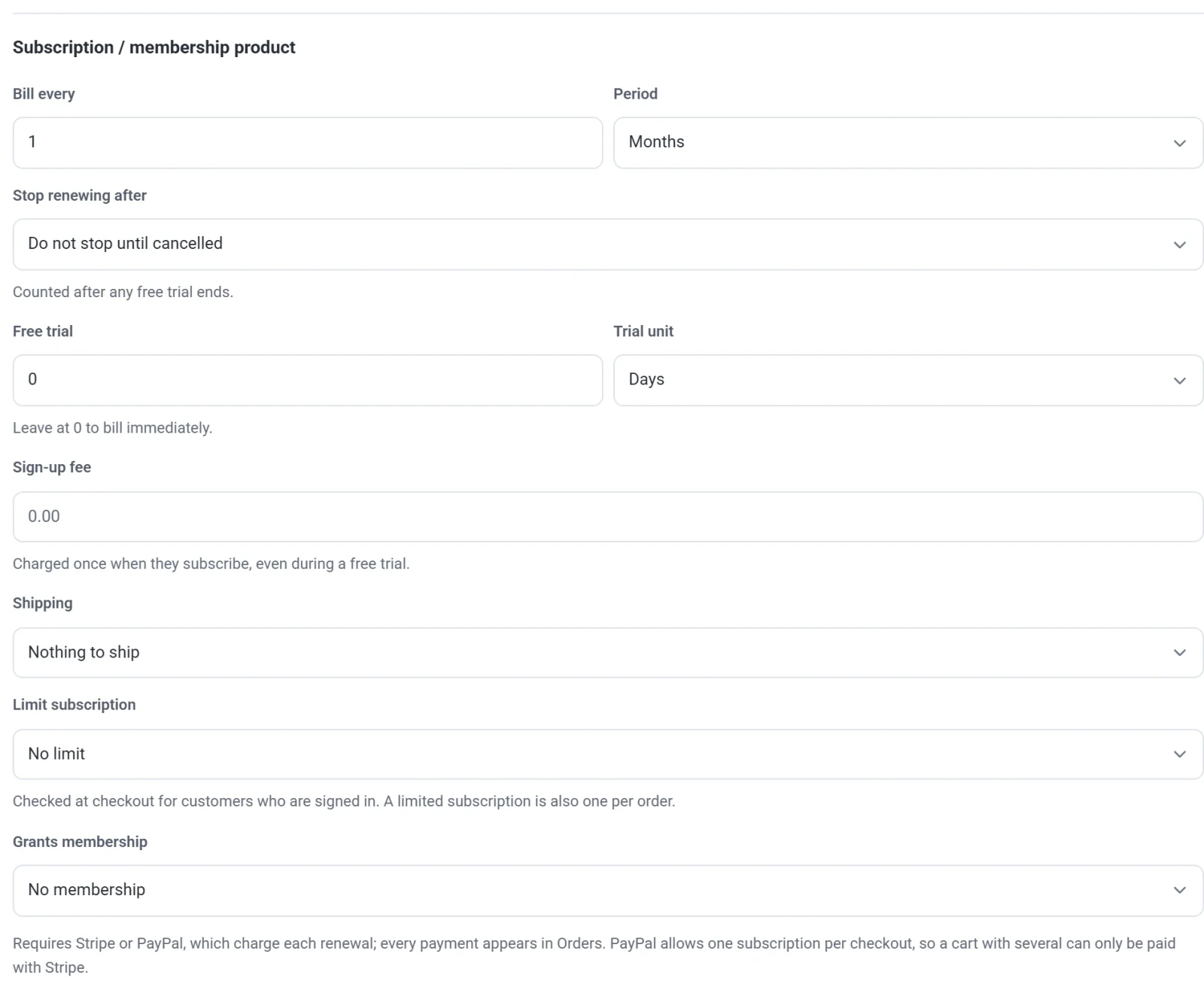
- Change any of the optional settings described below.
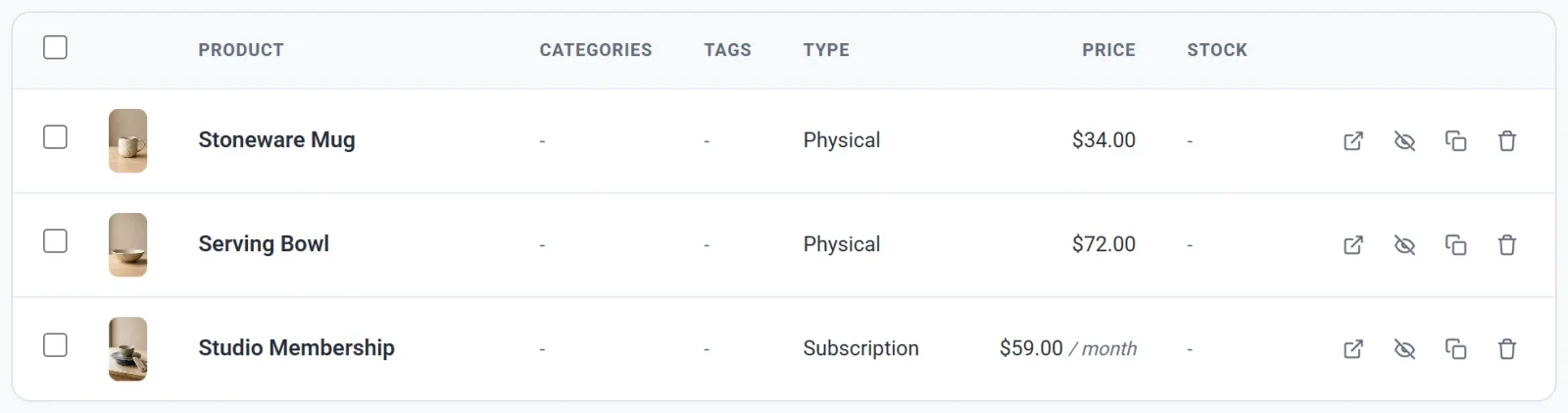
- Click Save. The product appears in your list with the type Subscription and its price followed by the period, such as $59.00 / month.
The subscription settings
| Setting | What it does |
|---|---|
| Bill every and Period | How often the customer is charged. Bill every 1 month is monthly, every 3 months is quarterly, and every 1 year is yearly. |
| Stop renewing after | Leave it on Do not stop until cancelled for a subscription that runs until the customer cancels. Or pick a length, such as 12 months, and the subscription ends by itself after that many payments. The lengths on offer are whole multiples of the billing period, up to 90 days, 52 weeks, 24 months or 5 years. The count starts after any free trial. |
| Free trial and Trial unit | A period at the start with no charge. See Free trials and sign-up fees. |
| Sign-up fee | A one-time amount charged when the customer subscribes, on top of the regular price. |
| Shipping | Nothing to ship suits memberships and digital access. For a subscription that sends something in the post, choose to charge shipping on every payment, or on the first payment only. The first-payment-only choice is not available when there is a free trial. |
| Limit subscription | Choose Limit to one active subscription or Limit to one of any status to stop a customer from buying the same subscription twice. Payly checks this at checkout for customers who are signed in. |
| Grants membership | Pick a membership level, so people who subscribe can open your members-only pages. See Create membership levels. |
What your customers see
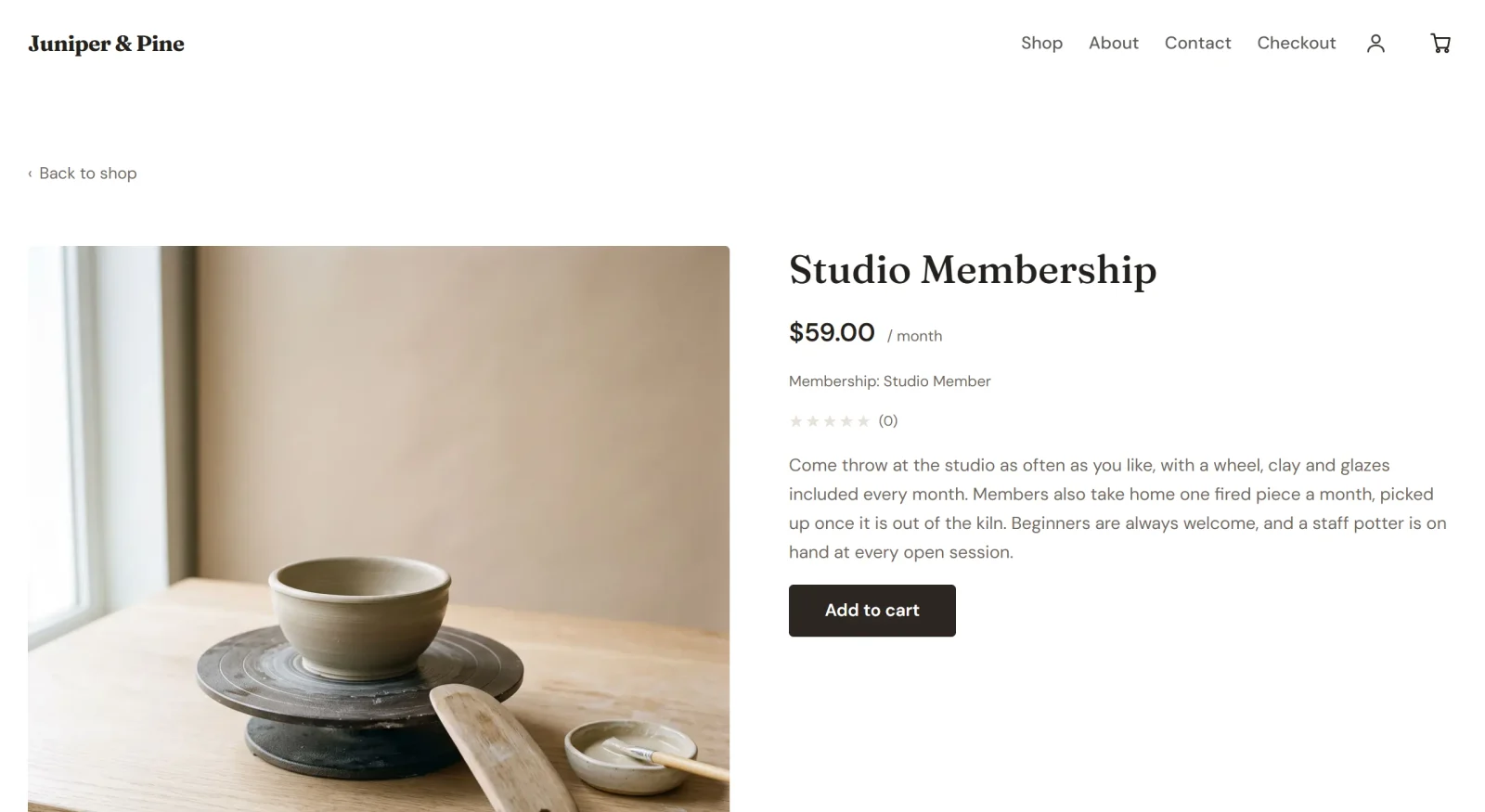
On the product page, the price is shown with its period, such as $59.00 / month, followed by any free trial, sign-up fee or membership level. Customers add the product to the cart and check out as they would for any other product, then pay with a card through Stripe or with PayPal. Payly creates an account for them from the email address they enter, so they can sign in later to manage the subscription. See How customers manage their subscriptions.
Note: PayPal takes one subscription per checkout. A cart that holds several subscriptions can only be paid with Stripe.
Put it on sale
Once your site is published, a product you save appears in your store without publishing again. If you have not published yet, the product goes live with your first publish. See Publish your first site. After someone subscribes, you can find the subscription under Subscriptions and each payment under Orders. See View and manage subscriptions.