
Disconnect or change a payment account
Disconnect Stripe or PayPal from your store, switch to a different payment account, and learn what stays the same.
You can disconnect Stripe or PayPal from your store at any time, and connect again whenever you like. To move to a different Stripe or PayPal account, you disconnect the one you have and connect the other.
Before you start
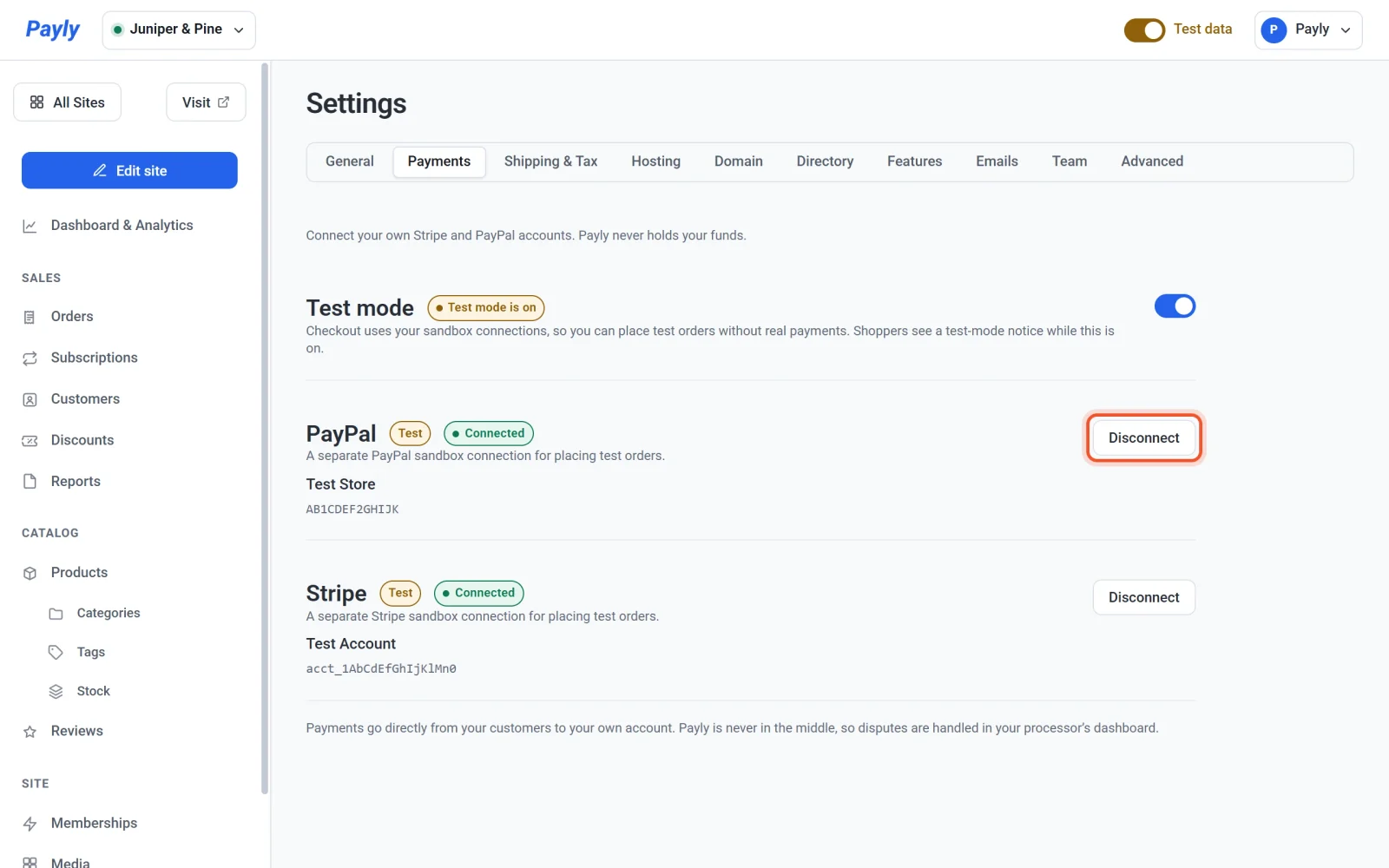
- Each card on the Payments tab shows the connection for the mode your store is in. While test mode is on, you see and disconnect your test connections. To disconnect a live connection, turn test mode off first.
- Disconnecting one processor does not affect the other, or the connection you keep for the other mode.
Disconnect a payment account
- In your site dashboard, click Settings, then click the Payments tab.
- Find the card for the account you want to remove, PayPal or Stripe, and click Disconnect.
- Read the message in the dialog.
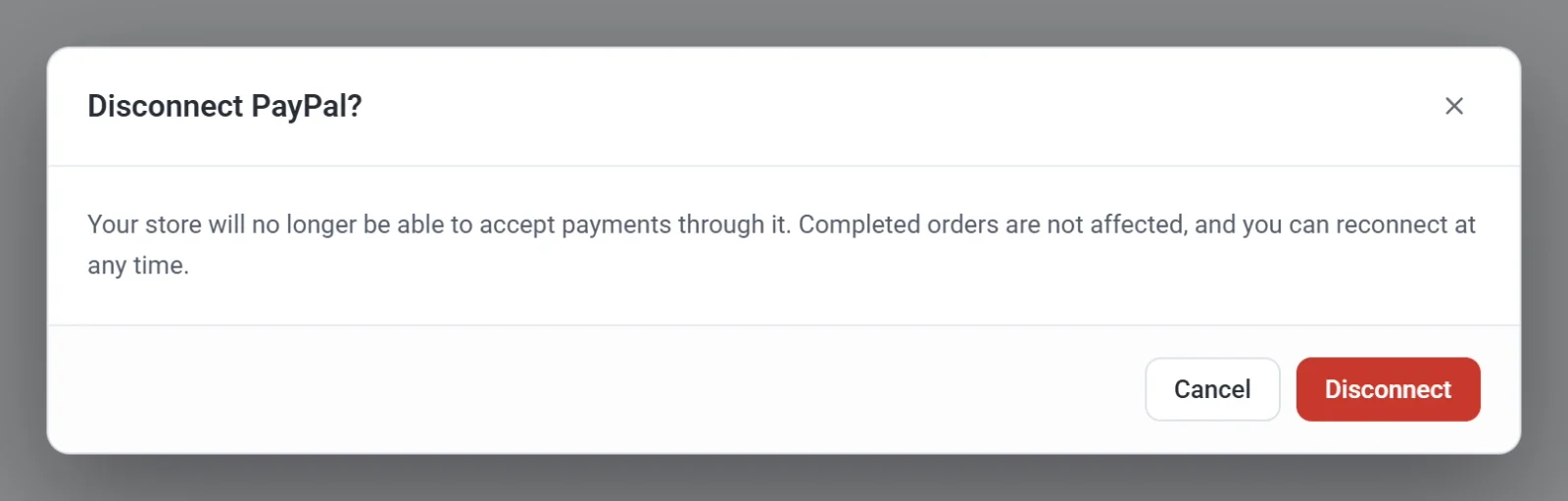
- Click Disconnect to confirm, or Cancel to keep the connection. Nothing changes until you confirm.
After you confirm, Payly shows a message that the account was disconnected, and its card goes back to Not connected with a Connect button.
What happens when you disconnect
- Customers can no longer pay through that processor. Its button disappears from your checkout page. If it was your only processor, checkout tells customers that the store is not set up to take payments yet.
- Orders you have already taken are not affected, and your money stays where it is. Disconnecting does not close your Stripe or PayPal account, and it does not change your balance or payouts.
- While the account is disconnected, you cannot issue refunds from Payly for orders paid through it. Payly also cannot cancel or pause subscriptions that were started through it, because Stripe or PayPal bills them. Reconnect the same account to do these things from Payly again, or work in your Stripe or PayPal dashboard.
Important: Subscriptions that your customers started through Stripe or PayPal keep billing after you disconnect, because Stripe or PayPal runs them. Cancel or finish any subscriptions you no longer want before you disconnect.
Switch to a different account
- Disconnect the account you have, as described above.
- Click Connect Stripe or Connect PayPal on the same card, and sign in with the other account when Stripe or PayPal asks. The steps are in Connect Stripe and Connect PayPal.
- Back on the Payments tab, check that the card shows the new account's name.
Orders taken before the switch belong to the old account. To refund one of them, use the old account's Stripe or PayPal dashboard. If you connect the same account again, you can refund those orders from Payly as before.
During the switch, customers cannot pay with the processor you are changing. Do it while your store is quiet, or while your other processor stays connected.