
A tour of your site dashboard
Find your way around the site dashboard: the top bar, the menu, what each section is for, and how the Test data switch works.
The site dashboard is where you run your store day to day: see how your store is doing, look after products and customers, and change settings. Every site has its own dashboard. The editor, where you design your pages, is a separate screen that you open from here.
Open your site dashboard
On the Your sites screen, click Dashboard on the card of the site you want. From the editor, click the Dashboard button at the top left to come back.
The layout
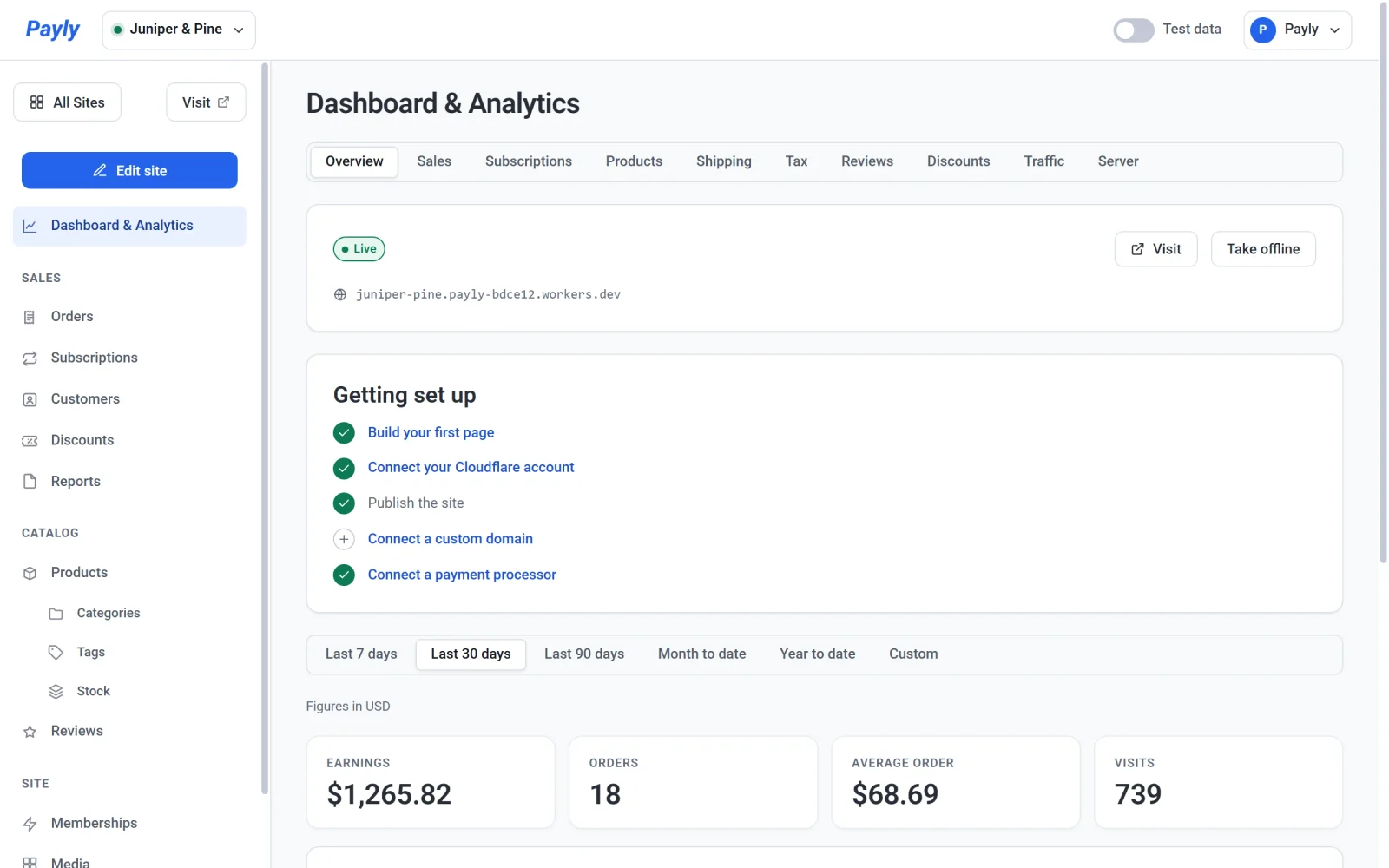
The dashboard has three parts:
- The top bar. The site switcher is on the left. The Test data switch and your account menu are on the right.
- The menu on the left. It lists every section. Three buttons sit above it: All Sites takes you back to your list of sites, Visit opens your live store in a new tab, and Edit site opens the editor. Visit appears once your store has an address.
- The main area. It shows the section you have open. The dashboard opens on Dashboard & Analytics.
Switch between sites
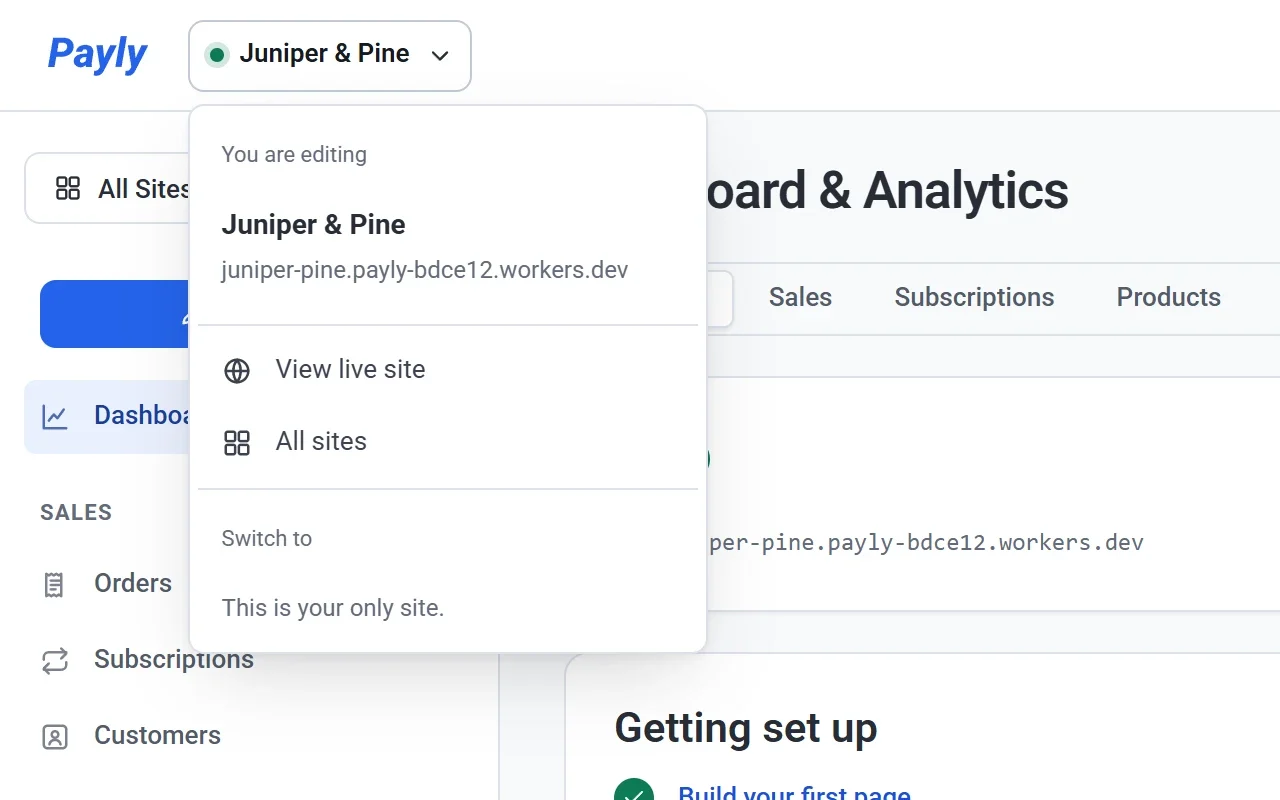
Click the site name at the top left. The menu shows the site's address, links to View live site and All sites, and a list of your other sites. A green dot beside the name means the site is live.
Your account menu
Click your name at the top right. The menu shows the email address you signed in with and lets you choose the theme (Light, Dark or Auto) and the language Payly speaks to you. It also links to your account Settings, to the Payly home page, and to Sign out.
What each section is for
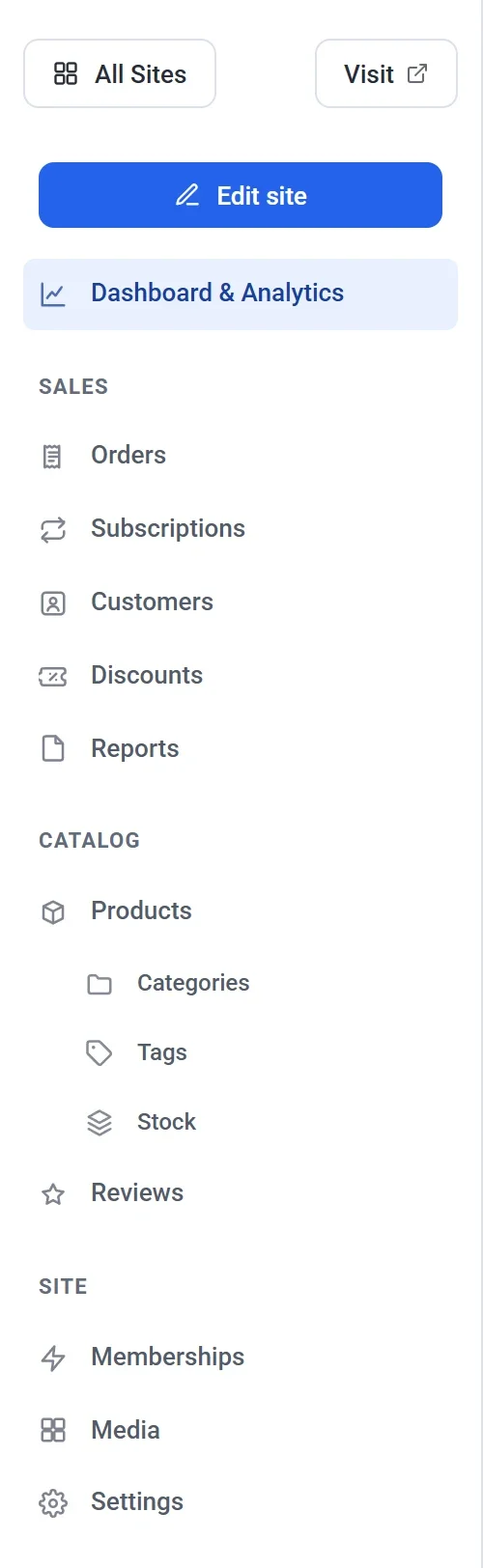
| Section | What you do there | Learn more |
|---|---|---|
| Dashboard & Analytics | See whether your site is live and what is left to set up, publish it or take it offline, and follow your sales, subscriptions, products, shipping, tax, reviews, discounts, visitors and Cloudflare usage, each on its own tab. | Understand Dashboard & Analytics |
| Orders | Search every order, filter by status, issue refunds and add an order by hand. | View and manage orders |
| Subscriptions | See the active subscriptions in your store, including memberships. | View and manage subscriptions |
| Customers | See everyone who has bought from you, and add customers yourself. | Your customers list |
| Discounts | Create codes that customers can type at checkout. | Create discount codes |
| Reports | Download sales, tax and shipping figures as a spreadsheet file, for any dates and places. | Download sales, tax and shipping reports |
| Products | Add and edit what you sell. Categories, Tags and Stock sit under it. | Add a product |
| Reviews | Read what customers say about your products and reply. | Collect and moderate product reviews |
| Memberships | Set up levels of access for members-only pages. | Create membership levels |
| Media | Upload and manage the images you use on your site. | Add images and use the media library |
| Settings | Change your site name, store details, payments, hosting, domain and team. The Advanced tab holds the option to delete the site. | General site settings |
Reviews and Memberships are listed only while they are switched on in Settings > Features.
Test data and live data
The Test data switch in the top bar controls which orders you see. When it is on, the money tabs of Dashboard & Analytics, Orders, Subscriptions, Customers and Reports show only the orders placed in test mode, and a band across the top says so. Click Show live data in the band, or turn the switch off, to see real orders. Test and live data are never added together.
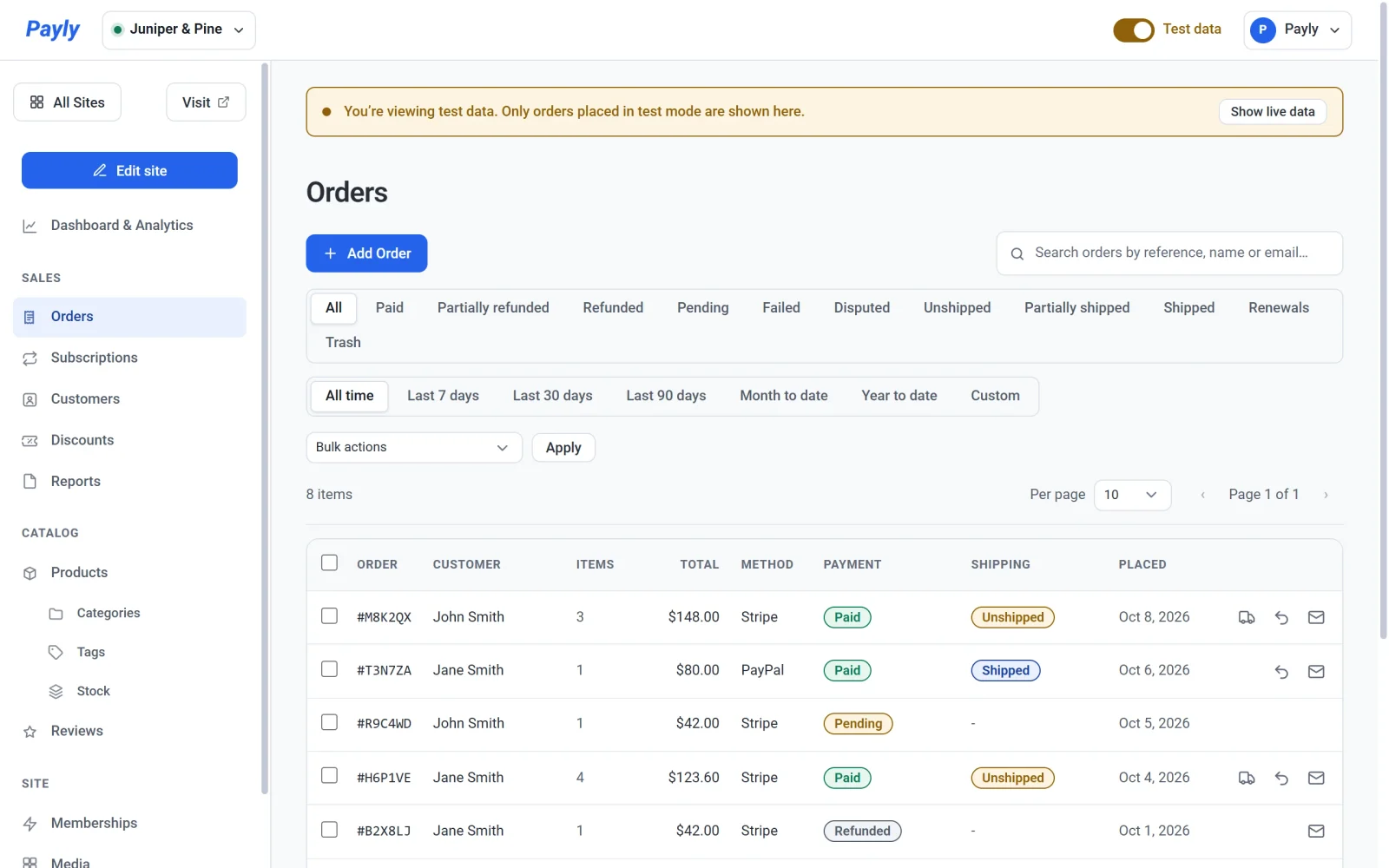
The switch starts on the side your store takes payments on, set in Settings > Payments. Your choice lasts for the current visit, and the next visit starts from your store's setting again. See Test data and live data.
Screens outside a single site
Click All Sites to leave a site's dashboard. The menu on the Your sites screen has three entries:
- Sites lists your sites and lets you create new ones.
- Team invites people who can work on every site in your account. See Invite your team and set roles.
- Settings holds your own details: display name, email address, password, language and animation. See Manage your account settings.