
Manage your account settings
Change your display name, email address, password, language, animation and theme from your Payly account settings.
Your account settings are about you, not about any one store: your name, your sign-in details and how Payly looks to you. They apply across every site you own. Settings for a single store live inside that store's dashboard instead (see General site settings).
Open your account settings
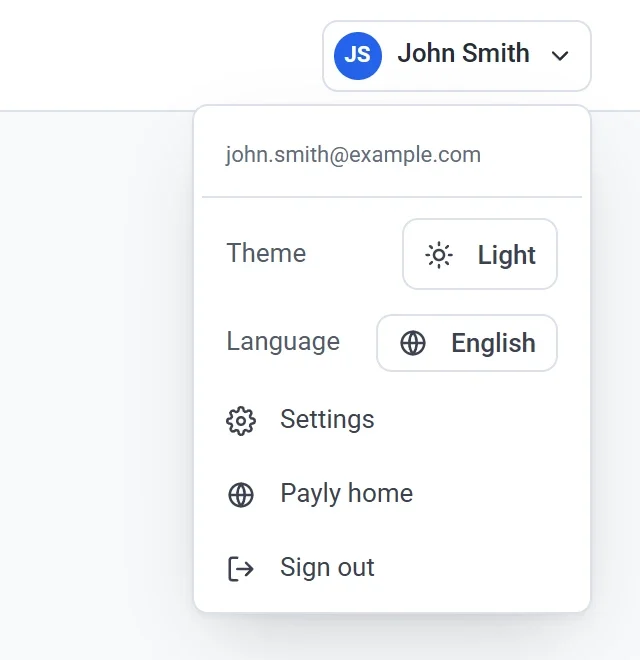
- Click your name at the top right of any screen.
- Click Settings in the menu.
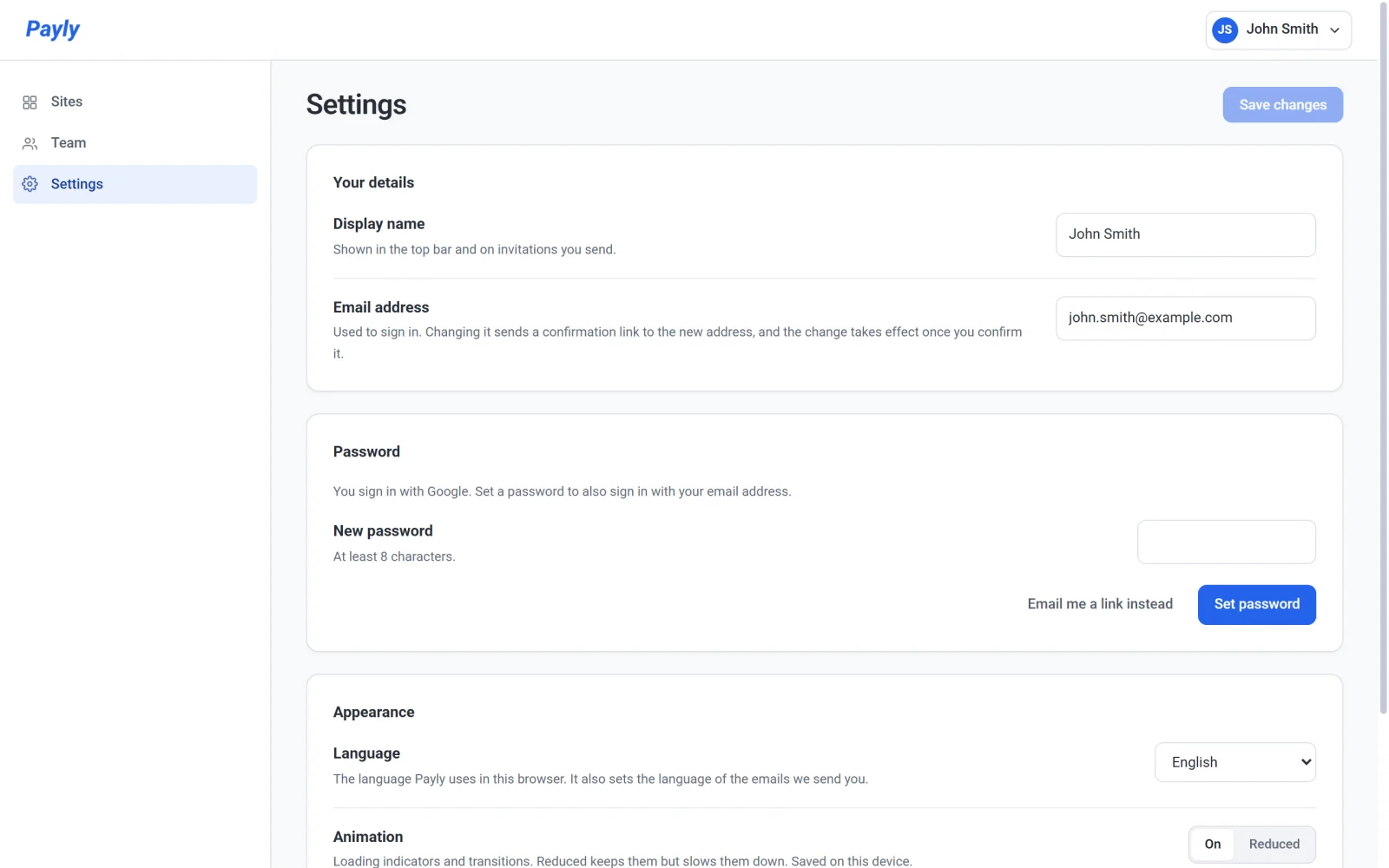
On the Your sites screen you can also click Settings in the menu on the left. That menu has three items: Sites, Team and Settings.
Change your name or email address
- Under Your details, edit Display name. Payly shows it in the top bar and on invitations you send to your team.
- Edit Email address if you want to sign in with a different address.
- Click Save changes. The button stays dimmed until you change something.
A new email address does not take effect straight away. Payly sends a confirmation link to the new address, and your current address keeps working until you click that link. This address is also where Payly sends you emails about your store, such as new orders. See Choose which emails you receive.
Set or change your password
The Password section has its own button, separate from Save changes. What it shows depends on how you sign in.
- You signed up with Google or Apple. You have no password yet. Enter one in New password and click Set password. You can then sign in with your email address too.
- You already have a password. Enter it in Current password, enter the new one in New password, and click Change password.
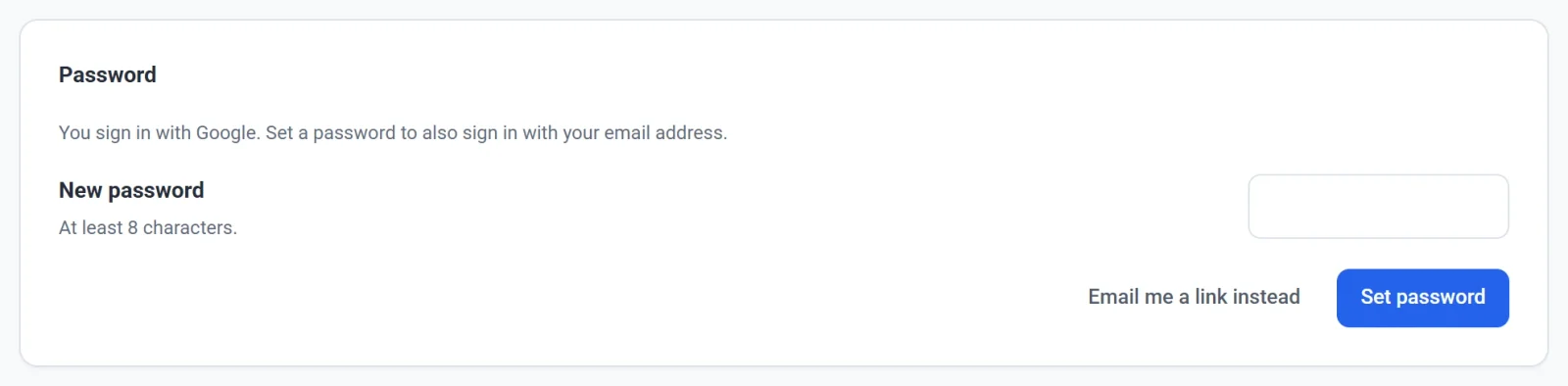
A password needs at least 8 characters, and Payly refuses ones that are too easy to guess or the same as your current one. If you have forgotten your current password, click Email me a link instead. Payly emails you a link that works once, within one hour, and lets you choose a new password. Use the same button if Payly asks for a more recent sign-in before it lets you set a password.
Choose your language and animation
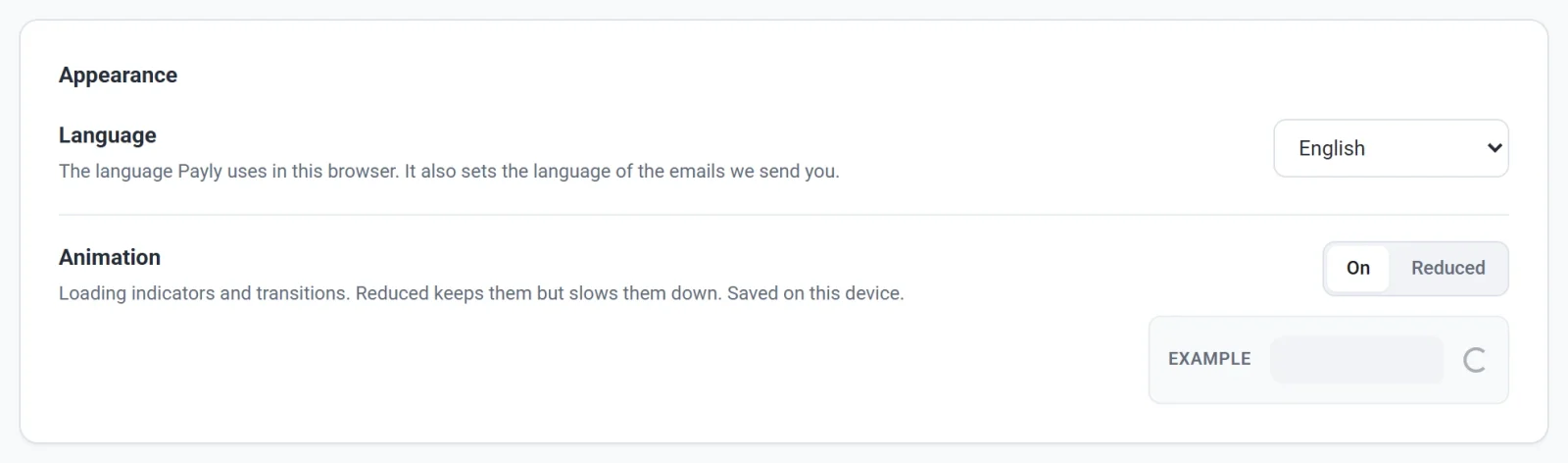
The Appearance section has two settings.
- Language is the language Payly uses for you in this browser. It also sets the language of the emails Payly sends you. It changes the moment you pick a language, so you do not need to click Save changes. It does not change what your shoppers see: that is the store language, which you set per store.
- Animation controls loading indicators and transitions. On is the normal setting. Reduced keeps them but slows them down. The Example box shows what your choice looks like. Click Save changes to keep it. It is remembered on this device only.
Choose a theme
The theme is not on the Settings screen. It is in the account menu, in the Theme row. Click the button to step through Light, Dark and Auto. Auto follows your computer's own light or dark setting. The choice applies at once, and Payly remembers it on your account so it follows you to other computers.
Note: The account menu also has Payly home, which opens payly.org, and Sign out. If you leave the Settings screen with changes you have not saved, your browser asks you to confirm first.